






Search By Model
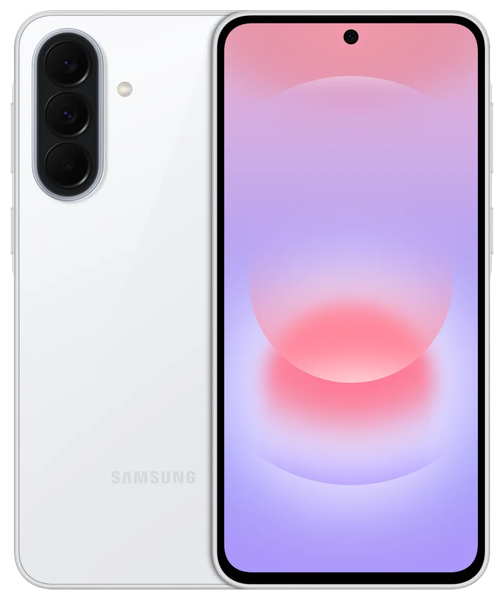
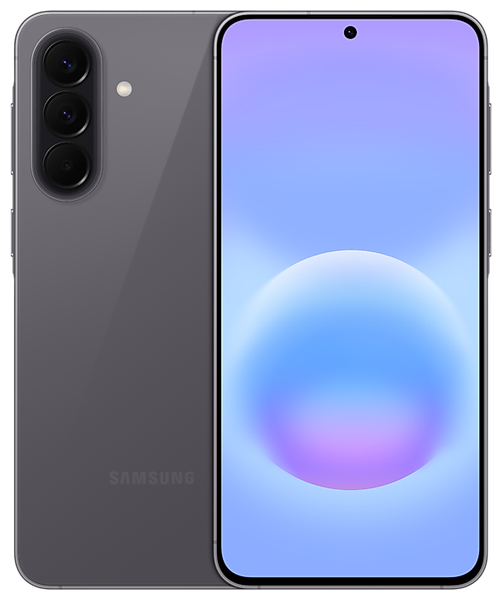
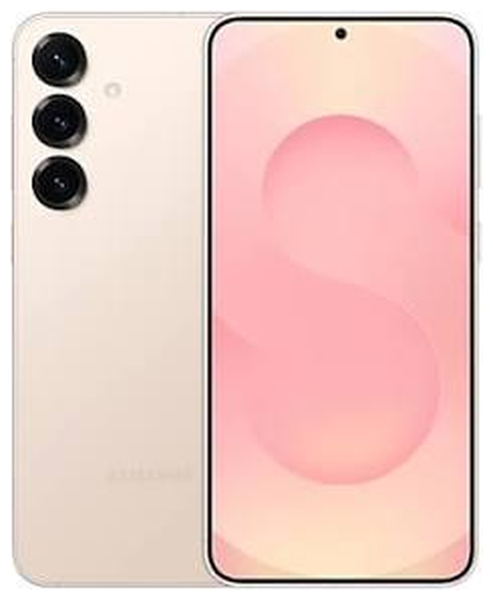
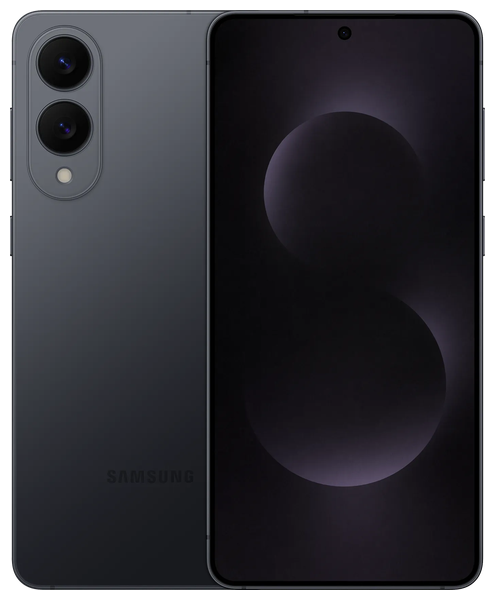
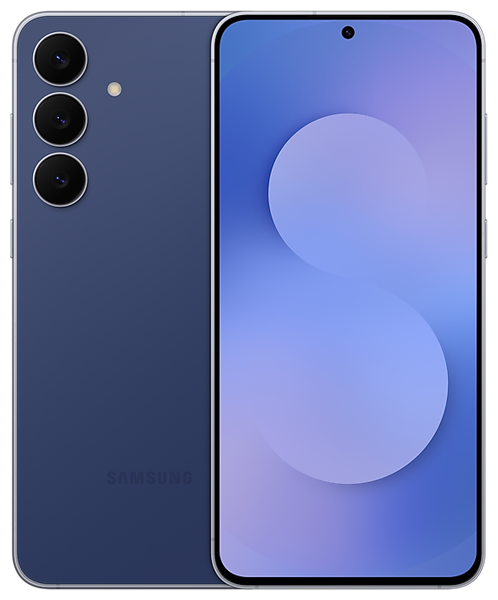
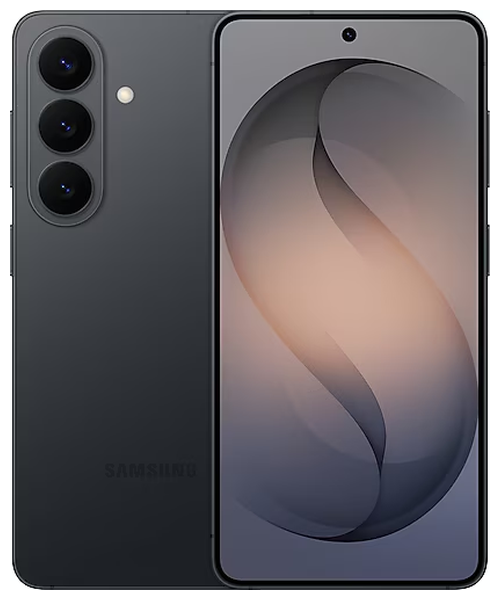
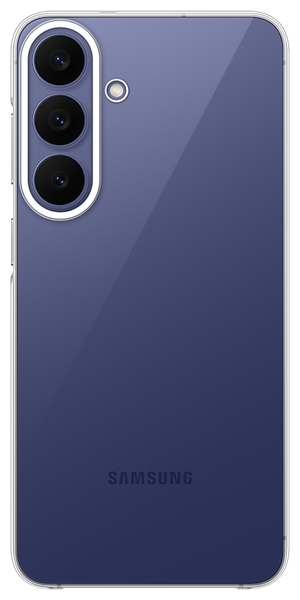
Solutions for Your Samsung Troubles

Screen Repair
Cracked or unresponsive screens are replaced with quality parts.

Data Recovery & Backup
Retrieve lost files and set up secure backups.

Camera Repair
Camera not working? We fix focus, lens, and connection issues.

Charging Port Repair
Fix charging issues and keep your phone powered up.

Water Damage Repair
Save your device from liquid accidents.
We Fix Every Device - Fast, Reliable & Hassle-Free

Cracked Screen
Get your screen replaced quickly with premium parts.

Battery Issues
Extend your device’s life with a new battery.

All Brands & Models
From iPhone to Android, laptops to tablets, we service them all.
Why Android Phone Repair Beats Buying New (And How to Do It Right)
Why throw away a perfectly repairable phone just because the screen cracked or the battery won't hold a charge anymore? You're probably thinking about buying a new phone because yours is acting up, but here's the question nobody asks: does that actually make financial sense? Your Samsung Galaxy, Google Pixel, Motorola, OnePlus, or whatever Android device you're carrying still has plenty of life left—it just needs the right repair.
Professional Android Phone repair addresses specific problems without the massive expense of replacement. We're talking about fixing what's broken instead of replacing an entire device where 90% of the components still work perfectly. Whether you've got a cracked screen, dying battery, charging port issues, or software problems, most Android repairs cost a fraction of buying new and get you back to a fully functional phone. At The Fix, we repair Android devices from every major manufacturer—Samsung, Google, Motorola, OnePlus, LG, and more. Let's show you why repair makes more sense and how we do it right.
Understanding Android Devices
Here's what makes Android interesting from a repair perspective: diversity. Unlike a certain fruit-branded competitor that controls both hardware and software tightly, Android runs on phones from dozens of manufacturers. Samsung dominates the market. Google's Pixels showcase pure Android. Motorola offers solid mid-range options. OnePlus targets performance enthusiasts. Each manufacturer adds their own touches—different screen technologies, various build materials, unique button placements, proprietary features.
This diversity means Android Phone repair requires broader expertise than single-manufacturer repairs. A Samsung Galaxy S series uses curved AMOLED displays with specific adhesive requirements. Google Pixels have unique camera modules and Tensor chips. Motorola phones often use different internal layouts. OnePlus devices prioritize fast charging with proprietary systems. At The Fix, we've worked on them all. We understand manufacturer-specific quirks, component differences, and optimal repair approaches for each brand.
What unites all Android devices is that they're fundamentally repairable. Screens can be replaced. Batteries swap out. Charging ports are serviceable. Cameras, buttons, speakers—all replaceable components. Sure, some manufacturers make repairs easier than others, but professional Android Phone repair addresses problems across all brands and models.
Cracked or Shattered Screens
What you're experiencing: Your Android phone's screen has spider-web cracks spreading across it. Maybe you dropped it getting out of your car, or it fell off the table, or something heavy landed on it in your bag. The display might still work perfectly aside from the cracks, or maybe parts of the touchscreen don't respond anymore. You're cutting your fingers on sharp glass edges and staring at a reminder of that one moment every time you use your phone.
Why this happens: Android phone screens are engineering marvels—thin glass protecting delicate OLED or LCD displays underneath, with touch digitizers integrated into the assembly. They're strong against normal use but vulnerable to impacts and pressure. Drop physics are unforgiving—even a 3-foot drop onto hard surfaces concentrates force at impact points. Curved screens on premium Samsung devices look gorgeous but are more vulnerable at edges. Larger displays on modern phones mean more surface area to crack.
What you can try:
- Stop using it if glass is badly shattered—sharp edges can cut you and bits of glass can work deeper into the display assembly.
- Apply clear packing tape over the cracks as a temporary measure to hold glass together and protect your fingers.
- Back up your data immediately if the screen's getting worse—complete failure could happen suddenly.
- Don't attempt DIY screen replacement unless you're experienced—Android screens require specific tools, proper adhesive, and careful reassembly.
The pattern that emerges from repairs: Cracked screens are the most common Android Phone repair we handle across all brands. The repair process varies by manufacturer—Samsung screens require careful heat application to remove adhesive and precise alignment during installation. Google Pixel screens need attention to fingerprint sensor integration or under-display components. Motorola screens are generally straightforward. Budget Android phones use different quality displays but are still very repairable. At The Fix, we stock screens for major Android models or can source them quickly. After professional screen replacement, your Android looks and functions like new—no cracks, full touch response, proper brightness and colors. The repair costs a fraction of replacement and you keep your phone, your data, and your familiarity with your device.
Battery Dying Ridiculously Fast
What you're experiencing: Your Android phone used to last all day easily. Now you're at 20% by lunch. The battery percentage drops suddenly—showing 60% one minute, then 15% the next. You're constantly hunting for chargers, carrying power banks, planning your day around available outlets. Your phone's essentially become a very expensive wired device instead of the mobile tool it should be.
Why this happens: All Android devices use lithium-ion batteries that degrade chemically with use. Every charge cycle—from empty to full—causes microscopic changes in the battery cells. Most Android phone batteries are rated for 300-500 cycles before significant capacity loss. Daily charging means hitting that threshold in 12-24 months. Heat accelerates degradation—using your phone while fast-charging, gaming for extended periods, or leaving it in hot cars ages batteries faster. Eventually the battery can't hold enough charge to be useful.
What you can try:
- Check battery health if your Android version includes that info: Settings → Battery → Battery Health (Samsung has it in Device Care).
- Identify battery-draining apps: Settings → Battery → Battery Usage shows what's consuming power.
- Enable battery saver mode and reduce screen brightness to extend time between charges temporarily.
- Avoid wireless charging if your battery's already degraded—it generates more heat than wired charging.
- Don't let it die completely regularly—lithium-ion batteries prefer partial discharge cycles.
Here's what we've learned from the repair bench: Battery replacement is the second most common Android Phone repair after screens, and it's incredibly satisfying for customers. People adapt gradually to dying batteries—they stay near outlets, carry multiple chargers, keep power banks in bags—and forget what normal battery life feels like. After professional battery replacement with a tested component meeting manufacturer specifications, they get actual all-day use back. Their Android phone becomes genuinely mobile again. The transformation reminds them why they bought the phone in the first place. For Samsung devices especially, proper battery replacement includes resetting battery calibration so the system accurately tracks charge levels. For Google Pixels, we ensure proper adhesive so the phone maintains water resistance. Every Android brand has specific considerations, and we handle them all correctly.
Charging Port Loose or Not Working
What you're experiencing: You have to hold your charging cable at a specific angle to get your Android phone to charge. Sometimes it charges, sometimes it doesn't. You're constantly jiggling the cable, propping your phone up with books to maintain the right angle. Or maybe the port stopped working entirely—cable goes in but nothing happens, no charging, no data transfer.
Why this happens: Android phones use USB-C ports (or Micro-USB on older devices) that endure constant mechanical stress. Every time you plug in a cable, internal contacts experience slight wear. After hundreds or thousands of insertions, ports can become loose. Lint, dust, and pocket debris accumulate inside the port, preventing proper cable connection. Aggressive cable insertion or yanking cables out at angles damages internal components. Some cables have worn pins that damage port contacts over time.
What you can try:
- Inspect the charging port with a flashlight—you'd be amazed how much lint accumulates in there.
- Carefully clean the port using a wooden toothpick (not metal—you can short circuits). Gently scrape out lint and debris.
- Try a different cable and charger—sometimes it's the cable that's failed, not the port.
- Wireless charging (if your phone supports it) works as a temporary workaround while you arrange repair.
- Don't force cables in at angles—that causes more damage to already-weakened ports.
What we tell customers who come in: Charging port repair is extremely common across all Android brands. Sometimes cleaning is sufficient—we've removed shocking amounts of compacted lint that prevented cable insertion. But often the port itself needs replacement. Samsung phones generally have charging ports integrated with the lower board assembly. Google Pixels vary by model—some have easily replaceable ports, others require more involved work. Motorola phones typically have straightforward port replacements. At The Fix, we've replaced thousands of Android charging ports across every brand. After repair, your cable clicks in firmly, charges reliably every time, and data transfer works properly. No more cable gymnastics, no more charging anxiety. The repair is affordable and restores full functionality.
Why Modern Phones Have These Issues
Let's be real about what happens to smartphones over time. Understanding the underlying causes helps you recognize when repair is needed versus when something's just normal aging.
Think about a cordless drill you've owned for years. When new, it held charge forever and delivered plenty of torque. After hundreds of recharge cycles, it doesn't quite have the same power anymore. The battery drains faster, and it struggles with tasks it used to handle easily. That's lithium-ion battery degradation—it happens to every rechargeable device including your Android phone. The chemistry inside changes microscopically with every charge cycle. Electrode materials develop internal resistance. Electrolyte degrades. After 300-500 cycles, you notice the difference.
Consider a zipper you use every single day. When new, the teeth aligned perfectly and the slider moved smoothly. After thousands of open/close cycles, there's play in the mechanism. Sometimes it catches or doesn't zip completely on the first try. Metal has worn microscopically from repeated use. Your Android phone's charging port experiences similar mechanical wear. Every cable insertion, every cable removal creates slight abrasion on the internal contacts. After hundreds of charging cycles, ports can become loose or unreliable.
Inside your Android phone, components face constant stress. The display generates heat with every use. The processor cycles between high and low power states thousands of times daily. Thermal expansion and contraction happen with every use. Adhesives weaken slightly from heat cycling. Solder joints experience microscopic stress. Nothing fails catastrophically overnight, but accumulated stress builds up.
Software becomes more demanding too. The version of Android your phone shipped with was optimized for its hardware. After two years of updates, you're running a newer Android version that expects more processing power, more RAM, and faster storage. Your hardware hasn't gotten worse—the demands on it have increased. This causes perceived slowdowns even though the components are fine.
This isn't about Android phones being poorly made. They're actually remarkably durable considering the abuse they endure—dropped regularly, carried in pockets with keys and lint, exposed to temperature extremes, used constantly. But physics doesn't care about build quality—all materials age. Recognizing when aging requires professional attention keeps your Android phone running great for years.
Camera Not Working or Taking Poor Photos
What you're experiencing: Your Android phone's camera launches but shows a black screen. Or photos are blurry no matter how many times you tap to focus. Maybe the camera app crashes when you try to switch between lenses. The selfie camera has a weird haze or spots. Photos look worse than they used to, even in good lighting.
Why this happens: Android phone cameras are complex systems—lenses, sensors, autofocus mechanisms, image processing software all working together. Drops can misalign camera modules or damage autofocus motors. Scratches on the camera lens glass degrade image quality. Moisture infiltration causes condensation inside the camera assembly. Software glitches corrupt camera app data. On phones with multiple rear cameras, specific lenses can fail individually.
What you can try:
- Clean the camera lens with a microfiber cloth—fingerprints and smudges cause surprisingly bad image quality.
- Force stop the camera app: Settings → Apps → Camera → Force Stop, then relaunch.
- Clear camera app cache and data: Settings → Apps → Camera → Storage → Clear Cache and Clear Data.
- Try a third-party camera app like Open Camera to see if it's a software issue.
- Check for software updates—camera improvements often come through updates.
After repairing these daily: Camera issues divide between software and hardware. Software problems—crashes, slow performance, features not working—often resolve with app cache clearing or software updates. Hardware problems—physical damage, autofocus failures, lens scratches—require component replacement. At The Fix, we've replaced camera modules across every Android brand. Samsung Galaxy cameras need careful calibration after replacement. Google Pixel cameras require ensuring software properly recognizes the new module. After professional camera repair, your Android takes sharp, properly focused photos again. Colors look accurate, autofocus works reliably, and you can actually use your phone's camera capabilities properly.
Software Acting Weird or Running Slow
What you're experiencing: Your Android phone freezes constantly. Apps crash for no reason. The interface lags when you're just trying to open messages. Random reboots happen daily. The phone feels sluggish even though you've closed all apps. Settings keep reverting or features stop working. It's frustrating and unpredictable.
Why this happens: Android software problems stem from various causes. Storage nearly full causes severe slowdowns—Android needs space for caching and processing. Corrupted system files from bad updates or sudden shutdowns cause instability. Poorly coded apps consume resources in background. Malware or bloatware runs hidden. Cache files accumulate to gigabytes. Too many apps installed means constant background processes.
What you can try:
- Restart your phone—sounds basic, but many people run their phones for weeks without restarting. Many issues resolve with a simple restart.
- Check available storage: Settings → Storage. If you're over 85% full, delete files or move them to cloud storage.
- Clear system cache: Power off, then boot into recovery mode (usually Volume Up + Power). Select "Wipe Cache Partition."
- Uninstall apps you don't use—each app installed uses resources even when not actively running.
- Check for software updates: Settings → System → System Update.
- Safe Mode boot: Hold power button, long-press "Power Off" option to boot into Safe Mode. If problems disappear, a third-party app is causing issues.
What actually happens with most units: Software problems often resolve with methodical troubleshooting. At The Fix, we run comprehensive diagnostics on Android devices with software issues. We check storage usage, identify resource-hogging apps, clear accumulated cache, and verify system file integrity. Sometimes a factory reset is necessary—we back up your data first, perform the reset, then restore everything. For severe software corruption, we can reflash the operating system. After professional software service, your Android runs smoothly again—apps launch quickly, the interface is responsive, and stability returns. We also provide guidance on maintaining software health going forward so problems don't recur.
You're Probably Wondering What Actually Happens During Repair
Let's walk through what happens when you bring your Android phone to The Fix, because understanding the process helps you feel confident about professional service.
You'll bring your phone in and we start with conversation. What's it doing? When did problems start? What troubleshooting have you tried? What brand and model is it—Samsung Galaxy S23, Google Pixel 7, Motorola Edge, OnePlus 11? This context matters because repair approaches vary by manufacturer and model.
We'll physically inspect your Android phone. Is there visible damage? Is the screen cracked? Is the charging port full of debris? Does the phone power on? These observations guide our diagnostic approach before we even start testing.
For phones that power on, we run diagnostics. We test the display at various brightness levels and colors to check for dead pixels or burn-in. We test touch response across the entire screen. We check cameras, speakers, microphone, buttons, fingerprint sensor, face unlock—every feature your phone has. For battery issues, we check health data and charging behavior. For charging port problems, we test with multiple cables and inspect the port closely.
For phones that won't power on, we test the battery, check for liquid damage indicators, and determine what's preventing boot. Sometimes it's a completely dead battery—we charge it properly and it comes back to life. Sometimes it's more involved.
Once we know what's wrong, we explain it clearly without jargon. This is where we discuss your options. Screen cracked? We can replace it—we explain the process and timeline. Battery dying? Replacement restores full-day use. Charging port damaged? We can repair or replace it. You choose what makes sense for your situation and budget.
The actual repair work requires brand-specific expertise. Samsung screens need heat to soften adhesive, then careful prying to avoid damaging flex cables. Google Pixels often have components that need careful disconnection in specific order. Motorola phones generally disassemble straightforwardly but have unique internal layouts. OnePlus devices use specific adhesives and require attention to waterproofing seals.
We use proper tools—heat guns to soften adhesive, plastic pry tools that won't damage components, specialized screwdrivers for tiny fasteners, anti-static mats. Android phones deserve professional care with correct equipment.
Throughout repair, we test constantly. Screen replaced? We verify full touch response before reassembly. Battery replaced? We check charging behavior and calibration. Port replaced? We test with multiple cables for reliable connection.
Before you pick up, we run comprehensive testing. Everything needs to work—not just the repair, but all features. When you arrive, we walk you through what we did, demonstrate that the repair works properly, and answer questions about caring for your Android phone going forward.
Prevention Tips Worth Following
Smart care extends your Android phone's life and prevents repair needs:
Screen protection: Use a quality screen protector and case. They're cheap insurance against expensive screen replacement. Tempered glass screen protectors absorb impact energy that would otherwise crack your screen.
Battery care: Don't leave your phone plugged in overnight at 100% constantly. Charge to 80-90% for daily use. Avoid wireless charging when fast wired charging is available—it generates less heat. Don't let it die completely regularly. Enable battery optimization features in settings.
Port care: Clean your charging port monthly with a wooden toothpick—remove accumulated lint. Insert cables straight in, don't force at angles. Use quality cables that fit properly. Consider magnetic charging cables that reduce mechanical wear.
Keep it cool: Heat is the enemy of electronics. Don't leave your Android phone in hot cars. Take breaks during extended gaming sessions. Remove the case when fast-charging to help heat dissipate. Don't use it heavily while charging.
Software hygiene: Keep under 80% storage capacity. Uninstall apps you don't use. Restart weekly. Keep Android OS updated. Run security scans occasionally. Clear app cache periodically.
Physical care: Don't carry it loose in pockets with keys or coins. Use a bag or purse compartment. Avoid putting heavy items on top of it. Don't sit on it in your back pocket.
Watch for warning signs: Battery draining faster, screen responsiveness changing, charging becoming unreliable, camera quality degrading, performance slowing. Catch problems early for simpler, less expensive repairs.
Most Issues Are More Fixable Than You Think
Most Android Phone repair needs are totally fixable with professional expertise. That cracked screen? Replacement looks factory-fresh and costs way less than buying new. Dying battery? Replacement restores full-day use. Charging port issues? Repair means reliable charging again. Camera problems? Component replacement brings back sharp photos. Software issues? Professional diagnostics and fixes restore smooth performance. These repairs extend your Android phone's life for years at a fraction of replacement cost.
Having issues with your Android Phone? The Fix specializes in repairs across all brands—Samsung, Google, Motorola, OnePlus, LG, and more. Stop by our shop—we'll diagnose the problem for free, explain what's happening in plain English, and get your device working right again.
FAQs
The Fix Stores repair many types of electronic devices. Check out all the details below.


Trusted repair solution for mobile phones, tablets, gaming consoles, and computer systems. We provide fast, reliable, and affordable repair services to get your devices back in perfect working condition.
The Fix is an independent repair service provider and is not affiliated with, sponsored by, or endorsed by Apple Inc., Samsung Electronics, Google LLC, or any other device manufacturer. We use high-quality compatible replacement parts unless explicitly stated. All trademarks are property of their respective owners.


© Copyright The Fix Solutions All rights reserved 2026.
Design by Deepcoder