






Samsung Galaxy S23 Ultra 5G Repair Services
Get fast, reliable, and professional Samsung Galaxy S23 Ultra 5G repair services at The Fix — your trusted destination for expert device care.
Common Repairs We Handle Daily


An Expert Analysis of Samsung Galaxy S23 Ultra 5G Repair: Causes & Solutions
According to repair industry data, Galaxy S23 Ultra owners most commonly report S Pen responsiveness issues, battery performance concerns, and camera focus problems within the first 18-24 months of ownership. These aren't isolated incidents—we're seeing clear patterns emerge as more S23 Ultra devices approach the two-year mark. The interesting part? Almost every issue has identifiable root causes and proven solutions.
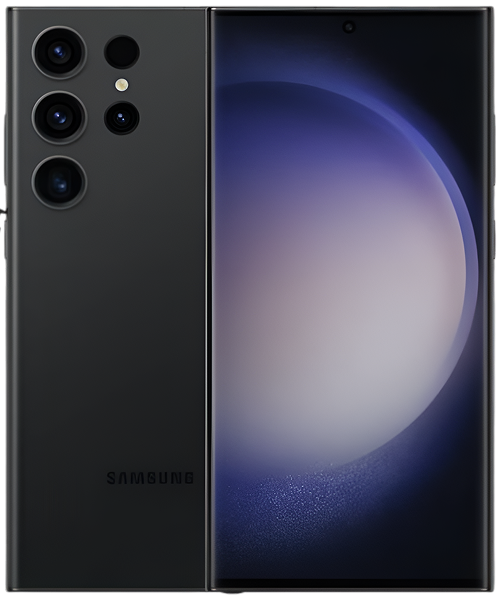
Your S23 Ultra is Samsung's ultimate flagship—the device that showcases everything they can pack into a smartphone. That 6.8-inch display, integrated S Pen, quad camera system with 200MP main sensor, and Snapdragon 8 Gen 2 processor make it a powerhouse. When something goes wrong with a device this sophisticated, understanding why it's happening is just as important as fixing it. Professional Samsung Galaxy S23 Ultra 5G repair addresses these issues, but knowing the root causes helps you make informed decisions about maintenance and care. This guide breaks down the most common S23 Ultra problems, explains their underlying causes, and provides clear solution paths for each issue you might encounter with your Samsung Galaxy S23 Ultra 5G repair needs.
What Makes the S23 Ultra Tick
The Galaxy S23 Ultra hit the market in February 2023, and it's honestly Samsung's most refined Ultra device yet. That massive 6.8-inch Dynamic AMOLED 2X display with 120Hz adaptive refresh is stunning, the integrated S Pen finally feels like a true Note successor, and the camera system—headlined by that 200MP main sensor—produces genuinely impressive results. Samsung's decision to use Snapdragon 8 Gen 2 globally (mostly) paid off with excellent performance and thermal management.
What makes owning an S23 Ultra different from other flagships is the complexity. You're not just managing a phone—you're managing a productivity device with S Pen functionality, a camera system with multiple lens options, and enough screen real estate that you use it differently than smaller phones. This sophistication creates incredible capability but also means there are more systems that need occasional attention. When S23 Ultra owners come to The Fix, they're usually dealing with issues related to these advanced features rather than basic phone functions.
The Breakdown: It's Not You, It's Chemistry
Let's talk about what causes sophisticated electronics like the S23 Ultra to develop issues over time, because understanding the science helps you prevent problems and recognize when professional attention makes sense.
Your battery contains two cells working in tandem to deliver the S23 Ultra's 5,000mAh capacity. Each charge cycle—draining and refilling those cells—causes chemical changes inside. The lithium ions moving between electrodes create microscopic structural changes that gradually reduce capacity. After a year of daily charging (300-400 cycles), you're typically looking at 90-95% of original capacity. After 18 months, maybe 85-90%. This isn't a defect—it's electrochemistry.
Heat accelerates battery degradation exponentially. Every 10°C increase in operating temperature roughly doubles degradation rate. Using your S23 Ultra for intensive tasks while fast-charging generates significant heat from both processor activity and charging circuitry. This combination is particularly damaging to battery longevity. The large display and powerful processor in the S23 Ultra generate more heat than smaller devices, making thermal management crucial.
The S Pen's electromagnetic resonance system relies on precise calibration between the pen and display's digitizer layer. This digitizer sits beneath the OLED panel and generates an electromagnetic field that the S Pen detects. When screen protectors lift, adhesive degrades, or the display experiences pressure damage, this field can become disrupted. The result is S Pen input that feels laggy, imprecise, or doesn't register at all.
The 200MP camera sensor and its associated autofocus motors represent incredibly precise mechanical and electronic systems. Those motors move lens elements microns at a time for perfect focus. After thousands of focus operations, mechanical components can develop slight slack. The sensor's calibration can drift. Dust infiltration into the camera module affects both autofocus laser sensors and optical systems.
Your charging port sees heavy use on a device this large—the S23 Ultra's battery demands frequent charging for many users. Each cable insertion pushes lint and debris deeper into the USB-C port. After months of this, there's often a compressed layer preventing proper electrical contact. The port's retention mechanism weakens from repeated stress, particularly if you charge while using the device and put lateral force on the cable.
Software complexity on the S23 Ultra exceeds typical smartphones. You're running Android with Samsung's One UI overlay, S Pen software stacks, advanced camera processing, Samsung DeX capability, and numerous background services. This complexity creates more potential points of failure. App conflicts, cached data accumulation, and software bugs affect Ultra devices differently than simpler phones.
Understanding these underlying mechanisms helps you recognize when issues are normal wear versus actual failures requiring repair.
S Pen Performance Problems
What you're experiencing: Your S Pen input feels laggy or imprecise. Sometimes it doesn't register at all, other times input appears offset from where you touched. There's noticeable delay between pen movement and on-screen response. Pressure sensitivity feels inconsistent. Drawing or writing doesn't feel as smooth and responsive as when the phone was new.
Root cause analysis: The S23 Ultra's S Pen system relies on electromagnetic resonance between the pen and a digitizer layer beneath your display. Several factors disrupt this system. Screen protector lifting or bubbling creates air gaps that interfere with electromagnetic field detection. Oils, moisture, or debris on the display surface affect sensing accuracy. Battery bulging (from degradation) can press on the display from behind, throwing off calibration.
Physical pressure damage to the display—even damage that's not visible—can affect the digitizer layer. Dropping the phone while the S Pen is inserted can misalign internal components. The S Pen's tip wears down over time, changing how it interacts with the screen. Software issues also contribute—corrupted S Pen service files, conflicts with screen recording or drawing apps, or outdated firmware.
Solution path: Start by testing with a different S Pen if possible to isolate whether it's the pen or phone. Clean your display thoroughly—even slight oils affect electromagnetic sensing significantly. Check if your screen protector is lifting anywhere, particularly along edges where the S Pen often starts strokes. Remove the protector temporarily to test if S Pen performance improves.
Clear cache for S Pen-related apps: Settings > Apps > look for "S Pen" services and clear their cache. Update your system software—Samsung regularly releases S Pen calibration improvements. Check Settings > Advanced features > S Pen > S Pen calibration and run the calibration tool.
If problems persist after software troubleshooting, the issue likely requires professional attention. At The Fix, we can diagnose whether you need screen protector replacement, display recalibration, digitizer repair, or other hardware service. S Pen issues often trace back to display problems that need expert assessment.
Battery Performance Concerns
What you're dealing with: Your S23 Ultra doesn't last through a full day anymore despite the 5,000mAh battery. You're charging twice daily now when it used to last all day easily. Battery percentage drops in big chunks—you'll check and it's at 70%, ten minutes later it's at 52%. The phone might shut down unexpectedly at 20-30% remaining. Charging feels slower than it used to, or the phone gets quite warm during charging.
Root cause analysis: That massive 6.8-inch display at 120Hz refresh consumes significant power, especially at high brightness. The Snapdragon 8 Gen 2, while efficient, still draws substantial current during intensive tasks. 5G connectivity in areas with weak signal causes the modem to work overtime searching for better connection, draining battery fast.
After 18-24 months of daily charging, battery degradation becomes noticeable. If you frequently fast-charge, use your phone while charging, or expose it to heat, degradation accelerates. Gaming on the S23 Ultra generates serious heat—that powerful processor and large display working hard create thermal conditions that damage battery chemistry.
Background processes accumulate over time. Apps you installed months ago might be running constantly. Samsung's feature-rich software includes numerous background services. Location services, always-on display, high refresh rate, and maximum brightness all contribute to drain. The battery percentage jumping around or unexpected shutdowns indicate battery calibration issues where the phone's software can't accurately read actual battery level.
Solution path: Check battery health in Settings > Battery and device care > Battery > Battery health. If capacity is below 80%, replacement makes sense. Identify battery-hogging apps in battery usage statistics and restrict their background activity. Disable 5G temporarily if signal is weak. Reduce screen refresh to 60Hz to test if battery life improves. Enable "Protect Battery" to cap charging at 85%—this extends battery lifespan significantly.
Try battery recalibration: let it drain completely to shutdown, then charge to 100% without interruption. This helps the battery management system relearn accurate capacity readings. Clear system cache partition from recovery mode—corrupted system files can cause unexpected battery drain.
If optimization doesn't help and battery health is poor, professional Samsung Galaxy S23 Ultra 5G repair with battery replacement restores that all-day battery life. The difference is dramatic—many people forget how good battery life was when the device was new until they experience a fresh battery.
Camera Focus Issues
What's happening: Your S23 Ultra's camera takes longer to focus than it should, or it hunts back and forth without locking onto sharp focus. The 200MP main camera or telephoto lenses are particularly affected. In low light, focus is painfully slow or fails completely. Sometimes the camera app freezes or crashes when you try to take photos. Photos come out soft or blurry despite holding steady.
Root cause analysis: The S23 Ultra's quad camera system uses multiple autofocus technologies—phase-detection AF, laser AF, and software algorithms working together. When any component of this system malfunctions, focus suffers. The laser autofocus sensor can get dirty or scratched by the same debris that scratches camera lenses. Physical damage from drops can misalign camera modules microscopically—enough to affect focus but not enough to be visibly obvious.
Those tiny autofocus motors moving lens elements develop slack after thousands of focus operations. The 200MP sensor's shutter mechanism experiences mechanical wear. Camera app cache accumulates corrupted data that causes processing glitches. Software updates not fully optimized for the S23 Ultra's specific camera hardware can introduce focus bugs.
Dirty camera lenses are the most common but overlooked cause. Even slight smudges confuse autofocus systems trying to detect contrast for focus detection. The camera protective glass over lenses can scratch from keys in pockets or rough surfaces, affecting optical quality and focus accuracy.
Solution path: Clean all camera lenses thoroughly with a microfiber cloth—fingerprints and oils seriously degrade performance. Inspect camera glass for scratches under bright light. Clear Camera app cache: Settings > Apps > Camera > Storage > Clear Cache. Update system software and check Galaxy Store for Camera app updates.
Test camera in safe mode to rule out third-party app interference. Try tapping to focus on high-contrast edges (where dark meets light)—this gives autofocus systems clearer targets. Test each camera lens individually to see if focus issues affect all lenses or just specific ones.
If software troubleshooting doesn't resolve focus problems, hardware issues likely exist. The reality from our repair experience at The Fix is that camera focus issues on S23 Ultra devices split about 50/50 between software and hardware causes. Software fixes solve half the cases. The other half need professional attention—cleaning internal camera assemblies, replacing autofocus motors, or realigning camera modules.
Display Issues
What you're seeing: Your S23 Ultra's screen has developed a slight green or pink tint, especially noticeable on gray backgrounds or in dark mode. Auto-brightness behaves erratically—going way too bright or dim at odd times. There might be slight burn-in from keyboard or navigation elements if you look closely. Touch responsiveness feels off in certain areas, requiring multiple taps to register input. You might notice flickering at low brightness levels.
Root cause analysis: OLED displays this large and complex require incredibly precise calibration. Natural variation between units means some S23 Ultra screens have slight tint issues that become noticeable over time. Green tints often appear after software updates as Samsung tweaks display algorithms. Pink or red tints can indicate early OLED degradation, though that's uncommon on devices this new.
The ambient light sensor gets confused by case design, screen protectors partially covering the sensor area, or dirt accumulation. It overcorrects, swinging brightness dramatically. PWM dimming at low brightness—the method OLED displays use to reduce brightness—causes flicker some people perceive. Higher refresh rates can amplify this effect.
Burn-in develops from static elements displayed for thousands of hours—keyboard position, status bar icons, navigation buttons. The OLED pixels in those areas degrade faster than surrounding pixels, leaving ghost images. S Pen use concentrating pressure on specific screen areas can create dead spots or reduced touch sensitivity. Micro-cracks in the display glass or digitizer layer affect touch response even when not visibly damaged.
Solution path: Adjust color temperature manually in Settings > Display > Screen mode > Advanced settings. Toggle between Vivid and Natural color profiles to see which looks better. Disable adaptive brightness temporarily and control manually for a few days to test if that fixes erratic behavior.
Clean the area around the front camera thoroughly—the ambient light sensor lives there and gets dirty easily. Check if your screen protector covers or interferes with the sensor area. Remove the protector temporarily to test if touch issues improve.
Enable "Show taps" in developer options (Settings > About phone > tap Build number 7 times > back to Settings > Developer options) to visualize exactly where touch registers. This helps identify if dead spots exist. Test in safe mode to rule out app interference with touch or display functions.
Update software—Samsung releases display calibration and touch firmware updates regularly. If you're seeing actual burn-in or persistent dead spots, professional assessment at The Fix can determine if display replacement makes sense. Display repairs on Ultra devices are significant investments, so accurate diagnosis before proceeding is crucial.
Charging Port Reliability
What you're experiencing: Your USB-C port feels loose—the cable doesn't sit snugly and wiggles around. It falls out easily or only charges at specific angles. Sometimes the phone doesn't detect it's plugged in at all. You might see "moisture detected" warnings despite the phone being completely dry. Wireless charging works fine, but wired charging is frustratingly unreliable. Fast charging either doesn't work or is inconsistent.
Root cause analysis: The S23 Ultra's large battery means you're probably charging more frequently than you would with smaller devices. Each cable insertion pushes microscopic lint and debris from your pocket deeper into the port. After 18-24 months of daily charging, there's often a significant compressed layer preventing proper electrical contact between port pins and cable contacts.
The port's retention mechanism—tiny clips that grip the cable—weakens from repeated insertions. Aggressive plugging, yanking cables out at angles, or using poor-quality cables that don't fit USB-C spec properly accelerates this wear. Moisture exposure doesn't have to be dramatic—high humidity, sweaty pockets, or bathroom steam can trigger moisture sensors even when the phone isn't "wet."
Debris isn't just lint—it includes dust, sand, food particles, and pocket detritus that becomes compressed and sometimes hardens in the port. This material insulates the electrical contacts, preventing proper current flow for charging or data transfer. The port's internal pins can bend slightly from misaligned cable insertion, particularly if you charge in the dark or while distracted.
Solution path: Inspect your charging port carefully with a flashlight—shine light directly into it and look for packed material. You'll often see what looks like a solid layer at the bottom that's actually compressed lint. Gently clean it out with a wooden toothpick, scraping the bottom and sides. Don't use metal—it can short contacts or scratch internal components.
Use compressed air from 6-12 inches away to blow out loosened material. Don't get too close—compressed air is cold and can damage sensitive components. Test with multiple cables and chargers to confirm it's the port, not your accessories. Try wireless charging to verify your battery accepts charge—this isolates the problem to the port.
If thorough cleaning doesn't restore proper function, port replacement likely makes sense. At The Fix, we replace the entire USB-C flex cable assembly—port, microphone, and antenna connections—with quality components. Your S23 Ultra charges like new again, cables click firmly into place, and you can stop doing that annoying cable-angle dance. Most people don't realize how degraded their port was until they experience a fresh one.
Overheating and Thermal Management
What's going on: Your S23 Ultra gets noticeably warm or hot during use—not just gaming, but during camera use, video calls, or even basic browsing. The phone slows down dramatically when hot, with visible stuttering and lag. Apps might close with thermal warnings. The area around the camera or along the top edge gets especially hot. Charging generates significant heat, particularly with fast charging.
Root cause analysis: The Snapdragon 8 Gen 2 is efficient, but that 6.8-inch 120Hz display plus powerful processor still generate substantial heat under load. The S23 Ultra's slim profile leaves limited space for heat dissipation. Thermal paste inside the device that transfers heat from processor to heat spreaders degrades over time, becoming less effective. This leads to higher operating temperatures and more aggressive thermal throttling.
Background processes keeping the processor busy generate continuous heat even when you think the phone's idle. Camera use is particularly heat-intensive—that 200MP sensor, image processing, and multiple cameras working together create significant thermal load. Gaming on this large display at high refresh rates works both the GPU and CPU hard. Add charging to any of these activities and you're generating heat from multiple sources simultaneously.
Cases trap heat, preventing proper dissipation. Thick cases or cases with poor ventilation can increase internal temperatures by 5-10°C. Using your phone in hot environments or direct sunlight adds external heat to internal heat generation. Poor thermal management in early software releases sometimes didn't throttle aggressively enough, allowing temperatures to climb higher than ideal.
Solution path: Update to the latest software—Samsung's released thermal management improvements in several patches. Check battery usage to identify apps generating excessive heat and restrict their background activity. Close all apps and restart—sometimes background processes go rogue and overwork the processor.
Remove your case during intensive use to allow better heat dissipation. Avoid using your phone while fast-charging—this combination generates maximum heat. Don't use intensive apps in direct sunlight or hot environments. Enable power saving mode during gaming to reduce thermal load slightly.
If your S23 Ultra consistently overheats during normal use despite optimization, professional diagnosis makes sense. What the data shows from our repairs at The Fix is that persistent thermal issues usually trace to degraded thermal paste or accumulated internal dust blocking airflow. We can assess thermal performance with infrared imaging and address hardware-level thermal problems if needed.
Our Honest Approach to Samsung Galaxy S23 Ultra 5G Repair
Let's walk through exactly what happens when you bring your S23 Ultra to The Fix, because transparency matters when you're dealing with a premium device.
Comprehensive Diagnostic Process
We start with detailed testing specific to Ultra devices. Battery health gets measured with specialized equipment that provides actual cell capacity, not just estimates. We test S Pen responsiveness across the entire screen, mapping any dead zones or areas with reduced sensitivity. We inspect all four camera lenses under magnification, test autofocus speed and accuracy, and take test shots in controlled lighting.
Charging port assessment involves testing with multiple cables while monitoring electrical connection quality. We use thermal imaging during stress tests to identify heat distribution issues. Display testing includes pixel patterns to check for burn-in, dead pixels, or color uniformity problems. We verify 120Hz refresh performance and touch response accuracy.
For the S23 Ultra specifically, we pay attention to how the device handles multitasking, S Pen input latency, and thermal behavior during intensive camera use. These Ultra-specific functions often reveal issues that wouldn't appear in basic phone testing. This diagnostic takes 30-40 minutes and gives us complete understanding of your device's condition.
Clear Communication
After diagnostics, we explain findings in plain language. If your S Pen issue is just a worn tip or lifted screen protector—things you can address yourself—we tell you how. If it's digitizer damage requiring professional repair, we explain what that means, why it happened, and what fixing it involves.
We discuss all options honestly. Sometimes there's a quick fix and a comprehensive fix. We explain pros, cons, and costs of each approach. If repair doesn't make economic sense—if issues are so extensive that replacement is more sensible—we'll tell you that too. Our goal is informed decisions, not maximizing repair revenue.
Quality Ultra Repair
If you proceed with repair, we use high-quality parts appropriate for flagship devices. Battery replacements use cells with proper capacity and safety certifications. Display repairs maintain the S23 Ultra's specific brightness, color accuracy, and refresh rate capabilities. S Pen digitizer work preserves pressure sensitivity and low-latency response.
Most S23 Ultra repairs are same-day or next-day service. Battery replacement typically takes 3-4 hours. Charging port repairs are similar. Display work might take longer if we need to order Ultra-specific components, but we provide realistic timelines upfront. We treat your data privacy seriously—most repairs don't require your passcode, and we keep your device secure throughout.
Thorough Testing Before Return
Before you get your S23 Ultra back, we test everything extensively. We verify the original issue is resolved. We test S Pen across the entire display if that was the repair. We verify battery charges properly and holds charge correctly. We test all four cameras, checking focus speed and image quality. We verify 120Hz refresh works smoothly and thermal performance is acceptable.
We run through your typical use cases—opening apps, switching between them, testing camera features, verifying charging function. At The Fix, we don't consider a repair complete until your S23 Ultra works exactly as Samsung intended.
Your S23 Ultra Deserves Expert Attention
The Galaxy S23 Ultra is Samsung's ultimate flagship—sophisticated, capable, and powerful. When issues develop, understanding their root causes helps you make informed decisions about repair. Whether you're dealing with S Pen problems, battery degradation, camera focus issues, display concerns, or charging port failures, professional Samsung Galaxy S23 Ultra 5G repair addresses these problems effectively.
Most issues are totally fixable with the right expertise and approach. Bring your S23 Ultra to The Fix for a free diagnostic. Our technicians specialize in Samsung's flagship devices—we understand the complexity of Ultra models, we have the right tools and parts, and we'll treat your premium device with the care it deserves. Whether you need battery replacement, S Pen digitizer service, camera work, or just honest assessment of your device's condition, The Fix delivers the expertise your S23 Ultra requires.


Trusted repair solution for mobile phones, tablets, gaming consoles, and computer systems. We provide fast, reliable, and affordable repair services to get your devices back in perfect working condition.
The Fix is an independent repair service provider and is not affiliated with, sponsored by, or endorsed by Apple Inc., Samsung Electronics, Google LLC, or any other device manufacturer. We use high-quality compatible replacement parts unless explicitly stated. All trademarks are property of their respective owners.


© Copyright The Fix Solutions All rights reserved 2026.
Design by Deepcoder