






Samsung Galaxy Note 20 5G Repair Services
Get fast, reliable, and professional Samsung Galaxy Note 20 5G repair services at The Fix — your trusted destination for expert device care.
Common Repairs We Handle Daily


An Expert Analysis of Samsung Galaxy Note 20 5G Repair: Causes & Solutions
Your Galaxy Note 20 5G was Samsung's 2020 productivity flagship—S Pen functionality, triple cameras, 5G connectivity, and that massive 6.7-inch flat display. You chose it for getting work done, not just consuming content. But now, maybe that battery's struggling to make it through your workday, the S Pen's acting glitchy, or that flat screen has damage you've been ignoring.
Here's what matters: the Note 20 5G is absolutely worth professional repair. That S Pen functionality alone keeps many people from upgrading, and most common issues are fixable. This guide breaks down what actually goes wrong with these productivity powerhouses and when Samsung Galaxy Note 20 5G repair makes sense. Let's get your work phone back on track.
The Note 20 5G in Perspective
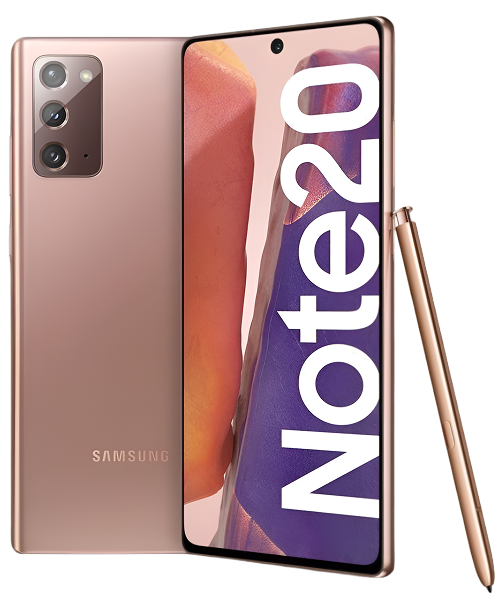
Samsung launched the Note 20 5G in August 2020 as the more affordable Note option. You got a 6.7-inch flat Super AMOLED Plus display with 60Hz, Snapdragon 865 Plus or Exynos 990 (region-dependent), S Pen with Bluetooth Air Actions, triple cameras (64MP telephoto, 12MP wide, 12MP ultra-wide), and a 4,300mAh battery. That "Mystic" finish on the plastic back was polarizing, but the phone delivered real productivity value.
At The Fix, we see Note 20 5G units regularly. That flat display makes screen repairs more straightforward than curved models. The S Pen digitizer adds complexity but also makes this phone irreplaceable for people who rely on stylus input. Most issues we see are battery degradation, S Pen problems, and charging port wear—all fixable.
Why Modern Phones Have These Issues (It's Not Just Yours)
Your Note 20 5G faces aging challenges every phone encounters, plus some unique to Note devices. Let's talk about what's really happening.
Think about a cordless phone base station you've had for years. Brand new, the handset lasted days between charges. Now it dies after a few hours. Your phone's 4,300mAh battery works identically—lithium-ion cells lose capacity with every charge cycle. That 5G modem draws more power than 4G, generating extra heat that accelerates chemical degradation. After several years of daily charging, most Note 20 5G batteries hold around 60-70% of original capacity.
Your S Pen system adds unique aging factors. There's an electromagnetic digitizer layer under the entire display that detects pen position. Over years of use and drops, this layer can develop dead zones or drift where the pen registers slightly off from where you're touching. The S Pen itself has a tiny rechargeable battery for Bluetooth Air Actions—after thousands of charges in its slot, it doesn't hold charge like new.
That flat display faces constant mechanical stress. Every note you write, every signature you capture, every drawing—that's direct pressure on the screen through the S Pen. The Super AMOLED panel underneath is thin and delicate. Drops can damage the digitizer layer without cracking the glass. The oleophobic coating wears away from constant S Pen use and finger oils.
The USB-C port battles wear constantly. Daily charging plus occasional DeX connections for desktop mode mean thousands of cable insertions. Pocket lint gets compressed deep into the connector. Those internal contacts wear microscopically until connection quality suffers.
Software accumulation is gradual. Your Note 20 5G launched with Android 10 and has been updated to Android 13. Each update adds features, security patches, more processes. The One UI interface has grown heavier. S Pen-specific features get more complex. All this software runs on the same hardware, so performance naturally degrades.
Issue #1: S Pen Not Working Right
What you're experiencing: S Pen not registering touches accurately. Cursor drifting when hovering near the screen. Lines appearing jagged or offset from where you're actually writing. Bluetooth Air Actions (remote shutter, presentation controls) stopped working. Or the pen charges slowly or not at all in its slot.
Why this happens: The electromagnetic digitizer layer under your display can develop dead zones or calibration drift from drops or pressure damage. The S Pen's internal battery degrades from hundreds of charge cycles in its slot. The charging contacts in the pen slot accumulate debris. Software glitches after updates can mess with pen detection and pressure sensitivity.
What you can try:
- Recalibrate the S Pen in Settings → Advanced Features → S Pen → More S Pen Settings → Screen Off Memo Sensitivity or S Pen Calibration.
- Clean the S Pen tip and the pen slot with a dry cloth—debris affects both charging and detection.
- Reset S Pen connection by removing the pen, going to Settings → Advanced Features → S Pen → More → Disconnect, then reinserting.
- Try the pen in different apps to isolate whether it's app-specific software issues or system-wide hardware problems.
- Replace the S Pen tip if it's worn down—worn tips cause inaccurate input and can scratch the digitizer.
What we've seen in our repair shop: About 30% of S Pen issues are calibration or software fixable. Another 30% are just worn pen tips needing replacement. The remaining 40% involve actual digitizer layer damage or failing pen battery. Digitizer issues require screen replacement since it's part of the display assembly. Pen battery failure means replacing the S Pen itself, which is relatively affordable.
Issue #2: Battery Can't Last
What you're experiencing: Full charge at morning, dead by mid-afternoon with normal use. Sudden shutdowns at 30%+ battery remaining. Charging takes 3-4 hours to reach 100%. Phone getting hot during charging or even moderate use. Battery percentage jumping erratically.
Why this happens: That 4,300mAh battery has been through years of charge cycles. The 5G modem's constant activity accelerates degradation by generating extra heat. S Pen use keeps the screen on more than typical phones. Fast charging creates thermal stress. After several years, you're probably down to 2,600-2,900mAh effective capacity.
What you can try:
- Check Settings → Battery and Device Care → Battery for usage breakdown. Restrict power-hungry apps running in background.
- Force LTE-only mode (Settings → Connections → Mobile Networks → Network Mode) if 5G coverage is weak. Battery life improves dramatically.
- Reduce screen timeout and brightness—Note users keep screens on longer for productivity tasks.
- Factory reset after complete backup—sometimes accumulated software causes phantom battery drain.
The consistent trend we observe: Nearly every Note 20 5G we test shows battery capacity around 60-70%. That 5G modem combined with heavy productivity use creates significant heat exposure over time. Samsung Galaxy Note 20 5G repair for battery replacement is straightforward, and a fresh battery typically brings full-day endurance back.
Issue #3: Flat Display Damage
What you're experiencing: Crack spreading from corner or edge. Entire screen shattered from a drop. Touch and S Pen work but there's a dead zone. S Pen registers incorrectly in certain screen areas. Or specific areas stopped responding to both touch and pen input.
Why this happens: The Note 20 5G's flat display is more repairable than curved screens, but it houses that complex S Pen digitizer layer. Drops can damage the digitizer without cracking glass—suddenly the S Pen doesn't work in certain zones. Once there's visible damage, temperature cycling spreads cracks. The digitizer layer is particularly vulnerable to impact.
What you can try:
- If touch and S Pen work properly everywhere, apply tempered glass screen protector immediately to stabilize the crack.
- Try S Pen recalibration if pen-specific issues—sometimes that resets digitizer problems temporarily.
- Back up everything now—screen damage on Note devices often affects the digitizer, making S Pen unreliable.
- Test both touch and S Pen across the entire screen to map exactly where problems are.
Issue #4: Charging Port Problems
What you're experiencing: USB-C cable loose in port. Need to angle perfectly to charge. Intermittent charging that starts and stops. Wireless charging works but wired doesn't. DeX mode not connecting to monitors. Computer doesn't recognize phone.
Why this happens: Years of charging plus DeX connections mean 3,000+ cable insertions wearing internal contacts. Pocket lint gets packed incredibly deep into USB-C port preventing proper contact. The charging flex cable can work loose from motherboard after drops. DeX functionality is especially sensitive to port damage.
What you can try:
- Power off, use wooden toothpick (never metal) to carefully scrape charging port. You'll extract shocking amounts of compressed lint.
- Follow with compressed air to clear remaining debris thoroughly.
- Test multiple cables—sometimes the cable's worn out, not the port.
- Try different USB-C devices (flash drives, headphones) to isolate whether it's charging-specific or full port failure.
In our experience with hundreds of these: About 70% of Note 20 5G charging complaints are just debris. Thorough cleaning fixes it. The remaining 30% need actual port replacement via micro-soldering—doable and relatively affordable.
Issue #5: Performance and Camera
What you're experiencing: Apps opening slower. Camera freezing on launch. S Pen gestures lagging. Phone getting hot during productivity tasks. Random reboots. Or camera producing soft photos, crashing when switching lenses, telephoto refusing to activate.
Why this happens: Software bloat from updates. Background apps consuming RAM. The Snapdragon 865 Plus or Exynos 990 throttling from heat. Cache accumulation. Three camera lenses mean three potential problems—scratches, misalignment from drops, stabilization failures. S Pen processing adds overhead.
What you can try:
- Check Device Care → Memory for RAM usage. Force stop apps you're not actively using.
- Clear system cache through Recovery Mode (Power + Volume Up during startup).
- For cameras, clean all three rear lenses thoroughly with microfiber cloth.
- Clear Camera app cache and data (Settings → Apps → Camera → Storage).
- Factory reset after backup—often resolves both performance and mysterious camera issues.
What Really Happens in Most Cases: Samsung Galaxy Note 20 5G Repair
Here's how we approach Note 20 5G repairs at The Fix—specialized knowledge for Note devices.
Comprehensive Note-Specific Diagnostics
Your phone gets testing that accounts for S Pen functionality. Professional battery diagnostics measure actual capacity remaining. The flat display gets tested for dead pixels, touch accuracy, AND S Pen digitizer functionality across the entire surface. We test hover detection, pressure sensitivity, Air Actions gestures.
All three rear cameras and front camera tested individually. We verify autofocus, stabilization, telephoto functionality. USB-C port connects to our analyzer measuring power draw, fast charging negotiation, data transfer, and DeX compatibility. We test S Pen charging in its slot with current measurement.
Thermal tests under load check heat management during typical Note productivity tasks—multitasking, S Pen use, DeX mode. Water damage indicators checked. We look for common Note issues like the back panel separation some units developed.
Honest Professional Evaluation
We show exactly what diagnostics revealed. Battery at 64% capacity? You'll see the numbers. S Pen digitizer failing in specific zones? We'll demonstrate it. When multiple issues exist—degraded battery AND damaged digitizer screen—we discuss whether comprehensive repair makes financial sense.
Real talk: The Note 20 5G was $999 new. That S Pen functionality is what keeps Note users loyal—no other phone offers that precise stylus input and Air Actions. Individual repairs like battery or charging port? Absolutely worth it if you rely on the S Pen. Screen replacement that includes new digitizer? More expensive but justified if S Pen is essential to your workflow.
We use high-quality parts and stand behind our work. Repair timeframes: battery replacement is same-day, screen replacement on Note devices takes 2-3 hours due to digitizer calibration requirements, charging port micro-soldering needs additional precision time.
Specialized Note Repair Process
Battery replacements open from the back. That plastic back is easier to remove than glass without cracking. The 4,300mAh battery's firmly adhered, requiring proper technique. New batteries get load-tested before installation. We verify all connections are secure, apply fresh adhesive, test charging including fast wireless.
Screen replacements on Note devices are more complex than regular phones. The display assembly includes glass, AMOLED, touch digitizer, AND S Pen digitizer layer—all fused together. After replacement, we must recalibrate the S Pen digitizer because even slight screen thickness variations affect pen accuracy and pressure detection. We test S Pen functionality extensively across the entire surface.
Charging port replacements require micro-soldering expertise. We desolder the old USB-C port from motherboard and install fresh hardware. This needs steady hands and proper equipment. We test charging with multiple cables, verify fast charging, check data transfer, validate DeX mode connectivity for Note users who rely on it.
Rigorous Note-Specific Testing
Every repair goes through extensive validation. Fresh batteries charge to 100%, we verify overnight retention and heat levels. New screens tested for dead pixels, touch accuracy, color uniformity.
S Pen gets tested extensively—hover detection at various heights, pressure sensitivity across full range, Air Actions gestures, charging in slot verified with current measurement. We test handwriting recognition, Screen Off Memo, all S Pen features. All four cameras tested in various modes. Every button, both speakers, microphone, all sensors validated.
The phone runs stress tests under typical Note workloads—multitasking, S Pen use, productivity apps. We clean thoroughly and offer screen protector application that works with S Pen input.
Keep Your Note 20 5G Running Great
Essential Note Care:
- Quality case with raised edges and S Pen protection
- S Pen-compatible screen protector—some protectors interfere with pen input
- Monthly USB-C port cleaning with wooden toothpick
- Replace S Pen tips every 6-12 months depending on use
Battery Preservation:
- Charge 20-80% when possible to extend lifespan
- Force LTE in weak 5G areas—constant searching kills battery
- Reduce screen timeout—Note users keep displays on longer
- Close apps after productivity sessions—multitasking leaves things running
S Pen Maintenance:
- Keep replacement tips handy—worn tips damage digitizer
- Clean pen slot monthly to maintain charging contacts
- Recalibrate S Pen quarterly even if working fine
- Store pen properly in slot when not in use
Performance Optimization:
- Weekly restarts clear memory leaks from multitasking
- Monthly cache clearing via Device Care
- Uninstall apps not used in months
- Keep One UI updated for S Pen improvements
Most Problems Are Totally Fixable
Your Galaxy Note 20 5G delivered real productivity value with that S Pen. For people who rely on stylus input for signatures, notes, sketches, or remote presentations—no other phone compares. The fact you're considering repair instead of upgrading shows you understand what makes Note devices special.
Most Note 20 5G problems—degraded batteries from 5G use, S Pen digitizer issues, flat display damage, worn charging ports—are repairable when approached professionally. These issues don't mean your Note's finished. Samsung Galaxy Note 20 5G repair addresses these problems, and the cost makes sense when you're maintaining irreplaceable S Pen functionality.
Think about it: battery replacement extends life 1-2 years. S Pen functionality can be restored with screen replacement if the digitizer's damaged. Charging port replacement keeps DeX mode working. These repairs make financial sense when the alternative is losing the S Pen features you rely on daily.
Your Complete Samsung Galaxy Note 20 5G Repair Analysis at The Fix. We specialize in Note devices and understand what makes them unique—that S Pen digitizer layer, the Air Actions calibration, the productivity-focused thermal profile, the common failure points after years of stylus use.
Stop by for a free diagnostic. We'll test battery health, S Pen digitizer functionality across the display, charging capabilities, and overall performance. No pressure—just expert evaluation from techs who've worked on hundreds of Note devices and understand why people can't give up that S Pen. Your Note 20 5G deserves care from people who get what makes it irreplaceable.


Trusted repair solution for mobile phones, tablets, gaming consoles, and computer systems. We provide fast, reliable, and affordable repair services to get your devices back in perfect working condition.
The Fix is an independent repair service provider and is not affiliated with, sponsored by, or endorsed by Apple Inc., Samsung Electronics, Google LLC, or any other device manufacturer. We use high-quality compatible replacement parts unless explicitly stated. All trademarks are property of their respective owners.


© Copyright The Fix Solutions All rights reserved 2026.
Design by Deepcoder