






Samsung Galaxy Note 10 Plus 5G Repair Services
Get fast, reliable, and professional Samsung Galaxy Note 10 Plus 5G repair services at The Fix — your trusted destination for expert device care.
Common Repairs We Handle Daily


Samsung Galaxy Note 10 Plus 5G Repair Made Simple: Your Action Plan
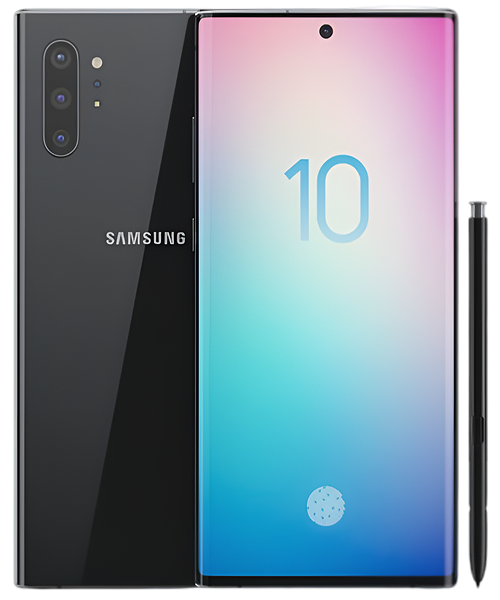
Your Note 10 Plus 5G was Samsung's 5G powerhouse with that iconic S Pen—a true productivity beast with a massive 6.8-inch curved display and quad-camera setup. But now? Maybe that battery's draining faster than ever, the S Pen's acting glitchy, or that gorgeous screen has a crack spreading across it.
Here's the deal: most Note 10 Plus 5G problems are fixable, and getting yours repaired makes way more sense than replacing it. This guide shows you exactly what goes wrong with these phones, how to troubleshoot issues yourself, and when professional Samsung Galaxy Note 10 Plus 5G repair is worth it. Let's get your productivity machine back on track.
The Note 10 Plus 5G Story
Samsung launched the Note 10 Plus 5G in August 2019 as their ultimate productivity flagship. This wasn't just a phone—it was a statement. That 6.8-inch curved Dynamic AMOLED display, built-in S Pen with Bluetooth gestures, quad-camera system (wide, telephoto, ultra-wide, plus depth sensor), and hungry 5G modem packed into a sleek package. The 4,300mAh battery seemed generous, and that Snapdragon 855 processor handled everything smoothly.
From a repair perspective, the Note 10 Plus 5G presents unique challenges. The S Pen digitizer layer adds complexity to screen repairs. That 5G modem generates more heat than 4G phones, accelerating battery wear. The curved display makes screen replacement expensive. But we see these phones constantly at The Fix, and most issues are totally repairable when you know what you're doing.
Why Every Note 10 Plus 5G Eventually Shows Wear
Let's talk straight about why your Note 10 Plus 5G isn't performing like it did in 2019. Every phone ages—understanding the process helps you make smart decisions.
Think about a laptop battery from college. Fresh out of the box, it lasted 8 hours. Now it barely hits 2 hours even though you baby it. That's lithium-ion degradation—your Note's 4,300mAh battery works exactly the same way. After five years of charge cycles, it's probably holding 60-65% of original capacity. Add that power-hungry 5G modem constantly searching for signal, and battery life tanks hard.
Your S Pen adds another aging factor. That digitizer layer under the display detects the pen's position electromagnetically. Over years of use and drops, this layer can develop dead zones or drift where the pen registers slightly off from where you're actually touching. The S Pen itself has a tiny rechargeable battery for Bluetooth gestures—after thousands of charges, it doesn't hold charge like it used to.
The curved display faces constant stress. Those beautiful edges that wrap around the sides? They're also weak points where glass is thinnest. When dropped, impact concentrates at curves. The AMOLED panel underneath is incredibly fragile—even drops that don't crack glass can damage pixels or the touch digitizer. Daily temperature swings cause expansion and contraction that spreads any microscopic cracks over time.
That USB-C port sees heavy use—charging plus DeX connections if you use desktop mode. After five years of daily plugging, the internal contacts wear microscopically. Pocket lint gets compressed deep in the port. The flex cable connecting the port to the motherboard can work loose from drops or pocket flexing.
The 5G modem itself is a heat generator. Constantly switching between 5G and LTE bands, searching for signal, managing higher data speeds—this creates thermal stress on components. We consistently see more heat-related damage in 5G phones than 4G models from the same era.
First Thing to Try: Check Your S Pen
What you're experiencing: S Pen not registering touches accurately. Cursor drifting when hovering. Bluetooth gestures (remote shutter, presentation controls) stopped working. Or the pen charges slowly in its slot, or doesn't charge at all.
Why this happens: The electromagnetic digitizer layer under your display can develop dead zones or calibration drift from drops or pressure damage. The S Pen's tiny internal battery degrades from hundreds of charge cycles. The charging contacts in the pen slot accumulate debris. Software glitches after updates can mess with pen detection.
What you can try:
- Recalibrate the S Pen in Settings → Advanced Features → S Pen → More S Pen Settings → S Pen Calibration.
- Clean the S Pen tip and the pen slot with a dry cloth—debris affects both charging and detection.
- Reset S Pen connection: remove pen, go to Settings → Advanced Features → S Pen → More → Reset S Pen.
- Check if pen works in other apps—sometimes it's app-specific software issues.
The consistent trend we observe: About 40% of S Pen issues are calibration or software fixable. The rest involve digitizer damage or failing pen battery. The digitizer issue requires screen replacement, while pen battery failure means replacing the S Pen itself—thankfully that's relatively affordable.
If That Doesn't Work: Battery Diagnostics
What you're experiencing: Phone dies by early afternoon despite full morning charge. Sudden shutdowns at 30%+ battery remaining. Charging takes 4+ hours to reach 100%. The phone—especially near the camera bump—gets burning hot during use or charging. Battery percentage jumps erratically.
Why this happens: Five years of charge cycles have seriously degraded that 4,300mAh battery. The 5G modem's constant activity accelerates this by generating extra heat. Fast charging and wireless charging both create significant thermal stress. The battery management system is compensating for a cell that can't deliver the current it once could.
What you can try:
- Check Settings → Device Care → Battery for detailed usage breakdown. Restrict background activity for power-hungry apps.
- Force LTE-only mode (Settings → Connections → Mobile Networks → Network Mode → LTE/3G/2G). You'll be shocked at the battery life improvement.
- Turn off Always-On Display and reduce screen resolution from WQHD+ to FHD+—that massive curved AMOLED is your biggest drain.
- Factory reset after complete backup—software bloat sometimes causes phantom battery drain.
What the data shows from our repairs: Nearly every Note 10 Plus 5G we test shows battery capacity below 65%. That 5G modem absolutely murders battery life, especially in areas with spotty coverage where it's constantly searching. Professional Samsung Galaxy Note 10 Plus 5G repair for battery replacement is straightforward, and combining it with LTE-only mode typically brings all-day battery life back easily.
Still Having Issues? Screen and Touch Problems
What you're experiencing: Crack spreading across the curved edge. Entire display shattered. Touch works but there's a dead zone. S Pen registers incorrectly in certain screen areas. Green tint at low brightness. Phantom touches registering randomly. Burn-in or image retention from navigation buttons.
Why this happens: Curved edges are impact concentration points when dropped. The digitizer layer that detects both touch and S Pen can get damaged even when glass looks fine. AMOLED burn-in is real on phones used heavily for 5+ years—static elements like keyboards or navigation bars leave ghost images. Temperature cycling spreads existing cracks daily.
What you can try:
- For minor cracks with working touch, apply UV-cured screen protector immediately to prevent spreading.
- Try S Pen recalibration if pen-specific touch issues—sometimes that fixes digitizer problems.
- For burn-in, use apps like OLED Saver or display solid colors for hours (doesn't fix but can reduce visibility).
- Back up everything now—screen damage often deteriorates suddenly.
Here's What: Charging Port Issues
What you're experiencing: USB-C cable loose in port. Must angle cable perfectly to charge. Intermittent charging that starts and stops. Wireless charging works but wired doesn't. DeX mode not connecting to external displays. Data transfer to computer failing.
Why this happens: Five years of charging plus DeX connections means 4,000+ cable insertions. Internal contacts are worn. Way more commonly, compressed pocket lint prevents proper cable insertion. The charging flex cable can partially detach from motherboard after drops. DeX functionality is especially sensitive to port damage.
What you can try:
- Power off, then carefully use wooden toothpick (never metal) to scrape charging port. You'll extract surprising amounts of lint.
- Compressed air follow-up to clear remaining debris.
- Test multiple cables—cheap cables fail faster than ports.
- Try different USB-C devices (flash drives, headphones) to isolate whether it's charging-specific or full port failure.
In our experience with hundreds of these: About 65% of Note 10 Plus 5G charging complaints are just debris. Quick cleaning fixes it. The remaining 35% need actual port replacement via micro-soldering—totally doable but requires proper equipment and skill.
One More Thing: Camera and Performance
What you're experiencing: Photos blurry despite good lighting. Camera app crashing or freezing. Telephoto or ultra-wide won't activate. Apps taking forever to open. Phone getting hot during normal use. Random reboots weekly. Animations stuttering.
Why this happens: Four camera lenses accumulate scratches. Optical image stabilization motors fail from drops. Lens modules misalign from impacts. Software bloat from years of updates bogs down performance. Rogue apps stuck in loops drain resources and generate heat.
What you can try:
- Clean all four rear camera lenses plus front cameras with microfiber cloth thoroughly.
- Clear Camera app cache/data completely (Settings → Apps → Camera → Storage).
- Check Device Care → Memory to see RAM usage. Force stop unnecessary apps.
- Boot into Recovery Mode and clear cache partition (method varies by carrier).
- Factory reset as last resort after backing up everything.
Solve Your Note 10 Plus 5G Problems: Samsung Galaxy Note 10 Plus 5G Repair Solutions
Here's exactly how we handle Note 10 Plus 5G repairs at The Fix—no surprises, just professional service.
Comprehensive Diagnostic (Free)
Your phone gets tested thoroughly, not just for the issue you mentioned. Professional battery diagnostics measure actual capacity in milliamp-hours. That curved display gets checked across every inch for dead pixels, touch accuracy, S Pen digitizer functionality, and the green tint issue common in Note AMOLED screens.
All four rear cameras and both front cameras get tested individually. We verify autofocus, stabilization, lens switching, and S Pen's camera remote functionality. The ultrasonic fingerprint sensor gets extensive testing. We check S Pen Bluetooth connectivity, Air Actions gestures, and charging in its slot.
The USB-C port connects to our analyzer to measure power draw, verify fast charging negotiation, test data transfer, and check DeX mode capability. We run thermal testing under load—5G phones have unique heat signatures. Water damage indicators get checked. We inspect for the back glass lifting issue some Note 10 Plus 5G units develop.
Honest Assessment and Options
We show diagnostic results clearly. Battery at 58% capacity? You'll see the numbers. Display digitizer failing in specific zones affecting S Pen? We'll demonstrate it. When multiple issues exist—like bad battery AND cracked screen—we discuss whether comprehensive repair makes financial sense or if one fix gets you most value.
The Note 10 Plus 5G was expensive new, and it's still highly capable. That S Pen functionality alone keeps many people from upgrading. We discuss whether repair cost justifies keeping this phone versus putting that money toward a newer device. We're honest—if your phone needs screen, battery, AND motherboard work, we'll tell you straight whether that makes sense financially.
Parts quality gets explained using proper terminology. Components are tested and reliable—we guarantee our work. Timeframes are realistic: battery replacement same-day, screen replacement 2-3 hours, charging port micro-soldering takes longer for precision work. Screen repairs on S Pen-equipped phones require digitizer recalibration afterward.
The Repair Process
Battery replacements open from the back. That curved glass requires careful, even heating. The 4,300mAh battery's firmly adhered—removal requires patience and proper technique. New batteries get load-tested before installation. We verify all connections are secure, apply fresh adhesive, and run full charging tests including fast charging and wireless.
Screen replacements are complex on Note devices. The display assembly includes glass, AMOLED, touch digitizer, AND S Pen digitizer layer—all fused together. We transfer the front camera assembly carefully. Every cable connection must be perfect—display, digitizer, fingerprint sensor all need proper seating. Post-replacement, we calibrate the S Pen digitizer because slight variations in screen thickness affect pen accuracy.
Charging port replacements require micro-soldering expertise. We desolder the old USB-C port from the motherboard and install fresh hardware. This is precision work needing steady hands and proper equipment. We test charging with multiple cables, verify fast charging works, confirm data transfer functions, and validate DeX mode connectivity if you use it.
Quality Control Before Return
Every repair goes through full testing protocol. Fresh batteries charge to 100%, then we verify overnight charge retention and heat levels. New screens get tested for dead pixels, touch accuracy across the entire curved surface, color uniformity, and brightness response. The ultrasonic fingerprint sensor gets 25+ test unlocks to ensure consistent performance with new displays.
S Pen gets tested extensively—hover detection, touch accuracy, pressure sensitivity, Air Actions gestures, charging in slot, Bluetooth connectivity. We test all six cameras in various modes. Every physical button, both speakers, microphone, proximity sensor, ambient light sensor get validated. NFC, Samsung Pay, and DeX mode all get tested.
The phone runs stress tests to verify thermal management works properly. We clean it thoroughly—returning a premium Note with fingerprints everywhere would be sloppy. New displays get quality screen protectors that work with the S Pen.
Take Action, Fix Your Device
Must-Do Immediately:
- Quality case with substantial edge protection—curved screens are expensive
- UV-cured screen protector properly fitted to curves—regular ones don't adhere to edges
- Monthly USB-C port cleaning with wooden toothpick—prevents most charging issues
- Keep S Pen tip replacements handy—worn tips damage digitizer over time
Should-Do Regularly:
- Charge between 20-80% when possible—extends battery life significantly
- Force LTE-only in areas with weak 5G—saves battery and reduces heat
- Clean all six camera lenses weekly with microfiber cloth
- Restart weekly to clear memory leaks and background processes
- Recalibrate S Pen monthly even if working fine—prevents drift
Nice-to-Have Optimizations:
- Back up monthly to Samsung Cloud—hardware can fail unexpectedly
- Disable Always-On Display if battery struggling—it's beautiful but power-hungry
- Review battery usage weekly, restrict background apps you rarely use
- Replace S Pen tips every 6 months—prevents digitizer scratches
- Use original Samsung 25W charger—cheap chargers damage batteries faster
- Turn off 5G completely if you don't need the speed—LTE is faster in many areas anyway
Your Note Deserves Expert Attention
Look, the Galaxy Note 10 Plus 5G was Samsung's ultimate productivity flagship in 2019. That S Pen functionality, massive display, quad-camera system—this phone still does things newer devices can't match. The S Pen alone keeps many professionals from upgrading because no other phone offers that precise input and functionality.
Common issues like degraded batteries from 5G use, cracked curved displays, S Pen digitizer problems, worn charging ports—none of these mean your Note's finished. These are repairable problems. Professional Samsung Galaxy Note 10 Plus 5G repair addresses these issues properly, and the cost makes sense compared to losing that S Pen functionality you rely on.
Bring your Note 10 Plus 5G to The Fix and let our experienced techs take a look. We've seen every problem these devices develop, we know exactly how to fix them, and we'll treat your phone like it's our own. Free diagnostic, honest pricing, quality work. We understand the unique challenges of Note devices—that S Pen digitizer, the curved display, the 5G heat management—and we have specific repair techniques developed through hundreds of these phones.
Stop by our shop—we'll diagnose the problem for free, explain what's happening in plain English, and get your device working right again. Your Note deserves expert care from techs who understand what makes these productivity powerhouses special.


Trusted repair solution for mobile phones, tablets, gaming consoles, and computer systems. We provide fast, reliable, and affordable repair services to get your devices back in perfect working condition.
The Fix is an independent repair service provider and is not affiliated with, sponsored by, or endorsed by Apple Inc., Samsung Electronics, Google LLC, or any other device manufacturer. We use high-quality compatible replacement parts unless explicitly stated. All trademarks are property of their respective owners.


© Copyright The Fix Solutions All rights reserved 2026.
Design by Deepcoder