






Search By Model
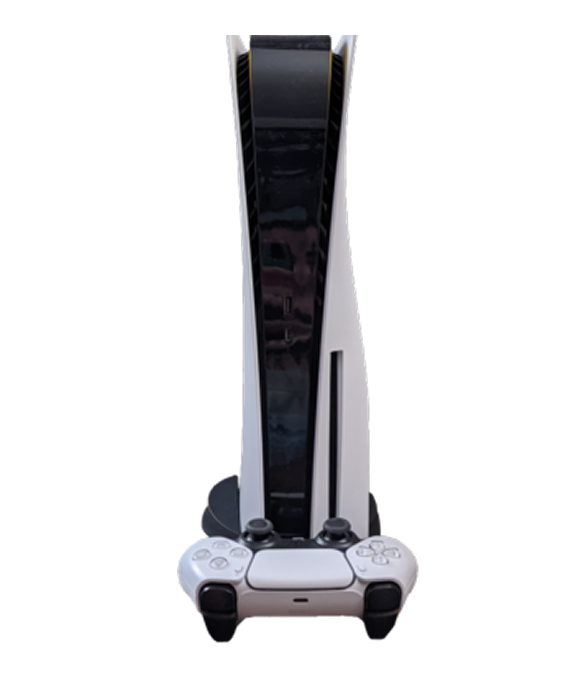
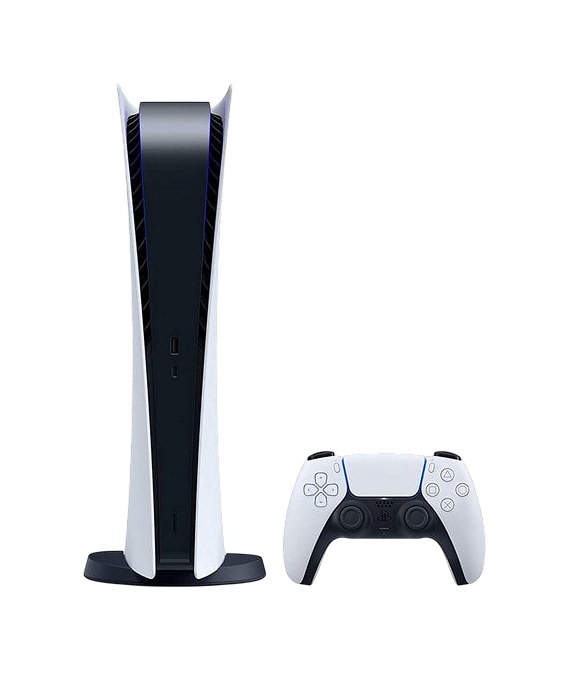
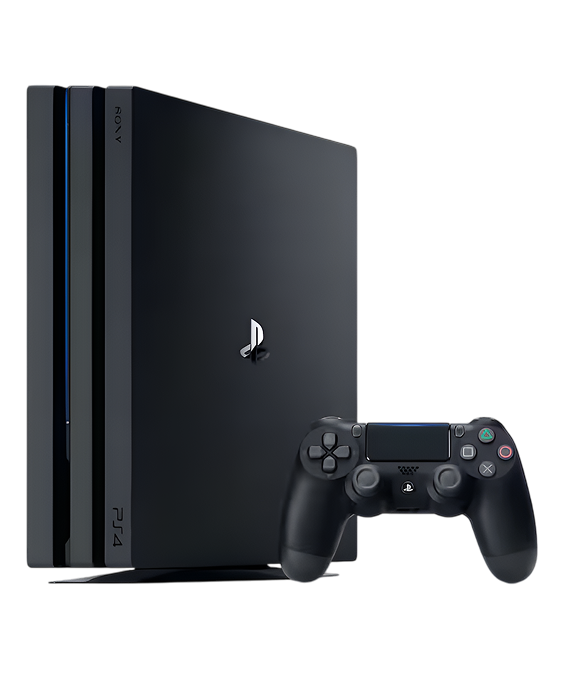
We Fix Every Device - Fast, Reliable & Hassle-Free

Cracked Screen
Get your screen replaced quickly with premium parts.

Battery Issues
Extend your device’s life with a new battery.

All Brands & Models
From iPhone to Android, laptops to tablets, we service them all.
Fast Game Console Repair: Your Device Fixed Right
Your game console used to boot up in seconds and run games flawlessly for hours. Now? It sounds like a jet engine taking off, overheats after thirty minutes, or won't read discs anymore. Maybe your PlayStation shows the blue light of death, your Xbox gives you the red ring, or your Nintendo Switch won't charge. Meanwhile, you're looking at new consoles online, seeing prices that make you wince, and wondering if there's a better option than dropping hundreds on replacement.
Here's the contrast that matters: buying new means spending significant money on a device that does the same things your current console does—you're just replacing it because of a specific fixable problem. Professional game console repair addresses that specific issue for a fraction of replacement cost and gets you back to gaming. Whether you've got a PlayStation 5, Xbox Series X, Nintendo Switch, or older generation consoles, most problems are completely repairable. At The Fix, we repair gaming consoles from all major manufacturers—Sony PlayStation, Microsoft Xbox, Nintendo, and more. Let's identify what's wrong with your console and get it fixed right.
Quick Problem Checklist: What's Your Console Doing?
Let's quickly identify your symptoms. Check all that apply:
Power and Boot Issues:
- [ ] Won't turn on at all (no lights, no sounds)
- [ ] Powers on but shows no display (black screen)
- [ ] Shuts down unexpectedly during gameplay
- [ ] Boot loops (starts, crashes, restarts)
- [ ] Blue/red/orange error lights
- [ ] Beeps or error codes at startup
Performance Problems:
- [ ] Extreme overheating during gameplay
- [ ] Fan constantly at maximum speed
- [ ] Games lag or stutter badly
- [ ] Crashes or freezes during games
- [ ] Dashboard is sluggish
- [ ] System feels hotter than it used to
Disc Drive Issues:
- [ ] Won't read game discs
- [ ] Makes grinding or clicking noises
- [ ] Disc won't eject
- [ ] Won't accept discs when inserted
- [ ] Works for some discs but not others
HDMI/Display Problems:
- [ ] No video output to TV
- [ ] Fuzzy or distorted video
- [ ] Audio works but no picture
- [ ] Random video dropouts
- [ ] Resolution problems
Controller/Charging:
- [ ] Controllers won't charge or connect
- [ ] USB ports not working
- [ ] Charging port loose or unreliable (Switch)
- [ ] Controllers disconnect randomly
Storage and System:
- [ ] "Storage full" warnings constantly
- [ ] Games won't install or update
- [ ] System software update failures
- [ ] Corrupted data errors
Your situation:
- 1-2 symptoms: Early issues—address before they worsen
- 3-5 symptoms: Multiple problems developing
- 6+ symptoms: Comprehensive service needed—but very repairable
Understanding Gaming Consoles
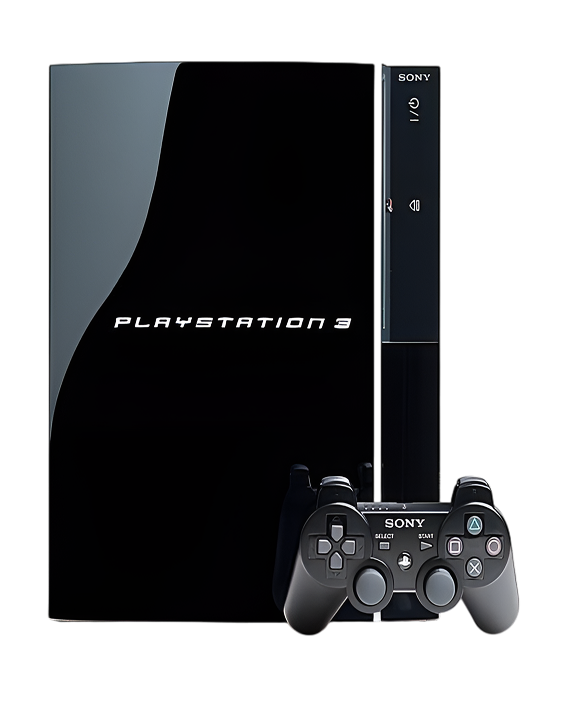
Gaming consoles come in different flavors serving different gaming styles. Sony's PlayStation lineup—PS4, PS5—offers exclusive titles and powerful hardware. Microsoft's Xbox—Xbox One, Xbox Series S/X—emphasizes backward compatibility and Game Pass. Nintendo Switch bridges portable and home gaming uniquely. Older generation consoles—PS3, Xbox 360, Wii U—still have dedicated user bases.
Each manufacturer has different design philosophies affecting repairability. PlayStation consoles pack powerful components into relatively compact cases, generating substantial heat. Xbox consoles often have better thermal designs but unique component layouts. Nintendo Switch's hybrid portable-home design creates specific repair challenges with its screen, Joy-Cons, and dock. Older generation consoles used different technologies—disc drives, power supplies, cooling systems—that fail in characteristic ways.
At The Fix, we've worked on gaming consoles across all brands and generations. PlayStation 3, 4, and 5. Xbox 360, One, Series S, and Series X. Nintendo Switch, Switch Lite, Switch OLED. We understand brand-specific quirks, generation-specific common failures, and optimal repair approaches for each. Your console deserves expertise that comes from working on thousands of gaming systems.
Overheating and Aggressive Fan Noise
What you're experiencing: Your console sounds like it's preparing for takeoff. The fan runs at maximum speed constantly, even in game menus. The case gets uncomfortably hot to touch. Games crash after 20-30 minutes with overheating warnings. Performance drops dramatically during intensive gameplay. Sometimes the console just shuts down completely to protect itself from heat damage.
Why this happens: Gaming consoles generate massive heat—CPUs and especially GPUs run at high loads during gameplay. Cooling systems are designed for specific thermal loads, but several factors compromise them over time. Dust accumulation is the primary culprit—it clogs fans and fills narrow cooling fins. Consoles pull in substantial air volumes, accumulating dust rapidly. Thermal paste between processors and heatsinks dries out, losing effectiveness. Fans wear—bearings degrade and blades accumulate debris. Using consoles in enclosed entertainment centers restricts airflow. Modern games push hardware harder than older titles, generating more heat.
What you can try:
- Ensure proper ventilation—don't stack things on or around your console. Leave at least 6 inches clearance on all sides.
- Clean external vents with compressed air: Hold can upright, use short bursts, blow dust out of vents (don't blow dust deeper inside).
- Check for system updates—manufacturers sometimes release thermal management improvements through software updates.
- If your console allows, adjust performance settings. PlayStation 5 has ventilation settings, Xbox has power modes.
- Use in well-ventilated areas—avoid enclosed cabinets with doors closed.
The consistent trend we observe: Overheating is incredibly common across all console types, especially devices 2-3+ years old without maintenance. When we open them, the cooling systems are typically packed solid with dust. PlayStation 5 consoles have dust clogging the intake vents and coating internal components. Xbox Series X units have dust throughout the internal airflow channels. Nintendo Switch systems in docked mode overheat from blocked vents. Older PS4 and Xbox One consoles look like they're wrapped in felt from accumulated lint. We disassemble carefully, clean fans and heatsinks thoroughly using compressed air and proper tools, replace thermal paste with quality compound rated for high-temperature gaming, verify fan operation, and reassemble precisely. Temperature drops are dramatic—20-40°C reductions under gaming load. Your console runs quietly, stays cool, and delivers full performance without throttling or shutdowns. Games that were unplayable due to overheating crashes suddenly run smoothly for hours.
Won't Read Discs or Disc Drive Failed
What you're experiencing: You insert a game disc and nothing happens. Or your console makes grinding, clicking, or whirring noises trying to read discs. Maybe it worked fine yesterday but today won't recognize any discs. Some games work but others don't. The console spins up the disc but then displays "unrecognized disc" errors. For digital-only models this doesn't apply, but for disc-based PlayStation and Xbox consoles, a failed disc drive means you can't play physical games.
Why this happens: Disc drives have moving parts—motors, laser assemblies, and mechanical eject mechanisms—that wear with use. Laser lenses get dirty or misaligned over time. Drive motors fail from accumulated use. The ribbon cable connecting the drive to the motherboard can work loose from vibration. For PlayStation 5 especially, the disc drive is a separate module that can develop connectivity issues. Forcing discs in or yanking them out damages eject mechanisms. Keeping consoles in dusty environments accelerates laser lens contamination.
What you can try:
- Try multiple different game discs—sometimes a scratched disc causes read errors, not the drive itself.
- Clean the disc gently with a microfiber cloth from center to edge. Check for obvious scratches or damage.
- Restart your console fully—power off completely, wait 30 seconds, power back on. Sometimes the drive just needs a reset.
- For PlayStation 5, try manually ejecting the disc using the manual eject screw (check Sony's support site for location).
- Check for system software updates—sometimes disc drive functionality improves with updates.
What we tell customers who come in: Disc drive failures divide into cleanable problems and component failures. Dirty laser lenses we can clean—often restoring full functionality. Worn drive motors, failed laser assemblies, or damaged eject mechanisms require drive component replacement or full drive replacement depending on the console and issue. PlayStation consoles have specific disc drive modules we can replace. Xbox consoles integrate drives differently by generation. At The Fix, we've replaced countless disc drives across all console types. After professional repair, your console reads discs reliably every time—no more grinding noises, no more "unrecognized disc" errors, just smooth disc reading and game launching. You can play your physical game collection again without frustration.
Won't Power On or Boot Properly
What you're experiencing: You press the power button and nothing happens—no lights, no fan noise, no sign of life. Or maybe it powers on briefly then immediately shuts off. The power light blinks in error patterns—blue light of death on PlayStation, red ring on Xbox 360, or orange light on older consoles. You've tried different outlets, different power cables, and you're stuck with an expensive paperweight.
Why this happens: Power issues stem from various causes. Failed power supplies are common—these components handle significant electrical loads and fail over time. Power supply capacitors degrade, preventing proper voltage delivery. For some Xbox models, power bricks fail externally. PlayStation consoles have internal power supplies that can fail. Failed motherboard components prevent proper startup. Overheating damage from years of inadequate cooling can cause permanent component failures. For older generation consoles—PS3, Xbox 360—specific failure modes like YLOD (Yellow Light of Death) or RROD (Red Ring of Death) indicate overheating-related solder joint failures.
What you can try:
- Try a different power cable and different wall outlet to rule out power delivery issues.
- For Xbox consoles with external power bricks, check if the brick's LED is lit. No light means the brick failed.
- Unplug everything from the console—HDMI, USB devices, network cable—then try powering on with just the power cable.
- Let the console sit unplugged for 5+ minutes, then try again. Sometimes residual power causes issues.
- Check for obvious damage—melted ports, burning smell, visible component damage. If you see these, stop trying to power it and seek professional service.
After years of fixing these devices: Power failures often look catastrophic but are frequently repairable. Failed power supplies in PlayStation and Xbox consoles are replaceable components. External Xbox power bricks are straightforward replacements. Motherboard component failures sometimes involve specific chips or capacitors rather than the entire board. For YLOD and RROD issues on older consoles, reflow or reball procedures can restore functionality. At The Fix, we diagnose systematically—testing power supplies, checking voltage outputs, identifying failed components. Many "dead" consoles are actually repairable with the right expertise. After professional repair, your console powers on reliably, boots properly, and you're back to gaming.
HDMI Port Damaged or No Video Output
What you're experiencing: You connect your console to your TV and get no picture. Audio works but no video, or nothing at all. The HDMI port feels loose when you insert the cable. You have to hold the HDMI cable at a specific angle to get video. Sometimes video cuts out randomly during gameplay. You've tried different HDMI cables and different TVs—the console is the problem.
Why this happens: HDMI ports endure mechanical stress from cable insertions and removals. The ports are soldered to the motherboard with relatively small solder points supporting the entire connector. Yanking cables out at angles or applying pressure to connected cables stresses these solder joints. Over time, joints crack and the port becomes loose. For Nintendo Switch in docked mode, repeated docking and undocking stresses the USB-C port used for video output. Physical damage from drops can break HDMI ports completely. Electrical issues from power surges occasionally damage HDMI circuitry.
What you can try:
- Try multiple HDMI cables—sometimes it's the cable that's failed, not the port.
- Try different HDMI ports on your TV to rule out TV issues.
- Try a different TV entirely if possible—confirms whether it's the console or display.
- Check console settings for resolution/video output options that might have changed.
- For PlayStation, try booting into Safe Mode (specific button combination during startup) which uses lower resolution that might work if there's a resolution setting issue.
In our experience with hundreds of these: HDMI port issues are extremely common across all console types. Sometimes it's loose solder joints that we can reinforce without replacing the port. Often the port itself needs replacement—we remove the damaged port, clean the motherboard pads, and solder in a new port with proper technique ensuring solid mechanical and electrical connection. For Nintendo Switch, dock connector repairs restore proper video output. At The Fix, we've replaced thousands of console HDMI ports across PlayStation, Xbox, and Nintendo systems. After professional repair, your HDMI cable clicks in firmly, video output is rock-solid, and you never have to worry about cable angles or random video dropouts again.
Why No Console Lasts Forever
Every gaming console ages, regardless of manufacturer or how carefully you treat it. Understanding the underlying processes helps you recognize when professional service is needed.
Think about running shoes you've used for hundreds of miles. When new, they had thick cushioning and springy support. After all those miles, the foam's compressed, cushioning's thin, and your feet feel every impact. The shoes haven't broken—they've gradually lost their properties from repeated stress. Your console's thermal paste experiences similar degradation. Fresh paste transfers heat efficiently from processors to heatsinks. After years of thermal cycling—heating up during gaming, cooling when off—it hardens and cracks. Heat transfer drops 20-30%, causing higher temperatures and performance throttling.
Consider a power cord you've used daily for years, especially where it bends near the plug. When new, the cord was flexible and the wires inside were intact. After thousands of bend cycles, the internal wires can break from metal fatigue. The cord might look fine externally, but inside there are fractures. Your console's internal components experience similar stress. Solder joints on motherboards undergo thermal cycling thousands of times. Expansion and contraction from heat causes microscopic cracks. Eventually these cracks affect electrical connections, causing intermittent failures or complete component breakdown.
Inside your console, the disc drive (if it has one) spins discs at high speeds thousands of times. Motors wear, laser lenses accumulate dust and lose alignment, mechanical parts develop play from repeated use. Fans spin millions of revolutions over a console's life. Bearings wear microscopically and blades accumulate debris despite intake filters.
Storage drives in modern consoles use solid-state technology—no moving parts, but memory cells wear from write/erase cycles. Game installations, saves, updates, recordings—all create writes that accumulate over time. Eventually enough cells fail that performance can degrade.
This isn't about any manufacturer making poor products. Gaming consoles are actually remarkably durable considering the intensive workloads they handle. But physics doesn't care about engineering quality—all materials age under stress. Recognizing when aging requires professional attention keeps your console running great for years.
Storage Full or Drive Issues
What you're experiencing: You're getting constant "storage almost full" warnings even after deleting games. Game installations fail or take forever. System updates won't install. Games crash or show corrupted data errors. Load times have become painfully long. For older consoles with hard drives, you might hear clicking or grinding noises. Performance has degraded noticeably even in game menus.
Why this happens: Console storage fills up from game installations, updates, saved games, recordings, and system cache. Modern games consume massive space—50-100GB+ per title is common. PlayStation and Xbox consoles allow storage expansion, but filling drives to capacity causes severe performance issues. For older consoles with mechanical hard drives, the drives eventually fail from accumulated use. SSDs in newer consoles are more reliable but can develop issues after years of heavy use.
What you can try:
- Delete games you've finished or don't play anymore. You can always reinstall them later.
- Move games to external storage if your console supports it (most do).
- Clear system cache through console settings—this removes temporary files consuming space.
- Delete old game recordings and screenshots you don't need.
- Check for corrupted data and rebuild database (PlayStation) or clear persistent storage (Xbox).
What actually happens with most units: Storage issues often divide between "too much stuff installed" and "storage hardware failing." For the former, we help customers optimize storage and implement external storage solutions. For failing drives, we replace them with new, larger capacity drives when possible. PlayStation consoles allow drive upgrades—we can install larger SSDs. Xbox Series consoles have proprietary expansion cards but internal drive replacement is possible. Nintendo Switch has limited internal storage but supports microSD expansion. At The Fix, we handle storage upgrades and replacements across all console types. After service, your console has breathing room—games install quickly, system updates work properly, and load times improve. For consoles with failing drives, replacement restores reliability and often provides significantly more storage capacity than the original.
First 15 Minutes: Initial Assessment
When you bring your console to The Fix, here's what happens in those first crucial minutes.
We start with conversation about symptoms. What's it doing? When did it start? What console and model—PlayStation 5 disc version, Xbox Series S, Nintendo Switch OLED? Have you noticed patterns—does it overheat during specific games, or fail to read certain discs? This context guides our diagnostic approach because consoles have generation-specific and model-specific common issues.
We physically inspect your console. Is there visible damage? Are vents clogged with dust? Does it power on? Are ports damaged? Have there been previous repair attempts? These observations provide immediate diagnostic information. A PS5 with dust-packed intake vents likely has an overheating issue. An Xbox with a loose HDMI port probably has solder joint failures. A Switch with a cracked screen needs display replacement.
Then we power it on if possible. Does it boot to the dashboard? How long does boot take? Are there error codes or warning messages? We're watching and listening—fan behavior, disc drive noises, startup sounds all provide diagnostic information.
Next 30-60 Minutes: Comprehensive Testing
Once we've got it running or identified why it won't run, we go deeper with systematic testing.
For overheating issues, we monitor temperatures using diagnostic tools while running demanding games. We check fan operation—is it spinning properly, are there bearing noises? We verify intake and exhaust vents are clear. For PlayStation 5, we test with both disc and digital games to ensure both workloads are handled properly.
For disc drive problems, we test with multiple game discs and movie discs (Blu-ray capability). We listen to drive operation—normal spinning versus grinding or clicking. We check disc ejection mechanisms. For PlayStation 5 specifically, we verify the disc drive is properly connected to the motherboard.
For power issues, we test with known-good power cables and measure voltage outputs with multimeters. For Xbox with external power bricks, we test the brick separately. We check for motherboard component failures using diagnostic equipment.
For HDMI issues, we test video output with multiple cables and displays. We check for loose port connections and inspect solder joints. For Nintendo Switch, we test both handheld mode and docked mode video output.
We're not guessing—we're systematically testing each subsystem to identify the actual problem, not just obvious symptoms.
The Repair: Fixing What's Broken
Once we know what's wrong, we explain it clearly. Cooling system choked with dust causing overheating—needs thorough cleaning and thermal paste replacement. Disc drive laser failed—needs drive component replacement. HDMI port solder joints cracked—needs port resoldering or replacement. You understand what failed and why.
This is where we discuss options. Maybe your PS4's hard drive is failing—you can replace with another HDD, or upgrade to an SSD that improves load times dramatically. Perhaps your console just needs cleaning and thermal paste, or maybe it needs more involved repair. We explain what each option involves and let you choose what makes sense.
The actual repair work requires console-specific expertise. PlayStation consoles disassemble differently by generation. Xbox consoles have unique internal layouts. Nintendo Switch has specific procedures for screen replacement or Joy-Con repairs. We use proper tools—security Torx drivers for Xbox, specialized pry tools for PlayStation, proper adhesives for Switch screens. Throughout repair, we test constantly. Cooling system cleaned? We stress test temperatures. Disc drive replaced? We verify all disc types read properly. HDMI port repaired? We test video output thoroughly.
Prevention Tips Worth Following
Ensure proper ventilation: Leave at least 6 inches clearance around your console. Don't stack anything on top. Don't use in enclosed cabinets with doors closed. Airflow prevents overheating.
Clean vents regularly: Use compressed air monthly to blow dust out of external vents. This prevents dust accumulation inside that causes overheating.
Handle discs carefully: Don't force discs in or yank them out. Hold discs by edges, not surfaces. Keep discs in cases when not in use.
Be gentle with cables: Insert HDMI and USB cables straight, don't force at angles. Unplug by gripping the connector, not pulling the cable.
Manage storage: Don't let internal storage get completely full. Keep at least 10-15% free space. Delete games you don't play.
Keep system software updated: Updates include performance improvements and bug fixes. Don't postpone indefinitely.
Use surge protectors: Power fluctuations damage components. A decent surge protector is cheap insurance.
Watch for warning signs: Increasing fan noise, longer load times, occasional crashes, overheating warnings. Address problems early before they become expensive.
Your Console Can Run Like New Again
Most game console repair needs are totally fixable with professional expertise. That overheating issue? Proper cleaning and maintenance fixes it. Disc drive failed? Component replacement gets you reading discs again. HDMI port damaged? Repair or replacement restores solid video output. Power issues? Often a failed power supply or component that's replaceable. These repairs extend your console's life for years at reasonable cost.
Ready to fix your Game Console? The Fix makes it easy. Walk in anytime for a free assessment—most repairs are same-day, and we'll keep you updated throughout the process. Your device deserves expert care, and that's exactly what we deliver.
FAQs
The Fix Stores repair many types of electronic devices. Check out all the details below.


Trusted repair solution for mobile phones, tablets, gaming consoles, and computer systems. We provide fast, reliable, and affordable repair services to get your devices back in perfect working condition.
The Fix is an independent repair service provider and is not affiliated with, sponsored by, or endorsed by Apple Inc., Samsung Electronics, Google LLC, or any other device manufacturer. We use high-quality compatible replacement parts unless explicitly stated. All trademarks are property of their respective owners.


© Copyright The Fix Solutions All rights reserved 2026.
Design by Deepcoder