






Nintendo Wii U Repair Services
Get fast, reliable, and professional Nintendo Wii U repair services at The Fix — your trusted destination for expert device care.
Common Repairs We Handle Daily


Nintendo Wii U Repair vs Replace: Why Fixing Makes Financial Sense
You bought a Nintendo Wii U because it offered something no other console did—that innovative GamePad with its own screen for unique gameplay experiences. Now here's your reality: the GamePad that was so central to the experience won't hold a charge anymore, or the touchscreen stopped responding in sections, or the console's disc drive won't read your game collection. Maybe the GamePad screen cracked when someone dropped it, or the console itself refuses to power on after years of loyal service. You're frustrated because finding a replacement Wii U isn't easy—Nintendo discontinued it in 2017, used prices are all over the place, and you've got a game library that won't work on anything else.
Here's what changes everything: professional Nintendo Wii U repair costs dramatically less than replacing this discontinued console, and most problems are completely fixable. GamePad battery dead? Replaceable. Cracked GamePad screen? Repairable. Disc drive failed? Fixable. Console won't power on? Usually solvable. This guide breaks down what goes wrong with both the console and GamePad, why these issues happen, and why repair makes excellent financial sense for a system that's still incredibly capable for its game library.
Living With the Wii U
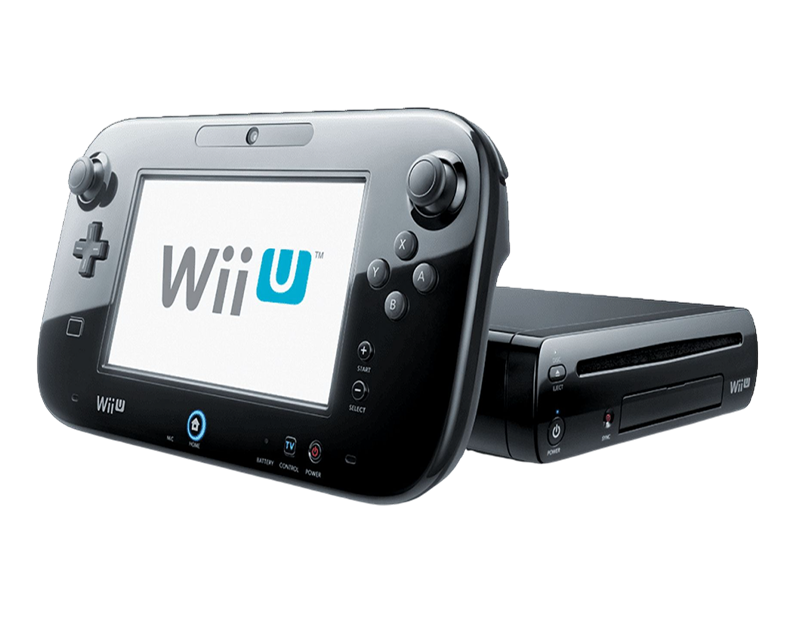
Nintendo launched the Wii U in November 2012 as the successor to the phenomenally successful Wii. The console itself is more powerful than the Wii—IBM PowerPC processor, 2GB RAM, full HD video output. But the real innovation was the GamePad—a tablet-like controller with a 6.2" touchscreen that extended gameplay to a second screen. You could play games entirely on the GamePad while someone else used the TV. The touchscreen enabled unique gameplay mechanics. The game library includes excellent titles: Breath of the Wild (before Switch), Mario Kart 8, Splatoon, Super Mario 3D World, and many Wii U exclusives that never came to other platforms.
What makes the Wii U interesting from a repair perspective? You're really dealing with two devices—the console and the GamePad. Each has its own repair needs. The console uses similar construction to the original Wii but with more complex internals. The GamePad is essentially a gaming tablet built for durability rather than portability, which makes it fairly repairable compared to modern tablets. Components in both units are modular and accessible with proper tools. Nintendo clearly expected some level of serviceability, especially for the GamePad since it was meant to be handled extensively. The main challenge is that the Wii U's commercial failure means fewer third-party replacement parts compared to more successful consoles, but parts are absolutely still available.
Understanding Why All Smartphones Age
Every Nintendo Wii U system eventually needs attention—both the console and the GamePad—and that's not Nintendo's fault. It's just materials meeting 10+ years of use. Here's what's physically happening inside your system over time.
The GamePad's battery is like a rechargeable flashlight that dims over years of daily use. When it was new, it powered through entire gaming sessions. After years and hundreds of charge cycles, it barely lasts an hour before needing to be plugged in again. That's lithium-ion battery chemistry degrading naturally with every charge cycle. The GamePad's 1500mAh battery was adequate when new, but after 500-800 charge cycles (which happens over 3-5 years of regular use), capacity drops to maybe 60-70% or worse. Battery cells can fail entirely, causing immediate shutdown or refusing to charge.
The console's disc drive faces mechanical wear from years of inserting and removing game discs. Picture a door lock mechanism loosening after thousands of key insertions—the metal slowly wears, springs weaken, and eventually it doesn't engage properly anymore. Your Wii U's disc drive has similar mechanical components: motors that spin discs, gears that move the laser assembly, optical components that read data. After years of use, motors weaken, gears strip, the laser lens gets dusty or the laser itself weakens, and disc reading becomes unreliable or fails completely.
The GamePad's touchscreen digitizer can fail from age or impact. It's a capacitive touch layer bonded to the LCD—similar to smartphone screens but larger. Physical damage from drops obviously breaks it, but even without visible damage, the digitizer can develop dead zones or erratic touch response from years of constant tapping. The LCD underneath can fail independently, developing dead pixels, backlight issues, or complete failure.
Power supply components age even when the console sits unused. Capacitors—electronic components that regulate voltage—degrade over years. After a decade, capacitors can bulge, leak, or fail entirely. When they fail, the Wii U won't power on properly or exhibits random shutdowns. The power supply is robust but not immortal.
The GamePad Battery Lasts Maybe an Hour Now
Your GamePad that used to last 3-5 hours on a charge now dies after barely an hour of gameplay. The battery percentage drops rapidly even during light use. Maybe it shows full charge but dies suddenly at 50%. Could be it won't charge at all anymore, only working when constantly plugged in. Perhaps the GamePad won't turn on despite charging overnight. Some Wii U owners find the battery charges to 100% in minutes but dies just as quickly.
Why this happens: The GamePad's 1500mAh lithium-ion battery degrades with every charge cycle—it's chemistry, not a defect. After 10+ years and potentially 1000+ charge cycles, capacity loss is dramatic. You might be down to 40-50% of what the battery held when new. Battery cells can fail entirely, preventing charging or causing immediate shutdown. The battery management circuit can malfunction, reporting incorrect charge levels. Heat accelerates degradation—if you frequently played demanding games that made the GamePad warm while charging, you damaged the battery faster. Sometimes it's not the battery itself but the charging circuit on the GamePad's board that's failed.
What you can try:
- Let it charge for 6-8 hours even if the charging indicator shows full—sometimes deeply discharged batteries need extended charging
- Try a different AC adapter if you have one (Wii U console power adapter won't work—GamePad needs its own adapter)
- Check if the charging cable and port look damaged or corroded
- Try a full discharge to 0% followed by uninterrupted charge to 100% to recalibrate the battery meter
- Check if the back of the GamePad feels warm or bulges—swelling indicates dangerous battery failure requiring immediate attention
What we tell customers who come in: GamePad battery replacement on Nintendo Wii U systems is one of our most common repairs for this console. The GamePad's back panel removes with tri-wing screws (Nintendo's security screws, but we've got the proper tools). Once inside, the battery is right there—it's held with adhesive and connected via a standard connector. We disconnect the old battery, carefully remove it without puncturing cells (punctured lithium batteries are fire hazards), install a replacement battery matching proper specifications, secure it appropriately, reconnect everything precisely, and test extensively. We charge to 100%, run the GamePad at full brightness with wireless on while playing demanding games, monitor discharge rate, and verify accurate battery percentage reporting. Nintendo Wii U repair for GamePad battery issues typically takes 45-60 minutes and restores 3-5 hours of gameplay depending on what you're playing and brightness settings. Customers regularly tell us this simple repair extended their Wii U's life by years—the console still works great, it just needed a fresh GamePad battery.
The GamePad Screen Cracked or Touch Stopped Working
You've got visible cracks across the GamePad's 6.2" touchscreen from dropping it, or maybe the screen looks fine but touch doesn't respond in large areas. Could be the LCD displays content but certain sections show discoloration or dead pixels. Perhaps touch is wildly inaccurate—you tap one spot, it registers somewhere else entirely. Some Wii U owners see the backlight working but no image, just a lit blank screen. Maybe the screen worked perfectly yesterday and completely stopped today.
Why this happens: The GamePad screen uses a 6.2" LCD with a capacitive touchscreen digitizer and protective glass layer. Physical damage from drops is the obvious cause—impact cracks glass and often damages the LCD or digitizer underneath. Kids dropping the GamePad while playing is incredibly common. Pressure damage can occur if something heavy was placed on the GamePad or it got crushed in storage. The digitizer can fail independently from age—after years of millions of taps, the conductive coating can degrade. The LCD can develop dead pixels, backlight failures, or complete failure from electrical issues. Ribbon cables connecting the screen to the GamePad's motherboard can crack or come loose, causing display or touch problems.
What you can try:
- Restart the GamePad by holding the power button—sometimes touch issues clear with a reboot
- Check for system updates on the Wii U console—Nintendo released touch calibration improvements
- Go to GamePad settings and try recalibrating the touchscreen
- Test if the GamePad displays video from the console even if touch doesn't work—this isolates digitizer versus LCD issues
- Apply gentle pressure around the screen edges to see if display or touch improves—this indicates a loose ribbon cable
Worried about losing game saves during GamePad repair? Here's the reality: GamePad screen replacement doesn't affect your game saves or data—everything's stored on the console itself, not the GamePad. The GamePad is just a controller with a screen. We can work on it without touching your Wii U console or data. We carefully open the GamePad (tri-wing screws and clips), disconnect the battery, remove the damaged screen assembly (it's adhered with strong adhesive requiring careful heating), inspect all ribbon cable connections for damage, install a replacement screen with precise alignment, reconnect display and touch cables carefully, test functionality before final assembly, and seal everything properly. We verify touch response across the entire screen, check display quality and colors, test brightness adjustment, look for dead pixels or backlight issues, and ensure the screen is securely mounted. Nintendo Wii U repair for GamePad screens typically takes 90-120 minutes. Replacement screens are available from suppliers who stock legacy gaming console parts—they match proper specifications for resolution and touch sensitivity.
The Console's Disc Drive Won't Read Games
You insert a Wii U disc and get "unable to read disc" errors, or maybe the console tries to read for a minute before giving up. Could be it reads some discs but not others—newer games work, older ones fail. Perhaps you hear grinding or clicking noises from the disc drive before it ejects the disc. Some Wii U owners find the drive won't accept discs at all—they insert a game and it immediately spits it back out.
Why this happens: The Wii U disc drive has multiple potential failure points after years of use. The laser lens that reads discs weakens over time—it's an optical component with a finite lifespan, and after thousands of hours reading discs, the laser diode can't produce focused light anymore. The laser assembly rides on rails that need lubrication—after years, grease dries out and the assembly can't move smoothly. The motor that spins discs can weaken or fail. Gears in the mechanism can strip. Dust accumulation on the laser lens prevents proper reading. The rubber drive belt (if your model uses one) can stretch or break. Sometimes it's not the drive—it's discs that are scratched or dirty beyond reading.
What you can try:
- Clean your discs thoroughly with a microfiber cloth, wiping from center outward in straight lines
- Try multiple different discs—if only one disc fails, it's the disc not the drive
- Use a lens cleaning disc designed for optical drives
- Check if the console makes sounds when you insert a disc—silence suggests motor failure, grinding suggests mechanical issues
- Blow compressed air into the disc slot to remove dust (hold cans upright—inverted propellant damages components)
How we keep you informed during repair: When you bring disc drive issues to The Fix, we start by testing with multiple known-good discs to verify it's the drive. We open the console, remove the disc drive assembly, inspect the laser lens under magnification, test laser power with specialized equipment, check all mechanical components for wear, clean thoroughly, lubricate moving parts, and determine if cleaning solves it or if component replacement is necessary. For weak lasers, we replace the laser assembly. For mechanical failures, we replace worn gears, motors, or belts as needed. For severely damaged drives, we replace the entire drive mechanism. Nintendo Wii U repair for disc drives typically takes 90-120 minutes including disassembly, drive work, reassembly, and testing with multiple discs to verify proper reading. We test Wii U discs, Wii discs (the console plays both), and even scratched discs to verify the drive handles challenging media properly.
The Console Won't Power On At All
You press the power button and nothing happens—no lights, no fan sounds, no response. Maybe it powers on briefly, shows the Wii U logo, then immediately shuts off. Could be the power light comes on but nothing displays on your TV. Perhaps it worked fine last time you used it, and now it's completely dead. Some Wii U owners hear the disc drive make noise but never see anything on screen.
Why this happens: Power issues on 10+ year old consoles usually trace back to failed capacitors in the power supply. Capacitors regulate electrical voltage, and they have finite lifespans. After years of heat cycles and age, they bulge, leak, or fail completely. Failed capacitors prevent stable voltage delivery. The power supply itself can fail—components burn out from power surges or age. Sometimes it's the power button failing (mechanical switches wear out), the power port developing bad connections, or in rare cases, actual motherboard component failure. We've seen Wii U consoles that won't power on because someone used incorrect power adapters.
What you can try:
- Verify you're using the proper Wii U power adapter (not Wii or other Nintendo adapters—they're different)
- Try a different power outlet to rule out outlet problems
- Unplug everything from the console (HDMI, sensor bar, USB devices) and try powering with just the power cable
- Listen when you press power—any sounds, fan spinning, disc drive noises indicate partial power
- Check if the power light comes on at all, even briefly
- Let the console sit unplugged for 30 minutes, then try again
Not sure if multiple repairs make sense versus buying used? Here's our honest take: When you bring a non-powering Wii U to The Fix, we test the power adapter output with a multimeter to verify proper voltage. We open the console and visually inspect the power supply for obvious failures—bulging capacitors, burn marks, cracked solder joints. We test voltages at various points on the motherboard. We check the power button for continuity. We inspect the power port for damaged connections. Based on these tests, we isolate whether it's the power supply, button, or motherboard. For failed capacitors (most common), we replace all aging capacitors on the power board with high-quality components. For power button failures, we replace the button. For power port issues, we resolder or replace the port. Nintendo Wii U repair for power issues typically takes 75-90 minutes. Most power problems are solvable—actual CPU or GPU failure is rare. If we find multiple catastrophic failures, we'll honestly tell you replacement might make more sense, but that's uncommon.
GamePad Won't Connect to Console
Your GamePad won't sync with the console anymore, or maybe it connects initially but drops connection constantly. Could be it connects but has terrible input lag. Perhaps only the GamePad's buttons work but the screen stays black. Some Wii U owners find the GamePad connects when sitting right next to the console but disconnects across the room.
Why this happens: The GamePad and console communicate via proprietary wireless protocol. The GamePad has a wireless radio and antenna for this communication. The console has a corresponding wireless module. These components can fail from age, drops, or electrical issues. The antenna inside the GamePad is a delicate trace on the circuit board—physical damage can break it. Wireless pairing data can become corrupted. Sometimes it's interference from other wireless devices (routers, cordless phones, baby monitors). The console's wireless module can fail, preventing communication with the GamePad. Weak GamePad batteries can cause connection instability—insufficient power for stable wireless transmission.
What you can try:
- Re-sync the GamePad: go to console system settings, select GamePad sync, follow prompts while pressing the sync button on the GamePad
- Update system software on the console—Nintendo released wireless stability improvements
- Charge the GamePad fully before testing connection
- Test in different locations to rule out wireless interference
- Try connecting when sitting close to the console—if it works close but not far, it's signal strength issues
- Check if other wireless devices work properly—widespread wireless problems suggest router interference
Making sure you're satisfied with the repair: When you bring connection issues to The Fix, we test the GamePad with known-good consoles to isolate whether it's the GamePad or console. We inspect the GamePad internally for antenna damage. We test battery health since weak batteries cause connection problems. We test the console's wireless module. For GamePad antenna failures, we repair or replace the antenna. For console wireless module failures, we replace the module (advanced repair). For battery-related connection issues, we replace the battery. Nintendo Wii U repair for connection problems varies from simple re-syncing (free during diagnostics) to antenna repair (60-75 minutes) to wireless module replacement (90-120 minutes for advanced work). Most connection issues resolve with proper troubleshooting and targeted repairs.
The Console Overheats or Runs Loud
Your Wii U's fan runs at full speed constantly, making way more noise than it used to. Or maybe the console shuts down randomly after extended gameplay. Could be the vents blow extremely hot air. Perhaps the top of the console gets uncomfortably hot to touch. Some Wii U owners notice performance drops or freezing during graphically intensive games.
Why this happens: The Wii U generates significant heat—the processor and GPU work hard during gaming. The internal fan cools everything by pulling air through the case. After 10+ years, dust accumulates inside blocking airflow. The fan bearings wear out, causing loud operation or complete failure. Thermal paste between the processor/GPU and heatsinks dries out, reducing heat transfer. Failing power supply capacitors can cause voltage irregularities that increase heat. Blocked external vents (from the console being in enclosed spaces) prevent proper cooling.
What you can try:
- Clean external vents with compressed air from multiple angles
- Ensure the console has clearance on all sides for airflow—don't use it in enclosed cabinets
- Listen to the fan—grinding or clicking suggests bearing failure
- Feel the air from vents—it should be warm but not scorching
- Note when shutdowns occur—consistent timing suggests thermal protection activating
- Check if performance issues happen only during extended play—this indicates heat buildup
What you see and experience during thermal repairs: We open the console and inspect for dust—we've seen Wii U consoles so clogged they could barely breathe. We thoroughly clean heatsink fins, fan blades, and internal air pathways. We test fan operation and bearing condition. We remove heatsinks, clean off old thermal paste completely, and apply fresh thermal paste to the processor and GPU. We verify heatsinks mount properly with good contact. We test power supply voltages. After reassembly, we run demanding games for extended periods while monitoring temperatures to verify proper cooling. Nintendo Wii U repair for thermal issues typically takes 75-90 minutes including cleaning, thermal paste replacement, and testing. Most overheating resolves completely with maintenance.
Keep Your Wii U System Running Great
GamePad care prevents issues. Don't eat while gaming—food particles damage buttons and sticks. Keep hands clean to prevent oils from degrading components. Store the GamePad on its charging cradle when not in use. Use a protective case if transporting it. Clean the touchscreen with microfiber cloths—avoid harsh chemicals.
Console ventilation matters. Keep the console in open spaces with good airflow. Don't stack things on top. Clean external vents monthly with compressed air. Keep it away from heat sources. If using it in an entertainment center, ensure the cabinet has proper ventilation.
Disc care prevents drive issues. Handle discs by edges only. Store discs in their cases. Clean discs before inserting them. Never use damaged discs—they can jam the drive. Don't move the console while discs are spinning.
Power protection. Use a surge protector. Don't plug and unplug frequently—leave it connected but turn it off when not in use. Use the proper Wii U power adapter only—other Nintendo adapters won't work correctly.
GamePad battery care. Don't leave it on the charger for weeks at 100%. Charge when you hit 20-30% rather than always draining completely. Keep it away from extreme temperatures. If storing for months, charge to about 50% before storage.
Software maintenance. Keep system software updated—Nintendo released stability and performance improvements even after discontinuing the console. Delete games you don't play to free storage space. Restart the console weekly rather than always using standby.
Your Wii U Still Has Value
The Nintendo Wii U might've been a commercial disappointment for Nintendo, but it's got an excellent game library and unique gameplay experiences you can't get anywhere else. Most problems—GamePad battery death, cracked screens, failed disc drives, power issues—are completely repairable at costs well below finding and buying a used replacement system. Professional Nintendo Wii U repair makes excellent financial sense, especially when you've already invested in games and built up save files.
Having issues with your Wii U? The Fix specializes in gaming console repairs. Stop by our shop—we'll diagnose the problem for free, explain what's happening in plain English, and get your device working right again. Both the console and GamePad are repairable, and we've got the parts and expertise to bring discontinued gaming systems back to life.


Trusted repair solution for mobile phones, tablets, gaming consoles, and computer systems. We provide fast, reliable, and affordable repair services to get your devices back in perfect working condition.
The Fix is an independent repair service provider and is not affiliated with, sponsored by, or endorsed by Apple Inc., Samsung Electronics, Google LLC, or any other device manufacturer. We use high-quality compatible replacement parts unless explicitly stated. All trademarks are property of their respective owners.


© Copyright The Fix Solutions All rights reserved 2026.
Design by Deepcoder