






Nintendo Switch Repair Services
Get fast, reliable, and professional Nintendo Switch repair services at The Fix — your trusted destination for expert device care.
Common Repairs We Handle Daily


Your Complete Nintendo Switch Repair Analysis: What Really Works
You're in the middle of a crucial Zelda boss fight when your character suddenly starts drifting left without you touching anything. Or you're trying to dock your Switch for TV play, and it won't charge or display on the screen. Maybe you dropped the console and now there's a crack across that gorgeous 6.2" display. Could be the Joy-Cons won't connect wirelessly anymore, or the kickstand snapped off completely. Whatever's happening, you're facing the reality that your beloved Nintendo Switch—the hybrid console that revolutionized portable gaming—needs professional attention.
Here's what most gamers don't realize: the Nintendo Switch is surprisingly repairable despite its compact design, and professional Nintendo Switch repair addresses the most common issues quickly and affordably. Joy-Con drift? Fixable. Cracked screen? Replaceable. Charging port issues? Repairable. Battery degradation? Solvable. This guide walks you through what actually goes wrong with the Switch, why these problems happen, and how repair gets you back to gaming without the cost and hassle of buying a replacement console.
What Makes the Nintendo Switch Tick
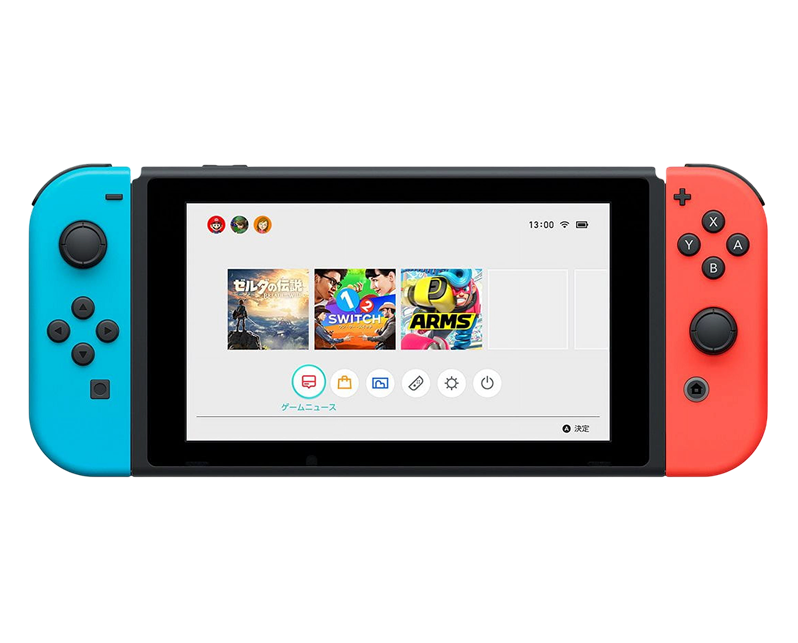
Nintendo launched the Switch in March 2017, and it's been a massive success—over 140 million units sold worldwide as of 2024. The hybrid concept is brilliant: it's a portable handheld console with a 6.2" touchscreen, but dock it and you're playing on your TV. The detachable Joy-Con controllers work wirelessly or attached to the console. The NVIDIA Tegra processor delivers solid gaming performance in a portable form factor. Battery life varies by game intensity—anywhere from 4.5 to 9 hours depending on what you're playing.
What makes the Switch interesting from a repair perspective? Nintendo used modular construction where many components can be replaced individually. The Joy-Cons are separate units with their own repair needs. The screen is replaceable without destroying the entire console. The battery is accessible. The charging port is serviceable. Nintendo clearly designed this for manufacturing efficiency, which accidentally made it more repairable than they probably intended. That said, the compact design means everything's tightly packed—there's not much wasted space, which requires careful technique during repairs.
Why Modern Phones Have These Issues (It's Not Just Yours)
Every Nintendo Switch eventually shows wear, and that's not poor manufacturing—it's just physics meeting intensive gaming use. Here's what's actually happening inside your console over time.
Your battery is like a cordless drill losing power after years of recharge cycles. When it was new, it held charge through entire projects. After years of daily use and countless recharges, it barely lasts through basic tasks. That's lithium-ion battery chemistry degrading with every charge cycle. The Switch's 4310mAh battery is decent, but after several years and 500-800 charge cycles (which happens faster than you'd think if you game daily), capacity drops significantly. What used to be 6 hours of Breath of the Wild is now maybe 3-4 hours.
The screen is both impressive and vulnerable. Think about storefront windows—they're large, clear, functional, but hit them wrong and they shatter. Your Switch's 6.2" capacitive touchscreen is similar. The LCD is bright and colorful for gaming. The glass protects it and provides touch input. But drop the Switch onto tile flooring? That screen cracks. Throw it in a bag with keys or hard objects pressing against it? You risk pressure damage. The LCD can develop dead pixels or backlight issues from impact even when the glass survives.
Joy-Con drift is its own special nightmare. The analog sticks use tiny potentiometers that measure stick position. These potentiometers have graphite contact pads that physically rub against resistive elements as you move the sticks. After millions of movements across thousands of gaming hours, that graphite wears away. Metal dust and debris accumulate inside the stick mechanism. The spring tension changes. Eventually, the Joy-Con reports movement when you're not touching the stick—that's drift. It's a design flaw that affects virtually all Joy-Cons eventually.
Charging ports face mechanical stress from repeated cable insertions. You've docked and undocked your Switch, plugged in charging cables, probably forced the connection a few times when it didn't align perfectly. Each insertion wears the USB-C port's internal contacts microscopically. The port can loosen from its motherboard mounting. Dust gets inside. After years of use, charging becomes unreliable or stops working entirely.
Joy-Con Drift Is Driving You Crazy
Your character moves on their own in games even when you're not touching the analog stick. Or maybe you can't walk in a straight line—the character veers left or right constantly. Could be menu cursors drift slowly across the screen. Perhaps calibration in settings shows the stick isn't centered even when you're not touching it. Some Switch owners find drift comes and goes—it's fine for a while, then suddenly terrible, then improves temporarily before getting worse again.
Why this happens: Joy-Con analog sticks use a mechanism that was clearly designed for cost and size rather than durability. Inside each stick is a tiny potentiometer module with graphite-coated contact pads that slide across resistive strips as you move the stick. This physical contact creates wear—the graphite coating gradually wears away, exposing the underlying material. Metal dust from wear accumulates inside the mechanism, interfering with accurate readings. The delicate springs that center the stick lose tension over time. Environmental factors like humidity and dust accelerate degradation. Nintendo's been hit with class-action lawsuits over this issue because it's so widespread—virtually every Joy-Con develops drift eventually with enough use.
What you can try:
- Recalibrate the Joy-Con in System Settings > Controllers and Sensors > Calibrate Control Sticks
- Try compressed air under the rubber skirt around the analog stick base—sometimes debris causes drift
- Update your Switch system software and Joy-Con firmware
- Use electronic contact cleaner under the rubber skirt (spray, move stick around, let dry completely)
- Test if drift happens in multiple games or just one—sometimes it's a game-specific calibration issue
Our technicians consistently find: Joy-Con drift is the single most common Nintendo Switch repair we perform. About 10% of drift cases resolve with compressed air cleaning or contact cleaner—it's just debris or oxidation on the contacts. Another 10% improve temporarily with these methods but return within weeks. The remaining 80% need analog stick replacement—the potentiometer module is worn beyond cleaning. Nintendo Switch repair for Joy-Con drift involves carefully opening the Joy-Con shell (held with tri-wing screws and clips), disconnecting the battery, removing the old analog stick module (it's held with two screws and connected via a ribbon cable), installing a replacement stick, reconnecting everything precisely, and testing extensively. We verify the new stick reads accurately across its full range of motion, centers properly when released, and doesn't develop drift during stress testing. Each Joy-Con repair takes 30-45 minutes. We use high-quality replacement analog stick modules that match proper specifications—some are better than Nintendo's design, with improved contact materials that resist wear longer.
The Screen Is Cracked or Touch Doesn't Work
You've got visible cracks across the display from dropping the Switch, or maybe the screen shows weird discoloration or dead zones. Could be the touchscreen doesn't respond in certain areas, or touch registers in completely wrong locations. Perhaps the display works but shows lines, flickering, or backlight bleed around the edges. Some Switch owners see the backlight working but no actual image—just a lit blank screen. Maybe the screen worked fine in handheld mode but won't display when docked.
Why this happens: The Switch screen is a 6.2" LCD with capacitive touch digitizer and protective glass layer. Physical damage from drops is the obvious cause—impact cracks glass and often damages the LCD or digitizer underneath. Pressure damage occurs if the Switch was stored with something heavy on top or got crushed in a bag. The LCD can fail from age or electrical issues—capacitors on the display circuit can degrade, causing backlight or image problems. The digitizer can fail independently, giving you display without touch or erratic touch response. Docking issues are often GPU or circuit problems rather than the screen itself. We've seen ribbon cable failures where the display connects to the motherboard—these delicate cables can crack from repeated opening/closing if someone attempted prior repairs incorrectly.
What you can try:
- Restart your Switch completely (hold power for 15 seconds, then power back on)
- Check for system software updates
- For docking issues, try a different HDMI cable and TV/monitor to rule out display problems
- Test if the screen works in handheld mode but not docked—this isolates screen versus GPU/docking issues
- Apply gentle pressure around the screen edges to see if display improves—this indicates a loose ribbon cable
Worried about data loss during screen repair? Here's how we handle it: Screen replacement on the Nintendo Switch doesn't affect your saved games or data—everything's stored on internal memory and the SD card, neither of which we touch during screen repairs. We carefully open the back panel (held with screws), disconnect the battery first for safety, remove the damaged screen assembly (it's adhered with strong adhesive that requires careful heating), inspect the display connector for damage, install a replacement screen with precise alignment, reconnect the display ribbon cable carefully, test functionality before final assembly, and seal everything properly. We verify touch response across the entire screen, check display quality and brightness, look for dead pixels or backlight issues, test both handheld and docked display output, and ensure the screen is securely mounted without flex. Nintendo Switch repair for screens typically takes 90-120 minutes. Replacement screens are readily available since Nintendo sold millions of these consoles.
Battery Life Is Terrible Now
Your Switch used to last 6-8 hours playing less intensive games. Now it dies after 2-3 hours. The battery percentage drops rapidly during gameplay—you can watch it count down. Maybe it shuts down suddenly at 30-40% remaining. Could be it won't charge past a certain percentage, stuck at 80% or refuses to go higher. Perhaps it won't hold any charge at all, only working when plugged in constantly. Some Switch owners find their console won't turn on despite charging overnight.
Why this happens: The Switch's 4310mAh lithium-ion battery degrades like all rechargeable batteries. After several years and 500-800+ charge cycles, capacity loss is significant—you might be down to 60-70% of capacity or worse. If you've been gaming daily since 2017-2018, you've likely exceeded 1000 cycles. Battery cells can fail entirely, causing immediate shutdown. The battery management circuit can malfunction, reporting incorrect levels. Heat accelerates degradation—if you played demanding games that made the Switch hot while charging, or left it in hot environments, you damaged the battery faster. Sometimes it's not the battery but the charging circuit on the motherboard failing, preventing proper charging.
What you can try:
- Let it charge for 6-8 hours even if the charging indicator doesn't show progress—deeply discharged batteries need patient charging
- Try a different USB-C cable and power adapter—accessories fail more often than consoles
- Clean the USB-C port with compressed air
- Check if the Switch gets warm when plugged in—warmth indicates it's drawing power even if the screen doesn't show charging
- Try charging while completely powered off rather than in sleep mode
- Check if the back panel feels warm or bulges—swelling indicates dangerous battery failure requiring immediate attention
Concerned about battery replacement costs versus buying new? Here's the reality: Battery replacement on Nintendo Switch consoles is one of the most cost-effective repairs available. The Switch back panel removes with standard screws. Once inside, the battery is right there—it's secured with adhesive and connected via a standard connector. We disconnect the old battery, carefully remove it without puncturing cells, install a replacement battery matching proper specifications, secure it appropriately, reconnect everything, and run extensive tests. We charge to 100%, play demanding games while monitoring discharge rate and temperature, recharge to 100%, and verify the Switch reports accurate battery percentage throughout cycles. Nintendo Switch repair for battery issues typically takes 60-90 minutes and restores 6-8 hours of gameplay depending on the games you play. Customers regularly tell us battery replacement extended their Switch's life by 2-3+ years, which is a fraction of the cost of buying a new console, especially when you factor in replacing downloaded games or losing save data.
Charging Port Stopped Working Reliably
Your Switch won't charge unless you hold the cable at a specific angle, or wiggle it constantly. Maybe charging happens sometimes but fails other times with no pattern. The USB-C cable doesn't click firmly into the port anymore—it feels loose and moves around. Could be charging is incredibly slow, taking 8+ hours to fully charge. Perhaps the Switch won't recognize the dock at all for TV play. Some Switch owners have replaced multiple charging cables, and they all develop the same connection issues.
Why this happens: The USB-C charging port is both a blessing and a problem area. USB-C is reversible and supports faster charging, but it's also a complex connector with many pins. The Switch gets docked frequently, undocked, plugged in with various cables—all this creates mechanical wear on the port's internal contacts. The port can loosen from its motherboard mounting if cables were forced in at angles. Dust and debris accumulate inside. Liquid damage from spills can corrode pins. The port's internal pins can bend if someone jammed in a cable incorrectly. After years of intensive use (especially if you dock daily), port problems are common. Sometimes it's not port damage—it's the dock itself that's failing, or the charging cable developing internal breaks.
What you can try:
- Inspect the USB-C port with a flashlight and magnifier—look for debris, bent pins, visible damage
- Clean thoroughly with compressed air and a soft brush
- Test with multiple USB-C cables and chargers—cheap cables cause intermittent charging surprisingly often
- Try charging directly with a USB-C cable instead of using the dock to isolate the problem
- Test the dock with another device if possible to determine if it's the Switch or dock that's faulty
- Apply gentle pressure while plugged in to identify if it's a loose connection
Not sure if repair makes financial sense? Here's our honest assessment: Charging port replacement on Nintendo Switch consoles is absolutely worth it given console costs. We carefully open the Switch, disconnect the battery, desolder the damaged USB-C port using proper temperature-controlled equipment (it's got many pins that must be removed without damaging circuit board traces), clean all connection pads thoroughly, position a new port with precision alignment (critical for proper docking and charging), solder each pin cleanly, inspect under magnification for quality, and test extensively. We verify charging works with multiple cables, confirm proper charging speed, test docking functionality for TV display, ensure the connection is solid without wiggling, and stress-test with repeated plugging and unplugging. Nintendo Switch repair for charging ports typically takes 90-120 minutes. It's motherboard-level work requiring skill, but it's completely feasible and costs much less than replacing the entire console.
Joy-Cons Won't Connect Wirelessly
Your Joy-Cons work fine when attached to the Switch but won't connect wirelessly for detached play. Or maybe they connect initially but drop connection constantly. Could be only one Joy-Con connects while the other refuses. Perhaps they connect but have terrible input lag. Some Switch owners find the Joy-Cons work wirelessly when close to the console but disconnect if you sit across the room.
Why this happens: Each Joy-Con has a Bluetooth radio for wireless communication with the Switch. These radios can fail from drops, impacts, or just age-related component failure. The antenna inside each Joy-Con is a delicate trace on the circuit board—physical damage can break it. The Bluetooth pairing data can become corrupted in the Joy-Con's memory. Sometimes it's interference from other wireless devices in your environment. The Switch's Bluetooth receiver can also fail, preventing it from communicating with Joy-Cons. Battery issues in the Joy-Con can cause connection problems—weak batteries don't provide enough power for stable Bluetooth communication.
What you can try:
- Re-sync the Joy-Cons: detach them, go to Controllers > Change Grip/Order, press the sync button on each Joy-Con
- Update your Switch system software—Nintendo releases Bluetooth stability improvements
- Charge the Joy-Cons fully before testing wireless connection
- Test in a different room or location to rule out wireless interference
- Try the Joy-Cons on a different Switch if available to isolate whether it's the Joy-Con or console that's faulty
- Check for physical damage to the Joy-Con rails where they attach—damage here can affect wireless function
What really happens in most cases: Wireless connection issues on Nintendo Switch Joy-Cons break down into several categories. Corrupted pairing or software bugs account for maybe 30% and resolve with re-syncing or updates. Weak batteries causing connection instability make up another 20%. Physical damage to Bluetooth antennas or radios represents 30%. The remaining 20% are Switch-side Bluetooth problems. When you bring connection issues to The Fix, we test with known-good Joy-Cons to isolate whether it's the controllers or console. We inspect Joy-Cons internally for antenna damage. We test battery health. For antenna or radio failures, we can replace the affected components. For Switch-side Bluetooth issues, we diagnose the wireless module and determine if repair is feasible. Nintendo Switch repair for wireless connection problems varies from simple re-syncing (free during diagnostics) to component replacement (60-90 minutes depending on what's failed).
The Kickstand Broke Off Completely
That flimsy kickstand on the back of your Switch snapped off, or maybe it's still attached but so loose it won't hold the console upright anymore. Could be the kickstand works but doesn't stay at your desired angle. Perhaps the hinge is broken and the kickstand just flops around. Some Switch owners lost their kickstand entirely and have been propping up their console with books or other objects.
Why this happens: The Switch's kickstand is notoriously fragile—it's a thin piece of plastic with a simple hinge that was clearly designed for cost rather than durability. The hinge uses a small plastic pin that fits into slots. After repeated opening and closing, that pin wears down or the slots widen. Physical stress from opening too far or catching the kickstand on something can break it off entirely. Drops can shatter the plastic. It's one of Nintendo's most criticized design decisions because the kickstand is genuinely useful for tabletop mode but breaks ridiculously easily.
What you can try:
- If it's just loose but still attached, try not using it for a while to see if it's the hinge pin that's worn
- Check if the kickstand slot on the Switch body is damaged—sometimes the problem is the console, not the kickstand
- Don't force it if it's stuck—additional force will break it completely
- Consider third-party kickstand replacements that clip onto the console as a temporary solution
Here's what we've learned from the repair bench: Kickstand replacement on Nintendo Switch consoles is one of the simplest repairs we do. Replacement kickstands are readily available and inexpensive. If yours broke off completely, we install a new one—it clips into place with a small amount of adhesive for security. If the kickstand is loose, sometimes we can restore tension by carefully adjusting the hinge mechanism. If the Switch body's kickstand slot is damaged, we may need to reinforce it. Nintendo Switch repair for kickstand issues typically takes 15-30 minutes. It's a quick, affordable fix that restores tabletop functionality. Some customers also opt for upgraded third-party kickstands that are more durable than Nintendo's design—we can install those too.
What Happens When You Pick Up Your Repaired Switch
When you return to The Fix to pick up your repaired Nintendo Switch, we walk through what we did and demonstrate that everything works. For Joy-Con drift repairs, we show you the analog sticks reading accurately in the calibration menu—no drift, centered perfectly when released. For screen repairs, we test touch response across the display and show you the image quality. For battery repairs, we show you the battery charge level and explain expected runtime. For charging port repairs, we plug in and show you solid, reliable charging.
We answer any questions you have about the repair. We provide care recommendations to prevent future issues. We make sure you're comfortable that your Nintendo Switch repair was done correctly. If something doesn't feel right, we address it immediately. Your gaming depends on this console working properly—we take that seriously. Your saved games, your progress, your digital library—it's all there waiting for you on a properly functioning console.
Keep Your Switch Running Great for Years
Joy-Con care prevents drift. Don't eat while gaming—food particles get into the analog sticks. Keep hands clean to prevent oils from degrading the stick mechanisms. Store the Switch in a case when not in use to prevent dust accumulation. When cleaning, use compressed air monthly around the analog stick bases.
Screen protection is essential. Apply a tempered glass screen protector—it's cheap insurance against scratches and cracks. Use a protective case during transport. Never throw the Switch in a bag with keys or hard objects. Set it down gently rather than tossing it onto surfaces.
Battery care extends lifespan. Don't leave it plugged in at 100% for days on end. Charge when you hit 20-30% rather than always draining completely. Keep it away from extreme temperatures—don't leave it in hot cars. If you're storing the Switch for weeks, charge to about 50% before storage.
Charging port maintenance. Don't force the USB-C cable in at angles—align it properly before inserting. Clean the port monthly with compressed air. When docking, slide the Switch in smoothly rather than jamming it. Keep liquids away from the charging port and dock.
Kickstand care. Don't open it beyond its designed angle—the plastic will snap. When using tabletop mode, place on stable surfaces. Close it gently rather than snapping it shut. Consider a protective case with a built-in stand for more durable tabletop play.
General care. Keep the vents clear—dust buildup causes overheating. Don't cover the Switch with blankets or pillows while playing. Update system software regularly—Nintendo releases performance and stability improvements. Use high-quality SD cards for expanded storage rather than cheap cards that corrupt data.
Your Switch Deserves Expert Care
The Nintendo Switch revolutionized portable gaming, and most issues—Joy-Con drift, cracked screens, dying batteries, faulty charging ports—are completely repairable. These consoles represent significant investments, especially when you factor in digital game libraries and hundreds of hours of saved progress. Professional Nintendo Switch repair restores full functionality at a fraction of replacement costs.
Drop by The Fix for a free diagnostic. We'll run comprehensive tests on your Switch, identify exactly what's happening, and give you honest recommendations. No pressure, no upselling—just straightforward guidance from technicians who work on these consoles every day. Your gaming console deserves expert attention, and we've got the experience to deliver it.


Trusted repair solution for mobile phones, tablets, gaming consoles, and computer systems. We provide fast, reliable, and affordable repair services to get your devices back in perfect working condition.
The Fix is an independent repair service provider and is not affiliated with, sponsored by, or endorsed by Apple Inc., Samsung Electronics, Google LLC, or any other device manufacturer. We use high-quality compatible replacement parts unless explicitly stated. All trademarks are property of their respective owners.


© Copyright The Fix Solutions All rights reserved 2026.
Design by Deepcoder