






Microsoft Surface Pro X Repair Services
Get fast, reliable, and professional Microsoft Surface Pro X repair services at The Fix — your trusted destination for expert device care.
Common Repairs We Handle Daily


Microsoft Surface Pro X Repair vs Replace: Why Fixing Makes Financial Sense
Picture this: You're in a coffee shop, Surface Pro X propped up on its kickstand, working through emails when suddenly the screen goes dark in one corner. Or maybe you're at home and notice the battery that used to last all day now dies by lunch. Perhaps the LTE connection that made this device so perfect for mobile work stopped connecting entirely. You bought the Surface Pro X specifically for its thin design, always-connected LTE, and all-day battery life. Now something's broken, and you're wondering if it's even worth fixing an ARM-based device that's a few years old.
Here's what most people don't realize: the Surface Pro X is actually one of the most repair-friendly devices Microsoft's ever made, and professional Microsoft Surface Pro X repair makes way more financial sense than replacement—especially given how expensive these units were originally and how capable they still are for most workflows. Yeah, it's ARM architecture, which means software compatibility quirks, but the hardware itself? Totally repairable. This guide breaks down what goes wrong, why it happens, and why fixing your Surface Pro X is the smart move.
Living With the Surface Pro X
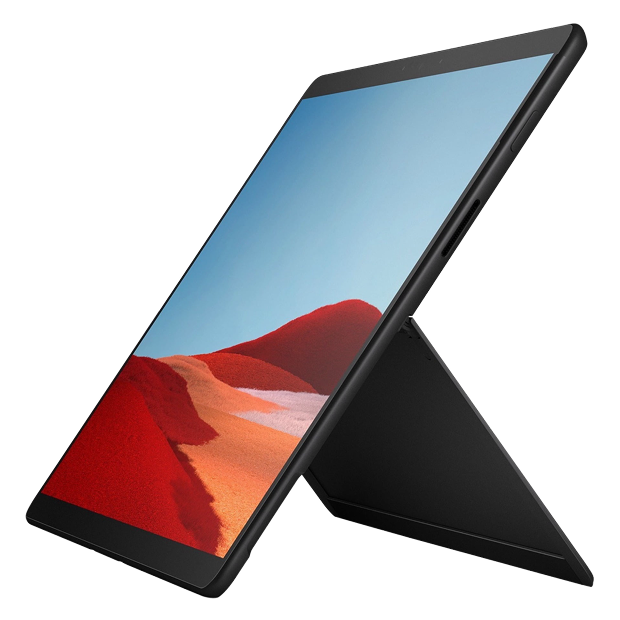
Microsoft released the Surface Pro X in late 2019 (with a refresh in 2020), and it was genuinely ahead of its time—maybe a bit too ahead. You're looking at ARM-based processors (Microsoft SQ1 or SQ2 chips, which are customized Qualcomm Snapdragon processors), built-in LTE connectivity for working anywhere, a gorgeous 13" display with those thin bezels, and battery life that actually delivered on the all-day promise when everything worked right.
From a repair perspective, the Surface Pro X is interesting because Microsoft clearly designed it with serviceability in mind. The screen comes off with heat and patience like other Surface devices, but once you're inside, the components are modular and accessible. The SSD is removable—actual user-replaceable if you're comfortable with small screws. The battery uses pull-tabs for removal instead of being permanently glued. The LTE module is its own component that can be replaced if it fails. It's like Microsoft finally listened to repair advocates, then promptly released it in an ARM architecture that confused mainstream users. The hardware design is excellent; the ARM software ecosystem in 2019-2020 just wasn't quite ready yet.
The Reality of Electronics Longevity
Every Surface Pro X eventually needs attention, regardless of how carefully you've used it. This isn't a design flaw or planned obsolescence—it's just materials science meeting daily use over time. Let me explain what's happening inside your device.
Your battery is like a cordless drill you've owned for years. Remember when it held a charge through an entire weekend project? Now it barely makes it through hanging one picture frame before needing a recharge. That's lithium-ion battery chemistry degrading naturally with every charge cycle. The Surface Pro X battery is actually quite good—around 38Wh capacity—but after 500-800 full charge cycles (which might be 18-24 months for someone who uses LTE connectivity heavily), you'll notice runtime dropping from that promised 13 hours to maybe 7-8 hours. The ARM processor is efficient, but physics doesn't care—batteries degrade.
The display is simultaneously impressive and vulnerable. Think about crystal glass—beautiful, transparent, functional, but it shatters when stressed incorrectly. Your Surface Pro X screen is similar: it's a beautiful piece of glass and touch digitizer technology that makes the device feel premium. But drop it onto tile flooring? The glass cracks. Throw it in a bag with keys or metal objects pressing against the screen? You're risking damage. The thin bezels mean there's less protective border around the display, so edge impacts cause cracks that spread quickly. The touch digitizer underneath can fail even without visible damage, creating dead zones or phantom touches.
The LTE modem and SIM card slot face unique challenges. The antenna connections are delicate ribbon cables that can work loose from vibration or movement over time. The SIM tray mechanism can wear out or get damaged if you're frequently swapping SIM cards. Software bugs can make the LTE modem disappear from Windows entirely. Sometimes it's carrier compatibility issues as networks evolve and older LTE bands get phased out. We've seen modems fail from sustained heat exposure—if you regularly used your Surface Pro X with LTE active while it sat in direct sunlight or in a hot car, that modem got cooked.
Charging ports are mechanical components that wear with use. You've plugged in that Surface Connect cable hundreds of times. Each insertion creates microscopic wear on the contact points. Add in dust, humidity causing corrosion, and occasional yanks at the wrong angle, and eventually you get intermittent charging or ports that won't make solid contact anymore.
The Screen Just Stopped Working Right
You've got visible cracks spreading from a corner, or maybe the touch response is completely dead in certain areas. Could be the screen works fine but certain sections show discoloration or flickering. Perhaps the Surface Slim Pen doesn't register accurately, drawing lines offset from where you're actually writing. Some owners see backlight bleed around the edges or notice touch registering in spots they're not even touching.
Why this happens: The Surface Pro X display uses a laminated design where the glass, touch digitizer, and LCD are all bonded together as one assembly. When one layer fails, it often affects the others. Physical damage from drops is the most common cause—the thin bezels mean edge impacts transfer force directly to the glass. Pressure damage happens too, like if you stored the device with something heavy pressing against the screen. The digitizer can fail independently from impact, creating touch dead zones even when the glass looks perfect. We've seen ribbon cable failures where the display connects to the motherboard—vibration or repeated opening/closing of the kickstand can stress those connectors over time.
What you can try:
- Confirm it's not just a screen protector that's damaged—some people forget they have one installed
- Restart and check for display driver updates in Windows Update and Device Manager
- Connect an external monitor via USB-C to verify the GPU and internal components are fine
- Recalibrate touch in Windows settings if it's responding but inaccurately
- Test the Surface Slim Pen on a different device if available to rule out pen issues
Our repair data reveals something interesting: Surface Pro X screens fail at about the same rate as other Surface models, but the ARM architecture makes people think twice about repair costs. Here's the reality—the screen replacement process is identical to other Surface Pros. The display assembly itself costs roughly the same as other 13" Surface displays. Microsoft Surface Pro X repair for screens involves carefully heating the edges to soften adhesive, separating the damaged display without harming internal components, thoroughly cleaning old adhesive residue, installing the new display assembly with proper alignment, reconnecting the delicate ribbon cables precisely, and sealing everything with appropriate adhesive. We test every inch of the new screen—touch response in all areas, pen accuracy, brightness uniformity, color consistency, and backlight evenness. These repairs typically take 90-120 minutes and restore full display functionality. The ARM processor has zero impact on screen repair difficulty or cost.
Battery Life Is Nowhere Near What It Used to Be
You charge to 100% in the morning and you're hunting for outlets by early afternoon. The battery percentage drops rapidly during normal use, or Windows keeps warning you about battery health. Maybe the device won't run on battery at all anymore, only working when plugged in. Could be charging takes forever even with the original 65W power supply.
Why this happens: Lithium-ion batteries have finite lifespans. The Surface Pro X battery chemistry is identical to other devices—it degrades with charge cycles. If you've been using your Pro X since 2019-2020, you've likely hit 800-1000+ charge cycles by now. That's well into significant capacity loss territory—you might be down to 60-70% of original capacity. The ARM processor's efficiency helps, but it can't overcome chemistry. Using LTE constantly drains faster than WiFi-only use. If you frequently used your device in hot environments (car dashboards, direct sunlight, poorly ventilated spaces), heat accelerated degradation. Windows power management bugs can cause excessive background drain too.
What you can try:
- Generate a battery report: Command Prompt (admin), type "powercfg /batteryreport" and check design capacity versus current capacity
- Adjust power mode to "Best power efficiency" and reduce screen brightness
- Disable LTE if you don't need it—Settings > Network & Internet > Cellular and turn it off when on WiFi
- Close unnecessary background apps and disable startup programs you don't need
- Update Windows and firmware—Microsoft sometimes releases power optimization improvements
Based on the devices we see: Surface Pro X battery replacement is straightforward compared to many devices. Microsoft used pull-tab adhesive strips that actually work (most of the time) for battery removal. The battery is modular and accessible once you're inside. We're seeing good results with replacement batteries—units return to near-original runtime after replacement. The real question isn't "can we replace it" but "should we replace it given ARM limitations?" And honestly, if you're still actively using your Surface Pro X and it meets your workflow needs, battery replacement makes total sense. You're spending a fraction of what a new device costs, and you keep a familiar machine that works for your specific use case. Most Surface Pro X owners who get battery replacements tell us they're keeping their devices for another 2-3 years minimum.
LTE Connectivity Just Stopped Working
The LTE icon disappeared from your system tray entirely, or maybe it shows but never actually connects to cellular networks. Could be it connects but drops constantly or provides incredibly slow data speeds. Perhaps Windows says "No SIM card detected" even though you've got one installed. Some owners can't even find the cellular option in Windows settings anymore.
Why this happens: LTE modems in thin devices like the Surface Pro X face harsh environments. They generate heat during use, they're connected via delicate antenna cables, and they rely on drivers that sometimes conflict with Windows updates. The SIM card slot is a mechanical component that wears with repeated insertions. Sometimes carrier network changes make older LTE bands less reliable or incompatible. We've seen cases where Windows updates corrupted cellular drivers, making the modem disappear entirely. Physical damage can occur too—antenna cables can detach from drops or impacts, or the modem itself can fail from sustained heat exposure if you used LTE heavily in hot conditions.
What you can try:
- Check Device Manager for cellular modem—if it shows with a yellow exclamation mark, try updating or reinstalling drivers
- Remove and reinsert your SIM card, checking for visible damage to the card or tray
- Reset network settings: Settings > Network & Internet > Advanced network settings > Network reset
- Update Surface firmware and Windows to the latest versions
- Test your SIM card in another device to confirm the card itself works
- Try a different carrier's SIM if available to rule out carrier compatibility issues
What we tell customers who come in: LTE issues on Surface Pro X split into three categories. Software problems (driver conflicts, Windows bugs) account for maybe 40% of cases and resolve with updates, driver reinstalls, or network resets. Physical problems (damaged SIM tray, detached antenna cables) make up another 40% and require repair. Actual modem hardware failure represents the final 20% and needs modem replacement. When you bring LTE problems to The Fix, we systematically test with known-good SIM cards from multiple carriers, check driver status, inspect the SIM tray under magnification for damage, verify antenna connections internally, and run modem diagnostics to determine if it's responding to commands. For physical issues, we can replace the SIM tray mechanism or reconnect antenna cables. For modem failure, the LTE module is replaceable—it's a separate component that plugs into the motherboard. Microsoft Surface Pro X repair for LTE issues ranges from simple driver fixes taking 30 minutes to complete modem replacement taking 2-3 hours including disassembly, module replacement, and extensive connectivity testing.
Software Compatibility Issues Are Driving You Crazy
Apps that should work keep crashing or won't install at all. Performance is sluggish on tasks that should be simple. Maybe you get constant warnings about apps not being optimized for your device. Could be certain professional software you need simply won't run, or it runs through emulation so slowly it's unusable.
Why this happens: The Surface Pro X uses ARM architecture, not the x86 architecture most Windows software was designed for. In 2019-2020, ARM Windows app selection was limited. Things have improved significantly—Windows 11 has better ARM64 support and improved x64 emulation—but gaps remain. Some apps have native ARM64 versions that run great. Others run through emulation, which works but with performance overhead. A few apps simply won't work at all because they use kernel-level drivers or components that can't be emulated. If you haven't updated to Windows 11, you're missing significant ARM compatibility improvements that shipped in recent years.
What you can try:
- Update to Windows 11 if you're still on Windows 10—compatibility improved dramatically
- Check if apps you need have ARM64-native versions available—many major apps now do
- For Adobe Creative Suite, test if web versions work for your workflow
- Consider cloud alternatives for incompatible apps—browser-based versions often work fine
- Check the app publisher's website for ARM-compatible versions or alternatives
Here's what we've learned from the repair bench: Software compatibility isn't a repair issue—it's an architecture limitation. We can't fix ARM compatibility through hardware repair. But here's what we can tell you: if you're using your Surface Pro X for web browsing, Microsoft Office, email, media consumption, and general productivity, it handles those tasks beautifully. If you need specific professional apps that don't have ARM versions and run poorly through emulation, you're facing a platform limitation. Before investing in hardware repair for a Surface Pro X, honestly assess whether your workflow works on ARM. If it does, hardware repairs make perfect sense. If you're constantly fighting software compatibility, maybe it's time to consider x86-based alternatives. We're honest about this because we want you making informed decisions, not regretting repair costs on a device that doesn't suit your needs.
The Kickstand Won't Hold Position Anymore
That signature kickstand feels loose and won't stay at your preferred angles anymore, or it's stuck closed and requires serious force to open. Maybe it opens but slowly collapses forward during use. Could be it works but makes grinding or clicking sounds that weren't there originally.
Why this happens: The kickstand is a friction hinge mechanism that opens and closes hundreds or thousands of times over the device's life. Each cycle creates microscopic wear on the friction surfaces. The internal springs that provide resistance lose tension over time. The magnets that hold it closed or at specific angles weaken with age and heat exposure. Sometimes debris gets into the hinge mechanism, causing grinding or restricting movement. Physical damage can occur if you force the kickstand past its designed angles or close it with something caught underneath.
What you can try:
- Clean around the kickstand hinge with compressed air to remove dust and debris
- Check if something's physically blocking the kickstand's movement
- Test all angle positions to identify which work and which don't
- Gently work the kickstand through its full range of motion multiple times to see if it loosens up
- Avoid forcing it—you'll cause more damage
The reality from our repair experience: Kickstand repairs on Surface Pro X range from simple adjustments to full kickstand replacement. Sometimes we can restore proper function by disassembling the hinge, cleaning thoroughly, and adjusting tension. Other cases require complete kickstand assembly replacement because the metal components are worn beyond salvaging. The kickstand is its own module that can be replaced independently, but accessing it requires removing the display first (since the kickstand is attached to the back housing and the display must come off to access internal components). Most kickstand repairs take 2-3 hours including careful screen removal, kickstand work, and reassembly with fresh adhesive. Given that the rest of your Surface Pro X still functions well, kickstand repair makes sense if this is the only issue—it's much less expensive than device replacement.
Behind the Scenes: How We Handle Your Surface Pro X
You're probably wondering what actually happens during professional Microsoft Surface Pro X repair, especially with an ARM device that some shops refuse to work on. Let me walk you through our process because transparency matters.
The diagnostic phase—specialized tools for ARM devices: When you bring your Surface Pro X in, we start with conversation. What's happening? When did it start? What have you tried? Then we move to testing. For screens, we check every zone of touch response, test the Surface Slim Pen if you have one, examine for physical damage, and verify display driver function. For batteries, we generate detailed power reports that show actual capacity versus design capacity, test charging speed, and check for proper power delivery. For LTE issues, we test with multiple carrier SIM cards, check signal strength, verify antenna connections, and run modem diagnostics. We've got Surface-specific diagnostic software that communicates with the hardware regardless of ARM architecture—the underlying components speak the same diagnostic language.
What tools we use for this specific device: Surface Pro X repair requires heat tools that precisely control temperature (too hot and you damage the display, too cool and the adhesive won't soften). We use specialized pry tools with proper thickness and flexibility to separate the screen without cracking it. Anti-static mats and wrist straps protect components during work. Torx screwdrivers in multiple sizes for the various screws inside. Proper adhesive strips custom-cut for Surface Pro models. Testing equipment for verifying repairs—multimeters for checking voltages, USB power meters for validating charging, SIM card readers for testing modems, external displays for confirming GPU function.
Why we do things in a certain order: There's a specific sequence to Surface Pro X disassembly that prevents damage. Screen removal comes first because everything else is accessed through the screen opening. Battery disconnect happens immediately after screen removal to eliminate electrical hazard during repair. Component-specific work comes next—whether that's replacing the battery, swapping the LTE module, replacing the kickstand, or reattaching antenna cables. Reassembly follows reverse order with critical steps: cleaning all old adhesive, applying fresh adhesive, carefully aligning the screen, pressing firmly to bond properly, and connecting all ribbon cables with precision (they're tiny and easy to damage if misaligned).
How we protect your data during repair: We don't need access to your Windows installation for most repairs. The SSD remains untouched during screen, battery, kickstand, or LTE repairs. If we need to test functionality that requires Windows access, we ask for your permission first and explain exactly what we're doing. For repairs involving the motherboard or SSD, we inform you of data backup needs before starting work. Your privacy matters—we're not looking through your files, and our diagnostic processes don't involve accessing personal data.
Testing procedures unique to this device: After any Surface Pro X repair, we run ARM-specific tests. For screens, we verify touch accuracy, test the Surface Slim Pen, check brightness uniformity, confirm no dead pixels, and validate proper color rendering. For batteries, we fully charge, partially discharge, and recharge while monitoring power reporting accuracy. For LTE repairs, we test with multiple carriers, verify signal strength meets expected values, run speed tests, and confirm stable connections over 30+ minutes. For kickstand repairs, we cycle through every angle position multiple times, check for smooth operation, verify solid holding at all angles, and ensure proper magnetic closure. We don't rush—your device must pass every test before we call it done.
Keep Your Surface Pro X Healthy Longer
Screen protection is cheap insurance. A quality tempered glass screen protector costs very little compared to screen replacement. Use a proper sleeve when transporting—those thin bezels mean the edges are vulnerable. Never stack heavy objects on your closed Surface Pro X in a bag. When setting down, choose clean, flat surfaces.
Battery health starts with charging habits. If you're usually at a desk with power available, enable Windows battery limit features that stop charging at 80%—this extends lifespan dramatically. Avoid extreme temperatures during charging. Don't regularly drain to 0%—charge when you hit 20-30%. Turn off LTE when you don't need it, as cellular connectivity drains faster than WiFi.
LTE care prevents modem issues. Don't force the SIM tray—it should slide in and out smoothly. Keep the tray slot clean with occasional compressed air. If you travel internationally and swap SIMs frequently, be gentle with insertions. Avoid using LTE in extremely hot environments for extended periods. Keep cellular drivers updated through Windows Update.
Kickstand maintenance matters. Don't force it beyond its maximum angle. When closing, ensure nothing's between the kickstand and device body. Monthly compressed air cleaning around the hinge prevents dust buildup. Use the kickstand on stable surfaces—don't trust it on your lap where movement stresses the hinge.
Software optimization helps longevity. Keep Windows 11 updated—ARM compatibility improves with each update. Use ARM64-native apps when available instead of relying on emulation. Uninstall programs you don't use. Run Disk Cleanup monthly. Restart weekly instead of always using sleep mode. Check for Surface firmware updates regularly through Windows Update.
Your Surface Pro X Still Has Plenty of Life Left
Don't let anyone convince you that ARM architecture makes your Surface Pro X unrepairable or not worth fixing. The hardware is solid, the design is actually more repair-friendly than many devices, and most common problems—screens, batteries, LTE modules, kickstands—are totally fixable. If your workflow runs well on the Surface Pro X's ARM platform, professional Microsoft Surface Pro X repair makes excellent financial sense compared to replacement costs.
Having issues with your Surface Pro X? The Fix specializes in Surface device repairs. Stop by our shop—we'll diagnose the problem for free, explain what's happening in plain English, and get your device working right again. ARM architecture doesn't scare us; we've been repairing Surface Pro X units since they launched. Your capable hybrid device deserves expert attention.


Trusted repair solution for mobile phones, tablets, gaming consoles, and computer systems. We provide fast, reliable, and affordable repair services to get your devices back in perfect working condition.
The Fix is an independent repair service provider and is not affiliated with, sponsored by, or endorsed by Apple Inc., Samsung Electronics, Google LLC, or any other device manufacturer. We use high-quality compatible replacement parts unless explicitly stated. All trademarks are property of their respective owners.


© Copyright The Fix Solutions All rights reserved 2026.
Design by Deepcoder