






Microsoft Surface Pro Copilot+ Repair Services
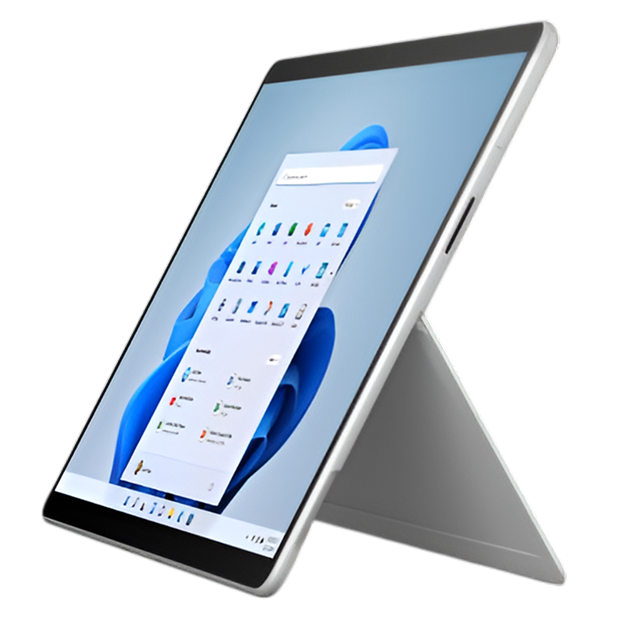
Get fast, reliable, and professional Microsoft Surface Pro Copilot+ repair services at The Fix — your trusted destination for expert device care.
Common Repairs We Handle Daily


Why Won't Your Microsoft Surface Pro Copilot+ Work Right? Microsoft Surface Pro Copilot+ Repair Answers
Ever wonder why your brand-new AI-powered device suddenly isn't so powerful anymore? You invested in Microsoft's latest Surface Pro Copilot+ specifically for those neural processing features and lightning-fast performance, but now something's off. Maybe the stunning OLED display has a dead zone where touch doesn't register. Could be the battery's draining way faster than Microsoft promised. Perhaps the device overheats during video calls or crashes when you're using AI features. Whatever's happening, you're frustrated because this wasn't cheap, and it's supposed to be cutting-edge technology.
Here's what you need to know: even the most advanced devices face repair issues, and the Surface Pro Copilot+ is no exception. Actually, being first-generation AI PC hardware means we're seeing some unique problems that didn't exist with previous Surface models. But here's the good news—most issues are fixable, and professional Microsoft Surface Pro Copilot+ repair can restore your device to full functionality without the massive cost of replacement. Let's dig into what's actually going wrong and how to fix it.
The Surface Pro Copilot+ Story
Microsoft launched the Surface Pro Copilot+ in mid-2024 as their first true AI PC, and it's genuinely impressive hardware. You're looking at Qualcomm's Snapdragon X Elite or X Plus processors with dedicated neural processing units (NPUs) that handle AI tasks locally on your device. That OLED display option is absolutely gorgeous—vibrant colors, deep blacks, perfect for creative work and media consumption. The claimed 14+ hour battery life actually holds up in real-world use when everything's working correctly.
What makes this device fascinating from a repair standpoint? It's completely different architecture than previous Surface Pros. We're talking ARM-based processors instead of Intel, which means different thermal management, different power consumption patterns, and different failure points. The OLED screen technology is more complex than LCD panels. The AI processing puts unique stress on components. We're essentially learning the repair landscape for this device in real-time as units age and develop issues. Early patterns are emerging, and that's what this guide covers.
Why Every [DEVICE] Eventually Shows Wear
Your Surface Pro Copilot+ will need attention eventually—not because it's poorly made, but because physics doesn't care how expensive your device was. Let me break down what's happening inside.
Think about a car engine losing efficiency with mileage. When it's brand new, everything runs perfectly smooth. After 50,000 miles, you notice decreased fuel economy, slightly rougher idle, and reduced power. That's exactly what happens to your battery. The lithium-ion cells inside degrade with every charge cycle—it's electrochemistry, not a defect. The Snapdragon processor and NPU generate heat during AI processing, and that heat accelerates battery aging. After 500-700 charge cycles (maybe 12-18 months of daily use for heavy users), you'll notice runtime dropping from that promised 14 hours to maybe 9-10 hours.
The OLED display is simultaneously incredible and delicate. Picture wine glass stems—beautiful, elegant, functional, but fragile if stressed wrong. OLED panels use organic compounds that emit light when electrically charged. These compounds can develop burn-in if static images sit too long, suffer dead pixels from manufacturing defects or physical stress, and the touch digitizer layer can separate or fail from impact. Drop your Surface Pro Copilot+ corner-first onto hard flooring? That gorgeous OLED screen can shatter just like any other glass. Carry it in a backpack with heavy books pressing against the screen? You're risking pressure damage to the panel.
The ARM architecture and NPU create unique thermal challenges we didn't see in Intel-based Surface devices. When you're running AI workloads—like Windows Studio Effects, live captions, or local AI models—the NPU works hard and generates heat. The thin Surface Pro chassis doesn't have tons of room for heat dissipation. Over time, if the device frequently runs hot, thermal paste degrades, fans accumulate dust, and heat-related component stress increases. This isn't unique to Surface Pro Copilot+; it's just thermodynamics meeting thin-and-light design.
Charging ports still face the same battle regardless of processor architecture. You're connecting that USB-C cable daily, sometimes multiple times. Each connection wears the internal contacts microscopically. Dust gets inside. Maybe you've accidentally yanked the cable at an angle, stressing the port's solder joints. After hundreds of charge cycles, connectivity issues emerge.
The OLED Screen Looks Wrong
You've got touch issues where certain areas don't respond, or maybe there's visible damage with cracks spreading across the display. Could be strange discoloration, dead pixels, or even burn-in where static elements like the taskbar have left permanent shadows. Some owners notice the screen flickers or has strange color banding that wasn't there initially.
Why this happens: OLED technology is different from the LCD screens in older Surface Pros. Each pixel is its own light source, which creates those incredible blacks and vibrant colors—but also introduces new failure modes. Burn-in happens when static images remain on screen for extended periods; the organic compounds degrade unevenly. Dead pixels occur when individual OLED subpixels fail, appearing as tiny colored or black dots. Physical damage from drops or pressure cracks the glass and damages the underlying OLED panel. The touch digitizer is a separate layer that can fail independently, giving you display problems or touch problems or both simultaneously.
What you can try:
- Run the built-in display test: Settings > System > Display > Advanced display > choose your display and look for any testing options
- Check if Windows HDR settings are causing color issues—toggle HDR on/off to test
- For burn-in concerns, try displaying varying content full-screen for several hours (though permanent burn-in can't be reversed)
- Test touch accuracy in Settings > Bluetooth & devices > Touch > reset touch settings
- Connect an external monitor via USB-C to verify the GPU and display output work correctly
From working on these every day: OLED screen replacement on the Surface Pro Copilot+ is technically complex and significantly more expensive than LCD replacements on older models. The OLED panel itself costs more, requires extremely careful handling during installation, and must be calibrated properly for accurate color reproduction. We've seen several units where someone attempted DIY screen replacement and destroyed the OLED panel by applying too much pressure or heat during separation from the digitizer. Professional Microsoft Surface Pro Copilot+ repair for OLED screens requires specialized tools, anti-static workspace, precise temperature control during disassembly, and thorough color calibration testing afterward. These repairs typically take 2-3 hours and involve carefully removing the damaged display assembly, cleaning all adhesive residue without scratching the metal chassis, installing the new OLED panel with proper bonding, reconnecting the delicate ribbon cables, and extensively testing touch response, color accuracy, and brightness uniformity across the entire screen.
AI Features Keep Crashing or Not Working
You're trying to use Windows Studio Effects, AI-powered background blur, or local AI processing, but the features crash, freeze your device, or simply don't work. Maybe AI tasks that should run locally are running slowly or not at all. Could be the NPU shows errors in Device Manager or isn't even being recognized.
Why this happens: The Snapdragon X Elite/Plus processors with integrated NPUs are first-generation AI PC hardware running in Windows, and there's a learning curve happening in real-time. Sometimes it's driver issues—Qualcomm and Microsoft are still optimizing NPU drivers and releasing updates frequently. Other times it's thermal throttling; when the device overheats from sustained AI workloads, the NPU throttles performance or shuts down features to protect components. We've seen firmware bugs cause NPU instability. Occasionally it's ARM compatibility issues where software hasn't been properly compiled for ARM architecture. In rare cases, it's actual hardware failure where the NPU has developed faults.
What you can try:
- Update everything: Windows Update, Qualcomm drivers from Device Manager, and Surface firmware from Microsoft's support site
- Check Task Manager during AI feature use—if temps are high (80°C+), you're thermal throttling
- Reset Windows Studio Effects: Settings > Bluetooth & devices > Cameras > remove camera effects and re-add them
- Run the Surface Diagnostic Toolkit (download from Microsoft) to check for hardware faults
- Try using AI features with the device plugged in and on a hard, flat surface for maximum cooling
Here's what we've learned from the repair bench: NPU and AI feature problems on the Surface Pro Copilot+ split into three categories. First, software issues that firmware updates fix—these are common and usually resolve with updates from Microsoft and Qualcomm. Second, thermal management problems where the device is thermal throttling due to dust buildup in vents or degraded thermal paste—fixable with cleaning and repasting. Third, actual NPU hardware failure, which is rare but requires motherboard-level repair or replacement. When you bring an AI-troubled Surface Pro Copilot+ to The Fix, we update all firmware first, run thermal diagnostics with professional monitoring equipment, test NPU functionality under controlled loads, and determine whether you're facing a software bug, cooling issue, or hardware fault. Most cases are software-related and resolve with proper updates and configuration.
Battery Life Is Nothing Like Advertised
Microsoft promised 14+ hours of battery life, but you're getting maybe 6-8 hours on a good day. The battery percentage drops rapidly during normal use, or the device dies unexpectedly even when showing 30-40% remaining. Maybe it won't charge past a certain percentage, or charging takes forever even with the included 65W charger.
Why this happens: Battery life claims are always measured under ideal conditions—specific brightness levels, specific tasks, perfect temperatures. Real-world use with AI features, high screen brightness, multiple apps, and background processes drains faster. But beyond that, lithium-ion batteries degrade naturally. The Surface Pro Copilot+'s battery is good quality, but every charge cycle reduces maximum capacity slightly. The ARM processor and NPU are efficient, but sustained AI workloads still consume power. If you frequently use your device on your lap or on soft surfaces that block the bottom vents, heat builds up and accelerates battery degradation. Windows power management bugs can cause excessive background drain. Occasionally, a battery cell fails prematurely, causing rapid capacity loss.
What you can try:
- Generate a battery report: Open Command Prompt as admin, type "powercfg /batteryreport" and check design capacity vs. current full charge capacity
- Adjust power settings to "Best power efficiency" and lower screen brightness to 50-60%
- Disable unnecessary startup programs and background apps
- Check battery usage by app in Settings > System > Power & battery to identify power hogs
- Try a full discharge to 0% followed by uninterrupted charge to 100% to recalibrate the battery meter
What really happens in most cases: Battery issues on Surface Pro Copilot+ units vary widely. Some users see degradation faster than expected due to heavy AI workload usage that keeps the NPU and CPU active constantly. Others experience Windows power management bugs that cause excessive drain—we've seen cases where a firmware update immediately improved battery life by 30-40%. When customers bring battery complaints to The Fix, we start with that battery report to check actual capacity degradation. If you're at 80%+ of design capacity but experiencing poor runtime, it's usually software-related. If you're below 70% capacity, battery replacement makes sense. The Surface Pro Copilot+ battery is replaceable, though it requires opening the device carefully since the OLED screen is fragile. Battery replacement typically restores the device to near-original runtime, and we're seeing good quality from replacement batteries so far.
Device Overheats During Normal Use
Your Surface Pro Copilot+ gets uncomfortably hot during video calls, slows down during multitasking, or the fan runs constantly even when you're just browsing. Maybe you've noticed performance dropping during sustained work, or the device shuts down unexpectedly when hot.
Why this happens: The Snapdragon X Elite/Plus processors are efficient, but "efficient" doesn't mean "generates zero heat." Add in that NPU processing AI workloads, the OLED display consuming power, and the thin chassis with limited cooling capacity, and you've got thermal challenges. Dust accumulates in the tiny vents over time, reducing airflow. The thermal paste between the processor/NPU and the cooling system degrades with heat cycles, reducing thermal transfer efficiency. If you frequently use your device on fabric surfaces like couches or beds, you're blocking the bottom vents where air intake happens. Windows sometimes has background processes running wild, maxing out CPU/NPU unnecessarily and generating excess heat.
What you can try:
- Check Task Manager to see what's actually using CPU/NPU resources—sometimes a buggy app or process is the culprit
- Use your Surface Pro Copilot+ on hard, flat surfaces that don't block the bottom vents
- Clean the vents with compressed air—blow from multiple angles to dislodge dust
- Update Windows and all drivers, as power management improvements sometimes reduce heat generation
- Adjust performance mode to "Recommended" instead of "Best performance" if you have it set aggressively
The reality from our repair experience: Overheating on Surface Pro Copilot+ units usually stems from one of three sources. First, software issues where background processes or buggy drivers cause excessive CPU/NPU usage—Task Manager reveals these immediately. Second, blocked vents from dust accumulation or using the device on improper surfaces—cleaning and proper placement resolve this. Third, degraded thermal paste or failing thermal management components—this requires opening the device, cleaning old thermal compound, applying fresh high-quality thermal paste to the processor and NPU, and sometimes replacing thermal pads. We've seen significant temperature reductions (15-20°C under load) from proper thermal paste replacement on units that have been heavily used for 6+ months. Microsoft Surface Pro Copilot+ repair for thermal issues typically involves disassembly, thermal system inspection, cleaning, repasting, and stress testing under sustained loads to verify proper cooling.
Touchscreen or Surface Pen Acting Weird
Touch input is intermittent, not registering in certain areas, or registering touches where you're not actually touching. The Surface Pen skips, has massive lag, won't pair, or draws lines offset from where the pen tip actually is. Maybe palm rejection isn't working, so your hand creates unwanted marks while writing.
Why this happens: The touch digitizer and pen digitizer are separate systems that can develop independent issues. Touch problems often come from failed digitizer regions, damaged ribbon cables connecting the digitizer to the motherboard, or driver conflicts. Surface Pen issues can be Bluetooth connectivity problems, pen tip wear, low battery in the pen itself, or electromagnetic interference from other devices. Sometimes it's calibration drift where the system no longer accurately maps pen position to screen position. Physical damage to the screen affects both touch and pen input. We've even seen Windows updates temporarily break pen functionality until Microsoft releases hotfixes.
What you can try:
- Restart your Surface Pro Copilot+ and re-pair the Surface Pen via Bluetooth settings
- Check Surface Pen battery—some models use AAAA batteries that need replacement
- Recalibrate touch: Settings > Bluetooth & devices > Touch > "reset touch settings"
- Update Surface Pen firmware through the Surface app
- Test without the pen to isolate whether it's a touch digitizer or pen-specific issue
- Try the pen on a different device if available to rule out pen hardware failure
What the data shows from our repairs: Touch and pen issues on OLED Surface Pro Copilot+ units are trickier than on older LCD models because the digitizer is more tightly integrated with the OLED panel. Simple driver updates or recalibration fix about 30% of reported pen/touch issues. Another 40% are legitimate hardware problems—digitizer failure, damaged ribbon cables, or worn pen tips. The remaining 30% are interference or compatibility issues with specific apps. When you bring touch/pen problems to The Fix, we systematically test with known-good Surface Pens, check for physical damage under magnification, run digitizer diagnostics that test every region of the screen, verify driver versions, and determine whether you need digitizer replacement, pen replacement, or just software fixes. Digitizer replacement on OLED models is essentially the same process as screen replacement since they're bonded together.
From Broken to Fixed: Your Surface Pro Copilot+ Journey
First 30 minutes—the thorough assessment: When you walk in, we want to hear your story. What's happening? When did it start? What have you already tried? We take notes because details matter. Then we run comprehensive diagnostics. For screen issues, we test every square inch of touch response, check for dead pixels with solid color screens, test the Surface Pen if applicable, and examine for physical damage under proper lighting. For battery problems, we generate power reports, check actual capacity against design specs, and run power draw tests. For overheating, we monitor temperatures under various loads. For AI feature problems, we test NPU functionality and check thermal throttling. We're methodical because accurate diagnosis saves time and money.
The 45-minute to 1-hour mark—figuring out root cause: Now we're diving deeper based on initial findings. Suspect screen damage? We're checking if it's just the glass, the OLED panel, the digitizer, or multiple components. Battery draining fast? We're looking at both physical battery degradation and software issues causing excessive drain. Overheating? We're determining if it's dust, thermal paste, or a deeper hardware issue. AI features broken? We're separating driver problems from hardware faults. This phase is detective work—we've seen these symptoms dozens of times, and we know which tests eliminate possibilities and which point toward specific solutions.
The next 1-3 hours—actual repair work: Timeframes vary by repair type. OLED screen replacement takes 2-3 hours because we can't rush separating that delicate panel. Battery replacement runs 90-120 minutes—we carefully disconnect power, remove the old battery using proper techniques to avoid puncturing cells, install the new battery, reconnect everything precisely, and run initial power tests. Thermal repasting takes about 60 minutes—disassembly, cleaning old compound, applying fresh thermal paste to CPU and NPU, reassembly, and thermal testing. Software fixes for AI features might take 30-60 minutes of driver updates, firmware flashing, and configuration adjustments. Throughout the repair, we're documenting what we find and taking photos of any damage or wear for your records.
Final hour—testing and verification: This is non-negotiable. For screens, we test touch response in all areas, verify pen functionality if you use one, check color accuracy and uniformity, confirm no dead pixels, and make sure brightness adjustment works correctly. For battery replacements, we charge to 100%, discharge to 50%, recharge to 100%, and verify power reporting accuracy. For thermal repairs, we stress test with CPU and NPU-intensive tasks while monitoring temperatures to confirm they stay within safe ranges. For AI fixes, we test Windows Studio Effects, run NPU benchmarks, and verify feature stability. Your device doesn't leave until everything passes our standards.
The handoff—making sure you're satisfied: When you return, we walk through everything we did, show you before/after diagnostics, explain what we found, and demonstrate that the repair works. We answer questions, provide care recommendations, and make sure you're completely comfortable with the repaired device. If you're not satisfied for any reason, we address it before you leave. We want you confident that your Microsoft Surface Pro Copilot+ repair was done right.
Extend Your Surface Pro Copilot+ Lifespan: Essential Microsoft Surface Pro Copilot+ Repair Strategies
Screen protection is critical. That OLED display is expensive to replace. Get a quality tempered glass screen protector immediately. Use a proper sleeve or case when transporting. Never put heavy objects on top of your closed Surface Pro in a bag. When setting down, place it on clean, flat surfaces—not on top of debris or sharp objects.
Battery health matters from day one. Windows has battery limit settings—enable the 80% charge limit if you're usually plugged in at a desk. This dramatically extends battery lifespan. Avoid leaving your Surface Pro in hot cars or direct sunlight. When using on battery, don't regularly drain to 0%—charge when you hit 20-30%. Keep the device cool during charging by ensuring proper ventilation.
Thermal management is essential. Always use your Surface Pro Copilot+ on hard, flat surfaces that allow air intake from the bottom vents. Monthly cleaning with compressed air prevents dust buildup. If you're running sustained AI workloads, consider a laptop cooling stand for better airflow. Don't block vents with your hands, lap, or soft surfaces during heavy use.
Port care prevents charging problems. Clean USB-C ports monthly with compressed air and a soft brush. Don't yank charging cables at angles—pull straight out. Rotate between multiple USB-C ports if your charger supports it to distribute wear. Keep ports dry and free from debris.
Software maintenance prevents issues. Keep Windows updated—Microsoft releases critical firmware updates for Surface Pro Copilot+ frequently, especially for NPU and power management. Update Qualcomm drivers from Device Manager when available. Uninstall programs you don't use. Run Disk Cleanup monthly. Restart your device at least weekly instead of always using sleep mode.
AI feature care. Don't run maximum-intensity AI workloads for hours on end when you don't need to—it stresses the NPU and generates heat. Keep AI apps updated as developers optimize for ARM architecture. If AI features start acting weird, check for Windows Updates before assuming hardware failure.
Your Surface Pro Copilot+ Can Run Like New Again
Most problems with the Surface Pro Copilot+ are fixable, even the ones that seem catastrophic. These are sophisticated devices with amazing capabilities, and they respond well to professional repair. Whether it's a shattered OLED screen, degraded battery, overheating issues, or buggy AI features, there's usually a clear solution that costs much less than replacing this premium device.
Bring your Surface Pro Copilot+ to The Fix and let our experienced techs take a look. We've seen every problem these devices develop, we know exactly how to fix them, and we'll treat your device like it's our own. Free diagnostic, honest pricing, quality work. Your AI-powered hybrid deserves expert care from people who understand both the cutting-edge technology and the practical repair realities.


Trusted repair solution for mobile phones, tablets, gaming consoles, and computer systems. We provide fast, reliable, and affordable repair services to get your devices back in perfect working condition.
The Fix is an independent repair service provider and is not affiliated with, sponsored by, or endorsed by Apple Inc., Samsung Electronics, Google LLC, or any other device manufacturer. We use high-quality compatible replacement parts unless explicitly stated. All trademarks are property of their respective owners.


© Copyright The Fix Solutions All rights reserved 2026.
Design by Deepcoder