







Search By Model
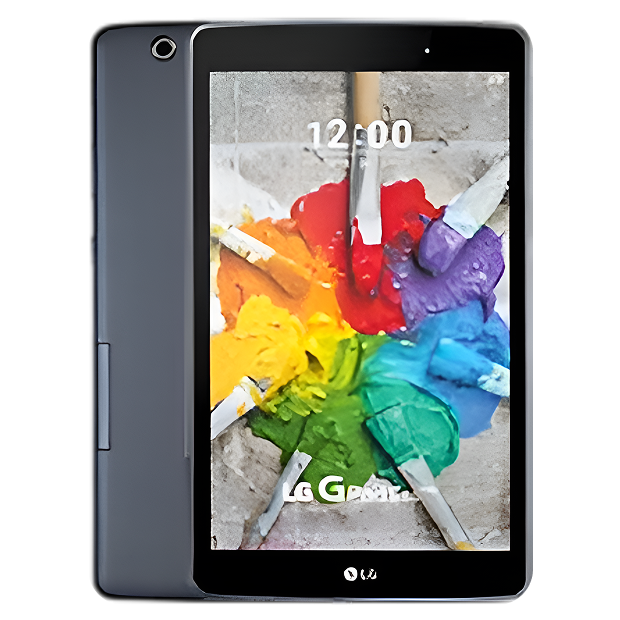
Solutions for Your LG Troubles

Screen Repair
Cracked or unresponsive screens are replaced with quality parts.

Data Recovery & Backup
Retrieve lost files and set up secure backups.

Camera Repair
Camera not working? We fix focus, lens, and connection issues.

Charging Port Repair
Repair loose or damaged charging connections.
We Fix Every Device - Fast, Reliable & Hassle-Free

Cracked Screen
Get your screen replaced quickly with premium parts.

Battery Issues
Extend your device’s life with a new battery.

All Brands & Models
From iPhone to Android, laptops to tablets, we service them all.
Avoid Tablet Repair: A Maintenance Guide for Tablets
Tablet sales exceed 150 million units annually worldwide, and here's what the data shows: approximately 40% of tablets experience screen damage at some point in their lifetime, making cracked displays the leading repair need across all brands. Another 25% develop battery issues after 2-3 years of daily use. These aren't random failures—they're predictable problems that proper care can prevent or catch early before they become expensive.
If your iPad, Samsung Galaxy Tab, Amazon Fire, Microsoft Surface, or any other tablet is showing signs of trouble—battery dying faster, screen responding poorly, charging port acting finicky—you're at a crossroads. You can either wait for complete failure and face more expensive repairs, or you can take action now with smart maintenance and early intervention. At The Fix, we repair tablets from every major manufacturer, and we've seen thousands of devices that could've avoided serious problems with proper care. Let's show you how to maintain your tablet and avoid repair needs.
Is This You? Tablet Problem Quiz
Check the symptoms you're experiencing to identify issues early:
Battery and Power (Check all that apply):
- [ ] Battery drains noticeably faster than it used to
- [ ] Percentage drops suddenly (60% to 20% in minutes)
- [ ] Won't charge or charges extremely slowly
- [ ] Only works when plugged in
- [ ] Back panel feels slightly raised or bulging (swollen battery—serious)
- [ ] Gets very hot during charging
Screen and Display:
- [ ] Small crack or chip in corner
- [ ] Touch response less accurate than before
- [ ] Screen doesn't register touches in certain areas
- [ ] Brightness seems dimmer even at max setting
- [ ] Colors look washed out or yellowish
- [ ] Lines or spots appearing on display
- [ ] Screen separating from body slightly
Performance:
- [ ] Apps take longer to open than they used to
- [ ] Frequent freezing or stuttering
- [ ] Apps crash more often
- [ ] System feels sluggish overall
- [ ] Runs hot during normal use
- [ ] Random reboots
Physical Condition:
- [ ] Charging port loose or unreliable
- [ ] Buttons feel mushy or don't click properly
- [ ] Speakers sound quieter or distorted
- [ ] Camera taking blurry photos
- [ ] Case creaking or gaps appearing
- [ ] Visible wear on screen coating
Score Your Results:
- 1-2 symptoms: Early warning signs—address now before they worsen
- 3-5 symptoms: Multiple issues developing—professional inspection recommended
- 6+ symptoms: Significant problems—but preventable from getting worse
Understanding Tablets Across Brands
Tablets come in incredible variety. Apple's iPads dominate the premium segment—iPad, iPad Air, iPad Pro, iPad mini—each with different screen sizes, processing power, and feature sets. Samsung's Galaxy Tab lineup offers Android alternatives across price points. Amazon Fire tablets provide budget-friendly options for media consumption. Microsoft Surface tablets double as laptop replacements with keyboard accessories. Lenovo, ASUS, and others offer various Android options.
What unites all tablets is their form factor: large touchscreens in portable packages. This creates specific vulnerabilities. The big screens are gorgeous but more susceptible to cracking than phone screens—more surface area means more opportunity for impact damage. Tablets get carried in bags without cases, placed on tables where things can fall on them, used by kids who aren't always gentle. The thin designs prioritize portability over maximum durability.
At The Fix, we repair tablets across all brands and models. iPads with their aluminum and glass construction. Samsung tablets with AMOLED displays. Amazon Fire tablets with their plastic builds. Surface tablets with their kickstands and Type Covers. Each has unique characteristics, but all share common failure modes that proper care can prevent or catch early.
Troubleshooting Tree: Start Here
Let's systematically identify what's happening. Follow this decision tree:
START: What's your main concern?
→ Battery draining too fast:
- How old is your tablet?
- Under 1 year → Check Settings → Battery to see what apps are using power
- Specific app using excessive battery? → Update app or check settings
- Nothing obvious? → Background processes or battery defect
- 1-3 years → Normal degradation starting
- Losing 10-20% capacity? → Normal aging, adjust usage
- Losing 40%+ capacity? → Battery replacement soon
- 3+ years → Significant degradation expected
- Plan for battery replacement
→ Screen has crack or chip:
- How big is the damage?
- Small chip in corner → Monitor closely, prevent spreading
- Apply screen protector over chip to contain damage
- Avoid pressure on that area
- Crack spreading → Get repaired soon before complete failure
- Multiple cracks or shattered → Needs immediate repair
→ Screen not responding to touch:
- Does it work in some areas but not others?
- YES → Touch digitizer damaged, needs repair
- NO → Try restarting tablet first
- Works after restart? → Software glitch
- Still doesn't work? → Hardware problem, professional diagnosis needed
→ Won't charge:
- Check charging cable and adapter first
- Try different cable → Works? Cable was bad
- Try different adapter → Works? Adapter was bad
- Neither helps? → Check charging port for debris
- Clean port gently with toothpick → Now charges? Debris was blocking
- Still won't charge? → Port damaged or battery issue
→ Running very slowly:
- Check available storage
- Over 90% full? → Delete files, offload unused apps
- Plenty of space? → Check for software updates
- Updates available? → Install updates
- Up to date but slow? → Consider factory reset (backup first)
→ Back panel raised or bulging:
- STOP USING IMMEDIATELY → Swollen battery is hazardous
- Don't charge it → Bring for professional service ASAP
- Don't try to open it yourself → Risk of fire or explosion
This tree helps you identify problems early. If you're stuck or concerned, professional Tablet repair assessment makes sense.
The Reality of Electronics Longevity
Every tablet ages, regardless of brand or price. Understanding why helps you maintain yours properly.
Think about a coffee maker you've used daily for years. When new, it brewed perfectly—consistent temperature, proper timing, reliable operation. After thousands of brew cycles, it's slower, less consistent, and occasionally acts up. Internal components have degraded from thermal stress and accumulated use. Your tablet's processor and battery experience similar stress—heating and cooling thousands of times causes microscopic changes. Battery cells lose capacity with every charge cycle. Components don't fail catastrophically, but performance gradually declines.
Consider glass door panels in a storefront. They're strong enough for normal use—opening, closing, occasional bumps. But they're vulnerable to specific stresses like impacts or torsion. The large panes prioritize visibility over maximum strength. Your tablet's screen makes similar engineering compromises. The gorgeous, responsive display covering most of the device's face is more vulnerable to drops and pressure than a smaller, thicker screen would be. This isn't poor quality—it's the inevitable tradeoff between usability and maximum durability.
Inside your tablet, the battery undergoes chemical changes with every charge cycle. Electrode materials develop internal resistance. Electrolyte degrades. After 300-500 cycles (roughly 1-3 years depending on usage), capacity drops noticeably. Kids' tablets used heavily might hit this faster. Tablets used for occasional reading might take longer.
The touchscreen digitizer experiences electrical stress with every touch. Millions of touches over years cause accumulated wear. The glass coating can develop microscopic scratches that accumulate into visible wear. Adhesive bonding the screen assembly weakens slightly from heat cycling and age.
Charging ports endure mechanical stress with every cable insertion. Internal contacts wear microscopically. After thousands of plug cycles, ports can become loose or unreliable. This happens faster if cables are yanked out at angles or if cheap cables with poorly-fitting connectors are used.
This doesn't mean tablets are fragile. They're actually remarkably durable considering how thin and portable they are. But physics doesn't care about engineering excellence—all materials age. Recognizing aging signs and intervening early prevents bigger problems.
Battery Maintenance: Extend Lifespan
Your tablet's battery will eventually need replacement, but smart habits extend its useful life significantly.
Optimize charging habits. Don't leave your tablet plugged in at 100% for days at a time. Charge to 80-90% rather than always maxing at 100% if you're not immediately using it. Let it discharge to 20-30% occasionally before recharging—this keeps the battery management system calibrated. For iPads, enable "Optimized Battery Charging" in Settings → Battery. For Samsung tablets, use "Protect Battery" in Device Care.
Manage heat exposure. Heat is battery enemy number one. Don't use your tablet while fast-charging—this generates substantial heat. Don't leave it in hot cars or direct sunlight. If it gets warm during use, let it cool before charging. Gaming or video editing generates heat—take breaks during extended sessions.
Storage matters. If you're not using your tablet for extended periods (weeks or months), store it at 40-60% charge in a cool, dry place. Storing fully charged or completely dead accelerates degradation. Check and recharge every few months during long-term storage.
Monitor battery health. For iPads, check Settings → Battery → Battery Health (on models that show this). For Android tablets, use apps like AccuBattery to track battery health. When design capacity and current capacity differ by 30-40%, start planning for replacement. Don't wait until it's completely dead.
Reduce unnecessary drain. Lower screen brightness when you don't need maximum. Close apps running in background. Disable features you're not using—Bluetooth, location services when not needed. Enable auto-brightness and battery saver modes.
Screen Protection: Prevent Expensive Repairs
Tablet screens are the most expensive component to repair. Proper protection makes financial sense.
Invest in quality screen protectors. Tempered glass screen protectors absorb impact energy that would otherwise crack your screen. They're cheap insurance—costing a fraction of screen replacement. Replace them when they crack (they did their job protecting your screen). For iPads especially, quality screen protectors maintain touch sensitivity and Apple Pencil functionality.
Use protective cases. Cases do three things: protect the screen when closed, provide better grip to prevent drops, and absorb impact if drops happen. Smart covers for iPads, book-style cases for Android tablets, rugged cases for kids' tablets—whatever fits your usage. The investment pays for itself by preventing screen damage.
Handle with care. Pick up tablets by the sides, not the screen. Don't pile things on top of them. In bags, use dedicated tablet compartments that prevent pressure on the screen. Don't leave them where heavy items can fall on them. Kids' tablets especially need rugged cases—kids aren't careful.
Clean properly. Use microfiber cloths slightly dampened with water. Don't spray liquids directly on screens—spray the cloth instead. Don't use paper towels or rough fabrics that can scratch. Don't use harsh cleaners. For stubborn smudges, use screen cleaning solution designed for electronics.
Watch for early damage. Small chips or cracks in corners can spread. If you get minor damage, apply a screen protector over it immediately to prevent spreading. Monitor it closely. Get it repaired before it spreads across the entire screen—small repairs cost less than full replacements.
Charging Port Care
Charging port failures are extremely common but largely preventable.
Keep ports clean. Inspect charging ports monthly. Use a wooden toothpick to carefully remove accumulated lint, dust, and pocket debris. Don't use metal objects—you can short circuits or damage contacts. You'd be amazed how much stuff accumulates in there, preventing proper cable connection.
Insert cables carefully. Always insert charging cables straight in—not at angles. Don't force them. If a cable doesn't insert smoothly, check the port for debris or the cable for damage. Forcing damaged cables damages ports.
Don't yank cables out. Unplug cables by gripping the connector, not pulling the cable itself. Pulling at angles stresses internal port connections and can cause failures over time.
Use quality cables. Cheap charging cables with loose connectors wear out ports faster. For iPads, use Apple-certified cables or quality third-party options. For Android tablets, use decent USB-C cables. The few dollars saved on cheap cables costs you hundreds in port repairs.
Consider magnetic charging cables. Magnetic charging cables (like VOLTA, ASAP, or similar) reduce port wear significantly. The magnetic connector stays in the port, and the cable attaches magnetically. This eliminates insertion/removal wear. Great for tablets charged frequently.
Software Maintenance
Hardware care matters, but software health is equally important for tablets.
Keep your OS updated. Install system updates regularly. For iPads, Settings → General → Software Update. For Android tablets, Settings → System → System Update. Updates include security patches, performance improvements, and bug fixes. Don't postpone indefinitely.
Manage storage. Keep at least 15-20% free space. Tablets slow down significantly when storage is nearly full. Delete old photos and videos (back them up first). Offload unused apps. Clear cache from apps that accumulate data.
Uninstall what you don't use. Apps you installed once and never use are still consuming space and possibly running background processes. Periodically review installed apps and remove ones you don't need.
Restart regularly. Many people never turn off their tablets—they just wake from sleep. Restart at least weekly. This clears memory, terminates stuck processes, and often resolves minor glitches. It's simple maintenance that prevents issues.
Back up everything. Use iCloud for iPads, Google backup for Android tablets, or external backup solutions. When hardware fails or accidents happen, you'll be grateful. Photos especially—back them up. They're irreplaceable.
Physical Handling
How you use your tablet daily affects longevity significantly.
Two hands when moving. Always use two hands when picking up and carrying tablets. They're larger and heavier than phones—one-handed carrying leads to drops. Especially with larger tablets like iPad Pro or Galaxy Tab S models.
Avoid edge pressure. Don't grip tablets tightly by the edges—this can stress the screen and cause digitizer issues over time. Hold by the back or sides with spread-out pressure.
Watch the temperature. Don't use tablets in extreme temperatures. Below freezing affects battery performance and can damage screens. Above 95°F (35°C) accelerates battery aging and can cause temporary shutdowns.
Kids need supervision. If kids use your tablet, supervise them and use parental controls. Consider getting them their own kid-friendly tablet rather than risking your expensive iPad Pro. Kids' tablets like Amazon Fire Kids Edition have better protection.
During travel. In cars, secure tablets so they don't slide around or fall. On planes, don't put them in seat-back pockets where people kick them. In hotels, use room safes or keep them in bags rather than leaving them visible.
Warning Signs to Catch Early
Watch for these symptoms indicating maintenance or repair needs:
Battery warning signs:
- Runtime decreasing 20-30% from what it used to be
- Percentage jumping erratically
- Getting very warm during charging
- Back panel feeling slightly raised (swollen battery—serious)
Screen warning signs:
- Touch less responsive in certain areas
- Phantom touches (screen registering touches you didn't make)
- Colors looking different than before
- Brightness dimming over time
- Any physical damage, no matter how small
Performance warning signs:
- Apps launching slower than before
- Frequent freezing or stuttering
- Crashes increasing in frequency
- Overall sluggish feel
Physical warning signs:
- Charging port feeling loose
- Buttons not clicking properly
- Speakers sounding quieter or distorted
- Camera photos blurrier than before
- Gaps appearing between screen and body
Catching these early means simpler, less expensive fixes. That slightly loose charging port addressed now is straightforward. Ignored until the tablet won't charge at all? Now you might need logic board work if port damage spread.
When Professional Service Makes Sense
Despite best maintenance, professional Tablet repair sometimes becomes necessary.
Screen damage. Any crack or chip should be evaluated. Small damage can spread quickly, and early repair costs less than waiting for complete failure. At The Fix, we replace tablet screens across all brands—iPads with Retina displays, Samsung AMOLED screens, Surface displays, budget tablet screens. After professional replacement, your screen looks factory-fresh with full touch response and image quality.
Battery issues persisting. When runtime has dropped 40-50% and charging habits won't help anymore, battery replacement is needed. Swollen batteries require immediate replacement—they're hazardous. We replace batteries for iPads, Samsung tablets, Surface devices, and other brands, restoring full-day use.
Charging port failures. If cleaning doesn't resolve charging problems, the port likely needs repair or replacement. Different tablets have different port configurations—iPad Lightning ports, USB-C ports on Android and newer iPads, proprietary Surface connectors. We handle them all.
Software problems that won't resolve. Persistent crashes, severe slowdowns, or issues that survive factory resets might indicate hardware problems or corrupted system files needing professional attention.
Here's Exactly How We Fix Your Tablet
When maintenance isn't enough and your tablet needs professional repair, here's what happens at The Fix.
Initial assessment: We start by asking about symptoms, usage patterns, and what you've tried. What brand and model? iPad Air 5th gen? Samsung Galaxy Tab S8? Amazon Fire HD 10? Each has specific characteristics and common issues.
Free diagnostic process: We physically inspect for damage, test functionality, and run diagnostics. For iPads, we check with Apple's tools. For Android tablets, we use diagnostic apps and hardware tests. We check battery health, screen response, charging behavior, camera function, speakers, buttons—everything.
Clear explanation: Once we know what's wrong, we explain without jargon. Screen digitizer damaged from drop—needs replacement. Battery degraded to 60% capacity—needs replacement. Charging port contacts worn—needs repair. You understand the problem and solution.
The repair: Tablet repairs require care. Screens are bonded with adhesive that needs heat to soften. Internal components are delicate. iPads especially need careful opening to avoid damaging cables and components. Samsung tablets have different internal layouts. Surface devices have unique construction. We use proper tools, correct procedures, and tested replacement components. After repair, we test thoroughly—full touch response, proper charging, all features working.
Quality verification: Before pickup, we stress-test repairs. Screen replaced? We verify touch works across entire surface. Battery replaced? We check charging curves and capacity reporting. We don't just fix the immediate problem—we ensure the entire device works correctly.
Your Tablet Still Has Years of Life
Smart maintenance prevents most repair needs. Proper screen protection prevents cracks. Battery care extends lifespan. Port care prevents charging failures. Software hygiene maintains performance. When problems do develop, catching them early makes repairs simpler and less expensive. Professional Tablet repair when needed extends your device's life for years.
Don't trust your Tablet to just anyone. The Fix has the experience, tools, and expertise to handle tablet repairs correctly across all brands. We'll diagnose your device for free, explain your options honestly, and do the work right the first time.
FAQs
The Fix Stores repair many types of electronic devices. Check out all the details below.


Trusted repair solution for mobile phones, tablets, gaming consoles, and computer systems. We provide fast, reliable, and affordable repair services to get your devices back in perfect working condition.
The Fix is an independent repair service provider and is not affiliated with, sponsored by, or endorsed by Apple Inc., Samsung Electronics, Google LLC, or any other device manufacturer. We use high-quality compatible replacement parts unless explicitly stated. All trademarks are property of their respective owners.


© Copyright The Fix Solutions All rights reserved 2026.
Design by Deepcoder