






Lenovo Yoga Tablet 8 Repair Services
Get fast, reliable, and professional Lenovo Yoga Tablet 8 repair services at The Fix — your trusted destination for expert device care.
Common Repairs We Handle Daily


Transform Your Lenovo Yoga Tablet 8 With Professional Repair
You loved the Lenovo Yoga Tablet 8 when you got it—that unique cylindrical battery grip made it comfortable to hold, the built-in kickstand meant you didn't need a case, and the price was right for a solid Android tablet. Now fast forward several years: the screen that was so responsive has a crack across it, or the battery that used to last all day dies by lunchtime, or that innovative cylinder stand won't stay upright anymore. Meanwhile, you're looking at tablet prices today and thinking there's no way you're spending $200-400 on something new when your Yoga Tablet 8 still basically works.
Here's the reality most people miss: professional Lenovo Yoga Tablet 8 repair costs a fraction of replacement, and this tablet's unique design actually makes certain repairs easier than standard flat tablets. That cylindrical battery compartment? It's accessible and replaceable. The screen? Standard tablet repair process. The kickstand? Fixable mechanical component. Most issues are completely repairable, and the cost makes excellent financial sense compared to buying new. Let's talk about what goes wrong, why repair works, and how to keep this distinctive tablet running for years to come.
Lenovo Yoga Tablet 8: The Quick Rundown
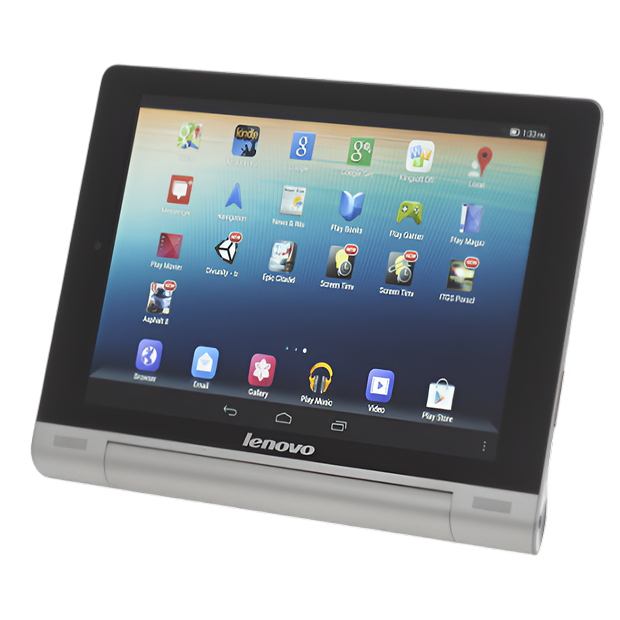
Lenovo released the Yoga Tablet 8 in 2013-2014 as part of their innovative Yoga tablet line, characterized by that cylindrical battery housing on one edge. The 8-inch 1280x800 display was decent for reading and video. The MediaTek or Intel Atom processors (depending on model) handled basic Android tasks fine. The 6000mAh battery delivered genuinely impressive runtime thanks to efficient processors and that large battery cylinder. The built-in kickstand with multiple angles was legitimately useful—prop it up on a table, hang it from the cylinder, or hold it comfortably with the battery grip.
What's notable about the Yoga Tablet 8 from a repair standpoint? That cylindrical battery design that seemed gimmicky actually improves repairability. The battery is housed in the cylinder and removable once you access it—no adhesive nightmare like flat tablets. The kickstand is a mechanical component that can be serviced. The screen uses adhesive but the unusual form factor means the adhesive seal is smaller than full-surface tablets. Lenovo used modular construction where components can be replaced individually rather than everything being integrated. It's a tablet designed to be different, and that difference accidentally made it more repair-friendly.
Why Devices Don't Age Gracefully
Every Lenovo Yoga Tablet 8 eventually shows wear, and that's not poor design—it's just physics meeting years of daily use. Here's what's actually happening inside your tablet as it ages.
Your battery is like that laptop battery from college that barely holds charge anymore. Remember when it powered through three-hour lectures? Now it dies halfway through checking email. That's lithium-ion chemistry degrading with every single charge cycle. The Yoga Tablet 8's cylindrical 6000mAh battery was excellent when new, but after several years and 500-800+ charge cycles, capacity drops significantly. You might be down to 50-60% of original capacity—what used to be 18 hours of runtime is now 8-10 hours or less.
The display is both functional and fragile. Think about a windshield versus a sledgehammer—the windshield is designed to be tough, it handles normal stress fine, but hit it hard enough in the wrong spot and it shatters. Your Yoga Tablet 8's screen is similar. The glass is chemically strengthened for scratch resistance. The LCD underneath displays content reliably. The touch digitizer makes interaction responsive. But drop it onto concrete? That glass cracks. Apply pressure wrong—like sitting on it in a bag—and you can damage the LCD even if glass survives. The digitizer can fail from impact or age-related degradation where the conductive coating breaks down after years of constant touch input.
The kickstand mechanism faces mechanical fatigue. That flip-out stand has been deployed and retracted hundreds of times over years of use. It's a metal hinge with internal springs and friction components. Each cycle creates microscopic wear. The metal fatigues. Springs lose tension. The hinge loosens. Eventually, the kickstand won't stay at your desired angle or becomes so loose it flops around uselessly.
Charging ports take a beating. You've plugged in that micro-USB cable countless times. Each insertion wears the internal contacts slightly. Dust accumulates. Cables yanked sideways stress the port's mounting. Corrosion from humidity affects metal contacts. After years of use, charging becomes unreliable—you're wiggling cables, holding at specific angles, or facing intermittent charging.
The Screen Is Cracked or Touch Doesn't Respond
You've got visible cracks spreading from a corner impact point, or maybe the glass looks fine but touch response is completely dead in certain areas. Could be the LCD shows weird lines, discoloration, or bleeding colors. Perhaps touch registers in the wrong spots—you tap one location, it registers three inches away. Some Yoga Tablet 8 owners see the backlight working but no actual image, just a lit blank screen. Maybe touch worked fine yesterday and completely stopped responding today with no obvious cause.
Why this happens: The Yoga Tablet 8 uses a display assembly where glass, touch digitizer, and LCD are layered and bonded. Physical damage from drops is the most common cause—impact cracks glass and often damages digitizer or LCD underneath. Pressure damage happens when the tablet's stored with heavy objects on top or gets compressed in a backpack. The digitizer can fail independently—either from sudden impact or gradual age-related degradation. We've seen ribbon cable failures where the display connects to the motherboard—these tiny cables can crack from repeated flexing or just develop connection issues over time. Sometimes it's the display controller on the motherboard failing, which prevents proper image output even when the screen hardware is functional.
What you can try:
- Restart the tablet—sometimes touch digitizer glitches clear with a reboot
- Check for Android system updates that might include touch driver improvements
- Test if rotating the screen orientation changes which areas respond—this helps isolate digitizer versus controller issues
- Try a factory reset if the screen looks fine but touch is erratic (backup data first)
- Apply gentle pressure around the bezel edges to see if touch improves—this indicates a loose ribbon cable connection
A pattern we've noticed over the years: Screen issues on Lenovo Yoga Tablet 8 devices fall into clear categories. Cracked glass with functional LCD underneath is straightforward—digitizer and glass replacement. Cracked glass with damaged LCD requires full display assembly replacement. Non-responsive touch with intact glass is usually a failed digitizer or loose connection. Lines or discoloration without physical damage typically indicate LCD failure. Lenovo Yoga Tablet 8 repair for screens involves carefully heating edges to soften adhesive, separating the damaged screen using proper pry tools designed for curved edges, disconnecting the old display, inspecting connectors under magnification for damage or corrosion, installing a replacement display assembly with precise alignment (important given the tablet's unusual shape), reconnecting ribbon cables carefully, and sealing with appropriate adhesive. We test every inch of touch response, verify display quality across the full screen, check brightness levels, look for dead pixels, and ensure the screen is securely bonded. The repair typically takes 90-120 minutes. Replacement screens for Yoga Tablet 8 units are available from suppliers specializing in legacy Android tablets.
Battery Life Has Become Terrible
Your Yoga Tablet 8 used to last days on a single charge—that huge cylindrical battery was its claim to fame. Now it's dead after a few hours of use. The battery percentage drops rapidly even when you're just reading. Maybe it shuts down suddenly at 30-40% remaining. Could be it won't charge past a certain percentage, stuck at 70% or 80%. Perhaps it won't hold any charge at all anymore, only working when plugged in constantly. Some owners find their tablet won't turn on despite charging overnight.
Why this happens: That cylindrical 6000mAh battery is just lithium-ion chemistry in an unusual shape—it degrades the same way all batteries do. After several years and hundreds of charge cycles, capacity loss is inevitable. If you've been using this tablet since 2013-2015, you've likely hit 800-1000+ cycles. At that point, you might be down to 40-50% of original capacity or worse. Battery cells can fail entirely, causing immediate shutdown even when the meter shows charge. The battery management circuit can malfunction, reporting incorrect levels or refusing to charge for safety reasons. Heat accelerates degradation—if you used your Yoga Tablet 8 in hot environments, direct sunlight, or while charging (which generates heat), you cooked the battery faster. Sometimes it's not the battery itself but the charging circuit on the motherboard failing.
What you can try:
- Check battery stats in Android settings to see reported battery health if available
- Let it charge for 8+ hours even if the charging indicator seems stuck—deeply discharged batteries need patient charging
- Try a different micro-USB cable and power adapter—accessories fail more often than tablets
- Clean the charging port with compressed air and a soft brush
- Try recalibrating by draining to 0%, then charging uninterrupted to 100%
- Check if the battery cylinder feels hot or swollen—swelling indicates dangerous failure requiring immediate attention
What really happens in most cases: Battery replacement on Lenovo Yoga Tablet 8 devices is actually one of the easier tablet battery replacements we do. The cylindrical design means the battery is housed in that grip section, not spread across the entire back like flat tablets. We access the cylinder compartment, disconnect the old battery, remove it from the housing, install a replacement battery that matches the original 6000mAh capacity, secure it properly, reconnect everything, and test extensively. We charge to 100%, discharge to 50% while running power-intensive tasks, recharge to 100%, and verify Android reports accurate battery percentage throughout. Lenovo Yoga Tablet 8 repair for battery issues typically takes 60-90 minutes and restores that impressive multi-day runtime the tablet was famous for. Customers regularly tell us they got another 2-4 years of use after battery replacement, which is excellent return on investment.
The Kickstand Won't Stay Up Anymore
That innovative kickstand that's supposed to prop your tablet at comfortable viewing angles just collapses flat every time you try to use it. Or maybe it's stuck closed and requires excessive force to flip out. Could be it opens but won't stay at certain angles, slowly sliding down during use. Perhaps it works but makes grinding or clicking noises that weren't there originally. Some Yoga Tablet 8 owners find the kickstand feels loose and wobbly even when supposedly locked in position.
Why this happens: The kickstand is a mechanical hinge with internal friction components and springs. After years of flipping out and retracting, the friction surfaces wear microscopically. The springs lose tension over time. Metal fatigue occurs from hundreds or thousands of cycles. Dirt and debris can get into the mechanism, causing grinding. Physical impacts from drops can bend the metal or damage internal stops. We've seen kickstands where the pivot point has worn loose, kickstands where springs have completely lost tension, and kickstands damaged from forcing beyond their designed range of motion.
What you can try:
- Clean around the kickstand hinge with compressed air to remove accumulated dust and debris
- Check if something's physically blocking or interfering with kickstand movement
- Try all angle positions to identify which work and which don't
- Work the kickstand through its full range multiple times to see if it loosens up or improves
- Don't force it if it's stuck—additional force can cause more damage
- Check if the kickstand still latches closed properly—this indicates whether the mechanism is just loose or actually broken
In our experience with hundreds of these: Kickstand repairs on Lenovo Yoga Tablet 8 devices range from simple adjustments to complete mechanism replacement. Sometimes we can restore function by disassembling the kickstand assembly, cleaning thoroughly, adjusting tension, and reassembling. Other cases need kickstand component replacement because wear is beyond adjustment. The kickstand is accessed through the cylindrical battery section, which means battery removal is necessary. Kickstand work requires patience and proper tools for working with small mechanical components. Lenovo Yoga Tablet 8 repair for kickstand issues typically takes 60-90 minutes including cylinder disassembly, kickstand work or replacement, reassembly, and testing at every angle to verify smooth operation and secure holding. The unique design actually makes kickstand access easier than many tablets with integrated stands.
Charging Port Has Become Unreliable
You have to wiggle the charging cable to get charging to start, or hold it at a specific angle for the connection to work. Maybe charging happens sometimes but fails randomly with no pattern. The cable doesn't seat firmly in the port anymore—it feels loose and moves around. Could be charging is incredibly slow, taking 10+ hours to fully charge. Perhaps the charging indicator never comes on no matter what you try. Some owners have worn through multiple charging cables, and they all develop the same issues with this tablet.
Why this happens: The micro-USB charging port faces years of mechanical abuse. Each cable insertion creates wear on internal contacts. The port can physically loosen from the circuit board if cables were yanked sideways repeatedly. Dust and lint accumulate inside, preventing solid contact between cable and port. Corrosion from humidity degrades the metal contacts. The plastic housing can crack or break. We've seen ports where internal pins are bent, ports hanging loose inside the tablet, ports so corroded they barely conduct electricity, and ports that have completely broken off the motherboard. Sometimes it's not the port—it's the charging cable developing internal breaks that cause intermittent charging.
What you can try:
- Inspect the charging port with a flashlight and magnifier—look for visible debris, bent pins, or damage
- Clean thoroughly with compressed air followed by a dry soft brush or toothpick (gently)
- Test with multiple micro-USB cables—cheap cables fail more often than tablets
- Try different USB power adapters or a computer USB port to rule out adapter issues
- Apply gentle pressure in different directions while plugged in to identify if it's a loose connection
- Check if the port moves when you touch the cable—it shouldn't have any play whatsoever
After repairing these devices daily: Charging port problems on Lenovo Yoga Tablet 8 tablets are common given device age. We test with known-good cables and adapters first—this resolves maybe 25% of charging complaints because the cable was the problem. Thorough port cleaning solves another 20%. The remaining 55% require port replacement. We carefully desolder the damaged micro-USB port using proper temperature-controlled equipment, clean the circuit board pads with desoldering braid and flux, position a new port precisely (alignment is critical), solder all connection points cleanly, reinforce mechanical mounting if needed, and test extensively. We verify proper charging speed with USB power meters, confirm solid physical connection, and stress-test with repeated plugging and unplugging. Lenovo Yoga Tablet 8 repair for charging ports typically takes 60-90 minutes and restores reliable charging at proper speeds.
What Tools We Use for This Specific Device
When you bring your Lenovo Yoga Tablet 8 to The Fix, we use specialized equipment designed for tablet repair. Heat guns with precise temperature control soften screen adhesive without damaging LCD panels—too hot destroys screens, too cool and adhesive won't release. Plastic pry tools in various thicknesses separate screens from frames without cracking glass or damaging internal components. Anti-static mats and wrist straps protect sensitive electronics during repair. Precision screwdriver sets handle the tiny screws inside the tablet and cylinder compartment.
For soldering work on charging ports, we use temperature-controlled soldering stations that maintain exact temperatures—too hot damages circuit boards, too cool creates bad solder joints. Desoldering braid and vacuum tools remove old solder cleanly. Magnifying lamps or microscopes let us see tiny solder joints and inspect work quality. Flux helps solder flow properly and creates strong electrical connections.
For testing, we've got multimeters measuring voltages and checking continuity, USB power meters showing actual charging current and voltage (revealing port or circuit problems), battery testing equipment verifying capacity and charging behavior, screen testing software displaying patterns that reveal dead pixels or touch issues, and Android diagnostic apps checking hardware sensors and reporting component status.
Why We Do Things in a Certain Order
There's a specific sequence to Lenovo Yoga Tablet 8 disassembly that prevents damage and makes repair efficient. For most repairs, screen removal comes first because internal components are accessed through the screen opening. We heat edges carefully and evenly, soften adhesive completely before prying (rushing cracks screens), and use proper pry tools that won't gouge aluminum frames or crack glass.
Once the screen's off, battery disconnect happens immediately. This eliminates electrical hazards during work and prevents shorts that could damage components. With power disconnected, we can safely work on internal components.
For battery replacements, we access the cylinder section, carefully disconnect and remove the old battery, inspect the compartment for damage or debris, install the new battery with proper orientation and secure mounting, and reconnect carefully.
For charging port work, we desolder the damaged port completely before installing the new one. Trying to solder a new port over remnants of the old port creates bad connections and alignment issues. Clean removal, clean pads, precise positioning—this sequence ensures success.
How We Protect Your Data During Repair
We don't need access to your Android system for most Lenovo Yoga Tablet 8 repairs. The internal storage remains untouched during screen, battery, kickstand, or charging port repairs. Your apps, photos, and data aren't affected by hardware component replacement.
For repairs involving the motherboard or if we need to test functionality requiring Android access, we ask permission first and explain exactly what we're doing. We're not browsing through your files or accessing personal information. Your privacy matters—diagnostic processes don't involve looking at personal data.
If a repair requires factory reset (uncommon, but occasionally necessary for severe software issues), we inform you beforehand and advise on data backup options. No surprises, no unauthorized data access.
Testing Procedures Unique to This Device
After Lenovo Yoga Tablet 8 repair, we run comprehensive device-specific tests. For screen repairs, we test every zone of touch response using grid patterns, verify display quality with solid colors and gradients, check viewing angles, confirm brightness adjustment works properly, look for dead or stuck pixels, verify no backlight bleed or uneven illumination, and test screen rotation in all orientations.
For battery repairs, we fully charge while monitoring charging current and temperature, discharge to 50% running power-intensive apps and video, recharge to 100%, verify Android reports accurate percentage throughout all cycles, check charging time matches expected duration for 6000mAh capacity, and test standby power drain over several hours.
For kickstand repairs, we test every angle position multiple times, verify smooth operation without grinding or sticking, confirm secure holding at all angles without slow collapsing, check proper latching when closed, and stress-test by repeatedly opening and closing.
For charging port repairs, we test with multiple cable brands, verify proper charging speed with power meters (should draw appropriate current for fast charging), confirm solid physical connection without wiggling or specific angles needed, test charging while powered on and powered off, and stress-test with 20+ plug/unplug cycles.
The Yoga Tablet 8 doesn't leave The Fix until it passes every applicable test. We document results and make sure you're confident the repair was done correctly.
Extend Your Yoga Tablet 8's Life With Smart Care
Screen protection is essential. Use a protective sleeve or case during transport. Never put heavy objects on top of your tablet. Set it down gently on clean surfaces. Clean the screen regularly with microfiber cloths and screen-safe cleaning solution.
Battery care makes a difference. Avoid draining to 0% regularly—charge when you hit 20-30%. Don't leave it plugged in at 100% for extended periods. Keep away from extreme temperatures—no hot cars or direct sunlight. Charge with reasonable power adapters, not ultra-fast chargers meant for different devices.
Kickstand maintenance. Don't force it beyond its maximum angle. Keep the hinge area clean with monthly compressed air treatments. Use the kickstand on stable, flat surfaces rather than uneven or soft surfaces. Don't use excessive force when opening or closing.
Charging port care. Clean the port monthly with compressed air. Don't yank cables sideways—pull straight out. Use decent quality micro-USB cables rather than the absolute cheapest. If the connection starts feeling loose, address it before it fails completely.
Cylinder grip care. That battery cylinder isn't just a battery—it's also a handle. Don't drop the tablet while holding the cylinder. Keep the cylinder surface clean. Don't expose it to liquids that could seep inside.
Software maintenance. Keep Android updated if updates are still available for your model. Uninstall apps you don't use. Clear cache files occasionally. Don't fill storage to 100%—leave at least 1-2GB free. Restart weekly instead of always using sleep mode.
Your Unique Tablet Can Run Like New
The Lenovo Yoga Tablet 8's distinctive design made it stand out when it was new, and that same design makes professional repair practical and cost-effective years later. Most problems—screens, batteries, kickstands, charging ports—are completely fixable. These tablets weren't designed to be disposable, and with appropriate care and occasional maintenance, they keep working for years beyond what most people expect.
Ready to fix your Lenovo Yoga Tablet 8? The Fix makes it easy. Walk in anytime for a free assessment—most repairs are same-day, and we'll keep you updated throughout the process. Your tablet deserves expert care, and that's exactly what we deliver. That innovative cylindrical design made it comfortable to use—let's make sure it stays functional for years to come.


Trusted repair solution for mobile phones, tablets, gaming consoles, and computer systems. We provide fast, reliable, and affordable repair services to get your devices back in perfect working condition.
The Fix is an independent repair service provider and is not affiliated with, sponsored by, or endorsed by Apple Inc., Samsung Electronics, Google LLC, or any other device manufacturer. We use high-quality compatible replacement parts unless explicitly stated. All trademarks are property of their respective owners.


© Copyright The Fix Solutions All rights reserved 2026.
Design by Deepcoder