






HP Touchpad Tablet Repair Services
Get fast, reliable, and professional HP Touchpad Tablet repair services at The Fix — your trusted destination for expert device care.
Common Repairs We Handle Daily


A Tech Expert's Guide to HP Touchpad Tablet Repair
Remember when HP discontinued the Touchpad after just 49 days on the market back in 2011? That fire sale brought tablets down to $99, and millions of people grabbed them. Fast forward over a decade, and you know what's surprising? People still use these tablets. Maybe you've got one running Android after the webOS days, or you're one of the die-hard webOS enthusiasts keeping the original system alive. Either way, your Touchpad has lasted way longer than HP ever intended, and now something's wrong.
Here's what most people believe: a discontinued tablet from 2011 can't be repaired because parts don't exist and nobody knows how to work on them anymore. That's completely false. Professional HP Touchpad Tablet repair is not only possible—it's surprisingly straightforward. These tablets used standard components that are still available, and the repair process is simpler than modern glued-together devices. Let's bust some myths and talk about what actually happens when your Touchpad needs attention.
Why People Love (and Hate) the HP Touchpad
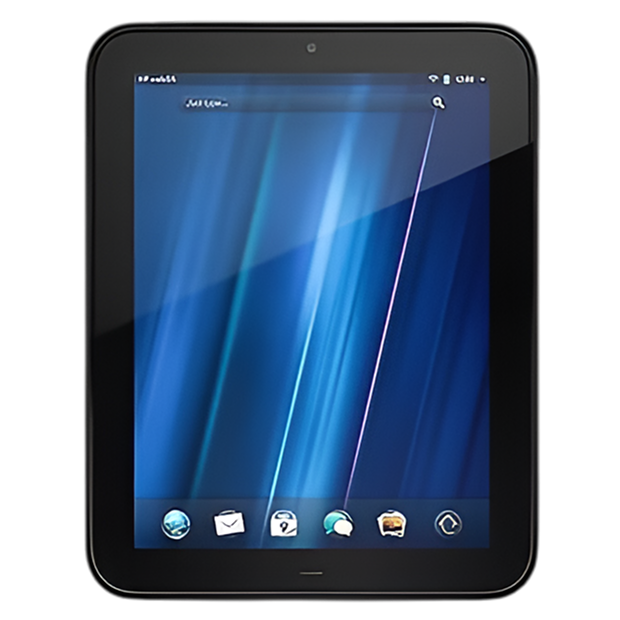
HP released the Touchpad in July 2011 running webOS, Palm's beautiful but commercially doomed operating system. The hardware was solid—9.7" 1024x768 display, dual-core Snapdragon processor, 1GB RAM, quality build with a soft-touch back. HP expected it to compete with the iPad. Instead, they killed it within weeks, slashed prices to clear inventory, and accidentally created a cult following. People loved the hardware quality at fire-sale prices. They loved the webOS interface's elegance. Many users installed Android, giving the tablet a second life that extended years beyond HP's support.
From a repair perspective, the Touchpad is fascinating. It's from an era before manufacturers aggressively fought repairability. The back case is held with screws—actual screws you can remove with a screwdriver. The battery isn't permanently glued in. The screen uses adhesive but not the nightmare-strength stuff in modern tablets. Components are modular and accessible. There's room inside to work without specialized tools. HP designed this thing to be manufactured efficiently, which accidentally made it repairable. Contrast that with modern tablets where everything's glued and laminated.
Understanding Why All Smartphones Age
Every HP Touchpad eventually shows wear, and that's not HP's fault—it's just reality for any electronics over a decade old. Here's what's actually happening inside your tablet as time passes.
Your battery is like bike tires wearing down from use. When new, the tires grip great and hold air perfectly. After thousands of miles, the rubber's worn, they leak air slowly, and they don't perform like they used to. That's exactly what lithium-ion batteries do. The Touchpad's battery was decent—6300mAh capacity—but after a decade and who-knows-how-many charge cycles, you're looking at serious capacity degradation. If you got this tablet at the 2011 fire sale, that battery has been cycling for over 13 years. It's remarkable it works at all. Expect runtime that's a fraction of original performance.
The display glass is both durable and fragile. Think about aquarium glass—it holds back thousands of pounds of water pressure daily, but hit it with a hard object in the wrong spot and it shatters. Your Touchpad's 9.7" screen is similar. The glass is chemically strengthened and designed to resist scratching and normal handling. But drop it corner-first onto concrete? That glass cracks. Apply pressure wrong—like sitting on it in a bag—and you can crack the LCD underneath even if the glass survives. The digitizer layer that handles touch input can fail independently from impact or just age-related degradation.
Charging ports face mechanical fatigue. You've plugged in that micro-USB cable countless times over the years. Each insertion wears the internal contacts microscopically. The Touchpad's micro-USB port wasn't the most robust design to begin with—early units had port failures even when new. After a decade-plus of use, port problems are incredibly common. The solder joints connecting the port to the motherboard can crack from repeated cable insertion at angles. Corrosion from humidity affects the metal contacts.
Software also ages, especially on discontinued devices. If you're running the original webOS, HP stopped updates in 2011. If you're running Android ports, you're relying on community developers who've done amazing work but can't magically make decade-old hardware run modern apps perfectly. The internal storage—basic eMMC flash memory—can develop bad sectors after years of read/write cycles. The operating system gets bloated with cached files. Performance degrades over time even when hardware is technically functional.
The Screen Is Cracked or Touch Doesn't Work
You've got visible cracks across the display, or maybe the glass looks fine but touch response is completely dead in certain areas. Could be the LCD shows weird colors, lines, or dead zones even though the glass is intact. Perhaps touch works but is wildly inaccurate, registering taps inches away from where you're actually touching. Some Touchpad owners see backlight bleed around the edges or notice the screen flickering intermittently.
Why this happens: The Touchpad uses a display assembly where the glass, touch digitizer, and LCD are separate layers bonded together. Physical damage from drops is the most obvious cause—the glass cracks and often damages the LCD or digitizer underneath. Pressure damage happens too, like if the Touchpad was stored with books stacked on top or got crushed in a bag. The digitizer can fail independently from age—conductive coatings degrade over time, and a decade-plus is a long time for any component. We've seen ribbon cables connecting the display to the motherboard develop cracks or loose connections from repeated opening and closing (if you've got a case that opens/closes frequently). Sometimes it's liquid damage from spills that corroded internal connections.
What you can try:
- Restart the Touchpad—sometimes touch digitizer issues are software glitches that clear with a reboot
- If running Android, check for updated touch drivers or ROMs that might improve digitizer response
- Test if the display works when connected to HDMI output (via USB OTG adapter if available) to isolate display hardware from GPU issues
- For touch issues without physical damage, try recalibrating the touchscreen if your OS has that option
- Inspect the screen closely under bright light—sometimes there's a hairline crack you didn't notice causing problems
In our experience with hundreds of these: HP Touchpad screen issues fall into clear categories. Cracked glass with functional LCD underneath is the easiest repair—just the glass and digitizer need replacement. Cracked glass with damaged LCD requires full display assembly replacement. Non-responsive touch with intact glass is usually a failed digitizer or loose ribbon cable connection. Screen replacement on the Touchpad involves carefully heating the edges to soften adhesive, separating the bezel and glass from the main body, disconnecting the old display, inspecting connectors for corrosion or damage, installing a replacement display assembly, reconnecting carefully, and reassembling with fresh adhesive. The good news? Touchpad screens are still available from suppliers who stock legacy tablet parts. The repair typically takes 90-120 minutes including testing every zone of touch response and verifying display quality across the full screen.
Battery Dies Ridiculously Fast or Won't Charge
Your Touchpad that used to last 8-10 hours now dies after an hour of use, or maybe it won't hold any charge at all. The battery percentage drops rapidly even during light use. Could be the tablet only works when plugged in, dying instantly when disconnected from power. Perhaps it won't charge past a certain percentage, stuck at 80% or 60% no matter how long you leave it plugged in. Some owners find their Touchpad won't turn on at all even after charging overnight.
Why this happens: Battery chemistry doesn't care that HP discontinued the product. Lithium-ion degradation happens to all batteries, and after 10+ years, the Touchpad's battery has been through potentially 1000+ charge cycles. Capacity degrades naturally—you might be at 30-40% of original capacity or less. Battery cells can fail entirely, preventing charging or causing immediate death when unplugged. The battery protection circuit (built into the battery pack) can fail, reporting incorrect charge levels or refusing to charge for safety reasons. Sometimes it's not the battery itself but the charging circuitry on the motherboard—these tablets are old, and components fail. We've seen Touchpads where corrosion from humidity or old spills damaged the charging circuit.
What you can try:
- Let it charge for 6-8 hours even if it shows no charging indicator—deeply discharged batteries take time to accept charge
- Try a different micro-USB cable and power adapter—charging accessories fail more often than devices
- Clean the charging port carefully with compressed air and a dry brush
- If running Android, install a battery monitoring app to check actual battery health statistics
- Try recalibrating by fully draining to 0%, then charging uninterrupted to 100%
- Check if the battery is physically swollen—swelling indicates dangerous failure and needs immediate attention
What really happens in most cases: Battery replacement on HP Touchpad tablets is one of the most common repairs we do for these devices. The battery is actually accessible—you remove the back screws, open the case, disconnect the battery connector, and remove the old battery. It's held with mild adhesive but nothing crazy. Replacement batteries for Touchpads are still manufactured because of the device's cult following. We source batteries that match or exceed the original 6300mAh capacity. Installation is straightforward, and we test extensively—charge to 100%, run power-intensive tasks while monitoring discharge rate, and verify accurate battery reporting. After battery replacement, these tablets regularly get another 2-4 years of useful life. The limitation becomes software compatibility more than hardware failure.
Charging Port Problems Are Everywhere
You've got to wiggle the charging cable to get it to charge, or hold it at specific angles. Maybe charging works sometimes but not others, seemingly at random. The cable doesn't seem to "click" into the port securely anymore. Could be charging is incredibly slow, taking 12+ hours to fully charge. Perhaps the Touchpad won't recognize when it's plugged in at all—no charging indicator, no response. Some owners have actually broken off pieces of the charging port inside the device from repeated cable insertions.
Why this happens: The micro-USB charging port on the HP Touchpad has a notorious reputation for failure. Even when these tablets were new, port issues were common—HP's mounting method wasn't the most robust. After a decade of use, port problems are almost expected. The internal metal contacts wear from repeated cable insertions. The port can physically separate from the circuit board if cables were frequently yanked out at angles. Dust and debris accumulate inside. Corrosion affects the contacts in humid environments. The plastic housing can crack or break. We've seen ports where the internal pins are bent, ports hanging loose inside the case, and ports completely broken off the motherboard.
What you can try:
- Inspect the port carefully with a flashlight and magnifier—look for visible damage, debris, or bent pins
- Use compressed air and a soft brush to clean the port thoroughly
- Test with multiple high-quality micro-USB cables—cheap cables cause intermittent charging surprisingly often
- Try different USB power adapters or a computer USB port to rule out adapter issues
- Apply gentle pressure in different directions while plugged in to see if it's a loose connection
- Check if the port moves when you touch it—it shouldn't have any play at all
After repairing these devices daily: Charging port replacement on the HP Touchpad is tedious but completely doable. The port is soldered to the motherboard, so replacement requires proper desoldering equipment, temperature control, and precision. We remove the damaged port, clean the circuit board pads with desoldering braid, inspect for lifted traces or damaged connections, position a new micro-USB port exactly (alignment matters significantly), solder all connection points cleanly, reinforce the mechanical mounting if needed, and test extensively. We verify charging works with multiple cables, check charging speed is appropriate, confirm solid physical connection without wiggling, and stress-test by plugging/unplugging repeatedly. HP Touchpad Tablet repair for charging ports takes 60-90 minutes and genuinely solves the problem when done correctly.
It Won't Turn On or Keeps Freezing
You press the power button and absolutely nothing happens—no HP logo, no backlight, no vibration, no signs of life. Maybe it worked fine when you put it away months ago, and now it's completely dead. Could be it turns on but freezes at the HP logo and never boots further. Perhaps it boots sometimes but crashes randomly or freezes during use. Some owners get stuck in boot loops where the tablet restarts over and over.
Why this happens: Complete power failure has multiple potential causes. Most commonly, it's a battery that's discharged below minimum voltage—the tablet won't respond until the battery accepts enough charge to power the system, which can take hours. Damaged charging ports prevent charging entirely, which looks like a dead tablet but is actually just inability to get power in. Failed power buttons mean you're pressing a button that's not communicating with the motherboard. Corrupted system files prevent booting—this is especially common on Touchpads running community Android ROMs where updates sometimes go wrong. The eMMC internal storage can fail after years of use, causing boot problems or system instability. Rarely, it's actual motherboard component failure, though this is less common than battery, charging, or software issues.
For freezing and crashing issues, we're usually looking at failing internal storage, corrupted system files, insufficient free storage causing instability, thermal issues from dust-clogged vents or dried thermal paste, or in Android ROMs specifically, incompatibility between ROM versions and aging hardware.
What you can try:
- Plug in and leave charging for 8+ hours even if there's no indication of charging—dead batteries need patient charging
- Try the hard reset procedure: hold power button + volume up + home button simultaneously for 30+ seconds
- If it boots to a screen where you can interact, try factory reset (backing up data first if possible)
- For boot loops on Android ROMs, try entering recovery mode and clearing cache partition
- Check if the tablet gets warm when plugged in—warmth indicates it's drawing power even if the screen doesn't work
- Remove any SD cards or connected peripherals that might interfere with booting
The reality from our repair experience: "Won't turn on" Touchpads usually aren't dead—they're just deeply discharged, have port issues preventing charging, or have software problems. We connect professional bench power supplies that can charge batteries below the voltage threshold normal chargers won't touch. We test the charging port with known-good cables and measure actual power draw. We attempt software recovery procedures for boot issues. For truly failed hardware, we systematically isolate problems—test with a known-good battery to verify the motherboard is functional, check the power button for continuity, inspect internal connections for corrosion or damage, and evaluate whether repair makes sense versus replacement given the tablet's age. Honestly, if a Touchpad has catastrophic motherboard failure, replacement is usually more sensible than expensive board-level repair on a discontinued device.
WebOS vs Android—Which Is Better for Old Touchpads?
Here's a question we get constantly: should you keep webOS or switch to Android? There's no universal answer—it depends on what you use the tablet for.
WebOS strengths: If it still works, webOS offers a unique, elegant interface that nothing else matches. It's lightweight and runs smoothly on the Touchpad's limited hardware. If you mainly browse, read, and use the tablet for basic tasks, webOS still delivers a good experience. The nostalgia factor is real—webOS has passionate fans for good reason.
WebOS limitations: HP ended support in 2011. Apps don't receive updates. Modern websites sometimes don't work properly. Security vulnerabilities remain unpatched. The app selection was limited even when webOS was supported. If you need modern apps, streaming services, or current web browsing capabilities, webOS shows its age badly.
Android strengths: Community developers created impressive Android ports for the Touchpad (CyanogenMod, then LineageOS and others). Android opens up app compatibility dramatically. You get continued software updates from the community. Modern streaming apps work. Web browsing is significantly better. The Touchpad's hardware runs Android reasonably well.
Android limitations: It's not officially supported—you're relying on community ROMs. Installation can be tricky if you're not tech-savvy. Not all Android features work perfectly on decade-old hardware. Performance isn't amazing with modern Android versions, though lighter ROMs run fine. Some hardware features might not work optimally.
Our honest take: If your webOS Touchpad still works and meets your needs, enjoy it for what it is—a piece of computing history that still functions. If you need modern capabilities, Android is absolutely the way to go. We've seen Touchpads running Android serve as perfectly functional media tablets, e-readers, and web browsers years after HP abandoned them. From a repair perspective, the OS doesn't affect most hardware repairs—we fix screens, batteries, and charging ports regardless of software.
What Our Tech Does First When You Bring in a Touchpad
Our technician starts with basic power testing. Does it turn on at all? If yes, what does it do—boot fully, freeze at logo, crash randomly? We check battery voltage with a multimeter. We inspect the charging port under magnification. We test with known-good chargers and cables. We look for physical damage—cracks, dents, signs of liquid exposure. This initial assessment reveals a lot before opening the device.
If it powers on, we test functionality systematically. Screen display quality and backlight uniformity across the full panel. Touch response in every zone—we have test patterns that isolate each area. Physical buttons—power, home, volume. Speakers and headphone jack. Cameras if they're potentially being used. WiFi connectivity if accessible. We check what software version is running and look for obvious software issues causing problems.
For devices that won't power on, we connect bench power supplies to bypass potentially failed batteries and see if the motherboard responds. We measure current draw when plugged in—proper current draw indicates charging circuits work, zero current suggests circuit failure. We test the power button for electrical continuity. We open the device if necessary to inspect internal components for obvious failures.
Key Decision Points During Repair Based on What We Find
Once we understand what's wrong, we evaluate repair viability. For a cracked screen on a Touchpad running smoothly otherwise? Easy recommendation—repair makes sense. For a dead battery on a functional tablet? Absolutely worth replacing. For charging port issues? Definitely repairable and worthwhile.
But if we find multiple failures—bad battery, damaged screen, faulty charging port, plus signs of motherboard issues—we have an honest conversation about costs versus value. The Touchpad is 13+ years old. If repairs approach or exceed the cost of a modern budget tablet with better capabilities, we tell you that. We're not here to take your money for repairs that don't make sense.
For software issues, we explain the limitations. We can't magically make webOS receive updates that HP will never release. We can't make Android run perfectly on hardware from 2011. We can help with software installation or troubleshooting if that's within our services, but we're clear about what's possible versus what hardware limitations prevent.
Quality Checks Throughout and Final Validation
Throughout any HP Touchpad Tablet repair, we validate our work at each step. After screen replacement, we test touch immediately before fully reassembling—catching issues early prevents rework. After battery replacement, we verify proper voltage, connection security, and initial charging behavior before closing the case. After charging port work, we test with multiple cables before buttoning everything up.
Final testing is comprehensive. For screens, we verify every square inch of touch response, check display quality with various colors and patterns, test brightness adjustment, confirm no dead pixels or backlight irregularities, and make sure there's no flex or creaking from improper adhesion. For batteries, we charge to 100%, discharge to 50% while running intensive tasks, monitor temperature during discharge, verify accurate battery percentage reporting, and confirm charging speed is appropriate. For charging ports, we test with multiple cable brands, verify the connection is physically secure, check charging current with USB power meters, and stress-test with repeated plug/unplug cycles.
The Touchpad doesn't leave our shop until it passes every applicable test. These are legacy devices that people keep running for nostalgia, functionality, or both—they deserve the same care and attention we give newer tablets.
Don't Let Small Issues Become Big Expenses
Your HP Touchpad might be discontinued and over a decade old, but it's still a capable device for reading, browsing, media consumption, and light tasks. Most problems—screens, batteries, charging ports—are totally fixable. These tablets represent an interesting moment in tech history, and many owners have genuine attachment to them beyond just functionality. Professional repair respects that and extends the life of devices that HP never expected to last this long.
Drop by The Fix for a free diagnostic. We'll run comprehensive tests on your HP Touchpad, identify exactly what's happening, and give you honest recommendations. No pressure, no upselling—just straightforward guidance from technicians who work on legacy devices regularly and understand both the repair possibilities and limitations of decade-old tablets. Your piece of tech history deserves expert care.


Trusted repair solution for mobile phones, tablets, gaming consoles, and computer systems. We provide fast, reliable, and affordable repair services to get your devices back in perfect working condition.
The Fix is an independent repair service provider and is not affiliated with, sponsored by, or endorsed by Apple Inc., Samsung Electronics, Google LLC, or any other device manufacturer. We use high-quality compatible replacement parts unless explicitly stated. All trademarks are property of their respective owners.


© Copyright The Fix Solutions All rights reserved 2026.
Design by Deepcoder