






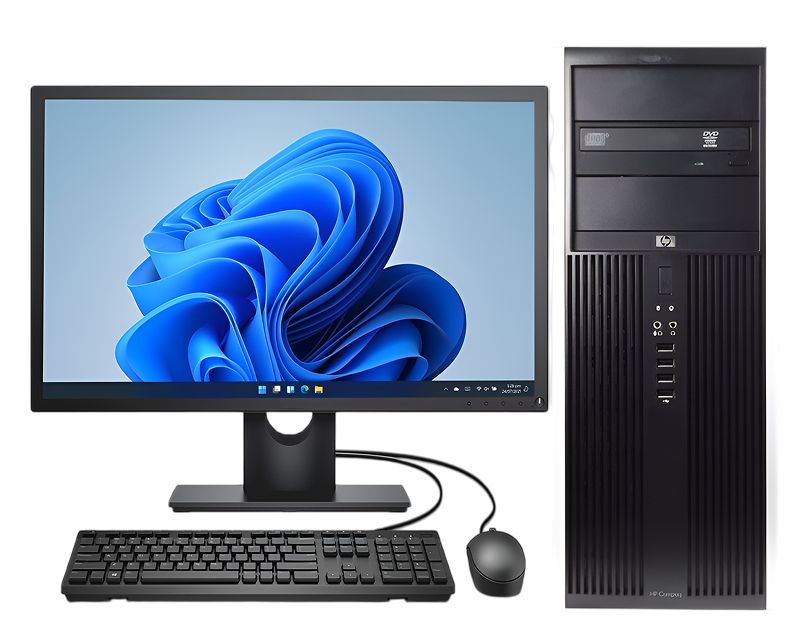
HP Computer Repair Services
Get fast, reliable, and professional HP Computer repair services at The Fix — your trusted destination for expert device care.
Common Repairs We Handle Daily


Why HP Computer Repair Is Smarter Than Upgrading
Why does your HP laptop take five minutes to boot up when it used to be ready in seconds? Why's the fan screaming like it's trying to launch into orbit every time you open Chrome? Maybe the battery's dead by lunchtime, or that keyboard's got three keys that only work when they feel like it. You've been eyeing new laptops online, wondering if it's time to upgrade, but something stops you—the cost, the hassle of transferring everything, or just the nagging feeling that this shouldn't be necessary yet.
Here's what most HP Computer owners don't realize: the vast majority of issues that make your laptop frustrating to use are completely repairable, and fixing what you've got makes way more financial sense than buying new. You've already invested in this machine, your files and programs are set up exactly how you like them, and professional HP Computer repair can bring it back to peak performance for a fraction of replacement cost. Whether you're running an HP Pavilion, Envy, ProBook, EliteBook, or Spectre, most problems have straightforward solutions. Let's identify exactly what's wrong and how we can fix it.
Quick Problem Checklist: What's Your HP Doing?
Let's quickly identify your symptoms. Check all that apply:
Power and Startup:
- [ ] Won't turn on (no lights, no fan, nothing)
- [ ] Powers on but shows black screen
- [ ] Gets stuck on HP logo during boot
- [ ] Boot loop (starts, shuts down, restarts repeatedly)
- [ ] Random shutdowns during use
- [ ] Only works when plugged in
Performance Issues:
- [ ] Extremely slow—everything takes forever
- [ ] Freezes or hangs constantly
- [ ] Blue Screen of Death errors
- [ ] Apps crash frequently
- [ ] Can barely run modern software
- [ ] Slower every week despite nothing changing
Battery Problems:
- [ ] Dies in 1-2 hours or less
- [ ] Battery percentage jumps erratically
- [ ] Won't charge or charges very slowly
- [ ] "Consider replacing battery" message
- [ ] Shuts down unexpectedly with charge showing
- [ ] Battery physically swollen or bulging
Overheating:
- [ ] Fan constantly at maximum speed
- [ ] Case too hot to touch
- [ ] Sudden shutdowns when running intensive programs
- [ ] Performance drops dramatically under load
- [ ] Burning smell (STOP USING IMMEDIATELY)
Screen Issues:
- [ ] Cracked or physically damaged
- [ ] Flickering at certain angles
- [ ] Lines or artifacts on display
- [ ] Dim screen even at max brightness
- [ ] Completely black but laptop running
- [ ] External monitor works fine (internal doesn't)
Keyboard/Trackpad:
- [ ] Keys stick or don't register
- [ ] Keys repeat letters
- [ ] Trackpad unresponsive or erratic
- [ ] Entire keyboard/trackpad dead
- [ ] Visible liquid damage or spill
Storage and Drive:
- [ ] "Disk full" warnings constantly
- [ ] Clicking or grinding noises
- [ ] Files corrupted or missing
- [ ] Extremely slow file operations
- [ ] SMART errors or drive warnings
If you checked:
- 1-3 symptoms: Early issues—address now before they worsen
- 4-7 symptoms: Multiple problems—comprehensive diagnostic needed
- 8+ symptoms: Significant issues—but totally repairable
The HP Computer Story
HP has been making computers for decades, and their laptop lineup covers everything from budget-friendly Pavilions to premium Spectres. What's interesting is how people actually use these machines—HP laptops serve everyone from students taking notes to business professionals running demanding applications to creative folks editing photos and videos.
The HP Pavilion line targets everyday users who need reliable computing without breaking the bank. The Envy series adds premium features and better build quality. ProBooks and EliteBooks are business-focused with durability and security features. The Spectre lineup competes with premium ultrabooks. Each has its own characteristics, but they all share HP's design philosophy of balancing features with value.
Here's what matters for repairs: HP laptops are generally serviceable. Unlike some manufacturers who glue and solder everything, many HP models still allow component replacement and upgrades. Batteries, RAM, storage drives, and keyboards are often accessible. This repairability means that when something breaks, fixing it is usually straightforward if you've got the right expertise and parts.
Battery Performance Collapsed
What you're experiencing: Your HP laptop used to last through a full workday. Now you're hunting for outlets by mid-morning. The battery percentage becomes unreliable—showing 50% one minute, then suddenly 10% the next. Maybe it won't charge at all, or the laptop only works when plugged in. You're essentially using it as a very inconvenient desktop.
Why this happens: HP laptop batteries use lithium-ion technology that degrades with use. Every charge cycle causes microscopic chemical changes. Most HP batteries are rated for 300-500 cycles before significant capacity loss. Daily charging means hitting that in 1-2 years. Heat accelerates degradation—laptops used on soft surfaces that block vents age batteries faster. Eventually the cells can't hold enough charge to be useful.
What you can try:
- Check battery health: Download HP Support Assistant or use Windows' battery report (Command Prompt: powercfg /batteryreport). This shows actual capacity versus design capacity.
- Calibrate the battery: Charge to 100%, use until complete shutdown, then charge uninterrupted to 100% again.
- Check for swelling: If the bottom case is bulging or the trackpad feels raised, the battery's swelling—stop using immediately, this is dangerous.
- Try different power settings: Use battery saver mode to reduce consumption temporarily.
- Update BIOS: Sometimes battery management improvements come through BIOS updates.
The consistent trend we observe: Battery replacement is one of the most common HP Computer repairs we handle, and it's incredibly satisfying for customers. People don't realize how much they've been accommodating a dying battery—always staying near outlets, carrying chargers everywhere, planning their day around available power. After professional battery replacement with a tested, quality component, they get actual portability back. Full-day battery life returns. The laptop becomes genuinely mobile again. It's not just fixing a problem—it's restoring the fundamental usefulness that made the laptop worthwhile in the first place.
Performance Crawling to a Halt
What you're experiencing: Your HP laptop has become painfully slow. Boot takes forever. Apps hang when launching. Simple tasks like opening folders lag noticeably. You've cleaned up files, closed programs, and it's still crawling. You're watching loading bars more than you're working.
Why this happens: Performance degradation usually involves multiple factors. Storage drives near capacity struggle—Windows needs space for temporary files and virtual memory. Hard drives fragment over time, causing slow access. Drives approaching failure exhibit severe slowdowns. Too many startup programs consume RAM and CPU. Malware or bloatware runs in the background. Overheating causes throttling. Insufficient RAM for modern Windows versions forces constant disk swapping.
What you can try:
- Check Task Manager (Ctrl+Shift+Esc) and see what's using CPU and RAM. Sort by usage to identify culprits.
- Disable unnecessary startup programs: Task Manager → Startup tab → disable programs you don't need launching automatically.
- Free up disk space—you need at least 10-15% free for Windows to operate efficiently. Delete large files or move them to external storage.
- Run Windows Defender or your preferred antivirus—malware consumes resources.
- Check if your hard drive needs defragmentation (if you have an HDD, not SSD): Optimize Drives tool in Windows.
- Monitor temperatures using HWMonitor or similar—high temps cause performance throttling.
From our experience fixing thousands of these: Performance issues are rarely just one thing. We'll typically find a nearly full hard drive, 25 programs launching at startup, accumulated junk files consuming gigabytes, dust choking the cooling system, and maybe the drive showing early failure signs. Addressing everything comprehensively makes a massive difference. Sometimes the solution is hardware—upgrading RAM from 4GB to 8GB or 16GB transforms the experience. Replacing a slow, failing hard drive with an SSD is genuinely revolutionary—boot times drop from minutes to seconds, apps launch instantly, and the entire system feels brand new. We've seen HP laptops that were frustratingly slow for months suddenly feel fast and responsive after comprehensive optimization and strategic upgrades.
Overheating and Aggressive Fan Noise
What you're experiencing: Your HP laptop sounds like a wind tunnel. The fan runs at maximum speed constantly, even during light tasks like web browsing. The case gets uncomfortably hot—you can't actually use it on your lap. Performance tanks during intensive work because the system throttles to avoid damage. Sometimes it shuts down completely to protect components.
Why this happens: HP laptops have cooling systems designed for specific thermal loads, but several factors compromise them. Dust accumulation is the primary culprit—it clogs cooling fins and restricts airflow through fans. Thermal paste between the CPU/GPU and heatsink dries out over time. Fans wear—bearings degrade and blades accumulate debris. Using the laptop on soft surfaces blocks vents. Demanding workloads that used to run fine now generate excessive heat because the cooling system can't keep up.
What you can try:
- Check Task Manager for processes using high CPU constantly—sometimes a stuck background task generates unnecessary heat.
- Use your HP laptop on hard, flat surfaces only. Beds and couches block ventilation holes on the bottom.
- External cooling pad: Not a permanent solution but can help temporarily while you arrange professional service.
- Clean external vents with compressed air: Hold the can upright, use short bursts, blow dust out of vents (don't spin fans backward).
- Close unused programs and browser tabs—each one generates heat.
What we've learned from the repair bench: HP laptops, especially models a few years old, predictably overheat when the cooling system's neglected. When we open them, the cooling fins are typically packed solid with dust and lint. Airflow is maybe 20-30% of design specification. The thermal paste is dried, cracked, and failing to transfer heat effectively. We clean everything meticulously using compressed air and proper tools, replace thermal paste with quality compound, verify fan operation and bearing condition, then reassemble. Temperature drops are dramatic—20-35°C reductions under load. Your HP laptop runs quietly, stays cool, and delivers full performance without throttling. The fans only ramp up when genuinely needed, not constantly screaming. For people who use their laptops for gaming, video editing, or other demanding tasks, proper cooling maintenance is transformative.
Screen Cracked or Display Not Working
What you're experiencing: Your HP laptop's screen is cracked—maybe from closing it with something on the keyboard, or from pressure in a bag, or from a drop. There are spider-web cracks spreading across it. Or maybe the screen works but flickers at certain angles. Perhaps it's completely black despite the laptop running (you can hear fan noise and Windows sounds). An external monitor works fine, so you know the computer itself is functional.
Why this happens: HP laptop screens vary by model—some are more robust, others more fragile. Pressure on the lid when closed cracks displays. Objects left on the keyboard before closing cause damage. Drops or impacts break screens. The display cable running through the hinge area can get damaged from repeated opening and closing. Backlight failures make the screen dim or completely black. Sometimes it's the inverter board or display controller failing rather than the screen itself.
What you can try:
- External monitor test: Connect to an external display. If that works perfectly, you've isolated the problem to the internal display system.
- Shine a flashlight at the screen when it appears black—if you can see a faint image, it's a backlight failure, not the LCD panel itself.
- Gently move the screen through its full range of motion while watching for when issues occur. Angle-dependent problems usually indicate cable damage.
Here's what we've learned from the repair bench: HP screen replacements are one of our most common laptop repairs. The work requires care—we disassemble the display assembly, disconnect the old panel, install a new one, reconnect cables precisely, and reassemble. For cracked screens, the entire panel needs replacement. For backlight failures, sometimes we can replace just the backlight components depending on the model. For flickering issues, often it's the display cable that needs replacement rather than the screen itself. Properly done, your replacement screen looks and functions exactly like the old times. We test thoroughly—no dead pixels, even brightness, correct colors, reliable operation at all angles. Customers are always relieved to have their display back without cracks, lines, or flickering.
Keyboard Keys Failing
What you're experiencing: Certain keys on your HP keyboard don't work. You press them and nothing happens, or you have to press multiple times to get a response. Other keys stick—press once, get three letters. Maybe the entire keyboard stopped working after a spill. You're resorting to an external keyboard just to get work done.
Why this happens: HP keyboards experience several failure modes. Spills are devastating—liquid seeps under keys and corrodes connections. Dust and debris accumulation causes mechanical issues. The ribbon cable connecting the keyboard to the motherboard can get damaged or loose. Key switches wear out from heavy use. Sometimes it's a driver or BIOS issue rather than hardware failure.
What you can try:
- Try an external USB keyboard—if it works perfectly, you've confirmed it's the internal keyboard hardware.
- For single stuck keys, try removing the keycap carefully and cleaning underneath with compressed air or isopropyl alcohol on a swab.
- Update keyboard drivers: Device Manager → Keyboards → update driver.
- Check BIOS settings (press F10 or F2 during startup)—sometimes keyboard settings get changed accidentally.
- For spill damage, turn off immediately, disconnect power, remove battery if possible, and bring it in for professional cleaning ASAP.
After repairing these daily: HP keyboard replacements are generally straightforward compared to some manufacturers. Many HP models have keyboards that can be removed by removing a few screws and disconnecting a ribbon cable. We keep common HP keyboard models in stock or can source them quickly. For recent spills, sometimes cleaning saves the keyboard if caught early. But chronic problems or heavy spill damage usually require replacement. The good news is that new keyboards give you fresh, responsive keys. Every keystroke registers reliably. Typing becomes effortless again, which matters tremendously since you interact with that keyboard constantly during use.
How Time Affects Your Tech
Let's be honest about what happens to HP laptops over time. Understanding the underlying aging processes helps you recognize when maintenance is needed.
Think about running shoes you've used for years. When new, they had thick cushioning and springy support. After hundreds of miles, the foam's compressed, the cushioning's thin, and your feet feel every impact. The material hasn't failed catastrophically—it's gradually lost its properties from repeated stress. Your HP laptop's components experience similar degradation. Thermal paste acts like cushioning between hot processors and cooling heatsinks. Fresh paste transfers heat efficiently. After years of thermal cycling, it hardens and cracks. Heat transfer drops by 20-30%, causing higher temperatures and performance throttling.
Consider storefront windows you see daily. They're under constant stress—temperature changes, vibrations from traffic, wind pressure. Quality glass lasts for years, but it's always under stress. Your HP laptop's screen experiences similar forces. Every time you open and close the lid, there's mechanical stress on the hinges and display cable. Temperature changes cause expansion and contraction. After thousands of cycles, components fatigue. The display cable develops microscopic breaks. Hinges wear. None of this means poor quality—it's accumulated stress from normal use.
Inside your HP laptop, the hard drive (if it has one) spins at 5400 or 7200 RPM. Moving parts—spinning platters and actuator arms—wear microscopically with every operation. Bearings develop play. After thousands of hours, mechanical precision degrades. SSDs face different challenges—memory cells wear out as they're written and erased. The controller manages wear leveling, but eventually enough cells fail that performance degrades.
Battery chemistry degrades with every charge cycle. Lithium-ion cells lose capacity as internal structures change. Electrolyte breaks down. Internal resistance increases. After 300-500 cycles (1-2 years for daily users), capacity might drop to 60-70% of original. This isn't a defect—it's electrochemistry.
The keyboard switches compress hundreds of thousands of times. Rubber domes lose elasticity. Metal contacts experience wear. Springs experience fatigue. Tactile feedback changes gradually until eventually keys feel mushy or fail to register.
Ports endure mechanical stress. Every time you plug in a charging cable or USB device, internal contacts experience slight wear. After thousands of insertions, ports can become loose or unreliable.
This isn't about HP cutting corners. These are quality machines that handle diverse workloads. But physics doesn't care about build quality—all components age. Recognizing when aging requires professional attention keeps your HP laptop running great for years.
Storage Drive Failing or Full
What you're experiencing: You're getting constant "low disk space" warnings even after deleting files. The HP laptop makes clicking or grinding noises (if you have a hard drive). Files are corrupting or disappearing. Operations that should be instant take forever. Windows is warning you about disk problems. Sometimes the drive isn't recognized at all.
Why this happens: Storage drives have finite lifespans. Hard drives have mechanical parts that wear out. SSDs have write cycle limits on memory cells. Both can develop bad sectors, firmware issues, or complete component failures. Sudden power losses corrupt file systems. Physical shocks damage drives. Heat accelerates degradation. When drives start failing, they exhibit warning signs—slowdowns, errors, strange noises—before complete failure.
What you can try:
- BACK UP IMMEDIATELY if you're experiencing these symptoms. Drive failure can be sudden and total.
- Check drive health: Use HP Hardware Diagnostics or third-party tools like CrystalDiskInfo to read SMART data.
- Run Windows' Error Checking: File Explorer → right-click drive → Properties → Tools → Check.
- Free up space if you're getting "full" warnings: Windows Disk Cleanup, uninstall unused programs, move files to external storage.
- If you hear clicking or grinding noises from a hard drive, stop using it immediately—continued operation can make data recovery impossible.
What really happens in most cases: Storage drive failures show warning signs for weeks before complete failure. If you're experiencing unexplained slowdowns, random errors, or SMART warnings, don't wait. We can clone failing drives to new ones, preserving all your data and giving you a fresh, reliable drive. Often we upgrade to larger capacity or faster SSD technology during replacement. The cloning process is block-by-block, so your HP laptop boots after repair exactly as it was—same programs, same files, same settings—just faster and more reliable. Many times we've recovered data from drives that seemed completely dead, so even if your laptop won't boot, there's hope for data recovery.
You're Probably Wondering What Actually Happens During Repair
Let me walk you through what happens when you bring your HP laptop to The Fix, because understanding the process helps you feel confident about professional service.
You'll bring in your HP laptop and we start with conversation. What's it doing? When did symptoms start? Are there patterns you've noticed? What troubleshooting have you tried? This context matters because it helps us diagnose efficiently—we know what to look for and can avoid repeating steps you've already taken.
Next comes hands-on diagnostic testing. For HP laptops that won't power on, we test the power supply with multimeters, check for signs of life on the motherboard, and determine what's preventing startup. For performance issues, we boot up, check Task Manager, run temperature monitoring, and identify bottlenecks. For hardware problems, we run HP Hardware Diagnostics and component-specific tests. We're not guessing—we're systematically identifying the actual problem.
This diagnostic phase takes time. We might run extended tests if problems are intermittent. We check SMART data on drives, test RAM modules individually, monitor temperatures under load, verify display function at different angles. The goal is finding the root cause, not just treating symptoms.
Once we know what's wrong, we explain it clearly. No jargon, no technical overwhelm—just straightforward explanation of what failed and why. This is where we discuss options and your input matters. Maybe your hard drive is failing—you can replace it with another HDD, or upgrade to an SSD that'll make everything significantly faster. Perhaps your laptop needs more RAM—we'll explain the performance improvement and let you decide if it's worth it for your usage. You choose what makes sense for your situation.
The actual repair work requires proper tools and expertise. We use correct screwdrivers, anti-static equipment, and appropriate repair procedures for your specific HP model. For battery replacements, we disconnect everything safely, remove the old battery, install the new one properly, and reassemble. For keyboard replacements, we remove the necessary components, disconnect the ribbon cable, install the new keyboard, and test thoroughly. For cooling system maintenance, we disassemble, clean fans and heatsinks meticulously, apply quality thermal paste, and reassemble carefully.
Throughout the repair, we're testing constantly. After battery replacement, we verify proper charging and calibration. After cooling system work, we stress-test under load to confirm temperatures are normal. After storage replacement, we verify successful cloning and boot functionality. We don't just fix the specific problem—we validate that the entire system operates correctly.
Before you pick up, we document everything we did, what parts we used, and any observations about your laptop's condition. When you arrive, we'll explain the work, show you relevant improvements (temperature readings, boot times, battery health, whatever's applicable), and answer questions about maintaining your HP laptop going forward.
You should leave understanding what was wrong, what we fixed, and how to prevent similar issues. That's our goal—not just repairing your laptop, but ensuring you're confident in its condition and know how to care for it properly.
Extend Your HP Laptop's Life With These Tips
Smart maintenance prevents repair needs. Here's what to do:
Must-Do:
- Back up regularly using external drives or cloud backup. When hardware fails, you'll be grateful.
- Keep Windows and drivers updated. Updates include performance improvements, security patches, and bug fixes.
- Don't let startup disk get over 85% full. Windows needs space for temporary files and virtual memory.
- Use your laptop on hard, flat surfaces. Soft surfaces block vents and cause overheating.
Should-Do:
- Run antivirus scans regularly. Malware consumes resources and causes problems.
- Clean external vents every few months with compressed air.
- Restart your laptop at least weekly. Many issues stem from simply never restarting.
- Manage startup programs—disable things you don't need launching automatically.
Nice-to-Do:
- Professional cooling system cleaning every 2-3 years prevents overheating issues.
- Battery calibration every few months keeps battery reporting accurate.
- Organize files regularly to avoid cluttering your drive.
- Check drive health periodically using diagnostic tools.
Watch for warning signs:
- Gradual performance degradation
- Battery life decreasing noticeably
- Fan noise increasing
- Strange sounds from the drive
- Keyboard keys feeling different
- Screen flickering or dimming
Catching problems early makes repairs easier and often less expensive. That slightly loose charging port fixed now is a simple repair. Ignored until the laptop won't charge at all? Now you might need logic board work because the port damage spread to traces.
Professional Repair Makes More Sense Than Replacement
Most HP Computer problems are fixable with professional expertise. That dying battery? Replacement restores full-day runtime and costs a fraction of a new laptop. Performance issues? Cleaning, optimization, and strategic upgrades transform the experience. Overheating? Proper maintenance brings temperatures back to normal. Broken screen? Replacement looks factory-fresh. These repairs extend your laptop's life for years at reasonable cost.
Having issues with your HP Computer? The Fix specializes in laptop repairs. Stop by our shop—we'll diagnose the problem for free, explain what's happening in plain English, and get your device working right again.


Trusted repair solution for mobile phones, tablets, gaming consoles, and computer systems. We provide fast, reliable, and affordable repair services to get your devices back in perfect working condition.
The Fix is an independent repair service provider and is not affiliated with, sponsored by, or endorsed by Apple Inc., Samsung Electronics, Google LLC, or any other device manufacturer. We use high-quality compatible replacement parts unless explicitly stated. All trademarks are property of their respective owners.


© Copyright The Fix Solutions All rights reserved 2026.
Design by Deepcoder