






Google Pixel 3a XL Repair Services
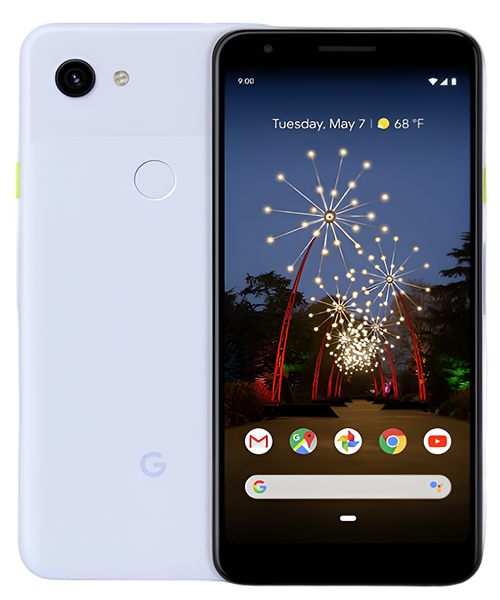
Get fast, reliable, and professional Google Pixel 3a XL repair services at The Fix — your trusted destination for expert device care.
Common Repairs We Handle Daily


Troubleshooting Google Pixel 3a XL: Solutions That Work
When your Pixel 3a XL starts behaving unpredictably, the large screen that makes content consumption enjoyable becomes a source of frustration. Google's bigger budget flagship from 2019 combined exceptional value with practical features—a 6-inch OLED display, impressive battery life, and the same computational photography that made Pixel phones famous. Five years later, many of these devices continue daily service, though common issues increasingly surface. This guide walks through practical troubleshooting steps for the most frequent Pixel 3a XL problems.
Problem: Battery Drains Faster Than Normal
Your phone that once easily lasted through full days now requires afternoon charging. Battery percentage drops rapidly during basic tasks, and the device sometimes shuts down unexpectedly even when the indicator shows remaining charge.
Understanding Battery Drain
The 3,700mAh battery that gave the 3a XL its endurance reputation degrades through natural chemical processes. After years of charging cycles, the cell loses capacity to store energy. Background app activity, screen brightness settings, and connectivity features all draw power, but when a phone that previously handled these demands without issue suddenly struggles, battery degradation typically explains the change.
Step-by-Step Solutions
Start by identifying power-hungry apps through battery usage statistics in Settings. Navigate to Battery, then tap Battery Usage to see which apps consume the most power. If specific apps show unusually high consumption, try clearing their cache through Settings > Apps > [App Name] > Storage > Clear Cache. Uninstall apps you no longer actively use—background processes from dormant apps drain battery unnecessarily.
Reduce screen brightness to comfortable levels rather than maximum. The large OLED display represents one of the biggest power draws, and even modest brightness reductions extend runtime noticeably. Enable Adaptive Brightness to let the phone adjust automatically based on ambient light.
Disable connectivity features you're not actively using. Turn off Bluetooth, Wi-Fi, and location services when they're unnecessary. These radios constantly search for connections, draining battery even when you're not actively using their functions. Toggle them on only when needed.
Enable Battery Saver mode through the quick settings panel. This feature limits background activity, reduces performance slightly, and adjusts various settings to extend remaining charge. While it doesn't solve underlying battery degradation, it helps stretch available capacity.
If software-level adjustments provide minimal improvement and battery health shows significant degradation (viewable through third-party battery health apps), battery replacement becomes the appropriate solution. A fresh battery restores the all-day endurance the 3a XL originally provided.
Problem: Screen Becomes Unresponsive or Displays Dead Zones
Certain areas of your display don't register touch input, requiring multiple taps to activate icons or buttons. Swipe gestures work inconsistently, making navigation frustrating. Sometimes the entire screen becomes temporarily unresponsive.
Understanding Touch Problems
Touch responsiveness issues stem from either digitizer problems or software glitches. The digitizer layer sits above the display panel and translates your touches into input the phone recognizes. This component can develop dead zones through impact damage, manufacturing defects that manifest over time, or connection problems between the digitizer and the motherboard. Software issues can mimic hardware problems, making systematic troubleshooting essential.
Step-by-Step Solutions
Begin with a simple restart. Hold the power button and select Restart. This clears temporary software glitches that sometimes affect touch responsiveness. If the problem persists, boot into Safe Mode to determine whether third-party apps cause the issue. Press and hold the power button, then press and hold the Power Off option until you see Safe Mode appear. Tap OK. If touch works normally in Safe Mode, a recently installed app likely causes the problem. Uninstall recent apps one by one to identify the culprit.
Remove any screen protector temporarily. Low-quality or improperly installed protectors can interfere with touch sensitivity, particularly along edges. Test touch responsiveness across the entire screen without the protector. If touch improves, replace the protector with a quality alternative designed specifically for the 3a XL.
Perform a touchscreen calibration test through developer options. Enable Developer Options by going to Settings > About Phone and tapping Build Number seven times. Return to Settings, access Developer Options, and enable Show Touches. This displays visual feedback when you touch the screen, helping identify specific dead zones. If certain areas consistently fail to register input, hardware problems likely exist.
Factory reset serves as the final software-level troubleshooting step. Back up important data first, as this erases everything. Navigate to Settings > System > Reset Options > Erase All Data. If touch problems persist after a fresh software installation, digitizer hardware requires professional replacement.
When hardware replacement becomes necessary, professional service ensures the new digitizer properly calibrates with your display and maintains the touch sensitivity the 3a XL provided when new.
Problem: Phone Won't Charge or Charges Intermittently
Your charging cable requires specific positioning to establish connection. Sometimes the phone charges normally, other times it refuses to recognize cable insertion. Wireless charging (if you use a compatible adapter) works, but wired charging behaves unpredictably.
Understanding Charging Issues
Charging problems typically originate from port contamination or mechanical wear rather than battery failure. The USB-C port accumulates pocket lint, dust, and debris that prevents cables from seating fully. After years of daily cable insertions, internal port contacts can also loosen or bend slightly. These mechanical issues create intermittent connections that users often misattribute to battery problems.
Step-by-Step Solutions
Inspect the charging port visually using a flashlight or your phone's camera with flash enabled. Look for compressed debris, lint accumulation, or visible damage to the port opening. If you see debris, power off your phone completely for safety.
Use a wooden toothpick or non-conductive tool to gently remove debris from the port. Work carefully to avoid damaging internal contacts. Compressed air can help dislodge loose particles, but avoid applying excessive pressure that might force debris deeper into the port. Many users are surprised by how much lint accumulates in charging ports over time.
Test multiple charging cables and adapters to rule out cable failure rather than port problems. Try cables that work reliably with other devices. If your phone charges normally with specific cables but not others, cable quality or wear likely contributes to the issue.
Restart your phone after cleaning the port. Sometimes the charging system needs a restart to recognize connections properly after addressing physical obstructions.
If cleaning provides no improvement and the port shows no visible damage, internal contact problems likely exist. The USB-C port assembly can be professionally replaced, restoring reliable charging without requiring cable gymnastics. This represents one of the most common and cost-effective Pixel 3a XL repairs.
Problem: Camera Launches Slowly or Displays Error Messages
The camera app takes several seconds to open, significantly longer than you remember. Sometimes it displays error messages like "Can't connect to camera" or produces completely black previews. Restarting temporarily fixes the issue, but problems return.
Understanding Camera Problems
Camera malfunctions stem from either app glitches or hardware connection issues. The Pixel 3a XL's camera module connects to the motherboard through flex cables that can become unseated through normal use or impact. Camera app data can become corrupted over time, causing software-level failures. Distinguishing between these causes determines the appropriate solution.
Step-by-Step Solutions
Force stop the camera app first. Navigate to Settings > Apps > Camera > Force Stop, then relaunch the camera. This clears temporary app glitches that sometimes cause errors.
Clear camera app cache and data through Settings > Apps > Camera > Storage. Tap Clear Cache first, then test the camera. If problems persist, tap Clear Data (this resets camera settings but doesn't delete your photos). Clearing data eliminates corrupted app files that accumulate during updates.
Restart your phone in Safe Mode to determine whether third-party camera apps or system modifications interfere with camera operation. If the stock camera app works properly in Safe Mode, recently installed camera apps or system tweaks likely cause conflicts. Uninstall third-party camera apps and test again.
Check for system updates through Settings > System > System Update. Google released camera improvements and bug fixes through software updates. Installing available updates may resolve camera app issues.
If software troubleshooting provides no improvement, hardware issues likely exist. The camera module or its connection to the motherboard may require professional attention. Technicians can reseat connections or replace the camera module if physical damage has occurred.
Preventive Maintenance for Long-Term Reliability
Establishing simple maintenance habits extends the time between repairs and preserves your Pixel 3a XL's functionality. These practices take minimal effort but provide significant benefits over time.
Keep the charging port clean through monthly inspection and gentle cleaning. Prevention proves easier than fixing charging problems after debris becomes compressed. Carry a small case or pouch to minimize pocket lint exposure when possible.
Use quality charging cables that fit securely without excessive force. Loose cables accelerate port wear through imprecise contact, while cables that require forcing can damage internal port structures. Quality cables cost slightly more but protect expensive charging port hardware.
Install protective cases that extend slightly above the screen edges. This prevents direct screen impact when the phone falls face-down. The 3a XL's large display makes it more vulnerable to crack damage compared to smaller phones. A minimal case provides meaningful protection without adding bulk that makes the large phone unwieldy.
Avoid exposing your phone to temperature extremes. Don't leave it in hot vehicles or direct sunlight for extended periods. Heat accelerates battery degradation and can damage internal components. Similarly, extreme cold affects battery performance and can stress internal electronics.
Perform periodic cache clearing to maintain system responsiveness. Navigate to Settings > Storage > Cached Data and tap to clear. This removes temporary files that accumulate during normal use, freeing storage space and potentially improving performance.
Back up important data regularly. Whether through Google Photos for images, cloud storage for documents, or complete device backups through Google Drive, regular backups ensure you don't lose important information if hardware failure occurs unexpectedly. Prevention and preparation go hand in hand.
When Professional Help Becomes Necessary
Certain problems exceed what troubleshooting can address. If battery life remains poor after eliminating software causes, professional battery replacement restores the endurance you need. Persistent touch responsiveness issues that survive factory resets indicate digitizer hardware problems requiring professional repair.
Charging problems that persist after thorough port cleaning suggest internal damage that needs component replacement. Camera issues that resist all software solutions point to hardware failures that require diagnostic equipment and technical expertise to resolve properly.
Attempting complex repairs without proper tools and experience risks causing additional damage. Modern smartphones contain delicate components that require specific handling. Professional repair services have the equipment, components, and experience to address problems correctly the first time.
The Fix Approach to Pixel 3a XL Service
At The Fix, we appreciate that your Pixel 3a XL represents thoughtful value-focused purchasing. The large screen makes content consumption enjoyable, the excellent camera captures memories reliably, and the solid battery life originally enabled all-day use. When issues arise, we provide the expertise to restore these capabilities.
Our diagnostic process identifies specific problems rather than guessing based on symptoms. We explain findings clearly, discuss your options honestly, and complete repairs efficiently. Whether you need battery replacement, charging port repair, display work, or component-level diagnostics, we treat your device with professional care.
We use quality replacement components that match or exceed the specifications of parts they replace. Every repair includes comprehensive testing to verify not just the replaced component but overall device functionality. Our goal involves keeping your phone operational for continued daily use.
The Fix stands behind our work because we believe in maintaining functional devices rather than pushing premature replacement. Your Pixel 3a XL still offers genuine utility for everyday smartphone tasks, and we respect the decision to keep capable hardware in service.
Conclusion: Keeping Your Large-Screen Workhorse Running
The Google Pixel 3a XL delivered flagship-level features at mid-range prices, and properly maintained examples continue serving users well for daily communication, media consumption, and photography. When problems arise, systematic troubleshooting often resolves software-related issues without requiring hardware repair.
For problems that exceed software solutions, professional service restores functionality efficiently. Battery replacements eliminate constant charging anxiety, charging port repairs ensure reliable power delivery, and display repairs maintain the visual quality that makes the large screen enjoyable.
If your Pixel 3a XL experiences persistent problems that troubleshooting hasn't resolved, contact The Fix. We'll diagnose the specific issues affecting your device and provide solutions that restore the reliability you depend on. Your big-screen budget flagship still has plenty of productive life ahead with appropriate care.


Trusted repair solution for mobile phones, tablets, gaming consoles, and computer systems. We provide fast, reliable, and affordable repair services to get your devices back in perfect working condition.
The Fix is an independent repair service provider and is not affiliated with, sponsored by, or endorsed by Apple Inc., Samsung Electronics, Google LLC, or any other device manufacturer. We use high-quality compatible replacement parts unless explicitly stated. All trademarks are property of their respective owners.


© Copyright The Fix Solutions All rights reserved 2026.
Design by Deepcoder