






Dell Venue 11 Pro Repair Services
Get fast, reliable, and professional Dell Venue 11 Pro repair services at The Fix — your trusted destination for expert device care.
Common Repairs We Handle Daily


Dealing With Dell Venue 11 Pro Issues? Your Dell Venue 11 Pro Repair Answer
You're at a client meeting, pull out your Dell Venue 11 Pro to take notes, and the screen won't respond to touch in half the display. Or you're working from a coffee shop when your tablet suddenly shuts down at 40% battery. Maybe you dock it with the keyboard attachment only to discover the connection's flaky and keeps disconnecting. Perhaps the kickstand that's supposed to hold your tablet at a comfortable angle just collapses flat every time you try to set it up. These frustrations hit hard because you bought this 2-in-1 specifically for business use and productivity on the go.
Here's what you need to understand: the Dell Venue 11 Pro was designed as a serious business tool, not a consumer toy, and that design philosophy makes professional Dell Venue 11 Pro repair both practical and cost-effective. These tablets used quality components, modular construction, and were built with eventual serviceability in mind. Most issues—even ones that seem serious—are repairable without replacing the entire device. Let's walk through what goes wrong, why it happens, and how repair gets your productivity tool working properly again.
Your Dell Venue 11 Pro: The Quick Rundown
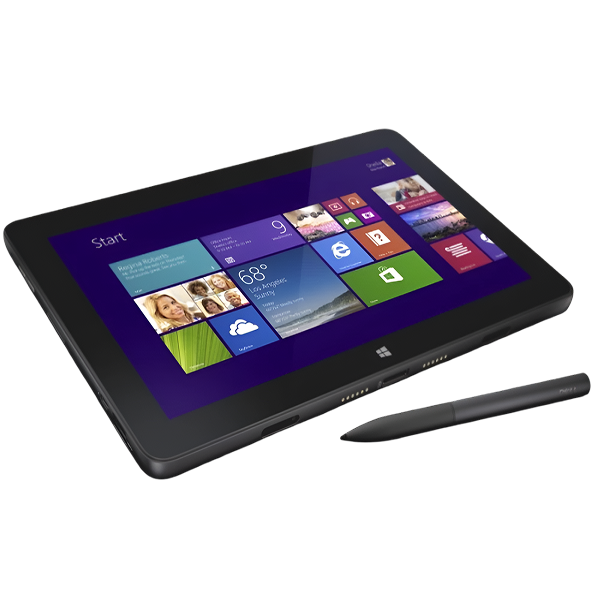
Dell released the Venue 11 Pro in 2013-2014 as a Windows 8/8.1 tablet targeting business users who needed a laptop alternative. You're looking at a 10.8" 1920x1080 display that's genuinely good for productivity work, Intel Core processors (various configs from Atom to Core i5), full Windows capabilities, an optional keyboard dock that turns it into a laptop, and that clever kickstand built into the tablet itself. Dell positioned this as a Surface Pro competitor at more competitive pricing.
What's interesting about the Venue 11 Pro from a repair perspective? Dell actually thought about maintenance. The back cover is removable with screws—you don't have to destroy adhesive to get inside. The battery is accessible once you open it. Components are modular rather than everything being soldered to a single motherboard. The screen uses adhesive but not aggressively so. Dell built this for business deployment where IT departments might need to service units, which makes it significantly more repair-friendly than consumer tablets from the same era. It's refreshing to work on devices that don't actively fight repair efforts.
How Time Affects Your Tech
Every Dell Venue 11 Pro eventually needs attention, and that's not Dell cutting corners—it's just materials science meeting years of professional use. Let me explain what's physically happening inside your tablet over time.
Your battery is like a garden hose developing leaks over seasons of use. When new, it holds pressure perfectly and delivers consistent flow. After years of being coiled, uncoiled, exposed to sun and cold, you notice it leaks at connections and doesn't maintain pressure. That's lithium-ion battery degradation. The Venue 11 Pro's battery was decent—around 36Wh depending on configuration—but after several years and hundreds of charge cycles, capacity drops significantly. If you've been using this tablet since 2014-2015, you're looking at potentially 1000+ charge cycles. Chemistry doesn't care about your productivity needs—it degrades naturally.
The display is simultaneously durable and vulnerable. Think about eyeglasses dropped on concrete—the lenses are designed to be tough, they handle daily wear fine, but impact in the wrong spot cracks them instantly. Your Venue 11 Pro's 10.8" screen is similar. The glass is chemically strengthened for scratch resistance and normal handling. But drop it corner-first onto hard flooring? That glass cracks. Store it in a bag where something presses hard against the screen? You risk pressure damage to the LCD underneath. The touch digitizer layer can fail from impact even when glass looks perfect, or simply from age-related degradation after years of constant use.
Connector wear is inevitable with modular designs. The keyboard dock connects via pogo pins that make electrical contact when docked. After hundreds of docking and undocking cycles, those pins wear microscopically. The springs behind them lose tension. Dirt and oils from handling create resistance on contact surfaces. The kickstand is a mechanical hinge under constant stress—every time you open it, close it, or adjust the angle, metal rubs against metal. After thousands of cycles over years of use, friction surfaces wear down and springs weaken.
Charging ports face their own battle. You've plugged in that micro-USB or proprietary Dell charging cable countless times. Each insertion creates wear on internal contacts. Dust accumulates inside the port. Humidity causes corrosion. Cables yanked at angles stress the port's mounting. Eventually, charging becomes unreliable—you're wiggling cables, holding at specific angles, or facing intermittent connection.
The Screen Cracked or Touch Stopped Working
You're seeing spiderweb cracks radiating from a corner, or maybe the glass looks perfect but touch doesn't register in large sections of the display. Could be the screen shows weird discoloration or lines across certain areas. Perhaps touch is wildly inaccurate, registering inputs far from where you're actually tapping. Some Venue 11 Pro owners deal with intermittent touch issues where it works sometimes but not others. Maybe the display is completely blank—backlight comes on but no image appears.
Why this happens: The Venue 11 Pro uses a display assembly where glass, touch digitizer, and LCD are separate layers bonded together. Physical damage from drops is common—these tablets travel to meetings, job sites, client locations, and eventually something causes an impact. Pressure damage occurs when the tablet's stored improperly or something heavy compresses the screen. The digitizer can fail independently from age—after years of constant touch input, the conductive coating degrades. We've seen ribbon cable failures where the display connects to the motherboard—vibration and movement over time can crack these delicate cables. Sometimes it's the display controller on the motherboard failing, which prevents proper image output even when the screen itself is fine.
What you can try:
- Restart the Venue 11 Pro and check for Windows display driver updates
- Connect to an external monitor via mini-HDMI to verify the GPU and system are functional
- For touch issues without visible damage, try recalibrating in Windows Control Panel > Tablet PC Settings
- Check if pressure on specific areas of the bezel makes touch work—this indicates a loose connection
- Boot into BIOS and see if touch works there—if it does, it's a Windows driver issue rather than hardware
What actually happens with most units: Screen issues on Dell Venue 11 Pro tablets break down into physical damage versus functional failures. Physical damage—cracked glass, damaged LCD, broken digitizer—requires display assembly replacement. Dell Venue 11 Pro repair for screens involves carefully removing the bezel (it's held with clips), disconnecting the battery first for safety, removing the damaged display assembly, thoroughly inspecting the display connectors for corrosion or bent pins, installing the replacement screen with proper alignment, reconnecting all cables carefully, reassembling the bezel, and testing extensively. We verify touch response across every zone, check display quality with various colors, confirm brightness adjustment works, look for dead pixels or backlight issues, and make sure the screen is securely mounted. The repair typically takes 90-120 minutes and restores full functionality. Replacement screens for Venue 11 Pro units are still available since Dell sold these in volume to business customers.
Battery Life Is Nowhere Near What It Used to Be
Your Venue 11 Pro used to make it through a full workday easily. Now it's dead by lunch. The battery percentage drops rapidly during normal use—you can literally watch it count down. Maybe it dies suddenly even when showing 30-40% remaining. Could be it won't hold any charge at all anymore, only working when plugged in. Perhaps charging takes forever, requiring 6-8 hours to reach full charge even with the proper adapter. Some owners find their tablet won't turn on at all despite charging overnight.
Why this happens: Lithium-ion batteries degrade with every charge cycle—it's electrochemistry, not a defect. If you've been using your Venue 11 Pro daily since 2014-2016, you've likely exceeded 800-1200 charge cycles. At that point, capacity degradation is significant—you might be down to 50-60% of original capacity or worse. Battery cells can fail entirely, causing immediate shutdown even when the percentage shows charge remaining. The battery management system (built into the battery) can report inaccurate levels. Heat accelerates degradation—if you frequently used your Venue 11 Pro in hot environments or on soft surfaces that blocked vents, you cooked the battery faster. Sometimes it's not the battery but the charging circuit on the motherboard failing, which prevents proper charging even with a functional battery.
What you can try:
- Check battery health in Windows: open Command Prompt as admin, type "powercfg /batteryreport" and review design capacity vs. current capacity
- Let it charge for 8+ hours even if Windows shows it's not charging—deeply discharged batteries need patient charging
- Try a different charging cable and adapter—accessories fail more often than the tablet itself
- Clean the charging port carefully with compressed air
- Update BIOS and Windows—Dell sometimes releases power management improvements in firmware updates
- Check if the battery is visibly swollen by looking at the back cover—swelling indicates dangerous failure requiring immediate attention
Here's what we've learned from the repair bench: Battery replacement on Dell Venue 11 Pro tablets is straightforward compared to many devices. The back cover removes with standard screws (usually T5 Torx). Once inside, the battery is right there—it's held with screws and a connector that unplugs easily. We disconnect the old battery, remove mounting screws, lift out the battery, install a high-quality replacement rated for this model, secure it properly, reconnect everything, and run comprehensive tests. We charge to 100%, discharge to 50% while running intensive tasks, recharge to 100%, and verify accurate power reporting throughout. Dell Venue 11 Pro repair for battery issues typically takes 60-90 minutes and genuinely restores all-day runtime. We're seeing good quality from replacement batteries, and customers regularly report getting another 2-3 years of daily use after battery replacement.
Keyboard Dock Connection Is Unreliable
You dock the tablet with the keyboard attachment, and it doesn't recognize the keyboard. Or it works initially but disconnects randomly during use. Maybe certain keys don't register, or the trackpad is unresponsive. Could be the physical connection feels loose—the tablet doesn't sit firmly in the dock like it used to. Perhaps the dock charges the tablet intermittently or not at all. Some Venue 11 Pro owners can only get the keyboard to work if they press the tablet down firmly while docked.
Why this happens: The Dell keyboard dock connects via pogo pins—small spring-loaded contacts on both the tablet and dock that make electrical connection when pressed together. After hundreds of docking cycles, these pins wear down. The springs lose tension, reducing contact pressure. Oils from handling and environmental dirt create resistance on the contact surfaces. The dock's connector housing can wear, causing misalignment. We've seen cases where drops or impacts bent the pins slightly, preventing proper contact. The tablet's connector can also develop issues—corrosion on the pogo pin receptacles, physical damage to the connector housing, or failed traces on the motherboard leading to those connectors.
What you can try:
- Clean both the tablet's connector and the dock's pins with isopropyl alcohol and a soft cloth
- Inspect the pins on both sides for visible damage, corrosion, or pins that seem stuck
- Try docking and undocking multiple times to see if it's consistently problematic or intermittent
- Update the keyboard dock firmware and drivers through Dell's support site
- Test the dock with another Venue 11 Pro if available to isolate whether it's the tablet or dock that's faulty
- Check if applying gentle pressure when docked improves connection—this indicates worn springs or misalignment
From our experience fixing thousands of these: Keyboard dock issues on Dell Venue 11 Pro units usually stem from worn pogo pins or dirty contacts. About 40% of cases resolve with thorough cleaning of both connector surfaces using proper cleaning solutions. Another 30% are worn pins in the dock that need replacement or adjustment—sometimes we can restore tension to existing pins, other times replacement dock pins are necessary. The remaining 30% are tablet-side issues—corroded connectors, damaged connector housings, or failed circuitry. When you bring dock connection problems to The Fix, we systematically test with known-good docks to isolate which component is faulty, clean all contacts thoroughly, inspect under magnification for physical damage, test electrical continuity, and determine whether cleaning, pin adjustment, connector replacement, or dock replacement is needed. Dell Venue 11 Pro repair for docking issues varies from simple cleaning (30 minutes) to connector replacement (90-120 minutes).
Charging Has Become a Nightmare
Your Venue 11 Pro only charges if you hold the cable at specific angles. Or maybe it charges sometimes but not others with no clear pattern. The charging indicator light doesn't come on when plugged in. Could be charging is incredibly slow, taking all day to reach full charge. Perhaps you've gone through multiple charging cables, and they all seem to fail quickly. Some owners can't get the tablet to charge at all—no matter what cable or adapter they try, nothing happens.
Why this happens: The micro-USB charging port (or proprietary Dell charging port on some models) faces years of repeated cable insertions. Each connection wears the internal metal contacts microscopically. The port can loosen from its mounting to the motherboard, especially if cables were frequently yanked out sideways. Dust, lint, and debris accumulate inside over time. Corrosion from humidity degrades contacts. The plastic housing can crack. We've seen ports where internal pins are bent, ports completely detached from the motherboard, and ports so corroded they're barely conductive. Sometimes it's not the port at all—it's the charging circuit on the motherboard failing, which prevents charging even with a perfect port.
What you can try:
- Inspect the charging port closely with a flashlight—look for debris, bent pins, or obvious damage
- Clean the port thoroughly with compressed air followed by a dry toothbrush
- Test with multiple charging cables and adapters—accessories fail surprisingly often
- If you have the keyboard dock, check if charging through the dock works when direct tablet charging doesn't
- Try wiggling the cable while plugged in to identify if it's a loose connection issue
- Check if the tablet gets warm when "charging" even without indicator—warmth suggests power is flowing
What we tell customers who come in: Charging port problems on Venue 11 Pro tablets are common given the device age and professional use. We test with known-good chargers first to eliminate accessory problems. We inspect the port under magnification for physical damage. We measure charging current with USB power meters to see if power is flowing. For ports that need replacement, we carefully desolder the damaged port, clean the circuit board pads, position a new port precisely (alignment is critical), solder all connection points cleanly, and test extensively with multiple cables and adapters. We verify proper charging speed, solid physical connection without wiggling, and reliable charging across multiple plug/unplug cycles. Dell Venue 11 Pro repair for charging ports typically takes 60-90 minutes and restores reliable charging. For some Venue 11 Pro models with proprietary Dell charging ports, replacement parts are still available through Dell service channels.
The Kickstand Won't Stay Up Anymore
That built-in kickstand that's supposed to hold your tablet at a comfortable viewing angle just collapses flat every time you try to use it. Or maybe it's stuck closed and requires serious force to open. Could be it opens but won't stay at certain angles, slowly sliding down during use. Perhaps it works but makes terrible grinding or clicking noises that weren't there originally. Some owners find the kickstand feels loose and wobbly even when it's supposedly locked in position.
Why this happens: The kickstand mechanism uses a friction hinge with internal springs that provide resistance at various angles. After years of opening, closing, and adjusting, the friction surfaces wear down microscopically. The springs lose tension over time. Metal fatigue occurs from thousands of cycles. Dirt and debris can get into the hinge mechanism, causing grinding or restricting smooth movement. Sometimes the kickstand was forced beyond its designed angle range, damaging internal stops. We've seen kickstands where the metal itself is bent from impacts or drops, preventing proper operation.
What you can try:
- Clean around the kickstand hinge area with compressed air to remove dust and debris
- Check if something's physically blocking or interfering with kickstand movement
- Try different angle positions to see which work and which don't
- Work the kickstand through its full range of motion multiple times to see if it loosens up
- Look for visible damage like bent metal or cracked plastic around the hinge area
- Don't force it—additional damage makes repair more difficult and expensive
The pattern that emerges from repairs: Kickstand issues on Dell Venue 11 Pro tablets range from simple adjustments to complete hinge replacement. Sometimes we can restore proper function by disassembling the hinge mechanism, cleaning thoroughly, and adjusting tension. Other cases require kickstand component replacement because wear is beyond adjustment. The kickstand is accessed by removing the back cover, which is screw-secured and straightforward. Hinge work requires patience and proper tools, but it's definitely repairable. Dell Venue 11 Pro repair for kickstand issues typically takes 60-90 minutes including disassembly, hinge work or replacement, reassembly, and testing at every angle to ensure smooth operation and secure holding.
What You See and Experience During Repair
When you bring your Dell Venue 11 Pro to The Fix, we start by listening to your experience. What's happening? When did it start? What have you tried? How do you use this tablet—is it critical for work, personal use, occasional use? Understanding context helps us provide relevant guidance.
Then we move to hands-on assessment. We power up the tablet and systematically test functionality—display quality, touch response, physical buttons, speakers, cameras, WiFi, Bluetooth. We test charging with known-good cables and adapters. If you brought the keyboard dock, we test docking functionality. We check the kickstand mechanism. We look for physical damage, signs of liquid exposure, or previous repair attempts. We run diagnostics software when applicable to check battery health, storage integrity, and hardware sensors.
For issues like "won't turn on," we connect bench power supplies to bypass potentially failed batteries. We test the charging port with professional USB meters. We open the device if necessary to inspect internal components for obvious failures like swollen batteries, corroded connectors, or damaged cables.
Communication Touchpoints Throughout the Process
Once we know what needs fixing, we sit down and explain it clearly. No jargon, no pressure, just facts. "Your battery is at 45% of original capacity—here's what that means for your daily use." Or "The display digitizer has failed in this section—here's why touch isn't working there." We show you diagnostic results when relevant, discuss your options, and provide clear information about repair costs and timeline.
We keep you informed during the repair process. For straightforward repairs like battery replacement, we'll text when we're starting and when it's ready. For more complex issues, we update you if we discover additional problems during disassembly. You're never left wondering what's happening with your device.
What Happens When You Pick Up Your Repaired Device
When you return to pick up, we walk through what we did and demonstrate that everything works. For screen repairs, we'll show you touch response across the display. For battery repairs, we show you the battery health report. For charging port repairs, we plug in and show you solid, reliable charging. We answer any questions, provide care recommendations to prevent future issues, and make sure you're completely satisfied.
We want you to leave confident that your Dell Venue 11 Pro repair was done right. If something doesn't feel right, we address it immediately. Your productivity depends on this device working properly—we take that seriously.
Smart Care for Your Dell Venue 11 Pro
Screen protection matters. Use a quality case or sleeve when transporting. Never put heavy objects on top of your closed tablet in a bag. When setting down, choose clean, flat surfaces. Clean the screen regularly with a microfiber cloth to prevent buildup that affects touch sensitivity.
Battery health requires attention. Avoid letting it drain to 0% regularly—charge when you hit 20-30%. If you're using it at a desk with constant power, enable battery charge limiting features in Dell Power Manager if available. Keep it away from extreme temperatures. Don't leave it in hot cars or direct sunlight.
Kickstand care prevents problems. Don't force it beyond its maximum angle. When closing, ensure nothing's between the kickstand and tablet body. Monthly compressed air cleaning around the hinge prevents dust buildup. Use the kickstand on stable surfaces rather than unstable laptop-style use.
Charging port maintenance. Clean the port monthly with compressed air. Don't yank cables sideways—pull straight. Use quality cables rather than the cheapest available. If you have the keyboard dock, rotate between charging methods to distribute wear.
Keyboard dock care. Clean the pogo pin contacts monthly with isopropyl alcohol on a cotton swab. Store the dock flat when not in use to prevent warping. Don't force the tablet into the dock if it's not aligning properly—check for obstructions first.
Software hygiene helps. Keep Windows updated—Microsoft releases stability and performance improvements regularly. Update Dell firmware and drivers through Dell's support site. Uninstall programs you don't use. Run Disk Cleanup monthly. Restart weekly instead of always using sleep mode.
Your Business Tool Can Run Like New
The Dell Venue 11 Pro was built for business use, and most problems—screens, batteries, charging ports, kickstands, dock connectors—are completely repairable. These tablets were designed with quality and serviceability in mind, which makes professional repair both practical and cost-effective. If your workflow depends on this device, Dell Venue 11 Pro repair makes more sense than trying to find a comparable replacement.
Bring your Dell Venue 11 Pro to The Fix and let our experienced techs take a look. We've seen every problem these tablets develop, we know exactly how to fix them, and we'll treat your device like it's our own. Free diagnostic, honest pricing, quality work. Your productivity tool deserves expert care from people who understand business-grade hardware.


Trusted repair solution for mobile phones, tablets, gaming consoles, and computer systems. We provide fast, reliable, and affordable repair services to get your devices back in perfect working condition.
The Fix is an independent repair service provider and is not affiliated with, sponsored by, or endorsed by Apple Inc., Samsung Electronics, Google LLC, or any other device manufacturer. We use high-quality compatible replacement parts unless explicitly stated. All trademarks are property of their respective owners.


© Copyright The Fix Solutions All rights reserved 2026.
Design by Deepcoder