






Barnes and Noble Nook Repair Services
Get fast, reliable, and professional Barnes and Noble Nook repair services at The Fix — your trusted destination for expert device care.
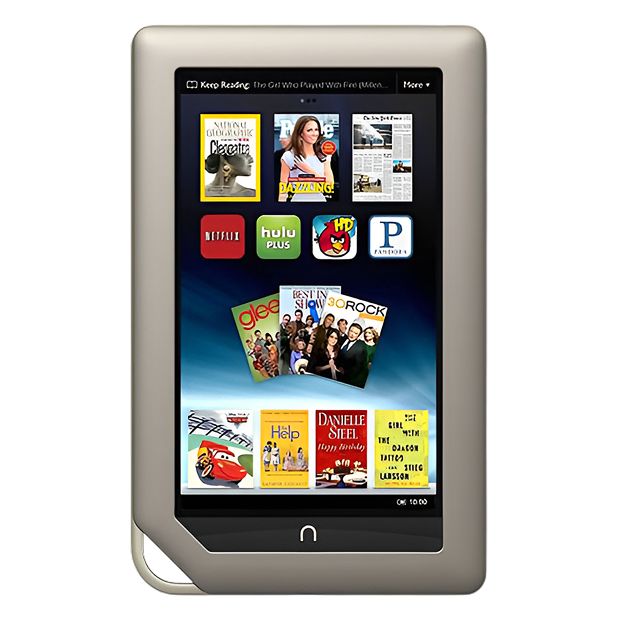
Common Repairs We Handle Daily


Solve Your Barnes and Noble Nook Problems: Barnes and Noble Nook Repair Solutions
Over 40 million Nook devices have been sold since Barnes & Noble launched their e-reader line in 2009, and many of those units are still in active use today. That's not surprising—dedicated e-readers like the Nook offer a reading experience that tablets and phones can't match, with that easy-on-the-eyes e-ink display and weeks of battery life. But here's what happens: you're several years into ownership, and suddenly your trusty Nook won't turn on, or the screen's showing ghost images that won't refresh, or the battery that used to last a month now dies after a few days.
Most people assume these older e-readers aren't worth fixing. That's not accurate. Professional Barnes and Noble Nook repair addresses most common issues quickly and affordably, extending the life of a device you're already comfortable with. Your Nook holds your entire library, your notes, your bookmarks—there's real value in keeping it running. This guide covers what actually goes wrong with Nook devices, why these problems happen, and how repair restores functionality without the hassle and cost of finding a replacement e-reader.
The Nook's Place in E-Reader History
Barnes & Noble has released multiple Nook models over the years—the original Nook (2009), Nook Simple Touch (2011), Nook GlowLight series (multiple versions from 2013 onward), and the Nook Tablet line. Each generation brought improvements: better displays, lighter weight, built-in lighting, longer battery life. What they all share is that dedicated e-ink reading experience that's fundamentally different from backlit LCD screens—no eye strain, readable in direct sunlight, and exceptional battery efficiency.
Here's what's interesting about Nook devices from a repair perspective: they're actually simpler than modern smartphones or tablets. Fewer components mean fewer things to fail, but it also means the components that do exist are critical. The e-ink display is the heart of the device—expensive to replace but possible. The battery is usually the first component to show age. The charging port gets daily use and eventual wear. The processor and storage are basic by modern standards but perfectly adequate for reading books. Most Nook repairs focus on these handful of components, and once addressed, these devices keep running for years.
The Science Behind Device Aging
Every Nook will eventually need attention, and that's not poor manufacturing—it's just materials meeting extended use over time. Let me break down what's happening inside your e-reader as it ages.
Your battery is essentially a watch battery in an old timepiece weakening over years. Remember finding an old watch in a drawer that no longer keeps time because the battery finally gave out? Your Nook's lithium-ion battery does the same thing, just more gradually. E-readers have small batteries compared to tablets because e-ink displays consume minimal power. But even with light power draw, every charge cycle slightly degrades battery chemistry. After several years and hundreds of charge cycles, that battery that once lasted weeks between charges now needs charging weekly or even more frequently.
The e-ink display is simultaneously rugged and delicate. Think about glass door panels—they're designed to be looked through, they can last decades untouched, but a good impact will shatter them. Your Nook's e-ink display is similar. The actual e-ink technology is incredibly durable under normal use—you can read in bright sunlight, the image persists without power, and it draws essentially zero energy when displaying a static page. But the glass front panel can crack from drops. The e-ink layer itself can develop dead spots from pressure damage or manufacturing defects that appear over time. The touch sensor (on models with touchscreens) can fail independently, leaving you with a readable screen that won't respond to taps.
Charging ports face mechanical wear from repeated cable insertions. You've plugged in that micro-USB cable hundreds of times over several years of ownership. Each connection creates tiny amounts of wear on the internal contacts. Dust accumulates in the port. Humidity causes minor corrosion. Cables yanked at angles stress the port's mounting to the circuit board. Eventually, charging becomes unreliable—sometimes it works, sometimes it doesn't, often you need to hold the cable at specific angles.
The software and storage also age in ways people don't consider. Early Nook models run Android-based operating systems that Barnes & Noble stopped updating years ago. As newer book formats and DRM systems evolve, older Nook firmware can have compatibility issues. The internal storage—usually basic flash memory—can develop bad sectors after years of use, causing freezing, crashes, or books that won't open properly.
The Screen Won't Refresh or Looks Broken
You're seeing ghost images that won't clear even after multiple page turns, or there's a crack across the display that makes sections unreadable. Maybe the touchscreen still displays text fine but won't respond to taps, leaving you unable to turn pages or access menus. Could be the entire screen is blank—just gray nothing no matter what you try. Some Nook owners see partial display with lines, spots, or sections that don't update anymore.
Why this happens: E-ink displays work completely differently than LCD screens. They use tiny capsules filled with black and white particles that rearrange when electrically charged. This technology is incredibly efficient but has unique failure modes. Physical damage from drops cracks the glass front layer, which damages the e-ink layer underneath. Pressure damage can occur if the Nook was stored with heavy objects on top of it or sat on while in a back pocket. Manufacturing defects sometimes appear years after purchase as the e-ink layer degrades in specific areas. The touch digitizer (on touch-enabled models) is a separate layer that can fail independently—you'll still see text but can't interact. Ghost images that won't refresh usually indicate failed e-ink cells or a problem with the display controller circuit.
What you can try:
- Force restart by holding the power button for 20-30 seconds—sometimes the display controller just needs a full reset
- Try a full refresh: go to settings and look for "refresh" or "clear screen" options if accessible
- Plug in and charge for several hours—a completely dead battery can cause display issues until partially charged
- Check if buttons still work even if touch doesn't—you might be able to navigate to settings with physical buttons
- For ghost images without physical damage, try displaying a completely black image (from a PDF) for an hour to reset the e-ink cells
The consistent trend we observe: E-ink display issues on Nook devices fall into two categories. First, functional problems like ghost images, partial refresh, or unresponsive touch where the screen isn't physically damaged. These sometimes resolve with forced restarts, software updates (if available), or display recalibration. Second, physical damage where the glass is cracked or the e-ink layer itself is damaged. These require screen replacement. Barnes and Noble Nook repair for display issues involves carefully opening the device case (usually held with clips and occasionally adhesive), disconnecting the old display, thoroughly checking the display connector for damage or corrosion, installing a replacement e-ink display assembly, reconnecting carefully, reassembling the case, and testing extensively. E-ink screens respond slowly by design, so testing means verifying every page turns correctly, touch responds accurately across the full screen, no ghost images remain, and the display refreshes properly. The repair typically takes 60-90 minutes depending on the Nook model.
Battery Lasts Days Instead of Weeks
Your Nook used to go weeks between charges when you read daily. Now it needs charging every few days or even daily. The battery percentage drops rapidly, or the device dies suddenly even when showing charge remaining. Maybe it won't hold any charge at all anymore, only working when plugged in. Could be the Nook won't turn on at all, even after charging overnight.
Why this happens: Lithium-ion batteries in e-readers have the same chemistry as phone batteries, just smaller capacity since e-ink displays consume minimal power. After several years and hundreds of charge cycles, capacity degrades naturally. If you bought your Nook in the early 2010s and still use it, you've likely exceeded 500-1000 charge cycles—well beyond the point where significant capacity loss occurs. Battery cells can also fail prematurely from heat exposure (leaving the Nook in hot cars or direct sunlight), physical damage (dropping the device can damage battery cells internally), or simply bad luck with manufacturing defects that appear years later. Older Nook models have smaller batteries (some under 2000mAh), so even modest capacity loss has noticeable impact on runtime.
What you can try:
- Fully discharge the Nook to 0%, then charge uninterrupted to 100% to recalibrate the battery meter
- Check if the charging cable and adapter work properly—test with another device if possible
- Clean the charging port carefully with a dry toothbrush to ensure good contact
- Try charging with the device powered off completely—sometimes this charges more reliably
- Reduce screen brightness if your model has adjustable lighting
- Disable WiFi when not actively downloading books—wireless connectivity drains significantly more than reading alone
After repairing these devices daily: Battery replacement on Nook e-readers is one of the most common and straightforward repairs we perform. Most Nook models use batteries that are accessible once you open the back case. They're connected via small connectors that unplug easily (unlike phones where batteries are often glued in permanently). We've got good sources for high-quality replacement batteries rated for the Nook. The challenge is opening the case without cracking it—older Nooks use plastic clips that can break if you're not careful. Once inside, battery replacement takes minutes. Testing involves fully charging, reading with WiFi on and screen light at maximum brightness while monitoring discharge rate, and verifying the Nook accurately reports battery percentage. A successful Barnes and Noble Nook repair for battery issues restores weeks of reading time on a single charge. Customers regularly tell us they got another 2-4 years of daily use after battery replacement on Nooks they thought were dead.
The Nook Won't Turn On At All
You press the power button—nothing happens. No response, no lights, no screen flicker. Maybe it worked fine last time you used it a few weeks ago, and now it's completely unresponsive. Plugging in the charger doesn't show any charging indicator. It's like the Nook is completely dead and won't wake up no matter what you try.
Why this happens: This symptom has multiple possible causes. Most commonly, it's a completely drained battery that fell below the minimum voltage threshold—the Nook won't respond until the battery reaches a certain charge level, but a truly dead battery can take hours of charging before showing any signs of life. The charging port could be damaged or full of debris, preventing charging entirely. The power button itself might have failed—it's a mechanical switch that can wear out or get stuck. Sometimes it's a firmware crash that prevents booting, or corrupted storage that stops the startup process. Rarely, it's actual component failure on the motherboard—power management circuits can fail, though this is uncommon in simple e-readers.
What you can try:
- Plug in and leave charging for 4-6 hours even if no charging light appears—truly dead batteries take time to accept charge
- Try a different USB cable and power adapter—charging accessories fail more often than devices
- Clean the charging port thoroughly with compressed air and a dry brush
- Try the power button multiple times—hold for 30+ seconds, try rapid presses, try holding while plugging in
- Look for a physical reset button (some Nook models have tiny reset holes you press with a paperclip)
What really happens in most cases: "Won't turn on" Nooks that come to The Fix usually fall into three categories. About 50% are completely dead batteries that just need proper charging—we use bench power supplies that can charge batteries below the voltage threshold that normal chargers won't touch. Another 30% are damaged charging ports that aren't making contact—port replacement solves this. The remaining 20% are power button failures, corrupted firmware, or actual motherboard issues. We systematically test each possibility: connect a known-good battery to verify the Nook powers on with fresh power, inspect the charging port under magnification for physical damage, test the power button for electrical continuity, and attempt firmware recovery if the device powers on but won't boot properly. For charging port issues, Barnes and Noble Nook repair involves desoldering the damaged micro-USB port, cleaning the circuit board pads, soldering a new port precisely, and testing charging thoroughly. Most "dead" Nooks turn out to have fixable issues rather than catastrophic motherboard failures.
Charging Is Unreliable or Stopped Working
You have to wiggle the charging cable to get it to charge, or hold it at specific angles. Maybe charging works sometimes but not others, seemingly randomly. Could be the Nook charges incredibly slowly, taking days to reach full charge. Perhaps the charging light comes on but the battery percentage never increases. Some users can't get their Nook to charge at all no matter what cable or adapter they try.
Why this happens: The micro-USB charging port on Nook devices faces years of repeated cable insertions and removals. Each connection creates microscopic wear on the internal metal contacts. Dust, lint, and pocket debris accumulate inside the port over time, preventing solid contact between cable and port. The port itself can loosen from its mounting on the circuit board, especially if cables were frequently yanked out at angles rather than pulled straight. Corrosion from humidity exposure degrades the contacts. Sometimes the issue isn't the port—it's the charging cable developing internal breaks, or the power adapter dying. Older Nook models require specific charging current, and using random USB adapters doesn't always provide the right power delivery.
What you can try:
- Inspect the charging port carefully with a flashlight—look for visible debris, bent pins, or damage
- Use compressed air to blow out the port, then follow up with a dry toothbrush to gently clean
- Try multiple USB cables—cheap or damaged cables cause intermittent charging more often than you'd think
- Test with different USB power adapters or try charging from a computer USB port
- Apply gentle pressure in different directions while the cable is inserted to identify if it's a loose connection
- Check if the cable is fully inserted—sometimes debris prevents full insertion
Here's what we've learned from the repair bench: Charging port problems are incredibly common on older Nook devices because the micro-USB standard wasn't as durable as modern USB-C. About 40% of charging complaints we see are just debris buildup in the port—thorough cleaning with proper tools resolves the issue. Another 30% are damaged or worn cables and adapters—trying a quality replacement cable fixes it. The remaining 30% are actual port damage requiring replacement. When you bring charging issues to The Fix, we test with known-good cables and adapters first to rule out accessory problems. We inspect the port under magnification for physical damage like bent contacts or cracks in the plastic housing. We check if the port has loosened from the circuit board. For ports that need replacement, we carefully desolder the damaged micro-USB port (it's got multiple connection points that must be removed without damaging circuit board traces), clean the pads, precisely solder a new port, and extensively test charging with multiple cables and adapters. Barnes and Noble Nook repair for charging ports typically takes 45-75 minutes and includes thorough testing to ensure reliable charging at proper speeds.
Touchscreen Doesn't Respond Properly
The Nook display shows text fine, but tapping to turn pages doesn't work or works intermittently. Maybe certain areas of the touchscreen respond while others don't. Could be touch is so inaccurate that you can't select menu options properly. Perhaps the touchscreen registers phantom touches where you're not actually touching, turning pages randomly or opening menus unexpectedly. Some owners find touch works only with extreme pressure that shouldn't be necessary.
Why this happens: Touch-enabled Nook models use capacitive touchscreens similar to smartphones, where a transparent digitizer layer detects finger position. This digitizer can fail from age—the transparent conductive coating degrades over years. Physical damage from drops or pressure can crack the digitizer even when the e-ink layer underneath remains functional. Sometimes it's not the digitizer itself but the ribbon cable connecting it to the motherboard coming loose or developing connection issues. Software calibration can drift over time, causing touch accuracy problems without hardware failure. Screen protectors occasionally interfere with touch sensitivity, especially if air bubbles or debris get trapped underneath.
What you can try:
- Remove any screen protector and test—sometimes protectors develop issues over time
- Clean the screen thoroughly—oils, dirt, and residue can interfere with capacitive touch
- Force restart the Nook and check for any available firmware updates
- Try touch calibration if your Nook model has that option in settings
- Test if specific areas don't work versus the entire touchscreen being problematic
- Check if touch works better with slight pressure versus light touch—this indicates digitizer degradation
What the data shows from our repairs: Touchscreen issues on Nook e-readers split between hardware and software causes. Software problems—calibration drift, firmware bugs—account for maybe 20% of cases and sometimes resolve with updates or factory resets. The remaining 80% are hardware issues: failed digitizers, damaged ribbon cables, or corrosion at connection points. When you bring touch problems to The Fix, we clean the screen meticulously first because sometimes it's just dirt. We test systematically across the entire screen to map which areas work and which don't. We check ribbon cable connections internally. For failed digitizers, replacement involves carefully separating the digitizer from the e-ink display (they're usually bonded together), installing a new digitizer, ensuring perfect alignment, and recalibrating touch response. Touch digitizer replacement is delicate work on e-readers because the e-ink display underneath is fragile. The repair typically takes 90-120 minutes including extensive testing where we verify touch response across every zone of the screen.
Initial Assessment—Diagnosing E-Reader Problems
When you bring your Barnes and Noble Nook to The Fix, we start with systematic diagnosis. First, we listen to your description—what's happening, when did it start, what have you tried? Then we move to physical inspection. We examine the display for cracks, dead spots, or ghosting. We check the charging port for visible damage or debris. We test the power button and other physical controls. We look for signs of liquid damage or physical impact. This initial inspection reveals a lot about what's wrong.
Next comes powered testing if the Nook turns on. We test every area of the touchscreen for response accuracy. We monitor battery drain rate while reading. We attempt charging while measuring power draw. We navigate through menus checking for software issues or freezing. We test WiFi connectivity if the model supports it. For Nooks that won't turn on, we connect bench power supplies to bypass the battery and see if the device responds. We test the charging port with professional USB meters that measure voltage and current. We examine internal components under magnification if necessary.
Throughout diagnosis, we're identifying the root cause, not just symptoms. A Nook that won't turn on might have a dead battery, damaged charging port, failed power button, corrupted firmware, or actual motherboard failure—and each requires different repair approaches. Accurate diagnosis prevents wasted time and money on incorrect repairs.
Component-Specific Work—The Actual Repair Process
Once we know what needs fixing, the actual repair follows a careful sequence. For screen replacements, we carefully open the Nook's case using proper plastic pry tools that won't crack the housing. Nook cases usually use a combination of clips and occasionally small amounts of adhesive. We disconnect the battery first to eliminate electrical hazards. Then we disconnect the damaged display, noting exact ribbon cable orientation and connector positions. We thoroughly inspect the display connector for any corrosion or damage. We install the new e-ink display, ensuring the ribbon cable seats properly in its connector. We temporarily connect battery and power to test the new display before reassembling—catching problems at this stage saves time.
For battery replacements, we open the case, locate the battery (position varies by model), disconnect the battery connector, remove the old battery, install the new battery, reconnect carefully, and test. We verify proper voltage, charging behavior, and ensure the Nook accurately reports battery percentage.
For charging port replacements, we desolder the damaged micro-USB port using proper soldering equipment and temperature control. We clean the circuit board pads with desoldering braid and flux. We position the new port precisely (alignment is critical—even slight misalignment causes problems), solder all connection points, visually inspect solder joints for quality, and test charging functionality before reassembling.
Reassembly and Fresh Adhesive—Putting It Back Together
Reassembly follows reverse order with attention to detail. All ribbon cables must seat fully in their connectors. Battery connector must lock securely. Case clips need to engage properly without forcing (forcing cracks plastic). For models using adhesive, we apply fresh adhesive strips precisely where needed. We press the case together firmly and evenly, ensuring proper sealing without gaps. We check that all buttons operate smoothly and aren't blocked by case misalignment.
Thorough Testing Before Returning Your Nook
Testing after Barnes and Noble Nook repair is comprehensive. For screen repairs, we test every zone of touch response, verify no ghost images remain, confirm proper page refresh, check that text displays clearly across the full screen, test screen lighting if applicable, and verify no dead pixels or discoloration. For battery repairs, we charge to 100%, discharge to 50% while reading, recharge to 100%, and verify the Nook reports accurate battery percentage throughout. For charging port repairs, we test with multiple cables, verify charging speed matches specifications, confirm the connection is solid without wiggling, and stress-test by plugging and unplugging multiple times. We don't call the repair complete until everything passes testing.
Maintain Your Nook: Smart E-Reader Care
Protect that screen. E-ink displays are fragile despite looking robust. Use a protective case or sleeve when transporting. Never put anything heavy on top of your Nook. Don't store it in back pockets where you might sit on it. Avoid extreme pressure on the screen.
Battery care extends lifespan. Don't leave your Nook uncharged for months—lithium-ion batteries prefer being stored at 40-60% charge. Avoid extreme temperatures—don't leave it in hot cars or direct sunlight for extended periods. Charge before the battery fully depletes rather than always running to 0%. Use the proper charger if possible, though most USB power sources work fine.
Charging port maintenance. Keep the port clean with monthly compressed air treatments. Don't yank cables out at angles—pull straight. Use quality USB cables rather than the cheapest ones available. If you notice the connection becoming loose, address it quickly before it gets worse.
Software care matters. Keep your Nook firmware updated if Barnes & Noble still supports your model. Occasionally restart the device rather than always using sleep mode. Don't fill storage to 100%—leave some free space for system operations. Back up your book collection periodically.
Physical care. Clean the screen regularly with a microfiber cloth. Keep your Nook away from liquids. Avoid exposing it to humidity extremes. Store in a cool, dry location when not in use. Handle with clean, dry hands to avoid screen oils and moisture.
Small Problems Today Prevent Big Problems Tomorrow
Your Barnes and Noble Nook is a simple, reliable device built for one purpose—reading. Most problems that develop are totally fixable with professional repair. Whether it's a cracked screen, dying battery, faulty charging port, or unresponsive touchscreen, Barnes and Noble Nook repair restores functionality and extends the life of a device you're already familiar with. These e-readers aren't made anymore in many cases, which makes keeping existing units running even more valuable.
Ready to fix your Nook? The Fix makes it easy. Walk in anytime for a free assessment—most repairs are same-day, and we'll keep you updated throughout the process. Your e-reader deserves expert care, and that's exactly what we deliver. Your entire book library is waiting on that device—let's get it working again.


Trusted repair solution for mobile phones, tablets, gaming consoles, and computer systems. We provide fast, reliable, and affordable repair services to get your devices back in perfect working condition.
The Fix is an independent repair service provider and is not affiliated with, sponsored by, or endorsed by Apple Inc., Samsung Electronics, Google LLC, or any other device manufacturer. We use high-quality compatible replacement parts unless explicitly stated. All trademarks are property of their respective owners.


© Copyright The Fix Solutions All rights reserved 2026.
Design by Deepcoder