






Asus Vivo Tab Repair Services
Get fast, reliable, and professional Asus Vivo Tab repair services at The Fix — your trusted destination for expert device care.
Common Repairs We Handle Daily


Asus Vivo Tab Repair: Maximizing Your Asus Vivo Tab Investment
Between 2012 and 2014, Asus released several Vivo Tab models—the original Vivo Tab RT running Windows RT, the Vivo Tab Smart running full Windows 8, and later iterations with improved specs. These tablets sold in decent numbers to users wanting Windows functionality in tablet form, offering a genuine alternative to iPads and Android tablets for productivity work. Fast forward a decade, and thousands of these devices are still in active use by people who appreciate full Windows capabilities in a portable package.
Here's what most repair shops won't tell you: the Asus Vivo Tab is actually one of the more repairable Windows tablets from that era, and professional Asus Vivo Tab repair costs way less than finding a comparable replacement device. These tablets used modular construction with accessible components, making targeted repairs practical. Whether you're dealing with a cracked screen, dying battery, faulty charging port, or keyboard dock issues, repair makes excellent financial sense. Let's break down what goes wrong, why it happens, and how repair maximizes the investment you've already made in this device.
Asus Vivo Tab: The Quick Rundown
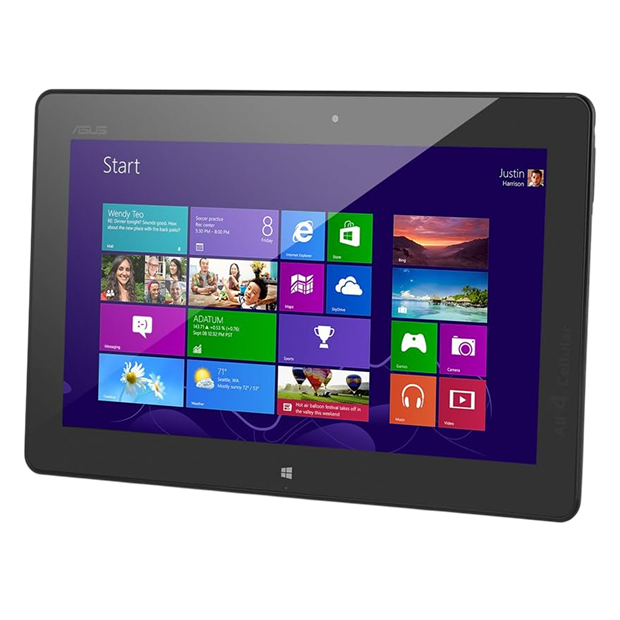
Asus released multiple Vivo Tab variants. The Vivo Tab RT (2012) ran Windows RT on an ARM processor—limited app compatibility but excellent battery life. The Vivo Tab Smart (2013) ran full Windows 8 on an Intel Atom processor—better app compatibility, shorter battery life. Later models improved specs and added features. All shared common design elements: 10.1" displays with 1366x768 resolution, optional keyboard docks that turned them into pseudo-laptops, decent build quality, and modular construction that makes repair feasible.
What makes the Vivo Tab interesting from a repair perspective? Asus didn't aggressively fight serviceability. The screens use adhesive but not the impossible-to-remove stuff found in some devices. The batteries are accessible once you open the back. The charging ports are replaceable with proper equipment. The keyboard docks connect via proprietary connectors that can be serviced. Components are modular enough that you're fixing specific problems rather than replacing entire assemblies. It's refreshing to work on tablets from an era when manufacturers hadn't yet fully embraced the glue-it-all-together philosophy.
Why No Phone Lasts Forever
Every Asus Vivo Tab eventually shows wear, and that's not Asus cutting corners—it's just materials meeting a decade of use. Here's what's physically happening inside your tablet over time.
Think about an electric toothbrush not lasting as long per charge. When it was new, a full charge lasted weeks. After years of daily use and countless recharge cycles, it barely makes it through three days before needing the charger again. That's exactly what's happening to your tablet's battery. The lithium-ion cells inside degrade naturally with every charge cycle—it's chemistry, not a manufacturing defect. After 500-800 full cycles (which might be 2-4 years depending on usage patterns), you'll notice the Vivo Tab dying faster during use or barely making it through half the day when it used to last all day.
The display is both impressive and delicate. Picture a fine china plate—beautiful, functional for its purpose, but fragile when stressed incorrectly. Your Vivo Tab's 10.1" screen is similar: it's a nice piece of glass and digitizer technology that makes touch input responsive. But drop it onto hard flooring? That glass cracks. Store it in a bag with heavy objects pressing against it? You risk pressure damage to the LCD. The touch digitizer can fail from impact even when the glass looks fine, or simply degrade from years of constant touch input wearing down the conductive coating.
Charging ports face relentless mechanical wear. You've plugged in that micro-USB or proprietary Asus charging cable hundreds or thousands of times over the years. Each connection creates microscopic wear on the internal metal contacts. The port can loosen from its circuit board mounting if cables were yanked sideways. Dust and pocket lint accumulate inside. Humidity causes corrosion. The plastic housing can crack. After years of use, charging becomes unreliable—you're wiggling cables, holding them at specific angles, or facing complete charging failure.
The keyboard dock connector experiences similar wear. If you've been using the keyboard dock regularly for years, those connector pins have made thousands of connection cycles. The springs behind the pins lose tension. Oils and dirt create resistance on contact surfaces. The connector housing can wear, causing misalignment. Physical impacts can bend pins or damage the tablet's receptacle.
Software also ages in unique ways on Windows tablets. Early Vivo Tabs shipped with Windows 8 or Windows RT. If you upgraded to Windows 10 (where possible), the older hardware struggles with modern OS demands. Apps that worked fine years ago now crash or run slowly. Security updates end, leaving devices vulnerable. The internal storage—often basic eMMC flash memory—can develop bad sectors after years of read/write cycles, causing system instability.
The Screen Cracked or Touch Isn't Working
You've got visible cracks spreading across the display, or maybe the glass looks intact but touch response is completely dead in large areas. Could be the screen displays content but certain sections show discoloration or flickering. Perhaps touch is incredibly inaccurate, registering taps several inches away from where you're actually touching. Some Vivo Tab owners see the backlight work but no image appears. Maybe the screen randomly stops responding to touch, requiring a restart to work again.
Why this happens: The Vivo Tab uses a display assembly where glass, touch digitizer, and LCD are layered and bonded together. Physical damage from drops is the most obvious cause—impact cracks the glass and often damages underlying layers. Pressure damage occurs when the tablet's stored with something heavy on top or gets compressed in a bag. The digitizer can fail independently—either from impact or from age-related degradation where the transparent conductive coating breaks down after years of use. We've seen ribbon cable failures where the display connects to the motherboard—these delicate cables can crack from repeated opening/closing if you use a case with a cover, or just from vibration and movement over time. Sometimes it's the display controller on the motherboard failing, preventing proper image output.
What you can try:
- Restart the tablet and check for display driver updates through Windows Update
- Connect to an external monitor via micro-HDMI or USB (depending on your model) to verify the system is functional
- For touch issues, try recalibrating in Windows Control Panel > Tablet PC Settings > Calibrate
- Check if applying gentle pressure around the bezel makes touch work—this indicates a loose ribbon cable
- Boot into BIOS/UEFI and test if touch works there—if it does, it's a Windows driver issue rather than hardware failure
Real-world repair results show: Screen issues on Asus Vivo Tab tablets divide into physical damage versus functional failures. Physical damage—cracked glass, damaged LCD—requires display assembly replacement. Functional failures—dead touch zones without visible damage, intermittent touch response—sometimes resolve with digitizer recalibration or driver updates, but often indicate failed digitizer hardware. Asus Vivo Tab repair for screens involves carefully heating the edges to soften adhesive, gently separating the damaged screen using proper pry tools, disconnecting the old display and inspecting connectors for damage, installing a replacement display assembly with precise alignment, reconnecting all cables carefully, and testing extensively before final reassembly. We verify touch response across every zone, check display quality with various colors and patterns, confirm brightness adjustment works properly, look for dead pixels or backlight irregularities, and make sure there's no flex or loose edges. The repair typically takes 90-120 minutes. Replacement screens for Vivo Tab models are still available through suppliers who stock legacy tablet parts.
Battery Won't Hold a Charge Like It Used To
Your Vivo Tab used to last 8-10 hours of active use. Now it's dead by mid-afternoon. The battery percentage drops rapidly even during basic tasks like reading or web browsing. Maybe it shuts down suddenly even when showing 30-50% remaining. Could be it won't charge past a certain percentage, stuck at 80% or 60% forever. Perhaps it won't hold any charge at all, only working when plugged in. Some owners find their tablet won't turn on at all despite charging overnight.
Why this happens: Lithium-ion battery degradation is universal—every rechargeable battery has a finite lifespan measured in charge cycles. If you've been using your Vivo Tab since 2012-2014, you're looking at potentially 1000+ charge cycles over the years. At that point, capacity loss is dramatic—you might be down to 40-50% of original capacity. Battery cells can fail entirely, causing immediate shutdown even when the meter shows charge remaining. The battery management circuit (built into the battery pack) can malfunction, reporting incorrect charge levels or refusing to charge for safety reasons. Heat accelerates degradation—if you frequently used your Vivo Tab in hot environments, direct sunlight, or blocked the vents during heavy use, you cooked the battery faster. Sometimes it's not the battery itself but the charging circuit on the motherboard failing, which prevents proper charging.
What you can try:
- Generate a battery report in Windows: open Command Prompt as admin, type "powercfg /batteryreport" and check design capacity vs. current full charge capacity
- Let it charge for 8+ hours even if Windows shows it's not charging—deeply discharged batteries need patient charging
- Try a different charging cable and power adapter—accessories fail more often than tablets
- Clean the charging port with compressed air
- Update BIOS/UEFI firmware from Asus support site—sometimes power management improvements are released
- Check if the battery is visibly swollen by inspecting the back panel—swelling indicates dangerous failure requiring immediate attention
After years of fixing these devices: Battery replacement on Asus Vivo Tab tablets is straightforward. Most models have removable back panels held with small screws or clips. Once inside, the battery is visible and accessible—it's usually held with a few screws and connected via a standard connector that unplugs easily. We disconnect the old battery, remove any adhesive holding it in place, install a high-quality replacement battery rated for this model , secure it properly, reconnect everything, and run extensive tests. We charge to 100%, discharge to 50% while running power-intensive tasks, recharge to 100%, and verify Windows accurately reports battery percentage throughout the cycle. Asus Vivo Tab repair for battery issues typically takes 60-90 minutes and restores solid runtime. We're seeing good results with replacement batteries—customers regularly report getting another 2-3 years of daily use after replacement, which is excellent value given the repair cost compared to finding a replacement Windows tablet.
Charging Port Stopped Working Reliably
You have to wiggle the charging cable to get charging to start, or hold it at a specific angle. Maybe charging works sometimes but fails other times with no clear pattern. The charging indicator light doesn't come on consistently when plugged in. Could be charging is incredibly slow, taking all day to reach full charge when it used to take 3-4 hours. Perhaps you've replaced multiple charging cables, and they all develop the same issues quickly. Some owners can't get the tablet to charge at all anymore—no matter what cable or adapter they try, nothing happens.
Why this happens: The micro-USB charging port (or proprietary Asus port on some models) faces years of mechanical stress. Each cable insertion creates wear on the internal contacts. The port can physically separate from the circuit board if cables were frequently yanked sideways or at angles. Dust, lint, and debris accumulate inside over time, preventing solid contact. Corrosion from humidity degrades the metal contacts. The plastic port housing can crack. We've seen ports where internal pins are bent, ports that have completely detached from the motherboard, and ports so corroded they barely conduct electricity. Sometimes the port looks fine but the charging circuit on the motherboard has failed, preventing charging despite a functional port.
What you can try:
- Inspect the charging port closely with a flashlight and magnifier—look for debris, bent pins, visible damage
- Clean thoroughly with compressed air followed by a dry soft brush
- Test with multiple high-quality charging cables—cheap cables cause intermittent charging surprisingly often
- Try different USB power adapters or a computer USB port to rule out adapter failure
- If you have the keyboard dock (some models charge through it), check if dock charging works when direct charging doesn't
- Apply gentle pressure in different directions while plugged in to identify if it's a loose connection
What the data shows from our repairs: Charging port problems on Asus Vivo Tab tablets are extremely common given device age. We test with known-good chargers first to eliminate accessory problems—this resolves about 25% of charging complaints. Thorough port cleaning solves another 20%. The remaining 55% require port replacement. We carefully desolder the damaged port using proper temperature-controlled soldering equipment, clean the circuit board connection pads, position a new port precisely (alignment is critical—even slight misalignment causes problems), solder all connection points cleanly, inspect joints under magnification for quality, and test extensively. We verify proper charging speed, solid physical connection without wiggling, and reliable charging over multiple plug/unplug cycles. Asus Vivo Tab repair for charging ports typically takes 60-90 minutes and genuinely restores reliable charging at proper speeds.
Keyboard Dock Issues Are Driving You Crazy
Your keyboard dock won't connect to the tablet anymore, or it connects but certain keys don't register. Maybe the trackpad is unresponsive or incredibly inaccurate. Could be the connection feels physically loose—the tablet doesn't sit firmly in the dock. Perhaps the dock charges the tablet intermittently or not at all. Some Vivo Tab owners find the keyboard works initially after docking but disconnects randomly during use, requiring repeated re-docking.
Why this happens: Asus keyboard docks connect via proprietary connector pins—small contacts that make electrical connection when the tablet is docked. After years of docking and undocking cycles, these pins wear down. The springs behind them lose tension. Oils from handling and environmental dirt create resistance on contact surfaces. The dock's connector housing can wear or crack, causing misalignment. Physical drops or impacts can bend pins or damage the tablet's receptacle. The dock's internal circuitry can fail—keyboard matrix failures, trackpad sensor degradation, or charging pass-through circuit problems.
What you can try:
- Clean both the tablet's connector and dock's pins with isopropyl alcohol on a cotton swab
- Inspect for visible damage—bent pins, cracked plastic, corrosion
- Try docking and undocking multiple times to see if it's consistently problematic or intermittent
- Update keyboard drivers through Windows Update and Asus support site
- Test the dock with another Vivo Tab if available to isolate whether it's the tablet or dock that's faulty
- Check if applying pressure when docked improves connection—this indicates worn contact springs
Our technicians consistently find: Keyboard dock issues on Asus Vivo Tab devices break down into contact problems, dock circuitry failures, and tablet-side connector issues. Contact problems—dirty or worn connector pins—account for maybe 40% of cases and often resolve with thorough cleaning and contact adjustment. Dock circuitry failures—keyboard matrix issues, failed trackpad, broken charging pass-through—make up 35% and typically require dock replacement or professional dock repair. Tablet-side connector problems—corroded receptacle, damaged connector housing, failed circuitry—represent 25% and need tablet connector repair or replacement. When you bring dock issues to The Fix, we systematically test with known-good docks when possible, clean all contacts thoroughly, inspect under magnification for damage, test electrical continuity, and determine whether cleaning, contact adjustment, dock replacement, or tablet connector repair is needed.
Initial Assessment and Specific Diagnostic Tools
When you bring your Asus Vivo Tab to The Fix, we start with comprehensive diagnostics. First, basic functionality testing—does it power on, what does the boot process look like, are there any error messages? We test the display for physical damage, dead pixels, backlight function, and touch response. We check the charging port with known-good cables and measure actual charging current with USB power meters. We test the battery with Windows power reports and voltage measurements. If you brought the keyboard dock, we test docking functionality.
We use specialized tools for accurate diagnosis. Multimeters measure voltages and check electrical continuity. USB power meters show actual charging current and voltage, revealing port or circuit problems. Thermal imaging cameras identify overheating components during stress testing. Screen testing software displays solid colors and patterns to reveal dead pixels or backlight issues. Touch digitizer testing maps which zones respond accurately. We've got Asus-specific diagnostic software that checks hardware sensors and reports component status.
Throughout diagnosis, we're identifying root causes, not just symptoms. A tablet that won't charge might have a dead battery, damaged port, failed charging circuit, or simply a bad cable—each requires different repair approaches. Accurate diagnosis prevents wasted time and money on incorrect repairs.
Explanation Conversation and Clear Options
Once we understand what needs fixing, we sit down and explain it in plain language. No confusing technical jargon, no pressure tactics. "Your battery is at 38% of original capacity—here's what that means for daily use" or "The charging port has separated from the motherboard—here's what's involved in repair." We show you diagnostic results, discuss your options honestly, and provide clear information about repair costs and realistic timelines.
We give you choices. Maybe your Vivo Tab has both a cracked screen and a dying battery. We discuss repairing both, prioritizing one over the other, or honestly assessing whether the combined repair cost makes sense given the tablet's age and your usage needs. Sometimes we tell customers that replacement makes more financial sense than extensive repairs—we'd rather be honest than take money for repairs that don't serve you well.
Part Sourcing and Quality Standards
For Asus Vivo Tab repairs, we source quality replacement parts that match original specifications. Screens come from suppliers who specialize in legacy tablet displays—same resolution, same touch sensitivity, same brightness as original. Charging ports are high-quality parts that fit properly and conduct reliably.
We inspect all parts before installation. Screens are checked for dead pixels, backlight uniformity, and touch response. Batteries are tested for proper voltage and capacity before installation. Charging ports are verified for correct dimensions and solid construction. Quality control prevents installing defective parts that would require rework.
Repair Execution with Precision Techniques
The actual repair follows careful procedures. For screen replacements, we heat the edges to soften adhesive, use proper pry tools to separate the damaged screen without breaking the frame, disconnect the old display, inspect all connectors for damage, install the new screen with precise alignment, reconnect ribbon cables carefully (they're delicate and easy to damage), and seal with appropriate adhesive. We work slowly and methodically—rushing causes mistakes.
For battery replacements, we disconnect the old battery, remove any adhesive or screws holding it, inspect the battery compartment for damage or corrosion, install the new battery with proper mounting, reconnect securely, and verify proper charging function before closing the case.
For charging port work, we desolder the damaged port using proper temperature control to avoid circuit board damage, clean all connection pads thoroughly, position the new port with precision alignment tools, solder each connection point cleanly, inspect under magnification for cold solder joints or bridges, and test functionality before reassembly.
Quality Verification and Testing Protocol
After any Asus Vivo Tab repair, we run comprehensive tests. For screens, we verify touch response in every zone using test patterns, check display quality with solid colors and gradients, confirm brightness adjustment works properly, test viewing angles, look for dead pixels or stuck pixels, verify no backlight bleed or uneven illumination, and check that the screen is securely bonded without flex or gaps.
For battery repairs, we charge to 100%, run power-intensive tasks while monitoring discharge rate and temperature, discharge to 50%, recharge to 100%, and verify Windows reports accurate battery percentage throughout all cycles. We check charging speed matches expected values.
For charging port repairs, we test with multiple cable brands, verify proper charging speed with USB power meters, confirm solid physical connection without requiring specific angles, test charging while powered off and powered on, and stress-test with repeated plug/unplug cycles.
The Vivo Tab doesn't leave our shop until it passes every applicable test. We document test results and provide you with confidence that the repair was done correctly.
Keep Your Vivo Tab Running Great Longer
Screen care prevents damage. Use a protective case or sleeve during transport. Never stack heavy objects on top of your tablet. Clean the screen with microfiber cloths and screen-safe cleaning solution. Set it down gently on clean surfaces.
Battery health requires attention. Avoid draining to 0% regularly—charge when you hit 20-30%. Don't leave it plugged in at 100% for days. Keep away from extreme temperatures. Charge with the tablet powered off occasionally for more complete charging cycles.
Charging port maintenance. Clean monthly with compressed air. Don't yank cables sideways. Use quality cables rather than the cheapest available. If the connection feels loose, address it quickly before it fails completely.
Keyboard dock care. Clean connector pins monthly with isopropyl alcohol. Store the dock flat when not in use. Don't force the tablet into the dock if it's not aligning properly.
Software optimization. Keep Windows updated. Uninstall programs you don't use. Run Disk Cleanup monthly. Don't fill storage to 100%. Restart weekly rather than always using sleep mode.
Your Windows Tablet Still Has Value
The Asus Vivo Tab might be a decade old, but it's still a capable Windows tablet for productivity, reading, web browsing, and media consumption. Most problems—screens, batteries, charging ports, keyboard dock issues—are completely repairable at costs well below finding a comparable replacement. Professional Asus Vivo Tab repair maximizes the investment you've already made in this device and extends its useful life for years to come.
Having issues with your Asus Vivo Tab? The Fix specializes in legacy device repairs. Stop by our shop—we'll diagnose the problem for free, explain what's happening in plain English, and get your device working right again. Age doesn't scare us; we've got the parts, tools, and expertise to bring older Windows tablets back to life.


Trusted repair solution for mobile phones, tablets, gaming consoles, and computer systems. We provide fast, reliable, and affordable repair services to get your devices back in perfect working condition.
The Fix is an independent repair service provider and is not affiliated with, sponsored by, or endorsed by Apple Inc., Samsung Electronics, Google LLC, or any other device manufacturer. We use high-quality compatible replacement parts unless explicitly stated. All trademarks are property of their respective owners.


© Copyright The Fix Solutions All rights reserved 2026.
Design by Deepcoder