







Search By Model
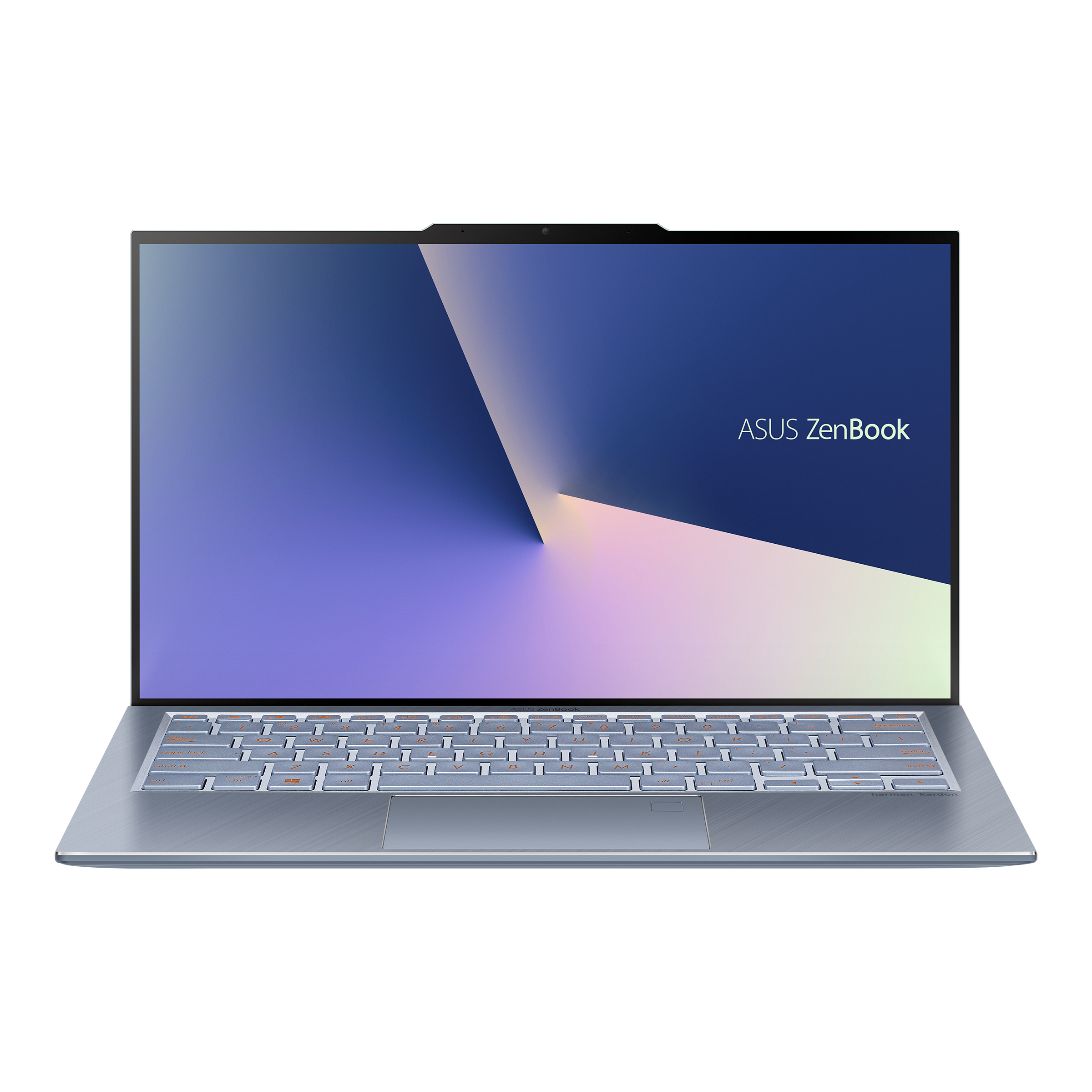
We Fix Every Device - Fast, Reliable & Hassle-Free

Cracked Screen
Get your screen replaced quickly with premium parts.

Battery Issues
Extend your device’s life with a new battery.

All Brands & Models
From iPhone to Android, laptops to tablets, we service them all.
Fast Laptop Repair: Your Device Fixed Right
Your laptop used to be reliable—boot up in seconds, run smoothly all day, handle everything you threw at it without complaint. Now? It takes five minutes just to start, overheats doing basic tasks, or the battery dies before you finish your morning coffee. Meanwhile, you're eyeing new laptops online, wincing at the prices, and wondering if there's a better option than dropping a grand or more on replacement.
Here's the contrast that matters: buying new means spending significant money and going through the hassle of transferring everything, setting up all your programs again, and getting used to a different keyboard and layout. Professional laptop repair addresses specific problems for a fraction of that cost and gets you back to a device you already know how to use. Whether you're running a Dell, HP, Lenovo, ASUS, Acer, MacBook, or any other brand, most laptop problems are completely fixable. At The Fix, we repair laptops from every major manufacturer—Windows, Mac, gaming, business, whatever you've got. Let's figure out what's wrong with yours and get it fixed right.
Quick Problem Checklist: What's Your Laptop Doing?
Let's identify your symptoms quickly. Check all that apply:
Power and Boot Issues:
- [ ] Won't turn on at all (no lights, no sounds)
- [ ] Powers on but shows nothing (black screen)
- [ ] Stuck on logo screen during boot
- [ ] Boot loop (starts, crashes, restarts repeatedly)
- [ ] Random shutdowns during use
- [ ] Only works when plugged in (battery issues)
Performance Problems:
- [ ] Extremely slow—everything takes forever
- [ ] Freezes or hangs constantly
- [ ] Blue/black screen errors
- [ ] Apps crash frequently
- [ ] Can barely run modern programs
- [ ] Gets slower every week
Battery and Charging:
- [ ] Battery lasts 2 hours or less
- [ ] Won't charge at all
- [ ] Charging port loose or unreliable
- [ ] Battery percentage jumps erratically
- [ ] Only works while plugged in
- [ ] Swollen battery (trackpad raised, case bulging)
Thermal Issues:
- [ ] Fan constantly at maximum speed
- [ ] Case too hot to touch
- [ ] Performance drops dramatically under load
- [ ] Unexpected thermal shutdowns
- [ ] Burning smell (STOP USING IMMEDIATELY)
Display Problems:
- [ ] Screen cracked or physically damaged
- [ ] Flickering at certain angles
- [ ] Lines or artifacts on display
- [ ] Dim even at maximum brightness
- [ ] Completely black but laptop running
- [ ] External monitor works (internal doesn't)
Keyboard/Trackpad:
- [ ] Keys stick or don't register
- [ ] Keys repeat letters unintentionally
- [ ] Trackpad unresponsive or erratic
- [ ] Spill damage visible
- [ ] Entire keyboard/trackpad dead
Storage and Drive:
- [ ] Clicking or grinding noises
- [ ] "Disk full" warnings constantly
- [ ] Files corrupted or missing
- [ ] Extremely slow file operations
- [ ] SMART errors or drive warnings
Your situation:
- 1-3 symptoms: Early issues—address now before they worsen
- 4-7 symptoms: Multiple problems—comprehensive service needed
- 8+ symptoms: Significant issues but definitely repairable
Understanding Your Laptop
Here's what makes laptop repair interesting: incredible diversity. You've got Windows laptops from dozens of manufacturers—Dell, HP, Lenovo, ASUS, Acer, MSI, and more. Apple's MacBooks with their tight hardware-software integration. Gaming laptops with powerful GPUs and aggressive cooling. Ultrabooks prioritizing thinness and battery life. Business laptops built for durability. Budget laptops optimizing for value.
Each category has different priorities and common failure points. Gaming laptops generate massive heat and stress cooling systems hard. Ultrabooks pack components tightly, making repairs more involved. Business laptops like ThinkPads are built to be serviced. Budget laptops sometimes use lower-quality components that fail sooner. MacBooks have unique repair considerations with their construction and proprietary systems.
At The Fix, we've worked on them all. Dell Inspirons and XPS models. HP Pavilions and Envys. Lenovo ThinkPads and IdeaPads. ASUS ROG gaming machines and ZenBooks. Acer Aspires and Predators. MacBook Airs and Pros. Microsoft Surface Laptops. We understand brand-specific quirks, component variations, and optimal repair approaches for each manufacturer. Your laptop deserves expertise that comes from working on thousands of devices across every major brand.
Battery Performance Collapsed
What you're experiencing: Your laptop used to last through a full workday on a charge. Now you're scrambling for outlets by mid-morning. The battery percentage becomes unreliable—showing 60% one minute, then suddenly 10% the next. You're essentially using it as an inconvenient desktop, constantly tethered to the wall, which defeats the entire purpose of having a portable computer.
Why this happens: Laptop batteries use lithium-ion technology that degrades with every charge cycle. Most are rated for 300-500 cycles before significant capacity loss. Daily use means hitting that threshold in 12-24 months. Each cycle causes microscopic chemical changes in the cells—electrode materials develop internal resistance, electrolyte breaks down, and capacity drops. Heat accelerates degradation. Gaming laptops and systems used for intensive work generate substantial heat that ages batteries faster. Eventually the battery can't store enough energy to be useful.
What you can try:
- Check battery health: On Windows, run Command Prompt as admin and type powercfg /batteryreport. On Mac, hold Option and click the battery icon for condition info.
- Calibrate the battery: Charge to 100%, use until automatic shutdown, then charge uninterrupted to 100% again.
- Check for physical swelling: If the trackpad feels raised or the bottom case bulges, stop using immediately—swollen batteries are dangerous.
- Reduce power consumption temporarily: Lower brightness, close unnecessary programs, enable battery saver mode.
- Update BIOS/firmware: Sometimes battery management improvements come through system updates.
In our experience with hundreds of these: Battery replacement is the most common laptop repair we perform across all brands. The transformation is immediate. People adapt gradually to dying batteries—staying near outlets, carrying chargers everywhere, planning their day around available power—and forget what normal battery life feels like. After professional battery replacement with a tested component meeting manufacturer specifications, they get actual portability back. Full-day battery life returns. The laptop becomes genuinely mobile again. We see relief on customers' faces when they realize they can work wirelessly without anxiety about battery percentage. Whether it's a Dell, MacBook, HP, or any other brand, proper battery replacement restores the all-day reliability you need.
Overheating and Loud Fan Noise
What you're experiencing: Your laptop sounds like a jet engine. The fan runs at maximum speed constantly, even during basic web browsing. The case gets so hot it's uncomfortable to touch. Performance tanks because the system throttles to avoid damage. Sometimes it shuts down completely to protect components from heat. You're pretty sure this isn't normal.
Why this happens: Laptops pack substantial computing power into thin, portable packages—thermal management is critical but challenging. Over time, several factors compromise cooling. Dust is the primary culprit—it accumulates in fans and clogs narrow cooling fins, restricting airflow. Thermal paste between CPU/GPU and heatsinks dries out and loses effectiveness. Fans wear out—bearings degrade and blades accumulate debris. Using laptops on soft surfaces blocks vents. Modern software demands generate more heat than aging cooling systems can handle.
What you can try:
- Check Task Manager (Windows) or Activity Monitor (Mac) for processes using high CPU—sometimes runaway background tasks generate unnecessary heat.
- Use your laptop on hard, flat surfaces only. Beds, couches, and blankets block ventilation holes.
- Clean external vents with compressed air: Hold can upright, use short bursts, blow dust out from vents (don't spin fans backward).
- Close unused programs and browser tabs—each generates some heat and uses resources.
- Update drivers and BIOS—manufacturers sometimes release thermal management improvements.
What we've seen in our repair shop: Overheating is incredibly common across all laptop brands, especially devices 2-3 years old without maintenance. When we open them for service, the cooling fins are typically packed solid with dust and lint. Airflow is maybe 20-30% of design specification. Thermal paste is dried, cracked, and failing to transfer heat. We disassemble carefully following manufacturer-specific procedures, clean fans and heatsinks thoroughly using compressed air and proper tools, replace thermal paste with quality compound, verify fan operation, and reassemble precisely. Temperature drops are dramatic—20-35°C reductions under load. Your laptop runs quietly, stays cool, and delivers full performance without throttling. The fans only spin up when genuinely needed, not screaming constantly. For gaming laptops especially, this repair transforms performance and makes intensive gaming actually enjoyable again.
Performance Crawling to a Halt
What you're experiencing: Your laptop has become painfully slow. Boot takes forever. Apps hang when launching. Simple tasks like opening folders lag noticeably. You've tried restarting, closing programs, and it's still crawling. You're watching loading indicators more than you're working. It's destroying your productivity and testing your patience.
Why this happens: Performance degradation usually involves multiple compounding factors. Storage drives near capacity struggle—operating systems need at least 10-15% free space for temporary files and virtual memory. Hard drives (on older laptops) fragment badly over time. Drives approaching failure exhibit severe slowdowns before dying. Too many startup programs consume RAM and CPU. Malware or bloatware runs hidden in background. Overheating causes aggressive throttling. Insufficient RAM for modern software versions forces constant disk swapping.
What you can try:
- Check what's using resources: Task Manager on Windows (Ctrl+Shift+Esc) or Activity Monitor on Mac. Sort by CPU and memory usage to identify culprits.
- Disable unnecessary startup programs: On Windows, Task Manager → Startup tab. On Mac, System Preferences → Users & Groups → Login Items.
- Free up disk space: You need at least 10-15% free. Delete large files, uninstall unused programs, clear temporary files.
- Run antivirus scans with Windows Defender (Windows) or built-in security (Mac).
- Check temperatures—high temps cause performance throttling even when components are healthy.
After years of fixing these devices: Performance issues are rarely just one problem—they're usually several issues piling up. We'll typically find a nearly full hard drive, 30+ programs launching at startup, gigabytes of accumulated cache and temporary files, dust choking the cooling system, and maybe drive failure warnings. Addressing everything comprehensively makes dramatic differences. Sometimes strategic hardware upgrades transform the experience—upgrading RAM from 4GB to 8GB or 16GB, or replacing a slow, failing hard drive with a fast SSD. We've seen laptops that were frustratingly slow for months suddenly feel fast and responsive after comprehensive service. Boot times drop from minutes to seconds. Apps launch instantly. The entire experience transforms. Whether it's an old Dell that needs an SSD upgrade, a MacBook that needs more RAM, or any other brand, we identify the bottlenecks and address them properly.
Why No Laptop Lasts Forever
Every laptop ages over time, regardless of brand or build quality. Understanding the underlying processes helps you recognize when professional service is needed.
Think about a rechargeable flashlight you've owned for years. When new, you'd charge it fully and it would run for hours with a bright, consistent beam. After years of use and countless recharge cycles, it dims noticeably after 30 minutes and needs charging twice as often. The LED bulb is fine, the case is intact, but something inside has changed. That's lithium-ion battery degradation—it happens to every rechargeable battery including the one in your laptop. The chemistry changes microscopically with every charge cycle. Your laptop battery goes through the exact same process.
Consider a door hinge you've used thousands of times. When first installed, it swung smoothly and stayed in position perfectly. After years of use, there's play in the mechanism, it doesn't hold position quite as well, and sometimes it creaks. Metal has worn microscopically from repeated movement. Your laptop's hinges experience similar mechanical wear—opening and closing thousands of times creates accumulated stress. Display cables running through those hinges bend slightly with every opening. Eventually, wear accumulates to the point where problems develop.
Inside your laptop, the processor generates substantial heat with every operation. That heat causes microscopic expansion of circuits and solder joints. When you shut down, everything cools and contracts. This thermal cycling happens thousands of times. Solder joints experience accumulated stress. Thermal paste hardens and loses effectiveness. Adhesives weaken. Nothing fails catastrophically overnight, but cumulative stress builds up.
Storage drives face their own challenges. Hard drives (on older laptops) have spinning platters and moving read/write heads—mechanical components that wear with use. SSDs (on newer laptops) have memory cells that wear out as they're written and erased. The controller manages wear leveling, but eventually enough cells fail that performance degrades or errors occur.
Cooling systems rely on fans spinning millions of revolutions. Bearings wear microscopically. Dust infiltrates despite filters, accumulating on blades and between cooling fins. Airflow efficiency drops 20-30% over several years without cleaning.
Keyboard switches compress hundreds of thousands of times. Rubber domes lose elasticity. Metal contacts experience wear. The satisfying tactile response gradually changes until keys feel mushy or fail to register.
This isn't about any manufacturer making poor products. Laptops are actually remarkably durable considering the complexity packed into portable packages. But physics doesn't care about build quality—all materials age under stress. Recognizing when aging requires professional attention keeps your laptop running great for years.
Screen Cracked or Display Not Working
What you're experiencing: Your laptop's screen has spider-web cracks spreading across it. Maybe you closed it with something on the keyboard, or it got pressure in a bag, or someone stepped on it. The display might still work aside from the cracks, or parts don't show images correctly. You're cutting fingers on sharp glass and you can't see portions of your screen. It's unusable and you need it fixed.
Why this happens: Laptop screens are thin and relatively fragile by necessity—they need to be lightweight and fit in portable packages. Pressure on the closed lid cracks displays. Objects left on keyboards before closing cause damage. Drops or impacts break screens. The display cable through the hinge can get damaged from repeated opening and closing. Backlight failures make screens dim or completely black.
What you can try:
- Connect to an external monitor. If that works perfectly, you've confirmed the laptop itself is fine—it's just the display that needs repair.
- Stop using it if glass is badly shattered—sharp edges can cut you and glass fragments can work deeper into components.
- Back up your data immediately if the damage is progressing—complete display failure could happen suddenly.
- Don't attempt DIY screen replacement unless you're experienced—laptop screens require specific tools and careful procedures.
The consistent trend we observe: Screen replacement is one of the most common laptop repairs we handle. The process varies by brand and model—some screens are held by bezels that snap off, others use adhesive. MacBooks require careful disassembly. Gaming laptops often have larger, heavier displays. Ultrabooks have incredibly thin screen assemblies that need gentle handling. At The Fix, we've replaced thousands of laptop screens across every brand. We stock common models or can source them quickly. After professional screen replacement, your laptop looks and functions like new—no cracks, full image quality, proper brightness and colors. The repair costs a fraction of buying a new laptop and you keep your device, your data, and your familiarity with your setup.
First 15 Minutes: What We're Checking
When you bring your laptop to The Fix, here's what happens in the initial assessment.
We start with conversation. What's your laptop doing? When did problems start? What brand and model is it? What have you tried already? This context matters because it guides our diagnostic approach. A gaming laptop with overheating issues gets examined differently than an ultrabook with battery problems.
We physically inspect your laptop. Is there visible damage? Are vents clogged with dust? Does the bottom case show swelling (battery issue)? Are hinges intact? Do ports look damaged? These visual observations often point us toward specific problems before we power anything on.
Then we boot it up if possible. Does it start? How long does boot take? Are there error messages? We're watching and listening—unusual fan noise, clicking from drives, error beeps all provide diagnostic information.
Next 30-60 Minutes: Comprehensive Testing
Once we've got it running or identified why it won't run, we go deeper. We run diagnostic software appropriate for your laptop—Dell has diagnostics at startup, HP has their tools, Mac has Apple Diagnostics, and we have professional diagnostic suites that work across brands.
We check temperatures under load using monitoring software. Is the CPU hitting 90-100°C doing basic tasks? That's a cooling problem. We test storage drive health using SMART monitoring—this reveals impending drive failures before they become catastrophic. We test RAM if we suspect memory issues. We verify battery health and charging behavior.
For intermittent problems, we try to reproduce them under controlled conditions. Screen flickers at certain angles? We move the display through its full range while monitoring. Random shutdowns? We stress-test to see if we can trigger them.
We're not guessing—we're systematically testing each subsystem to identify actual problems, not just obvious symptoms.
The Repair: Fixing What's Broken
Once we know what's wrong, we explain it clearly without jargon. Battery degraded to 50% capacity and needs replacement. Hard drive showing SMART errors and needs replacement with data recovery. Cooling system choked with dust and thermal paste dried out—needs thorough cleaning and fresh paste. Screen cracked and needs replacement. You understand what failed and why.
This is where we discuss options. Maybe your hard drive is failing—you can replace it with another HDD, or upgrade to an SSD that'll make everything dramatically faster for a bit more. Perhaps your laptop needs more RAM to handle modern software smoothly. We explain the benefits and let you choose what makes sense for your budget and usage.
The actual repair work requires brand-specific expertise. Dell laptops disassemble differently than HP models. MacBooks have unique internal layouts and require specific tools. ASUS gaming laptops have complex cooling systems. Lenovo ThinkPads follow different procedures. At The Fix, we have experience with all of them, proper tools for each, and service documentation to ensure correct procedures.
For battery replacements, we disconnect everything safely, remove the old battery (some are screwed in, others are glued), install the new one with proper mounting, and calibrate the system. For cooling system service, we disassemble to access heatsinks, clean thoroughly, replace thermal paste, and reassemble. For storage replacement, we clone your old drive to preserve all data if possible, install the new drive, restore everything, and verify boot functionality.
Final Testing: Quality Verification
Before we call you, we test everything thoroughly. Does it boot properly? Are temperatures normal under load? Is the battery charging correctly and reporting accurate capacity? Do all ports work? Are keyboard and trackpad responsive? Does the display look perfect?
We run stress tests for systems with cooling or RAM work. We verify data integrity after drive replacements. We don't just fix the specific problem—we validate that the entire system operates correctly.
When you pick up, we walk you through what we did, show you relevant improvements (temperature readings, boot times, battery health reports), and answer questions about maintaining your laptop going forward.
Keep Your Laptop Running Great
Battery care: Don't leave plugged in at 100% constantly. Let it discharge to 20-30% occasionally. Avoid extreme temperatures. Monitor health regularly.
Thermal management: Use on hard, flat surfaces. Clean vents monthly with compressed air. Plan for professional cooling maintenance every 18-24 months. Update BIOS and drivers.
Storage care: Keep under 75% full. Back up religiously. Monitor SMART health. Avoid sudden power losses.
Physical care: Use a proper laptop bag. Don't stack heavy items on closed laptop. Pick up by base, not screen. Close carefully.
Software hygiene: Keep OS updated. Manage startup programs. Run antivirus scans. Uninstall bloatware. Restart regularly.
Watch for warning signs: Performance degrading, battery life decreasing, fan noise increasing, strange sounds, keys feeling different, screen flickering. Catch problems early for simpler repairs.
Your Laptop Can Run Like New Again
Most laptop repair needs are totally fixable with professional expertise. That dying battery? Replacement restores full-day runtime. Performance issues? Cleaning, optimization, and upgrades transform the experience. Overheating? Maintenance brings temperatures back to normal. Broken screen? Replacement looks factory-fresh. These repairs extend your laptop's life for years at reasonable cost.
Ready to fix your Laptop? The Fix makes it easy. Walk in anytime for a free assessment—most repairs are same-day, and we'll keep you updated throughout the process. Your device deserves expert care, and that's exactly what we deliver.
FAQs
The Fix Stores repair many types of electronic devices. Check out all the details below.


Trusted repair solution for mobile phones, tablets, gaming consoles, and computer systems. We provide fast, reliable, and affordable repair services to get your devices back in perfect working condition.
The Fix is an independent repair service provider and is not affiliated with, sponsored by, or endorsed by Apple Inc., Samsung Electronics, Google LLC, or any other device manufacturer. We use high-quality compatible replacement parts unless explicitly stated. All trademarks are property of their respective owners.


© Copyright The Fix Solutions All rights reserved 2026.
Design by Deepcoder