






MacBook Pro Repair Services
Get fast, reliable, and professional MacBook Pro repair services at The Fix — your trusted destination for expert device care.
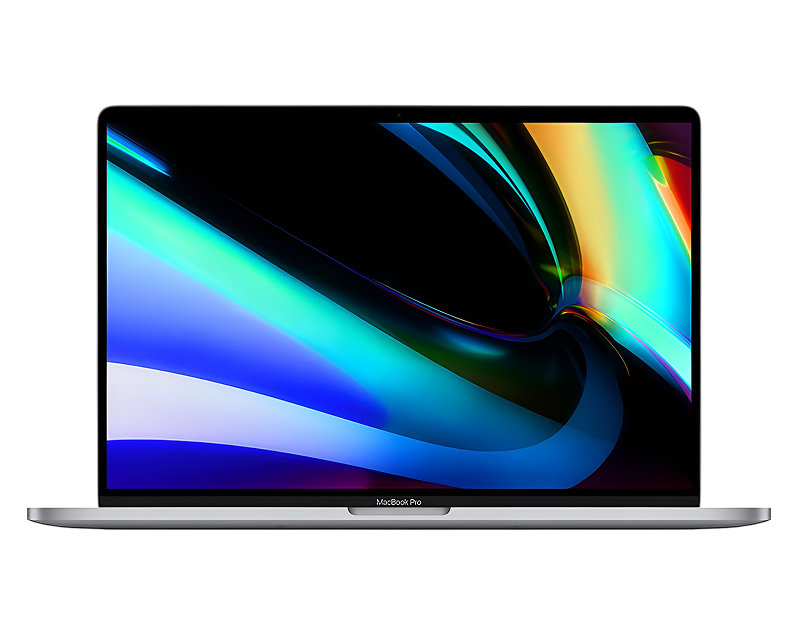
Common Repairs We Handle Daily


Maximize MacBook Pro Life: Smart Maintenance Strategies
Your MacBook Pro used to fly through demanding tasks—video rendering, code compilation, photo editing, whatever you threw at it. Now? It crawls. Or maybe it's still fast but the battery dies before lunch, the fans sound like a wind tunnel, or that gorgeous Retina display is showing weird artifacts. Meanwhile, your coworker's older MacBook Pro runs flawlessly because they've been proactive about maintenance.
Here's the contrast that matters: a neglected MacBook Pro might struggle after two years, while a properly maintained one handles demanding work effortlessly after five or more years. The difference isn't luck—it's understanding what these machines need and addressing issues before they become catastrophic. Professional MacBook Pro repair and smart maintenance strategies extend your laptop's life dramatically while keeping performance at peak levels. Let's figure out exactly what's happening with your MacBook Pro and how to keep it running great for years.
Is This You? MacBook Pro Problem Quiz
Let's quickly identify what you're dealing with. Check the symptoms you're experiencing:
Battery and Power (Check all that apply):
- [ ] Battery drains in 3 hours or less with normal use
- [ ] Percentage drops suddenly (50% to 20% in minutes)
- [ ] Won't charge, or charges extremely slowly
- [ ] "Service Battery" warning in menu bar
- [ ] MacBook shuts down unexpectedly even with charge remaining
- [ ] Trackpad feels raised or screen won't close properly (swollen battery)
Performance Issues:
- [ ] Beach ball cursor appears constantly
- [ ] Apps take forever to launch or respond
- [ ] System freezes regularly
- [ ] Lags during tasks that used to run smoothly
- [ ] Random shutdowns or kernel panics
- [ ] Can't run current macOS version smoothly
Thermal Problems:
- [ ] Fan noise is constant and excessive
- [ ] Bottom case too hot to touch
- [ ] Performance drops during intensive tasks
- [ ] Unexpected shutdowns when working hard
- [ ] Fan runs at maximum even during light use
Display and Screen:
- [ ] Flickering when moving the screen
- [ ] Pink, green, or yellow tint
- [ ] Horizontal or vertical lines
- [ ] Dim display even at maximum brightness
- [ ] Coating peeling or staining (Staingate)
- [ ] Black screen but laptop is running
Keyboard and Input:
- [ ] Keys stick or repeat letters
- [ ] Some keys don't register at all
- [ ] Keys require excessive force to work
- [ ] Trackpad clicks inconsistently or not at all
- [ ] Cursor jumps around randomly
Ports and Connectivity:
- [ ] USB-C/Thunderbolt ports loose or don't work
- [ ] Charging port unreliable
- [ ] External displays won't connect
- [ ] Ports require specific cable angles to work
Storage and System:
- [ ] "Startup disk almost full" warnings
- [ ] Strange clicking or grinding noises
- [ ] Files disappearing or corrupting
- [ ] Extremely slow file operations
- [ ] Boot failures or stuck progress bars
Score Your Results:
- 1-3 symptoms: Early issues—address now before they worsen
- 4-7 symptoms: Multiple problems developing—professional diagnosis recommended
- 8+ symptoms: Comprehensive repair needed—but don't worry, it's fixable
Living With the MacBook Pro
MacBook Pros represent Apple's professional laptop line—built for people who push their machines hard. Whether you're running a 13-inch M2 Pro, a 14-inch M3 Max, or one of the Intel-based models from previous years, these machines pack serious computing power into portable packages.
What's interesting about MacBook Pro owners is the intensity of use. You're not just checking email and browsing—you're editing 4K video, compiling code for hours, rendering 3D graphics, recording multi-track audio, or running virtual machines. These laptops handle it beautifully when they're healthy, but that intensive use creates specific maintenance needs that can't be ignored.
The Pro lineup has evolved significantly. Older models with Intel processors and dedicated GPUs have different thermal characteristics than the newer Apple Silicon models. The butterfly keyboard era (2016-2019) created unique challenges. The newer scissor-switch keyboards and redesigned thermals addressed many issues, but they're still computers being pushed hard daily. Understanding your specific model's quirks helps you maintain it properly and recognize problems early.
Troubleshooting Tree: Start Here
Let's systematically narrow down what's wrong. Follow this decision tree based on your primary symptom:
START: What's your main problem?
→ Won't turn on at all:
- Does it show any lights or make sounds?
- YES → Go to "Powers on but no display"
- NO → Check charging: Try different outlet, cable, and charger if possible
- Still nothing? → Logic board or power issue (professional diagnosis needed)
- Powers on now? → Charging system problem
→ Powers on but no display:
- Shine flashlight at screen—see faint image?
- YES → Backlight failure (display repair needed)
- NO → Connect external monitor
- External works? → Internal display/cable issue
- External doesn't work? → GPU or logic board issue
→ Battery drains super fast:
- Check battery cycle count (System Information → Power)
- Over 1000 cycles? → Battery replacement time
- Under 500 cycles? → Check Activity Monitor for runaway processes
- High CPU usage by specific app? → Software issue, update or reinstall app
- No obvious culprit? → Battery health check needed (may be defective cell)
→ Overheating/loud fans:
- Check Activity Monitor—high CPU usage?
- YES → Identify process, force quit, or update app
- NO → When does it overheat?
- During intensive tasks only? → Possibly normal, but check temps
- Even during light use? → Cooling system needs cleaning or thermal paste replacement
→ Performance extremely slow:
- Check available storage
- Under 10% free? → Clear space immediately (system needs breathing room)
- Plenty of space? → Check Activity Monitor memory pressure
- Memory pressure red/yellow? → Need more RAM or reduce apps
- Pressure green but still slow? → Check drive health (SMART status)
→ Keyboard issues:
- Multiple keys affected or single key?
- Single key → Try compressed air at angle, check for debris
- Multiple keys → Software issue or hardware failure
- Works in Safe Mode? → Software/driver problem
- Doesn't work in Safe Mode? → Keyboard hardware replacement needed
→ Won't boot (stuck on Apple logo or progress bar):
- Can you boot into Recovery Mode (Command+R)?
- YES → Run Disk Utility First Aid
- Errors fixed? → Try booting normally
- Can't fix errors? → Drive failing or system file corruption
- NO → NVRAM reset (Option+Command+P+R), then try Safe Mode
- Safe Mode works? → Software/extension issue
- Nothing works? → Drive failure or logic board issue
This tree gets you started on diagnosis. If you're stuck at any point or the recommended solution doesn't work, that's when professional MacBook Pro repair makes sense.
The Breakdown: It's Not You, It's Chemistry
Every MacBook Pro ages, regardless of how well you treat it. Understanding the underlying causes helps you recognize when maintenance is needed versus when something's actually broken.
Your MacBook Pro's battery is basically an electric toothbrush you've used twice daily for years. Remember how that toothbrush held charge for a week when new? Now it barely makes it through two brushing sessions before needing the charger. The battery cells haven't failed catastrophically—they've gradually lost capacity through chemical degradation. Each charge cycle causes microscopic changes in the lithium-ion cells. The electrolyte breaks down. Internal resistance increases. Eventually, the battery holds maybe 60% of its original capacity, and that's when you notice the problem. Your MacBook Pro battery goes through the exact same process.
Consider a pen clip you've used to attach it to your pocket every day for years. When that pen was new, the clip had spring tension and gripped firmly. After thousands of clips and unclips, the metal has fatigued. The clip is bent slightly from the stress. It still works, but not as well—sometimes the pen falls off because the clip doesn't grip tightly anymore. MacBook Pro ports experience similar mechanical wear. Every time you plug in a charging cable or connect a Thunderbolt device, there's physical contact and slight abrasion. The internal contacts wear microscopically. After thousands of connections, ports can become loose or unreliable.
Thermal cycling is constant in MacBook Pros. When you're editing video or compiling code, the processors generate significant heat—sometimes exceeding 90°C. Then you close the laptop and let it cool. This expansion and contraction happens thousands of times. The thermal paste between the processor and heatsink hardens and cracks. It stops transferring heat efficiently. The system compensates by running fans harder, but eventually performance suffers because the processor throttles to avoid overheating.
Display flex cables run through the hinge area, bending slightly every time you open and close the lid. Quality cables handle this well, but after 5,000-10,000 cycles, metal fatigue can develop. Conductors break, causing flickering or display failures. This isn't a defect—it's accumulated stress from repeated motion.
The keyboard mechanisms, especially the controversial butterfly switches used from 2016-2019, operate on incredibly tight tolerances. We're talking clearances measured in hundredths of a millimeter. A single dust particle can jam the mechanism. The scissor switches in newer models are more robust, but they still experience wear. The rubber dome underneath each key compresses thousands of times and eventually loses elasticity.
Storage drives have their own aging process. SSDs wear out as memory cells are written and erased. The drive's controller manages wear leveling, but eventually, enough cells fail that performance degrades or errors occur. The NAND flash memory physically degrades at the atomic level from electrical stress.
None of this means MacBook Pros are fragile or poorly designed. They're pushing a lot of power through compact, portable packages that get used intensively. The engineering is actually remarkable considering the performance density. But like any complex machine used daily, maintenance becomes necessary. The key is recognizing when normal aging requires professional attention.
Battery Life Destroyed
What you're experiencing: Your MacBook Pro barely makes it through a single meeting on a full charge. The battery percentage becomes a source of constant anxiety. You're always seeking outlets, always keeping the charger with you, essentially using it as a very expensive desktop. The battery indicator might jump from 40% to 5% in minutes, or the laptop shuts down unexpectedly claiming zero charge when it just showed 20%.
Why this happens: Lithium-ion batteries degrade chemically with every charge cycle. MacBook Pro batteries are rated for around 1000 cycles before capacity drops to 80% of original. Heavy users hit this in 2-3 years. The degradation accelerates with heat exposure, high charge states, and deep discharges. Eventually the battery can't hold sufficient charge to be useful. In some cases, batteries swell from gas buildup inside the cells—this is dangerous and needs immediate attention.
What you can try:
- Check battery health and cycle count: Apple menu → System Information → Power. Look at cycle count and condition.
- Calibrate the battery: Charge to 100%, use until it shuts down from low battery, then charge to 100% uninterrupted.
- Reset SMC (for Intel models): Shutdown, press Shift+Control+Option+Power for 10 seconds, release, then power on normally.
- Check for swelling: If the trackpad feels raised or the bottom case looks distended, stop using immediately—swollen battery is hazardous.
- Reduce battery stress: Lower screen brightness, close unnecessary apps, disable background processes you don't need.
Based on the devices we see: Battery replacement is the most common MacBook Pro repair we perform, and the results are transformative. People forget what normal battery life feels like after limping along for months. A proper battery replacement restores your original runtime—you'll actually be able to work wirelessly again. We use tested components that meet Apple's specifications, properly calibrated, with correct installation that ensures safe thermal management. The difference is immediate: full-day battery life returns, unexpected shutdowns stop, and you're no longer chained to outlets.
Keyboard Nightmare
What you're experiencing: Typing has become frustrating. Certain keys stick—you press once and get multiple letters. Other keys don't register unless you press hard. Maybe you're missing the letter E or H in every other word. Some keys feel mushy while others feel stiff. You're constantly backtracking to fix typos that aren't your fault, and it's slowing down your work significantly.
Why this happens: MacBook Pros from 2016-2019 used butterfly keyboard mechanisms notorious for failure. Even tiny dust particles or debris jammed the ultra-thin switches. The scissor-switch keyboards in current models are more reliable but not immune—mechanical wear, spills, dust accumulation, and debris under keys eventually cause problems. Sometimes it's not the keyboard itself but the ribbon cable connecting it to the logic board that develops issues.
What you can try:
- Compressed air: Hold MacBook at 75-degree angle and spray short bursts of air under affected keys. Move left to right across the keyboard.
- Check for debris: Shine a light under the affected key—sometimes you can see what's causing the problem.
- External keyboard test: Connect a USB keyboard—if it works perfectly, you've confirmed it's the internal keyboard hardware.
- Safe Mode boot: If the keyboard works in Safe Mode but not normally, it's a software/driver issue (rare but possible).
Warning Signs Checklist:
- Letters repeating without holding the key down
- Keys requiring multiple presses to register
- Keys feeling stuck or requiring excessive force
- Certain keys completely unresponsive
- Sticky residue visible around keys (spill damage)
What we tell customers who come in: Butterfly keyboard failures usually require full keyboard assembly replacement—trying to fix individual switches doesn't work long-term. The good news is that Apple's keyboard service program covered many of these issues. Even outside that program, keyboard replacement gives you a fresh start. We've replaced countless MacBook Pro keyboards, and the difference is night and day. Typing becomes effortless again, which matters tremendously when your MacBook Pro is your primary work tool. For spill damage, early intervention matters—bring it in immediately for cleaning before corrosion sets in. We've saved many keyboards caught early but had to replace others where customers waited too long.
Thermal Throttling and Overheating
What you're experiencing: Your MacBook Pro sounds like it's attempting vertical takeoff. The fans run at maximum speed constantly. The aluminum case gets so hot it's uncomfortable to touch. Performance tanks during intensive work—video exports take twice as long, rendering crawls, and the system feels sluggish despite plenty of CPU headroom. Sometimes the MacBook Pro shuts down completely to protect itself from heat damage.
Why this happens: MacBook Pros pack high-performance components into slim enclosures, so thermal management is critical. Dust accumulates inside, clogging the narrow cooling fins and reducing airflow. Thermal paste between the CPU/GPU and heatsink dries out and loses effectiveness. Fans wear—bearings degrade and blades accumulate gunk. Heavy workloads that ran fine when new now generate excessive heat because the cooling system can't keep up. The system protects itself by throttling performance, which defeats the purpose of having a Pro machine.
What you can try:
- Activity Monitor: Check for runaway processes consuming CPU constantly. Sometimes a stuck background task generates unnecessary heat.
- SMC reset (Intel models): Can fix fan control issues. Shutdown, hold Shift+Control+Option+Power for 10 seconds, then power on.
- Elevate the laptop: Use a stand or prop the back edge up slightly to improve airflow under the case.
- Monitor temperatures: Use an app like iStat Menus or Intel Power Gadget to see actual CPU temperatures. If you're consistently over 90°C doing normal tasks, you've got a cooling problem.
- Close unused apps: Each application generates some heat and uses resources, even in the background.
After repairing these daily: Overheating is incredibly common on MacBook Pros, especially models from 2016-2019 with their thin design and powerful processors. When we open them up, the cooling fins are typically packed solid with dust and lint—airflow is maybe 20% of design spec. The thermal paste is dried, cracked, and failing to transfer heat. We clean everything meticulously using compressed air and proper tools, replace thermal paste with high-quality compound, verify fan operation, and reassemble. Temperature drops are dramatic—25-35°C reductions under load are typical. Your MacBook Pro runs quietly, stays cool, performs without throttling, and the fans only ramp up when genuinely needed for demanding work. The performance you paid for comes back.
Display Issues Ruining Your Work
What you're experiencing: Your gorgeous Retina display isn't looking so gorgeous anymore. Maybe it flickers when you adjust the screen angle. There might be pink or green tints across the image. You're seeing horizontal lines, or the backlight cuts out leaving you with a barely visible screen. Some MacBook Pros develop "Staingate"—the anti-reflective coating delaminates, creating splotchy discoloration that's impossible to ignore.
Why this happens: The display flex cable runs through the hinge, and thousands of open/close cycles eventually cause flex fatigue or breaks in the conductors. Certain MacBook Pro models had defective anti-reflective coatings that delaminate over time. Backlight failures occur when LED strips or driver circuits fail. Cable connection issues at the logic board cause intermittent problems. In rare cases, the LCD panel itself fails, or GPU issues cause artifacts.
What you can try:
- External monitor test: Connect to an external display. If it works flawlessly, you've isolated the problem to the internal display system.
- Angle dependency: Carefully move the screen through its range while watching for when problems occur. If it's position-dependent, suspect the flex cable.
- NVRAM reset: Hold Option+Command+P+R during startup for 20 seconds. This resets display settings.
- Safe Mode: Boot holding Shift. If the display works fine in Safe Mode, it might be a software/driver issue (uncommon but possible).
From our repair bench: Display problems divide into fixable categories. Flex cable damage causes position-dependent flickering—replacing the cable fixes it permanently. Backlight failures make the screen dim or black—backlight replacement or entire display assembly replacement resolves it. Coating delamination (Staingate) requires careful removal of the old coating or display replacement. GPU issues cause artifacts and corruption—more serious but still addressable. We've replaced hundreds of MacBook Pro displays and flex cables. Properly done, the repair is permanent. Your display looks factory-fresh again: crisp, evenly lit, color-accurate, and reliable regardless of screen angle.
What Tools We Use for MacBook Pro Repair
Behind-the-scenes at The Fix, we use specialized equipment specifically for MacBook Pros. These aren't casual repairs with generic tools—we're using professional-grade equipment because these machines demand precision.
Our workbenches have anti-static mats and wrist straps because MacBook Pro logic boards are sensitive to static discharge. We use proper Pentalobe P5 drivers for the bottom case, T5 Torx drivers for internal screws, and plastic spudgers that won't damage ribbon cables or connectors. For display work, we have specialized tools for adhesive removal and precise reassembly.
We maintain proper thermal paste—not generic stuff but quality compounds rated for the high temperatures MacBook Pros generate. Our battery installations use calibrated adhesive strips that hold securely without making future service impossible. We have drive cloning stations that create exact copies while verifying data integrity.
For diagnostics, we run Apple's official hardware test suite, but we also use professional thermal cameras to identify hot spots, multimeters to test voltage rails on logic boards, and specialized software to read SMART data from drives and check battery cell health at a granular level.
We protect your data during repairs—MacBook Pros are disconnected from power immediately when opened, batteries are isolated, and we follow proper shutdown procedures. Nothing gets plugged in until we've verified all connections are correct.
Quality checks happen throughout. After cleaning cooling systems, we verify thermal performance under load. After battery replacement, we calibrate and verify proper charge curves. After keyboard replacement, we test every single key multiple times. After display work, we check for dead pixels, even illumination, and color accuracy.
This level of care matters because MacBook Pros are expensive, precision machines. They deserve professional repair with proper tools, tested components, and expertise that comes from working on these devices daily.
Avoid These Common Mistakes
Let's talk about what NOT to do—mistakes that shorten MacBook Pro lifespan or create repair needs:
Don't ignore warning signs. That "Service Battery" warning? Address it now, not when the battery swells and damages your trackpad. Slight overheating? Fix it before prolonged heat damages other components. Small problems become expensive problems when ignored.
Don't use your MacBook Pro on soft surfaces. Beds, couches, blankets—they block the ventilation holes on the bottom and cause overheating. Use hard, flat surfaces or get a laptop stand.
Don't force-close apps constantly. macOS manages memory well. Constantly force-quitting apps can actually cause more problems than it solves. Force quit only when apps are truly frozen.
Don't let your storage get completely full. Keep at least 10-15% free space. macOS needs room for virtual memory, temporary files, and system operations. A completely full drive causes severe slowdowns and crashes.
Don't skip backups. Time Machine, cloud backup, whatever—just do it regularly. When your SSD fails (and it will eventually), you'll be grateful. Backup is maintenance, not paranoia.
Don't attempt DIY repairs without research. MacBook Pros have specific disassembly procedures. Wrong moves can shear ribbon cables, crack screens, or short circuits. If you're not confident, leave it to professionals.
Don't use cheap third-party chargers. Stick with Apple chargers or reputable third-party options. Cheap chargers can damage charging circuitry or cause fires. Not worth the risk.
Don't let spills sit. If you spill liquid on your MacBook Pro, shut it down immediately, turn it upside down, and bring it in for professional cleaning ASAP. Waiting lets corrosion set in.
Your Device Deserves Expert Attention
Most MacBook Pro problems are completely fixable with professional expertise and quality components. That dying battery? Replacement brings back full-day runtime. Keyboard failures? Fresh assembly means reliable typing again. Overheating? Proper maintenance restores cool, quiet operation. These repairs extend your MacBook Pro's life for years and cost far less than replacement.
Don't trust your MacBook Pro to just anyone. The Fix has the experience, tools, and expertise to handle MacBook Pro repairs correctly. We'll diagnose your device for free, explain your options honestly, and do the work right the first time. Your MacBook Pro deserves professional care, and we deliver exactly that.


Trusted repair solution for mobile phones, tablets, gaming consoles, and computer systems. We provide fast, reliable, and affordable repair services to get your devices back in perfect working condition.
The Fix is an independent repair service provider and is not affiliated with, sponsored by, or endorsed by Apple Inc., Samsung Electronics, Google LLC, or any other device manufacturer. We use high-quality compatible replacement parts unless explicitly stated. All trademarks are property of their respective owners.


© Copyright The Fix Solutions All rights reserved 2026.
Design by Deepcoder