






MacBook Air Repair Services
Get fast, reliable, and professional MacBook Air repair services at The Fix — your trusted destination for expert device care.
Common Repairs We Handle Daily


Decoding MacBook Air Problems: Expert Analysis
MacBook Airs account for roughly 40% of all MacBooks sold worldwide, and they're beloved for good reason—lightweight, portable, and capable enough for most users' daily needs. But here's what the data tells us: around 25% of MacBook Airs older than three years experience at least one hardware issue requiring professional attention. That's not a design flaw—it's the reality of intensive daily use combined with the challenges of packing performance into an ultra-thin chassis.
If your MacBook Air's battery barely makes it through a morning, the keyboard's missing every fifth keystroke, or the screen flickers when you adjust the angle, you're dealing with problems we see constantly at The Fix. These issues are predictable, well-understood, and—most importantly—totally repairable. Professional MacBook Air repair addresses the root causes and gets your laptop back to reliable operation. Let's decode exactly what's happening with your MacBook Air and how to fix it right.
Your MacBook Air: The Quick Rundown
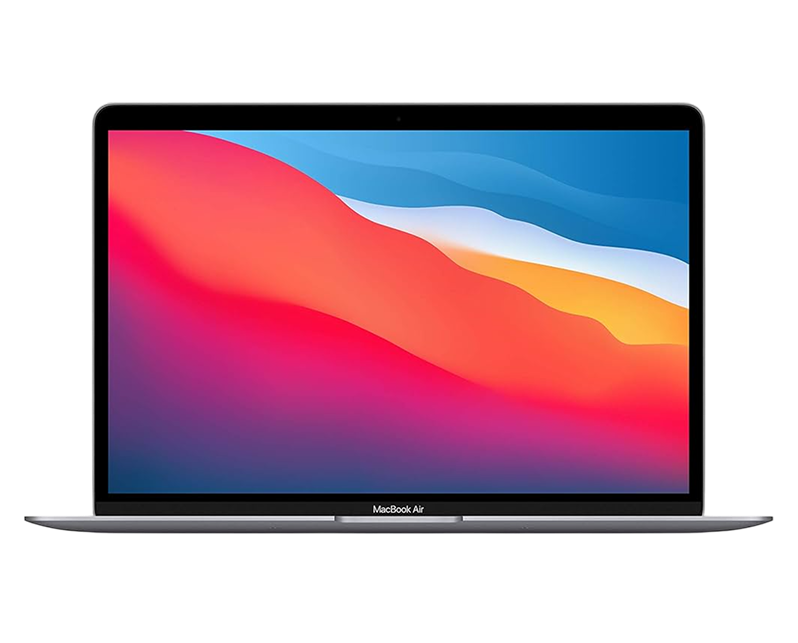
The MacBook Air hit stores as Apple's entry into ultraportable computing, and it's evolved into one of their most popular laptops. Whether you're using an M1, M2, M3 model with Apple Silicon, or one of the older Intel-based Airs, these machines prioritize portability and efficiency over raw power.
What's interesting about MacBook Air ownership is the usage pattern—these laptops go everywhere. They're the machines people actually carry daily, toss in backpacks, use on trains and planes, and rely on for all-day battery life away from outlets. Students depend on them for note-taking and research. Business travelers appreciate the weight and battery life. Home users love the quiet, fanless operation on newer models.
That portability comes with tradeoffs. The thin design means tight thermal constraints—older Intel models sometimes throttled under sustained loads. The compact chassis leaves minimal room for cooling on models that have fans. Components are tightly integrated, which is great for saving space but means repairs require more precision. Understanding these design considerations helps you maintain your MacBook Air properly and recognize when professional service is needed.
Keep Your MacBook Air Running: Smart Prevention Tips
Let's start with prevention, because an ounce of maintenance beats a pound of repair every time. These aren't complicated—just smart habits.
Protect it physically. Get a decent sleeve or case—MacBook Airs are thin and light, which also means they're more vulnerable to pressure and impacts in bags. Don't stack heavy items on top of it. When carrying it, hold the base, never the screen. Close it gently without slamming.
Mind the vents and airflow. Even fanless M-series models need thermal management. Don't block the ventilation areas on the bottom or back. Use your MacBook Air on hard, flat surfaces when possible. Beds and couches block airflow and trap heat.
Be careful with that keyboard. Don't eat over it—crumbs are the enemy. Close it carefully, making sure nothing's on the keyboard that could press against the screen. Clean it regularly with a slightly damp microfiber cloth.
Manage your battery wisely. Don't leave it plugged in at 100% constantly if you're using it as a desktop replacement. Let it discharge to 20-30% occasionally. Avoid extreme temperatures—don't leave it in hot cars or freezing environments.
Keep software current. Run macOS updates. They include performance optimizations, security patches, and bug fixes. Back up regularly using Time Machine or cloud backup. When storage fails, you'll be grateful.
Watch for early warning signs. Slight performance degradation, occasional screen flickers, keyboard keys that feel different—address these early before they become bigger problems. Small issues caught early are cheaper and easier to fix.
The Biology of Electronics (Sort Of)
Every MacBook Air ages over time, and understanding why helps you make informed decisions about maintenance and repair. Let's talk about the physical processes happening inside your laptop.
Consider an old watch battery you've relied on for years. When that watch was new, the battery lasted 2-3 years easily. But watches don't age linearly—after the first couple years, you're changing batteries annually, then every six months. The battery chemistry hasn't fundamentally changed, but the electrochemical reactions inside have degraded the materials. Your MacBook Air battery experiences the same gradual capacity loss. Each charge cycle causes microscopic structural changes in the lithium-ion cells. The electrolyte breaks down. Internal resistance increases. After 500-1000 cycles, you'll notice—what used to be all-day battery becomes half-day, then just hours.
Think about a seat belt buckle in a car you've driven for a decade. When new, that buckle clicked firmly and released with a satisfying snap. After thousands of buckling and unbuckling cycles, the mechanism's worn. Maybe it sticks occasionally, or doesn't release as smoothly. The spring tension has changed from metal fatigue. Your MacBook Air's ports go through similar mechanical stress. Every charging cable insertion, every USB connection creates slight wear on the internal contacts. After thousands of plug/unplug cycles, ports can become loose or finicky about cable angles.
MacBook Airs, especially the fanless M-series models, rely on passive cooling—heat dissipation through the aluminum chassis. This works beautifully when the thermal interface materials are fresh. But thermal paste hardens over time. The adhesive bonds between heat spreaders and the chassis weaken slightly. Heat transfer efficiency decreases by 10-20% over several years. The system still works, but it runs warmer than it should, which accelerates other aging processes.
Display cables in MacBook Airs are remarkably thin and flexible—they need to be, given the hinge design. But flexibility means vulnerability to flex fatigue. Every time you open and close the lid, those cables bend slightly. Quality cables handle this for thousands of cycles, but metal fatigue accumulates microscopically. Eventually, conductors can break, causing flickering or display failures.
The keyboard switches, whether butterfly (2018-2019 models) or scissor-switch (current models), rely on precise mechanical tolerances and rubber domes that compress with every keystroke. After hundreds of thousands of presses, rubber loses elasticity. Springs experience metal fatigue. The satisfying tactile response changes. Keys might start feeling mushy or require more force.
Storage drives face electrical stress. SSDs wear as memory cells are written and erased. Each cell can only handle a finite number of write cycles before it fails. The drive's controller remaps to spare cells, but eventually those run out too. SMART monitoring tracks this degradation, giving warning before catastrophic failure.
This isn't about Apple cutting corners or MacBook Airs being fragile. They're actually remarkably durable considering how thin and light they are. But physics and chemistry don't care about build quality—all electronic devices age. The key is recognizing when aging components need professional attention.
Battery Dies Before Lunch
What you're experiencing: Your MacBook Air used to last all day on a single charge. Now you're scrambling for outlets by mid-morning. The battery percentage becomes unreliable—it'll say 50%, then suddenly drop to 15% in minutes. Maybe the laptop shuts down unexpectedly even though it showed charge remaining. You're essentially stuck using it plugged in like a desktop, which defeats the entire purpose of owning a MacBook Air.
Why this happens: MacBook Air batteries use lithium-ion technology with a rated lifespan of about 1000 charge cycles before dropping to 80% capacity. Daily users hit this in 2-3 years. The chemical degradation is unavoidable—capacity decreases, internal resistance increases, and the battery management system becomes less accurate at reporting remaining charge. Heat exposure accelerates degradation. In some cases, batteries swell from gas buildup, which is hazardous and requires immediate replacement.
What you can try:
- Check battery health: Click Apple menu → System Information → Power. Check cycle count and condition status.
- Calibrate the battery: Charge to 100%, use until automatic shutdown from low battery, then charge uninterrupted to 100%.
- Check for swelling: If the trackpad feels raised or the bottom case looks bulged, stop using immediately—this is dangerous.
- Reset SMC (Intel models): Shutdown, hold Shift+Control+Option+Power for 10 seconds, release, then power on.
- Reduce battery stress temporarily: Lower brightness, close unnecessary apps, disable power-hungry features.
What the data shows from our repairs: Battery replacement is the single most common MacBook Air repair we perform. The transformation is immediate and dramatic. People often don't realize how much they've been accommodating a dying battery—constantly seeking outlets, keeping the charger with them always, planning their day around available power sources. After replacement with a tested, properly calibrated battery, you get actual all-day runtime again. You remember why you bought a MacBook Air in the first place—for the freedom of wireless computing. We see the relief on customers' faces when they realize they can actually use their laptop without being tethered to the wall.
Keyboard Keys Acting Up
What you're experiencing: Typing's become frustrating. You press a key once and get double letters, or you press and nothing registers. The space bar works intermittently. Some keys feel sticky or require excessive force. You're constantly backtracking to fix typos that aren't your fault, and it's destroying your workflow. An external keyboard works fine, so you know it's the MacBook Air's keyboard specifically.
Why this happens: MacBook Airs from 2018-2019 used the infamous butterfly keyboard mechanism—ultra-thin but extremely sensitive to dust and debris. Even microscopic particles jammed the switches. Current models use scissor-switch keyboards which are more robust, but they're not immune to problems. Spills, accumulated dust, mechanical wear from heavy typing, and debris under keys all cause failures. Sometimes the issue is the ribbon cable connecting the keyboard to the logic board rather than the keys themselves.
What you can try:
- Compressed air at an angle: Hold the MacBook Air tilted to about 75 degrees and spray short bursts of compressed air left to right across the keyboard.
- Check for visible debris: Shine a light under affected keys—sometimes you can spot what's causing the problem.
- External keyboard test: If an external keyboard works perfectly, you've confirmed it's the internal keyboard hardware.
- Clean around keys: For sticky keys from spills, use a slightly damp cloth with isopropyl alcohol—dab, don't pour.
Pro Tip: Apple's keyboard service program covered butterfly keyboard failures on 2015-2019 MacBook Airs. Even outside that program, keyboard replacement is straightforward and gives you a fresh, fully functional keyboard. Don't suffer with a failing keyboard—typing is literally what you do most on a laptop.
The pattern that emerges from repairs: Butterfly keyboards often need full replacement because the mechanism is too delicate for individual key repairs to work long-term. Scissor-switch keyboards can sometimes be cleaned successfully if the problem's caught early, but advanced failures need replacement. We've replaced countless MacBook Air keyboards. The work is meticulous—removing the entire top case assembly, transferring components, reassembling precisely. But the result is worth it: crisp, responsive keys that register reliably every single time. Typing becomes effortless again, which fundamentally improves your experience since you interact with that keyboard constantly.
Screen Flickering or Display Weirdness
What you're experiencing: The display flickers, especially when you move the screen to certain angles. Maybe you see pink or green tints that weren't there before. The backlight might cut out intermittently, leaving you staring at a barely visible image. There could be horizontal lines, vertical stripes, or weird artifacts. Sometimes the screen works perfectly, other times it's unusable—there's no consistency.
Why this happens: The display cable running through the hinge area experiences flex fatigue from thousands of open/close cycles. MacBook Airs are thin, so the cables are particularly delicate. Certain models had anti-reflective coating issues that cause splotchy discoloration (Staingate). Backlight failures happen when LED strips or driver circuits fail. Connection issues at the logic board cause intermittent problems. Occasionally the LCD panel itself fails, or GPU issues cause artifacts, though both are less common.
What you can try:
- External monitor test: Connect to an external display. If that works flawlessly, you've isolated the problem to the internal display system.
- Track angle dependency: Carefully move the screen through its full range while watching when problems occur. Position-dependent issues usually mean flex cable damage.
- NVRAM reset: Hold Option+Command+P+R during startup for about 20 seconds. This resets display settings.
- Safe Mode: Hold Shift during startup. If the display works normally in Safe Mode, suspect software issues (uncommon).
Our repair data reveals something interesting: Display problems in MacBook Airs follow predictable patterns. Flex cable failures cause angle-dependent flickering—the connection breaks intermittently as the cable bends. Backlight failures manifest as dim screens that are technically working but impossible to read in normal conditions. Coating delamination creates progressive discoloration that spreads over months. Each has a specific repair path. We've replaced hundreds of MacBook Air display assemblies and flex cables. When done correctly, the repair is permanent. Your screen looks factory-fresh: evenly lit, color-accurate, crisp, and reliable at any angle. No more positioning your screen in the "sweet spot" where it happens to work.
Overheating on Intel Models
What you're experiencing: Your Intel-based MacBook Air gets uncomfortably hot during normal use. The fans (if your model has them) run constantly at maximum speed even for basic tasks. The aluminum case is too hot to rest on your lap. Performance tanks because the system throttles to avoid damage. Sometimes it shuts down unexpectedly to protect components from heat.
Why this happens: Intel MacBook Airs pack relatively powerful processors into thin chassis with limited cooling. Dust accumulates in the cooling system, reducing airflow. Thermal paste between the CPU and heatsink dries out over time. Fans wear out or accumulate debris. Heavy workloads generate heat the cooling system can't dissipate effectively. The system protects itself by throttling performance, but that's frustrating when you need full power.
What you can try:
- Check Activity Monitor for processes consuming high CPU constantly. Sometimes runaway background tasks generate unnecessary heat.
- Use the MacBook Air on hard, flat surfaces—never on beds or couches where vents get blocked.
- Close unused apps and browser tabs. Each one uses some resources and generates heat.
- SMC reset: Shutdown, hold Shift+Control+Option+Power for 10 seconds, release, then power on normally.
- Monitor temperatures using third-party apps to see if you're actually overheating or if it's just aggressive fan control.
In our experience with hundreds of these: Intel MacBook Airs overheat predictably after 2-3 years without maintenance. When we open them, the cooling system is choked with dust, thermal paste is crusty and ineffective, and fans are struggling. We clean everything thoroughly, replace thermal paste with quality compound, verify fan operation, and reassemble carefully. Temperature drops are significant—20-30°C under load. Your MacBook Air runs cooler, quieter, and delivers full performance without throttling. The difference transforms usability, especially for people who need sustained performance for work.
Storage Running Out Constantly
What you're experiencing: You're getting "Startup disk almost full" warnings constantly, even after deleting files. Everything's slow—saving files, opening apps, even just browsing. You've moved photos and videos to external drives, uninstalled apps, emptied trash, and still the warnings persist. You're down to mere gigabytes of free space and constantly managing what to delete next.
Why this happens: MacBook Airs, especially older models, shipped with modest storage—128GB or 256GB configurations. Modern macOS installations consume 15-20GB. Apps, especially creative software, are huge. Local photo libraries grow. System files, caches, Time Machine local snapshots, and other hidden data accumulate. Before you know it, available space evaporates. A full drive causes severe performance degradation because macOS needs space for virtual memory and temporary files.
What you can try:
- Check storage breakdown: Apple menu → About This Mac → Storage. See what's consuming space.
- Clear cache files using apps like OnyX or CleanMyMac (or do it manually if you know where system caches live).
- Delete Time Machine local snapshots: They can consume 20-50GB. Terminal command: tmutil listlocalsnapshots / then delete them.
- Check for large files: Use Finder → Go → Computer, then search for files over 1GB.
- Move photos and videos to external storage or cloud services like iCloud Photos, Google Photos, or external drives.
Real-world repair results show: Storage issues are partly usage, partly design. MacBook Airs with 128-256GB configurations made sense when they were sold, but modern software demands more. Upgrading the internal SSD (on models where it's possible) transforms the experience—you get breathing room and improved performance. For models with soldered storage, external SSD solutions or aggressive cloud storage strategies become necessary. We help customers optimize what they've got, but sometimes the honest answer is that you need more space and either need to manage aggressively or consider upgrading to a model with larger storage.
Worried About Data Loss? Here's How We Handle It
You're probably anxious about data loss during MacBook Air repair. Let's address that directly, because it's a legitimate concern.
First, we assume your data matters tremendously to you—because it does. Photos, documents, work files, personal information—it's irreplaceable. We treat every MacBook Air we work on with that assumption.
When you bring in your MacBook Air for repair, we assess whether the repair affects storage. Battery replacements, keyboard replacements, and display repairs don't touch your drive or data—it's completely safe. For storage drive replacements, we have professional drive cloning equipment that creates exact copies of your failing drive to a new one, preserving everything. The process is block-by-block verification—we don't just copy files, we clone the entire drive and verify data integrity.
Concerned about privacy during repair? We disconnect from networks, don't browse your files (we don't need to for hardware repairs), and handle every device with confidentiality. Your MacBook Air goes from intake to repair bench to quality check to you—controlled access, documented process.
Not sure how long it takes? Most MacBook Air repairs are same-day or next-day, depending on parts availability and repair complexity. Battery replacements take 1-2 hours. Keyboard replacements take 2-4 hours. Display repairs vary but typically complete within a day. Storage replacements with cloning take 3-6 hours depending on drive size and health.
What happens when you pick up? We'll walk you through what we did, show you the improvement (battery health readings, temperature monitors, whatever's relevant), and answer questions about preventing future issues. You should leave understanding what was wrong, what we fixed, and how to maintain your MacBook Air going forward.
The truth is, we've handled thousands of MacBook Airs. We know these machines inside and out. Your data, your privacy, and your trust matter. We take that seriously.
Small Problems Today Prevent Big Problems Tomorrow
Most MacBook Air issues are completely repairable with professional expertise. That dying battery? Replacement brings back genuine all-day runtime. Keyboard failures? Fresh assembly means responsive, reliable typing. Display problems? Proper repair restores perfect image quality. These fixes extend your MacBook Air's life significantly and cost far less than replacement.
Drop by The Fix for a free diagnostic. We'll run comprehensive tests on your MacBook Air, identify exactly what's happening, and give you honest recommendations. No pressure, no upselling—just straightforward guidance from technicians who work on these devices every day.


Trusted repair solution for mobile phones, tablets, gaming consoles, and computer systems. We provide fast, reliable, and affordable repair services to get your devices back in perfect working condition.
The Fix is an independent repair service provider and is not affiliated with, sponsored by, or endorsed by Apple Inc., Samsung Electronics, Google LLC, or any other device manufacturer. We use high-quality compatible replacement parts unless explicitly stated. All trademarks are property of their respective owners.


© Copyright The Fix Solutions All rights reserved 2026.
Design by Deepcoder