






MacBook Repair Services
Get fast, reliable, and professional MacBook repair services at The Fix — your trusted destination for expert device care.
Common Repairs We Handle Daily


Why MacBook Repair Is Smarter Than Upgrading
You're sitting at your favorite coffee shop, trying to finish a project that's due tomorrow, and your MacBook suddenly decides it's the perfect time to freeze. Again. You force restart it for the third time this week, wondering how much longer you can deal with this. Maybe the battery's draining in two hours instead of the eight it used to give you. Or that keyboard keeps missing letters, making you look like you can't spell. Perhaps the screen's got a weird discoloration that won't go away, or the fans sound like they're preparing for liftoff every time you open more than three apps.
Here's what you're probably thinking: "Is it time to drop a couple grand on a new one?" But hold on—most MacBook problems are completely repairable, and fixing what you've got makes way more financial sense than upgrading. You've already invested in this machine, you know exactly how it works, and all your stuff is set up perfectly. Professional MacBook repair can bring it back to life for a fraction of what you'd spend on a replacement. In this guide, we'll show you exactly what's going wrong, why it's happening, and how we can get your MacBook running like it should.
Your MacBook: The Quick Rundown
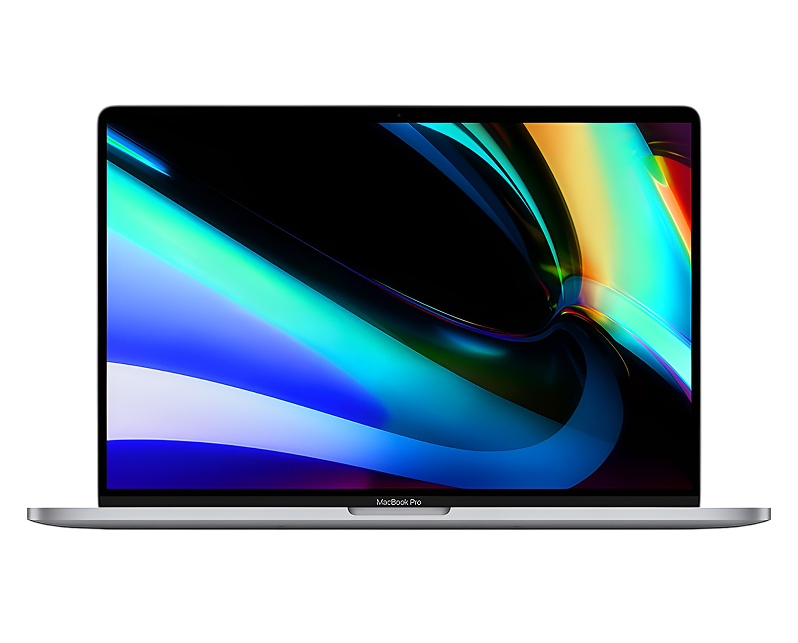
MacBooks hit that sweet spot between premium build quality and genuine usefulness. Whether you're using a MacBook Air, MacBook Pro, or one of the older models, these machines were designed to last—and they do, with the right care.
What makes MacBooks interesting is that people genuinely use them differently than other laptops. They're the go-to for creative professionals doing video editing, music production, and graphic design. Students rely on them for everything from note-taking to coding. Business folks appreciate the ecosystem integration with iPhones and iPads. The thing is, all that intensive use takes a toll over time. You're pushing these machines hard, and eventually, components wear out.
The aluminum unibody construction is both a blessing and a curse. It's incredibly durable and feels premium, but repairs can be more involved than with plastic laptops that just snap apart. The integration is tight—everything's connected precisely, which is great for performance but means you need someone who actually knows what they're doing when something breaks.
Battery Draining Faster Than Your Patience
What you're experiencing: You used to get a full workday out of a charge. Now you're lucky if it lasts through a two-hour meeting. The battery indicator says 50%, then suddenly drops to 20% in minutes. You're constantly tethered to the charger like it's a life support system. Your MacBook's basically become a very expensive desktop.
Why this happens: MacBook batteries use lithium-ion technology, and these cells have a finite number of charge cycles—typically 500-1000 before capacity drops significantly. Every time you charge from 0% to 100%, that's one cycle. Even if you take perfect care of it, chemistry and time conspire against you. The battery physically degrades—internal resistance increases, capacity decreases, and eventually it can't hold enough charge to be useful.
What you can try:
- Check your battery health: Click the Apple menu → System Preferences → Battery → Battery Health. If it says "Service Recommended," that's your answer.
- Check Activity Monitor (in Applications/Utilities) and sort by Energy Impact to see what's draining power. Sometimes a runaway process is the culprit.
- Reduce screen brightness and close unnecessary apps. This won't fix a dying battery but might buy you some time.
- Reset the SMC (System Management Controller): Shut down, hold Shift+Control+Option+Power for 10 seconds, release, then start normally.
Pro Tip: macOS shows you cycle count in System Information → Power. Most MacBooks are rated for 1000 cycles. If you're past that and experiencing battery issues, it's definitely time for replacement.
A pattern we've noticed over the years: Battery issues are the most common MacBook repair we handle, and they're also one of the most satisfying fixes. The difference is immediate and dramatic. A proper battery replacement brings your MacBook back to its original runtime—you'll actually remember what it's like to work without being plugged in. We use tested components that meet Apple's specifications, and the installation process ensures everything's properly calibrated. Most people are shocked at how much they'd been putting up with once they experience normal battery life again.
Keyboard Keys Sticking or Not Registering
What you're experiencing: You're typing along and suddenly realize you've been writing "te" instead of "the" because the H key didn't register. Or maybe certain keys stick—you press once and get multiple letters. Some keys require more pressure than others. It's maddening when you're trying to work quickly, and you're constantly backtracking to fix typos that aren't your fault.
Why this happens: MacBooks, especially models from 2015-2019, had notorious butterfly keyboard mechanisms that were extremely susceptible to dust and debris. Even a tiny particle under a key could cause failure. The newer scissor-switch keyboards are more reliable, but they're not immune—spills, dust accumulation, and mechanical wear eventually cause problems. Sometimes the issue isn't the keyboard itself but the ribbon cable connecting it to the logic board.
What you can try:
- Use compressed air at an angle to blow debris out from under the affected keys. Hold the can upright and use short bursts.
- For sticky keys from spills, dab (don't pour) isopropyl alcohol on a cloth and gently clean around the key. Let it dry completely.
- Check if an external keyboard works normally—this tells you whether it's the keyboard hardware or something deeper.
- Try cleaning the keycap itself by gently removing it (be extremely careful—butterfly keyboards are fragile), cleaning underneath, and reattaching.
From our experience fixing thousands of these: Keyboard problems range from simple debris removal to full keyboard replacement. The butterfly keyboards often need complete replacement because the mechanism is so delicate. The good news is that keyboard replacement, while tedious, is totally doable and gives you a fresh start. We've opened MacBooks where the entire keyboard assembly is filled with dust, food crumbs, and mystery particles—no wonder the keys weren't working. After replacement, typing feels satisfying again, which matters more than you'd think when you use your MacBook for hours every day.
Screen Flickering or Display Issues
What you're experiencing: Your display flickers randomly, especially when adjusting the screen angle. Sometimes you see horizontal lines across the image. The backlight might cut out, leaving you staring at a barely visible screen that's technically working but impossible to read. Or maybe there's discoloration—weird pink or green tints that weren't there before.
Why this happens: The display cable (called a flex cable) runs through the hinge area, and opening and closing your MacBook thousands of times eventually damages it. Certain MacBook models had known issues with anti-reflective coatings delaminating, causing a "Staingate" effect. Backlight failures happen when the LED strips or driver circuits fail. Sometimes it's the GPU or T-CON board. The screen itself rarely fails—it's usually the cables or backlighting.
What you can try:
- Connect to an external monitor. If that works perfectly, you know it's the internal display assembly, not the graphics card.
- Gently move the screen through its full range while watching for when the problem occurs. If it's angle-dependent, that's usually the flex cable.
- Reset NVRAM: Restart and immediately hold Option+Command+P+R for about 20 seconds. This resets display settings.
- Boot into Safe Mode (hold Shift during startup) to rule out software issues.
What the data shows from our repairs: Display problems divide into three main categories. Flex cable damage is most common—you'll see flickering that changes with screen position. Backlight failures usually manifest as dim screens that you can barely see in bright light. Coating issues (delamination) create splotchy discoloration that gets worse over time. Each has a different solution, but all are fixable. We've replaced countless display assemblies and flex cables, and properly done, the repair is permanent. Your display will look crisp and clear again, and you won't be squinting or tilting the screen to find the "sweet spot" where it works.
Overheating and Fan Noise
What you're experiencing: Your MacBook sounds like it's trying to achieve flight. The fans spin up to maximum speed even when you're just browsing the web. The aluminum case gets uncomfortably hot—you literally can't rest it on your lap. Performance tanks because the system is thermal throttling to protect itself. Sometimes it just shuts down unexpectedly when it gets too hot.
Why this happens: MacBooks have sophisticated cooling systems, but they're working in tight quarters with powerful components. Dust accumulates inside, clogging the cooling fins and reducing airflow. The thermal paste between the CPU/GPU and heatsink dries out over time, becoming less effective at heat transfer. Worn bearings in fans cause them to work harder while moving less air. Heavy workloads that used to run fine now generate excessive heat because the cooling system can't keep up.
What you can try:
- Check Activity Monitor for processes using high CPU when you shouldn't have anything intensive running. Kill unnecessary processes.
- Use your MacBook on hard, flat surfaces—never on beds or couches where vents get blocked.
- Close unused apps and browser tabs. Each one generates some heat and uses resources.
- Use an app like Macs Fan Control to manually check fan speeds and temperatures to diagnose if fans are actually spinning properly.
- SMC reset (described earlier) sometimes helps with fan control issues.
Did You Know? MacBook cooling systems are asymmetric—the fans are positioned specifically to cool the hottest components. When dust clogs one side more than the other, you can get uneven cooling that makes the problem worse.
The reality from our repair experience: When someone brings in an overheating MacBook, we can usually predict what we'll find before opening it. The cooling fins will be packed with dust and lint, forming a solid barrier that blocks airflow. The thermal paste will be dried out and cracked, no longer making good contact. Sometimes the fans themselves are worn, spinning but not moving much air. We clean everything thoroughly, replace thermal paste with high-quality compound, test the fans, and reassemble. Temperature drops are dramatic—we're talking 20-30°C reductions under load. Suddenly your MacBook runs quietly, stays cool, and performs like it should without throttling.
The Science Behind Device Aging
Something you need to understand: every electronic device ages, and MacBooks are no exception despite their premium construction. Let's talk about why this happens, because understanding it helps you make better decisions about repair.
Think about that rechargeable flashlight you've had for years. When it was new, you'd charge it fully and it would run for hours. The beam was bright and consistent. Fast forward a few years and countless recharge cycles later—now it dims noticeably after 30 minutes and needs charging twice as often. The LED bulb is fine, the case is intact, but something inside has changed. That's lithium-ion battery degradation, and it happens to every rechargeable battery including the one in your MacBook.
Or consider your house key that you've used every single day for years. When it was fresh from the locksmith, it had sharp, well-defined teeth. The key inserted smoothly and the lock turned effortlessly. Now? The teeth are slightly rounded from friction, there's play in the lock, and sometimes you need to jiggle it to get it to work properly. Metal has worn away microscopically from thousands of insertions. Your MacBook's ports experience the same wear—charging ports especially, getting plugged and unplugged daily for years.
Heat is another constant factor. Every time you use your MacBook, the processor generates heat. That heat causes microscopic expansion of circuits and solder joints. Then it cools down and contracts. This thermal cycling—happening thousands of times over a MacBook's life—creates stress. Thermal paste hardens. Solder joints can develop microcracks. Adhesives weaken.
MacBooks also deal with environmental factors. Dust infiltrates despite tight tolerances. Humidity affects internal components. If you live in a dry climate, static electricity can build up. In humid environments, corrosion happens slowly but steadily. These aren't design flaws—they're physics and chemistry doing what they do.
The keyboard mechanism, especially on butterfly keyboards, relies on incredibly precise tolerances. We're talking about clearances measured in micrometers. A single grain of sand is enough to jam the mechanism. The screen opens and closes, flexing the display cable every time. After thousands of cycles, metal fatigue can develop in the hinge or damage the cable.
None of this means your MacBook is fragile or poorly made. Actually, considering how hard people push these machines and how complex they are internally, they're remarkably durable. But expecting any computer to run perfectly forever without maintenance isn't realistic. Regular care and professional repair when needed keeps your MacBook running for many years.
Storage Drive Slowing Down or Failing
What you're experiencing: Everything takes forever. Apps hang on launch. Files save slowly. You get spinning beach balls constantly. Sometimes the system freezes entirely, or you can't boot at all. You might see error messages about disk problems, or macOS might be warning you about storage issues.
Why this happens: SSDs in MacBooks have write cycle limits—after enough data has been written and erased, cells begin to fail. The drive's wear leveling system compensates by using spare cells, but eventually, those run out too. Sudden power losses can corrupt file systems. Physical damage from drops can break connections. Older MacBooks with hard drives face mechanical failures—the spinning platters and read/write heads eventually wear out.
What you can try:
- Run Disk Utility (in Applications/Utilities) and use First Aid to check and repair disk errors.
- Check available storage—if you're using over 90% of capacity, performance suffers even on healthy drives.
- Boot into Recovery Mode (Command+R at startup) and run diagnostics from there.
- Back up immediately if you're experiencing these symptoms—drive failure can be sudden and complete.
Our repair data reveals something interesting: Storage drive issues often show warning signs for weeks before total failure. If you're experiencing unexplained slowdowns, random freezes, or unusual disk activity, don't wait. We can clone your failing drive to a new one, preserving your data and giving you a fresh, faster drive—often upgraded from the original capacity. SSD replacements are particularly transformative because newer SSDs are significantly faster than drives from even a few years ago. Your MacBook feels brand new.
Getting Your MacBook Fixed: From Broken to Fixed
Here's exactly what happens when you come to The Fix with your MacBook. We know these machines matter to you—they've got your work, your photos, your life on them. So we're careful and thorough.
First 15 minutes: We'll start by listening to what you're experiencing. When did it start? What were you doing when it happened? Are there specific situations where it's worse? Then we plug in your MacBook and start diagnostics. We're running Apple's diagnostics suite, checking hardware serials, running our own test procedures. We're looking at system logs to see what errors have been recorded. For battery issues, we check cycle count and health status. For storage problems, we run SMART tests that read the drive's internal health data.
Next 30-60 minutes (or longer depending on repair): Once we've identified the problem, we explain exactly what's wrong and what fixing it involves. This is where we're honest with you about options. Maybe your battery's shot and we recommend replacement. Perhaps your keyboard needs replacing because the butterfly mechanism has failed. If it's the display flex cable, we'll show you why based on how symptoms change with screen position. We believe in informed decisions—you should understand what you're paying for.
The actual repair depends entirely on what's needed. Battery replacements involve careful disassembly, disconnecting everything safely, removing the old battery (which is usually adhered), and installing the new one with proper adhesive and connections. Keyboard replacements on MacBooks are involved—we're removing dozens of screws, disconnecting cables, swapping the entire keyboard assembly, and reassembling. Display repairs might mean replacing flex cables or entire screen assemblies. Cooling system cleaning involves complete disassembly, thorough cleaning of fans and heatsinks, fresh thermal paste application, and careful reassembly.
Final 10 minutes: Before we call you, we test everything. Does it boot properly? Is the battery charging and reporting correctly? Are all keys responsive? Is the display working at all angles? Are temperatures normal under load? We don't just fix the specific problem—we verify the entire system works correctly. When you pick up, we'll walk you through what we did, show you the improvement, and answer questions about maintaining your MacBook going forward.
We use proper tools—Pentalobe and Torx drivers, plastic spudgers that won't damage components, anti-static mats and wrist straps. Your MacBook deserves professional care with the right equipment and expertise.
Smart Care for Your MacBook
A little preventative maintenance goes a long way with MacBooks. These aren't complicated things—just smart habits.
Keep it clean. Wipe down the keyboard regularly with a slightly damp microfiber cloth. Use compressed air around the keys and ports occasionally. The aluminum case cleans up nicely with isopropyl alcohol on a cloth—just don't get moisture in ports or vents.
Protect that screen. When you close your MacBook, make sure there's nothing on the keyboard—no pens, papers, or debris that could press against the display. The gap between keyboard and screen is minimal, and pressure can crack the screen or leave marks.
Mind your battery. Don't leave it plugged in at 100% all the time if you're using it as a desktop replacement. Modern batteries handle this better, but it still causes stress. Let it discharge to 20-30% occasionally, then recharge. This keeps the battery calibrated and healthy longer.
Handle with care. Pick up your MacBook by the base, never by the screen. Don't close it by pressing on one corner of the screen—that torques the hinges and display assembly. Get a decent sleeve or case if you're transporting it regularly.
Keep macOS updated. Those updates aren't just security patches—they include performance optimizations and fixes for known issues. Back up regularly using Time Machine or cloud backup. When hardware fails, you'll be grateful you did this.
Don't ignore warning signs. If something seems off—battery draining faster, fans running constantly, keyboard missing keys—get it checked sooner rather than later. Small problems become big problems if you wait.
Your MacBook Still Has Plenty of Life Left
Most MacBook problems are totally fixable with the right expertise. That dying battery? Fresh replacement gets you back to all-day runtime. Keyboard issues? New keyboard assembly means reliable typing again. Overheating? Proper cleaning and maintenance brings temperatures down dramatically. These repairs extend your MacBook's life for years and cost way less than upgrading.
Having issues with your MacBook? The Fix specializes in Apple laptop repairs. Stop by our shop—we'll diagnose the problem for free, explain what's happening in plain English, and get your device working right again. Your MacBook deserves expert care, and that's exactly what we deliver.


Trusted repair solution for mobile phones, tablets, gaming consoles, and computer systems. We provide fast, reliable, and affordable repair services to get your devices back in perfect working condition.
The Fix is an independent repair service provider and is not affiliated with, sponsored by, or endorsed by Apple Inc., Samsung Electronics, Google LLC, or any other device manufacturer. We use high-quality compatible replacement parts unless explicitly stated. All trademarks are property of their respective owners.


© Copyright The Fix Solutions All rights reserved 2026.
Design by Deepcoder