






iPhone XS Repair Services
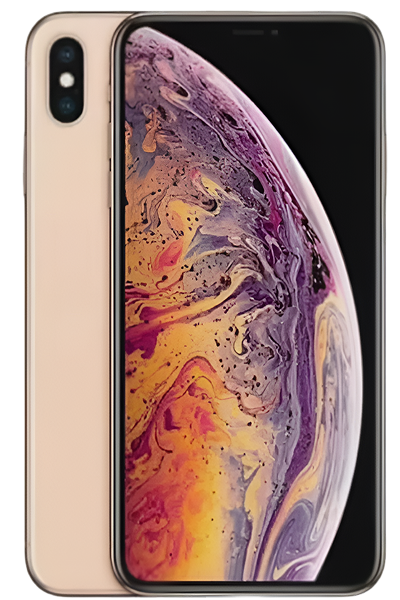
Get fast, reliable, and professional iPhone XS repair services at The Fix — your trusted destination for expert device care.
Common Repairs We Handle Daily


Keep Your iPhone XS Running Great: A Smart Guide to iPhone XS Repair
Introduction
Here's a wild stat: nearly 40% of iPhone XS owners are still using their devices in 2025, six years after launch. But here's what's interesting—most of them aren't holding onto outdated tech. They're keeping a device that still works great for everyday use, costs way less to maintain than buying new, and honestly doesn't feel that old.
If your iPhone XS is acting up, you're probably wondering whether iPhone XS repair makes sense or if it's time to upgrade. The truth is, most common issues—battery drain, charging problems, even cracked screens—are totally fixable. And when you compare the investment in repairs to dropping cash on a new phone, keeping your XS running usually wins.
In this guide, we'll walk you through what commonly goes wrong with the iPhone XS, which problems you can fix yourself, and when professional iPhone XS repair makes the most sense. Let's figure out what's going on with your device.
"Is This You?" Quick Diagnostic Quiz
Before we dive in, let's see which issues match what you're experiencing:
Battery & Power:
- Does your phone die before hitting 20%?
- Takes forever to charge (3+ hours)?
- Getting "Service" warnings in Battery Health?
- Phone gets hot doing basic stuff?
Charging & Connectivity:
- Charging cable only works at weird angles?
- Wireless charging stopped being reliable?
- "No Service" errors popping up randomly?
- WiFi keeps disconnecting even near the router?
Physical Damage:
- Screen's cracked but you've been "dealing with it"?
- Back glass shattered?
- Phone survived getting wet but now acts strange?
- Buttons feel stuck or mushy?
Performance Problems:
- Face ID fails constantly or doesn't work at all?
- Apps crashing way more than usual?
- Camera won't focus properly?
- Random restarts for no reason?
Your Score:
- 0-3 YES: You're in good shape—focus on prevention
- 4-7 YES: Time to consider repairs
- 8-11 YES: Multiple issues need attention
- 12+ YES: Needs professional assessment (but probably still fixable!)
Let's Talk About Your iPhone XS for a Second
The iPhone XS hit stores in September 2018, and it was basically Apple's "refined flagship" moment. They took what worked with the iPhone X, made it faster with the A12 Bionic chip, improved the cameras, and bumped up the water resistance to IP68. Nothing flashy, just solid improvements across the board.
What made the XS special was its timing—it represented peak smartphone design before things got complicated. You got a gorgeous 5.8-inch OLED display, Face ID that actually worked reliably, and performance that still holds up today for most people. Yeah, it's six years old now, but the A12 chip handles iOS 17 without breaking a sweat.
Here's the thing: when your XS starts having problems, it's usually not because it's "too old." It's because batteries age, screens crack, and charging ports collect six years of pocket lint. Most of that's fixable, which is why iPhone XS repair remains one of the smartest moves you can make instead of upgrading.
Why Modern Phones Have These Issues (It's Not Just Yours)
Look, every smartphone deals with certain problems. It's not that your device is defective—it's just physics and chemistry doing their thing over time. Understanding this helps you figure out what's normal aging versus what actually needs fixing.
Your Battery's Just Getting Old
Here's what happens with your battery: every time you charge it, tiny chemical changes occur inside. Think of it like a rechargeable flashlight—works great at first, but after a few years, it doesn't hold charge like it used to. That's not a defect, it's just how lithium-ion batteries age.
The iPhone XS shipped with a 2,658 mAh battery designed for about 500 full charge cycles before dropping to 80% capacity. If you've charged daily since 2018, you've blown past 2,000 cycles by now. At this point, your battery's probably running at 60-70% of its peak capacity. That's why it dies so fast—you're essentially running on a smaller battery than you started with.
Heat speeds this up too, which is why leaving your phone in a hot car isn't great for longevity. But here's the good news: battery replacement completely resets this. You get another few years of reliable performance, and it's way more affordable than buying a new device.
Screen Technology Ages Too
Your Super Retina display uses OLED technology—millions of tiny organic compounds that light up individually. They're amazing for deep blacks and vibrant colors, but "organic" means they degrade over time. After 40,000+ hours of screen-on time, you might notice slight brightness reduction or even burn-in where static elements leave ghost images.
This is predictable for six-year-old OLED panels, not some manufacturing defect. And yeah, drops don't help either. The glass is tough, but it's still glass. When it cracks, sometimes just the top layer breaks (fixable), and sometimes the whole display assembly needs replacement. Either way, it's repairable.
Ports Wear Out From Use
That Lightning port has been plugged in thousands of times over six years. The tiny connector pins and securing clip gradually wear down. Plus, pocket lint compresses deep into the port—we're talking a dense mass of fabric fibers and dust that prevents cables from seating properly.
Nine times out of ten, when someone thinks their charging port is broken, it's actually just packed with lint. A careful cleaning fixes it instantly. But genuine port wear does happen eventually, and that's a straightforward repair.
Water Resistance Fades
The IP68 rating your phone launched with came from gaskets and adhesives around the display, ports, and seams. Those materials compress and degrade over time, especially with temperature changes (hot summer car, cold winter pocket, repeat for six years). By now, assume your water resistance is significantly compromised even if the phone's never been opened.
This isn't failure—it's material science. Rubber seals don't last forever. Just means you should be more careful around water than you were in 2018.
The Issues Everyone Deals With
When Your Battery Dies Way Too Fast
What you're noticing: You charge to 100% in the morning, and by lunch you're already at 30%. Meanwhile, your friend with a newer iPhone makes it to dinner easily. Frustrating, right?
Why it's happening: Here's the thing—fast battery drain usually isn't about a dying battery, at least not at first. More often, it's an app running wild in the background, location services working overtime, or your phone constantly searching for signal. Sometimes it's that iOS update from last week that has a bug Apple's still patching.
Of course, batteries do age. After six years and 2,000+ cycles, your XS battery is genuinely worn out. Check Settings > Battery > Battery Health & Charging. If Maximum Capacity shows below 80%, the battery's legitimately old and needs replacement.
Let's try some fixes:
- Check what's draining power. Go to Settings > Battery and scroll down to see which apps are using the most juice. If you see something you barely use at the top, either delete it or disable Background App Refresh for that app (Settings > General > Background App Refresh).
- Restart your phone. Press Volume Up, then Volume Down, then hold the Side button until you see the Apple logo. This kills any stuck processes that might be draining power in a loop.
- Test Low Power Mode. Turn it on (Settings > Battery > Low Power Mode) and see if you make it through the day. If it helps significantly, your battery's probably fine—you've just got power-hungry settings or apps that need adjustment.
- Review Battery Health. If it shows below 80% Maximum Capacity, battery replacement makes sense. Below 75%? That's definitely why you're seeing these issues.
Here's what we've learned from the repair bench: We see people convinced they need professional iPhone XS repair for their battery, only to discover that disabling a couple of background apps solved everything. Before assuming it's hardware, spend 10 minutes investigating what's running. You might save yourself a trip entirely. That said, if your battery health is genuinely low, replacement gives you another 2-3 years of reliable daily use.
Your Charging Port Won't Work Right
What you're noticing: The cable only charges at specific angles. You've gone through three "broken" cables this year. Wireless charging works but wired doesn't. Or the port just feels loose when you plug in.
Why it's happening: After thousands of insertion cycles over six years, your Lightning port has probably accumulated a surprising amount of compressed lint deep inside. It prevents the cable from fully inserting, which makes it feel "loose" or only work at certain angles. Beyond that, the securing clip can weaken, or the pins can corrode from humidity exposure.
Let's try some fixes:
- Inspect with a flashlight. Shine a bright light into the port. See a dark mass at the bottom? That's not "just dirt"—it's tightly packed lint.
- Clean it carefully. Power off your phone first. Use a wooden toothpick (never metal—you could damage the pins) and gently scrape the bottom and sides of the port. You'll probably be shocked how much debris comes out. Compressed air alone won't remove this stuff.
- Try different cables. Use an Apple-certified cable if you've been using third-party ones. Some cheap cables have thicker connector housings that don't fully seat in worn ports.
- Check for corrosion. See any green or white crusty material on the pins? That's corrosion from liquid exposure. A bit of isopropyl alcohol on a toothbrush can remove light corrosion.
Did You Know? The Lightning connector was designed to handle 10,000 insertion cycles. Sounds like a lot, but if you've plugged in your phone twice daily for six years, you're at around 4,400 cycles. Add in all the times you've checked if it's charging or swapped cables, and you might actually be approaching that design limit. Port wear is real, but it's also totally repairable when it happens.
Here's what we've learned from the repair bench: About 90% of "broken charging port" complaints we see resolve with thorough cleaning. We spend several minutes with proper tools removing lint that owners didn't realize existed. For actual port damage, replacement is straightforward—the port, microphone, and antenna connections are on one flex cable that can be swapped. Don't let charging issues linger too long though, because inconsistent power delivery can eventually damage other components.
Face ID Stopped Working or Works Inconsistently
What you're noticing: Face ID works sometimes and fails others. You get "Face ID is Not Available" errors. Or maybe it stopped working completely after a screen repair you had done elsewhere.
Why it's happening: The TrueDepth camera system is sophisticated—it projects 30,000 infrared dots, reads them back, and maps your face. These components are paired to your specific logic board at the factory. Drops can misalign sensors. Poor-quality screen replacements can damage the delicate flex cables connecting everything. Even dust buildup on the dot projector can reduce reliability.
Let's try some fixes:
- Clean the notch area. Wipe the sensor area thoroughly with a microfiber cloth. Screen protectors that cover the sensors can interfere—make sure yours has proper cutouts.
- Delete and re-enroll Face ID. Go to Settings > Face ID & Passcode, delete your existing face data, and set it up fresh in different lighting conditions. Sometimes the algorithm just needs recalibration after iOS updates.
- Test in varied lighting. Face ID uses infrared (works in darkness), but extreme backlighting can cause issues. Try it in a normally-lit room to isolate whether it's a lighting problem or hardware problem.
- Check after screen repairs. If Face ID stopped working right after a screen replacement elsewhere, there's a good chance that repair damaged the TrueDepth flex cable. This is fixable, but you'll need professional iPhone XS repair to address it properly.
Tech Myth Debunked: Myth: "Once Face ID breaks, it's broken forever and can't be fixed."
Reality: Not true. If the issue is a damaged flex cable (common after bad screen repairs), that's replaceable. If dust or misalignment is the problem, that's correctable. What's tricky is if the actual dot projector fails—those components are serialized to your device, so replacement requires micro-soldering and specialized equipment. But plenty of Face ID issues are simpler fixes than people assume.
Here's what we've learned from the repair bench: Face ID problems spike after screen replacements done by inexperienced techs. The TrueDepth flex cable is incredibly delicate—one wrong move during screen removal and it tears. We always test Face ID before and after any screen work. If your Face ID stopped working immediately after someone else replaced your screen, bring it in—that's likely repairable damage from that previous work, and honestly, you could probably hold them accountable for it.
Less Common But Still Important Issues
Signal Problems and "No Service" Errors
What you're noticing: Your phone shows "No Service" or "Searching..." frequently. Calls drop even with full bars. Data speeds crawl. WiFi disconnects randomly at home but works fine elsewhere.
Why it's happening: The iPhone XS uses its stainless steel frame as part of the antenna system—clever engineering that can develop problems. The antenna flex cables connect the logic board to specific points on that frame. Drops can loosen these connections. Liquid exposure can corrode signal paths. Plus, the Intel modem in most XS models has documented reliability issues after years of thermal cycling.
Let's try some fixes:
- Reset Network Settings. Go to Settings > General > Transfer or Reset iPhone > Reset > Reset Network Settings. This won't erase your data, just WiFi passwords and cellular settings.
- Update iOS. Make sure you're running the latest version—Apple often includes modem firmware updates that improve connectivity.
- Reseat your SIM card. Pop it out, wipe the contacts with isopropyl alcohol, and put it back in. Sometimes corrosion on the SIM creates connection issues.
- Test with another carrier's SIM. Borrow a friend's SIM card briefly to rule out account or carrier issues.
Here's what we've learned from the repair bench: Signal issues are tricky because they're intermittent and hard to reproduce. When someone brings in an XS with connectivity problems, we use specialized equipment to test actual signal reception. In many cases, reseating antenna cables solves it—the connectors simply worked loose over time from drops or thermal cycling. Liquid damage creates corrosion on antenna paths, which is cleanable if caught early. The toughest cases involve modem chip failure, but even that's repairable with board-level work. Most signal problems don't require replacing the entire device.
Screen Damage Beyond Just Cracks
What you're noticing: Maybe you've had a cracked screen for months and suddenly touch stops working in certain areas. Or ghost touches register without you pressing anything. Or you're seeing weird discoloration and lines.
Why it's happening: The iPhone XS screen isn't just glass—it's multiple layers including the OLED panel, digitizer (touch sensor), and 3D Touch layer. Small cracks can propagate into the digitizer over time, especially with pocket pressure or temperature swings. The OLED panel itself can develop defects after six years, showing up as lines, dead pixels, or uneven brightness.
Let's try some fixes:
- Assess crack severity. Small corner cracks usually don't worsen quickly. Cracks near edges or across the center spread faster from flex stress during normal use.
- Test touch response. Open Notes and scribble all over the screen to identify dead zones. If touch works perfectly despite cracks, you can delay repair—but know that waiting risks digitizer damage.
- Apply a screen protector. Tempered glass can prevent crack propagation and reduce the risk of glass shards while you're deciding about repair.
Warning Signs Checklist - When Screen Damage Needs Immediate Attention:
- [ ] Touch stops responding in growing areas
- [ ] Display shows expanding black spots or lines
- [ ] Cracks spread visibly day by day
- [ ] Glass pieces are falling out
- [ ] You can see internal components through damage
Here's what we've learned from the repair bench: People often think small cracks are "just cosmetic," but we've seen hairline cracks suddenly spiderweb across the entire display after the phone was left in a hot car—thermal expansion propagated the damage instantly. Address even small cracks within 4-6 weeks if possible. Complete display failure doesn't cost more to fix, but it can create data access issues if the screen becomes totally unresponsive and you can't unlock the device. Professional iPhone XS repair for screens is straightforward when caught early.
What to Expect When You Bring Your iPhone XS In
Look, we get it—handing over your phone to a repair shop feels stressful. It's got all your stuff on it, and you're not entirely sure what happens back there. Let's walk you through exactly what goes down at The Fix, so there are zero surprises.
Step 1: Free Diagnostic (15-20 minutes)
We start with a comprehensive check using diagnostic tools that read your device's internal sensors and logs. This tells us exact battery cycle count, whether Face ID components are functioning, logic board temperature history, and whether there's been previous repair work. We also visually inspect under magnification for issues invisible to the naked eye.
This diagnostic is always free, and there's no pressure. If you decide not to proceed with repairs, you've lost nothing but a few minutes.
Step 2: Clear Explanation (In Plain English)
We'll explain exactly what's wrong, why it happened, and what your options are. No jargon, no upselling things you don't need. If something's fixable with a simple cleaning or settings adjustment, we'll tell you that too—even if it means we don't make money on the repair.
You'll get a written estimate before any work begins. If the repair doesn't make financial sense compared to replacement value, we'll be honest about that.
Step 3: Quality Parts and Careful Work
When we perform iPhone XS repair, we use high-quality tested components that we'd put in our own phones. Battery replacements use name-brand cells with proper management chips. Screen replacements maintain full functionality including True Tone. We're not the cheapest option out there, but we're the one you won't have to come back to in three months because a cheap part failed.
The actual repair work happens with precision—proper temperature control when dealing with adhesives, careful cable management, anti-static procedures. We don't rush.
Step 4: Testing Before You Leave
We don't just fix your issue and hand the phone back. Every repair includes comprehensive testing:
- Full charge/discharge cycle to calibrate battery systems
- Face ID verification in multiple lighting conditions
- Camera focus and stabilization checks
- Audio playback and microphone recording tests
- Display seal pressure testing
- Button and port functionality verification
You get a written report confirming everything works correctly. And if anything isn't right, you don't leave until we've sorted it out.
Our Commitment
We stand behind our work. If something goes wrong with the repair itself, bring it back and we'll make it right. Most repairs do not require wiping your device, and we handle your data with care. . What's on your phone stays on your phone.
How to Keep Your iPhone XS Running Great
A little prevention goes a long way. Here's what actually works:
Must Do:
Get a decent case. Yeah, it makes your phone bulkier, but here's the reality: a good case can prevent expensive screen damage. Look for one with raised edges around the screen and camera—those are the most vulnerable spots. We've seen phones survive serious drops because they had solid protection.
Clean your charging port regularly. Every couple months, power down and use a wooden toothpick to gently clear out any lint buildup. This prevents charging issues before they start.
Keep your battery between 20-80% when possible. Extreme charge levels (very low or constantly at 100%) accelerate battery aging. iOS 17's Optimized Battery Charging helps with this automatically.
Should Do:
Update iOS within a few weeks of release. Updates include battery optimization improvements and bug fixes. Just maybe skip the ".0" releases (wait for 18.1 instead of jumping on 18.0) since initial versions sometimes have issues.
Manage your storage. Keep at least 10% free space (8-10GB on a 64GB model). Full storage forces constant data shuffling that wears the flash memory and slows everything down. Use iCloud Photos with "Optimize Storage" if you're tight on space.
Review background apps monthly. Go to Settings > General > iPhone Storage, sort by Last Used, and delete apps you haven't touched in months. They're just sitting there draining battery and taking up space.
Nice to Do:
Use a screen protector. Tempered glass won't prevent your screen from cracking in major drops, but it absorbs minor impacts and prevents the micro-scratches that accumulate over time.
Avoid extreme temperatures. Don't leave your phone in a hot car or in direct sun. Heat dramatically accelerates battery aging. Below freezing temporarily reduces battery capacity (it comes back when warmed), but repeated freeze-thaw cycles aren't great for any electronics.
Don't stress about wireless vs wired charging. Wireless is convenient but generates more heat. If you use it, just don't leave your phone on the pad all night after it hits 100%. Either way works fine—do what fits your lifestyle.
Your iPhone XS Is Worth Keeping
Your iPhone XS is a solid device that's probably got another 2-3 years of life in it with the right care. Most issues you're experiencing—battery drain, charging problems, even cracked screens—are totally fixable at a fraction of the cost of upgrading.
The A12 chip still handles modern iOS smoothly. The OLED display still looks great. The cameras still take good photos for everyday use. When you're weighing iPhone XS repair against buying new, remember that quality repairs extend your device's life significantly while saving you serious money.
If you've tried the DIY fixes in this guide and you're still stuck, that's what we're here for. The team at The Fix handles iPhone XS repair daily—we've seen pretty much every issue these devices develop, and we're ready to help you figure out what's going on with yours. Bring it by, and let's get your phone sorted.


Trusted repair solution for mobile phones, tablets, gaming consoles, and computer systems. We provide fast, reliable, and affordable repair services to get your devices back in perfect working condition.
The Fix is an independent repair service provider and is not affiliated with, sponsored by, or endorsed by Apple Inc., Samsung Electronics, Google LLC, or any other device manufacturer. We use high-quality compatible replacement parts unless explicitly stated. All trademarks are property of their respective owners.


© Copyright The Fix Solutions All rights reserved 2026.
Design by Deepcoder