






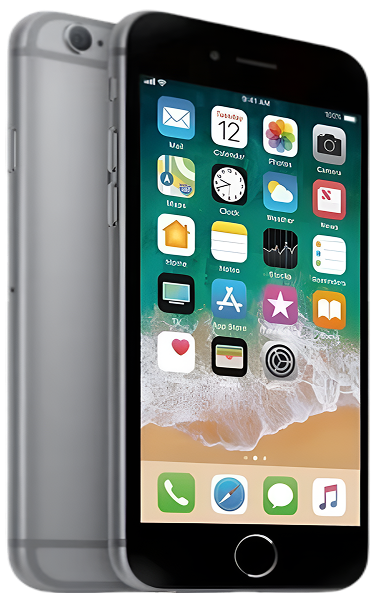
iPhone 6s Plus Repair Services
Get fast, reliable, and professional iPhone 6s Plus repair services at The Fix — your trusted destination for expert device care.
Common Repairs We Handle Daily


Fix Your iPhone 6s Plus Fast: Complete Repair Roadmap
Introduction
Picture this: you're halfway through composing an important email when your iPhone 6s Plus suddenly restarts for no reason. You lose everything you just typed. Or maybe you're trying to take a quick photo, but the camera won't focus—it just hunts back and forth endlessly. Your once-reliable 6s Plus is starting to feel like it's working against you instead of for you.
Here's something most people don't realize: your iPhone 6s Plus is nearly nine years old (launched September 2015), but it's actually one of the most maintainable legacy iPhones out there. Unlike the disaster that was the iPhone 6 with Touch Disease, the 6s Plus was built substantially better. It runs iOS 15—way more recent than most phones its age. And with targeted iPhone 6s Plus repair, this device can absolutely keep going for another year or two.
The big question isn't whether iPhone 6s Plus repair is possible—it definitely is. The question is which problems are worth fixing and which signal it's time to move on. In this guide, we'll walk through what's probably going wrong, how to fix it, and how to keep your 6s Plus running as long as possible. Let's get your phone sorted out.
Quick Problem Checklist: What's Actually Broken?
Before diving deep, let's identify your specific issues:
Battery & Power:
- [ ] Battery dies before you make it through the day
- [ ] Random restarts happening multiple times daily
- [ ] Phone shuts down with charge remaining
- [ ] Battery Health showing below 75%
- [ ] Device gets unusually hot during basic use
Display & Touch:
- [ ] Screen cracked and touch getting spotty
- [ ] 3D Touch stopped working entirely
- [ ] Display dimmer than it used to be
- [ ] Ghost touches registering randomly
- [ ] Dead zones where touch doesn't respond
Camera Issues:
- [ ] Photos are blurry even in good lighting
- [ ] Rattling sound when you shake the phone
- [ ] Camera hunts for focus without locking on
- [ ] Portrait mode not working correctly
- [ ] Optical zoom (2x) producing soft images
Buttons & Ports:
- [ ] Home button doesn't click or respond
- [ ] Touch ID fails constantly
- [ ] Charging cable only works at angles
- [ ] Volume or power buttons sticking
- [ ] Lightning port feels loose
Audio Problems:
- [ ] People can't hear you on calls
- [ ] Speakers sound muffled or distorted
- [ ] Microphone picks up poor quality audio
- [ ] Earpiece volume very low
Performance:
- [ ] Apps take forever to open
- [ ] Everything feels sluggish
- [ ] Storage always full
- [ ] System crashes frequently
Your Score:
- 1-3 checked: Single issues—targeted repairs make sense
- 4-6 checked: Multiple problems—evaluate total investment
- 7-9 checked: Significant issues—honest assessment needed
- 10+ checked: Critical condition—repair might not be practical
The iPhone 6s Plus: Built to Last
When the iPhone 6s Plus launched in September 2015, it fixed the major problems plaguing its predecessor. Apple strengthened the aluminum frame (goodbye Bendgate), dramatically improved Touch ID speed, introduced 3D Touch pressure sensitivity, bumped RAM to 2GB, and included that A9 chip that's still surprisingly capable today.
Nine years later, the 6s Plus holds up remarkably well compared to other phones its age. That 5.5-inch Retina HD display still looks great for media consumption. The dual cameras with optical image stabilization take solid photos. The 2,750 mAh battery was decent when new—even worn down, it's more capacity than the regular 6s. The build quality's genuinely solid without the structural flaws that destroyed earlier models.
What makes this device worth maintaining? It's proven reliable, parts are affordable and readily available, and iOS 15 still supports most essential apps. For someone who needs a phone for everyday tasks—calls, texts, email, social media, navigation, photos—the 6s Plus absolutely delivers. It won't handle demanding games smoothly or match modern flagship cameras, but for daily basics, it's perfectly serviceable with proper care.
The battery's your biggest concern at nine years old, followed by normal wear on mechanical components. But you're not fighting design defects like Touch Disease. You're just maintaining aging hardware, which is straightforward when you know what you're doing.
The Issues Everyone Deals With
Battery Percentage Drops Like a Rock
What's happening: You unplug at 100% in the morning, and by lunchtime you're already at 30%. Meanwhile, your coworker with a newer iPhone makes it to evening easily. You're constantly scanning for outlets, carrying charging cables everywhere, or you've basically accepted that your phone's perpetually dying.
Why this happens to everyone: After nine years and likely 3,000+ charge cycles, your battery's capacity has collapsed significantly. The iPhone 6s Plus shipped with a 2,750 mAh battery—decent in 2015. If Battery Health shows 70% or lower now, you're effectively running on about 1,925 mAh. That's why it can't make it through the day anymore.
The Battery Management System also loses calibration accuracy over time, so the percentage displayed isn't even reliable. When you try anything demanding—video, navigation, games—the worn battery can't deliver consistent power and the phone shuts down to protect itself.
What you can try right now:
- Check Battery Health immediately. Settings > Battery > Battery Health. Maximum Capacity below 80%? Your battery's worn out. Below 75%? That's definitely causing your problems.
- Hunt down battery hogs. Settings > Battery shows which apps drain the most. If something you rarely use sits at the top of that list, delete it or disable Background App Refresh for it (Settings > General > Background App Refresh).
- Force Low Power Mode. Don't wait for 20%—turn it on when you wake up (Settings > Battery > Low Power Mode). This cuts background activity and can add hours to your runtime.
- Test with a restart. Hold Sleep/Wake + Home until you see the Apple logo. Sometimes stuck processes drain power in loops. A restart clears them.
💡 Pro Tip: Before committing to battery replacement, test whether your battery's genuinely the problem or if it's runaway apps. Turn on Low Power Mode and use your phone normally for two days. If Low Power Mode gets you through the day comfortably, your battery's probably okay—you've just got power-hungry apps or settings. If Low Power Mode barely helps and you're still dying by afternoon, the battery's genuinely worn out and needs replacement. This simple test saves people from unnecessary repairs when the real issue is a buggy app running wild in the background.
What we tell customers who come in: Battery issues are the #1 reason people bring in their 6s Plus. The good news? Battery replacement is straightforward and makes a massive difference. We see devices with 65% battery health where owners thought the phone was "dying"—it wasn't dying, the battery was exhausted. A quality replacement brings the 6s Plus back to reliable all-day use for light to moderate tasks. It's genuinely the single most impactful iPhone 6s Plus repair you can do, and parts are readily available so it's cost-effective.
Your Phone Keeps Restarting Randomly
What's happening: You're using your phone normally and suddenly—Apple logo. The phone's restarting. Sometimes it happens once a day, sometimes multiple times. There's no pattern you can identify. You can't predict when it'll happen, which makes your phone feel completely unreliable.
Why this affects so many 6s Plus devices: Random restarts usually point to either battery failure (can't maintain consistent voltage under load) or corrupted iOS files. If your Battery Health is below 75%, that's the likely culprit—voltage drops suddenly when the processor demands power, triggering automatic restart.
It can also be caused by specific apps crashing the system, corrupted software from failed updates, or occasionally logic board issues.
What you can try right now:
- Check Battery Health first. If it's below 75%, the battery's probably causing restarts. The worn battery can't maintain stable power delivery.
- Update to the latest iOS 15. Settings > General > Software Update. Apple fixes restart-causing bugs in updates regularly.
- Look for patterns. Think about what you were doing when restarts happened. Same app each time? Specific activity? If one app consistently crashes the phone, delete it and see if restarts stop.
- Reset All Settings. Settings > General > Reset > Reset All Settings. This doesn't erase data—just returns system settings to defaults. Sometimes corrupted preferences cause instability.
- Monitor temperature. If your phone feels hot before restarting, overheating's triggering safety shutdowns. Ensure proper ventilation and remove thick cases while charging.
What really happens: Random restarts frustrate people because they're unpredictable and destroy trust in the device. Based on the devices we see, about 70% of restart issues trace back to battery problems—once we replace the battery, restarts stop completely. Another 20% is software corruption (fixable with iOS restore through iTunes/Finder). The final 10% involves logic board issues, which require diagnostics. We always start with battery testing if health is low since that's the most common cause and the most affordable fix.
Everything Feels Painfully Slow
What's happening: Apps hang on white screens before opening. Typing lags—letters appear half a second after you press keys. Switching between apps takes forever. The camera app freezes when you launch it. Everything that used to be instant now crawls.
Why performance degrades over time: iOS 15 on an A9 chip with 2GB RAM is genuinely at the limit, especially after nine years of accumulated app data, cached files, and system overhead. More critically, if your storage is over 90% full, iOS constantly juggles data just to function, which kills performance.
Background processes also pile up—apps you installed years ago still running services you forgot about, all competing for those 2GB of RAM.
What you can try right now:
- Check storage immediately. Settings > General > iPhone Storage. Using 90%+ of capacity? That's strangling performance. Delete unused apps, clear Safari cache (Settings > Safari > Clear History and Website Data), enable iCloud Photos with "Optimize iPhone Storage."
- Disable Background App Refresh for apps that don't need it (Settings > General > Background App Refresh). This frees up system resources for apps you're actually using.
- Turn on Reduce Motion. Settings > General > Accessibility > Reduce Motion. Makes animations simpler, but the phone feels noticeably faster on aging hardware.
- Restart weekly minimum. Hold Sleep/Wake + Home until Apple logo appears. Clears accumulated memory and stops background processes that slow everything down.
- Offload unused apps automatically. Settings > General > iPhone Storage > Offload Unused Apps (enable). Removes app files while keeping your data, freeing space without losing anything.
After repairing these devices daily: Slowness on the 6s Plus is almost always storage-related, not hardware dying. We see people with 122 out of 128GB used wondering why everything's slow—iOS needs breathing room. Once we help them clear storage down to 80% capacity, performance improves dramatically without any physical repairs. There's no iPhone 6s Plus repair that makes the A9 faster, but optimizing storage and disabling unnecessary background processes can make the phone feel way more usable. That said, it's nine-year-old hardware—it won't handle demanding modern apps smoothly no matter what.
The Occasional Headaches
3D Touch Just Stopped Working
What you're noticing: You press firmly on icons or messages and nothing happens. Peek and Pop features you used to rely on? Gone. The haptic feedback feels weak or completely absent. You've essentially lost one of the signature features that made you choose the 6s Plus.
Why this develops: 3D Touch uses pressure-sensitive technology combined with the Taptic Engine for haptic feedback. After nine years, the Taptic Engine's mechanical components can wear out from millions of haptic events. The pressure sensors embedded in the display can also lose sensitivity from accumulated presses over time.
Sometimes it's not hardware failure—it's software miscalibration after iOS updates.
What you can try:
- Recalibrate sensitivity. Settings > General > Accessibility > 3D Touch. Adjust the sensitivity slider (Light, Medium, Firm) and test with the image. Sometimes recalibration brings it back.
- Test haptic feedback elsewhere. Try keyboard haptics (if enabled) or other haptic events. If there's no haptic feedback anywhere, the Taptic Engine itself has likely failed.
- Force restart. Hold Sleep/Wake + Home until Apple logo. Occasionally 3D Touch gets confused and needs a system reset.
- Check for screen protectors. Some thick tempered glass protectors interfere with pressure sensing. Try removing it temporarily to test.
The honest repair reality: If 3D Touch isn't working, it's either the Taptic Engine or display pressure sensors. Taptic Engine replacement is straightforward. Display replacement also fixes sensor issues. But here's the question we ask: is 3D Touch critical to how you use your phone? Many people barely use it. If it's your only problem and you rely on it heavily, repair makes sense. If you're also dealing with battery death and other issues, fixing 3D Touch might not be a priority given the device's age.
Camera Won't Focus or Photos Look Blurry
What you're noticing: Photos that should be sharp look soft and blurry. The camera hunts for focus constantly—you can see the image going in and out without ever locking on. When you shake your phone, you hear a rattling sound from the camera area. Portrait mode produces inconsistent results or doesn't work at all.
Why camera issues appear: The iPhone 6s Plus rear cameras use optical image stabilization (OIS)—a tiny motor system that moves lens elements to compensate for hand shake and to focus. After nine years, these motors can fail, get stuck, or become misaligned. That rattling sound? It's the OIS mechanism loose inside the camera module.
The Voice Coil Motor (VCM) that controls focus can also fail independently. Dust getting inside the module affects focus quality too.
What you can try:
- Clean both camera lenses thoroughly. Use a microfiber cloth—fingerprints and smudges definitely affect image sharpness, especially on the telephoto lens.
- Test each camera individually. In the Camera app, switch between 1x (wide) and 2x (telephoto). Take test photos with each. This tells you if one camera's worse than the other or if both have problems.
- Tap to focus deliberately. Tap exactly where you want focus. Make sure you're giving the camera a clear focus target, not trying to focus on a blank wall.
- Force restart the phone. Hold Sleep/Wake + Home until Apple logo. Sometimes camera app glitches cause focus issues that restart fixes.
A pattern we've noticed: Camera focus issues on the 6s Plus usually indicate OIS motor failure—that rattling confirms it. Camera module replacement restores functionality, including autofocus and image stabilization. But set realistic expectations: the 6s Plus cameras are from 2015. Even with perfect new modules, photos won't match current phones. You'll get decent everyday snapshots in good lighting, but low-light performance and overall image quality are limited by sensor technology that's nearly a decade old. Camera replacement makes sense if you use it regularly and need working focus, but don't expect modern flagship quality.
Home Button Stopped Responding or Touch ID Fails
What you're experiencing: The home button doesn't register presses consistently. Touch ID used to work great, now it fails constantly or completely stopped recognizing your fingerprint. You're using the on-screen AssistiveTouch button because the physical one's unreliable or dead.
Why this happens after years of use: After nine years and hundreds of thousands of presses, the home button mechanism wears down. The Touch ID sensor surface gets scratched from fingers or accumulates oils and debris that prevent accurate reads. Sometimes it's the cable connecting the button to the logic board that's damaged, not the button itself.
What you can try:
- Clean the sensor surface meticulously. Use isopropyl alcohol on a microfiber cloth to clean the Touch ID area thoroughly. Oils and microscopic debris seriously affect accuracy.
- Re-register your fingerprints fresh. Delete all existing fingerprints (Settings > Touch ID & Passcode), then add them again. Make sure your finger and the sensor are completely clean and dry during registration. Register the same finger twice if you use it most.
- Test at different angles. When registering, include how you actually press the button during regular use—not just centered perfectly.
- Enable AssistiveTouch as backup. Settings > Accessibility > Touch > AssistiveTouch. Creates a virtual home button. Not ideal, but functional if the physical button fails.
The critical Touch ID limitation: The Touch ID sensor is cryptographically paired to your specific logic board at the factory for security. If we replace the home button assembly, it'll work as a button (clicks take you home), but Touch ID is permanently lost. Apple designed it this way to prevent fraud—there's no bypass.
If the button's physically broken, you're choosing between a working button without Touch ID or a broken button with non-functional Touch ID. Most people choose the working button. However, if it's just a loose cable, we can fix that and preserve Touch ID functionality.
Rare But Serious Problems
Phone Won't Power On or Loops at Apple Logo
What's happening: Your phone won't turn on at all, even after charging overnight. Or it shows the Apple logo, goes black, shows the logo again—endless loop. You can't get into the phone to do anything. It's essentially a paperweight.
Why this is serious: Complete power failure or boot loops indicate either catastrophic battery failure, severely corrupted iOS, or logic board component failure. If the battery's totally depleted (zero capacity), the phone can't power on even when plugged in because there's no buffer power to run the boot sequence.
Boot loops can be software (corrupted system files from failed updates) or hardware (failed logic board components, often power management related).
What you need to do immediately:
- Force restart aggressively. Hold Sleep/Wake + Home together for at least 15 seconds. Keep holding even if nothing happens. Sometimes this breaks the loop.
- Connect to iTunes/Finder. Plug into a computer, open iTunes (Windows) or Finder (Mac). If it recognizes the phone in recovery mode, you can restore iOS. This might fix software corruption.
- Try DFU mode restore. Connect to computer. Hold Sleep/Wake + Home for 8 seconds. Release Sleep/Wake but keep holding Home for 10 more seconds. iTunes/Finder should detect the phone in DFU mode. Restore iOS—this is deeper than normal recovery.
- Charge for 3+ hours uninterrupted. If the battery's completely dead, it needs extended charging before showing any life signs.
From working on these every day: Boot loops and power failures scare people because the phone's unusable and they can't access data. The reality? About 40% are software-related—iOS restore fixes them at no repair cost. Another 40% are battery-related—battery replacement brings the phone back. The final 20% involve logic board issues requiring diagnostics and potentially board-level repair if economically sensible. We always start with software troubleshooting and battery testing before assuming catastrophic failure. Often it's simpler than people fear.
What to Expect When You Bring Your iPhone 6s Plus In
We treat the 6s Plus with respect because it's one of the better-aging legacy devices worth maintaining.
Free Assessment and Honest Guidance
We'll run comprehensive diagnostics—battery health testing, functionality checks, liquid damage inspection, button and port testing. Then we do something important: we calculate what repairs you actually need and give you straight talk about whether the investment makes sense.
A 6s Plus needing just battery work? Absolutely worth it. Battery plus 3D Touch repair plus camera replacement plus screen work? That's when we have an honest conversation about total investment versus device age and remaining viable lifespan.
Quality Components for Legacy Devices
When we perform iPhone 6s Plus repair, we use tested quality parts. Battery replacements get reliable cells with proper management chips. Screen replacements maintain full functionality including 3D Touch support. We don't use bottom-tier parts just because it's an older phone—you deserve quality work regardless of age.
Realistic Performance Expectations
We're upfront about limitations. Even perfectly repaired, your 6s Plus won't perform like modern phones. It handles basics excellently—calls, texts, email, social media, maps, photos. Don't expect smooth gaming, professional photography, or resource-intensive apps. It's nine-year-old hardware running its final iOS version.
Setting honest expectations prevents disappointment after repair.
The Sustainability Conversation
Keeping your 6s Plus running another year or two prevents e-waste and saves you significant money compared to upgrading. There's genuine value in maintaining reliable hardware that still meets your needs. We're not just fixing phones—we're helping people make financially and environmentally smart choices about technology.
Keep Your 6s Plus Running Longer
If you're committed to maintaining your device, here's what actually helps:
Battery replacement isn't optional. Below 80% capacity, it's required. This single repair transforms daily usability more than anything else.
Manage storage aggressively. Keep it under 85% full. When it maxes out, performance dies. Delete unused apps, clear Safari regularly, use iCloud optimization for photos.
Clean ports and speaker grilles monthly. Use a wooden toothpick for Lightning port, soft brush for speakers. Prevents issues before they become problems.
Protective case is mandatory now. After nine years, the phone's fragile. Get a case with raised edges around screen and cameras—those are most vulnerable to damage.
Restart weekly minimum. Clears memory, stops sluggish background processes. Takes 30 seconds and genuinely helps performance.
Avoid heat at all costs. Never leave in hot cars, don't charge in direct sunlight. Heat accelerates battery aging and can damage other components.
Low Power Mode is your friend. Use it proactively when you need all-day battery, not reactively at 20%.
Accept iOS 15 is the end. No future updates coming. App support will gradually fade. Plan accordingly for what that means for your usage.
Your iPhone 6s Plus Can Keep Going
Your iPhone 6s Plus is nine years old, which is genuinely impressive for a smartphone. Unlike its predecessors with catastrophic design flaws, the 6s Plus was built well and has aged gracefully. It runs iOS 15, handles everyday tasks smoothly, and with proper care can absolutely serve you another year or two.
iPhone 6s Plus repair makes sense when you're dealing with battery, screen, or standard component issues. These repairs are affordable, parts are available, and results genuinely extend usability. The phone's limitations aren't from hardware failure—they're from age. For someone with basic needs and realistic expectations, the 6s Plus delivers.
If you're dealing with multiple major failures or the phone simply can't handle your daily requirements anymore, that's when alternatives make more sense. But if it's just battery or a couple fixable issues, keeping it running is smart and sustainable.
Stop by The Fix for a free assessment. We'll identify what's actually wrong, explain what's fixable, calculate investment needed, and give you honest guidance about whether iPhone 6s Plus repair makes sense for your situation. The 6s Plus is one of our favorite legacy devices to work on because it responds so well to proper repairs. Let's see what we can do to keep yours going strong.


Trusted repair solution for mobile phones, tablets, gaming consoles, and computer systems. We provide fast, reliable, and affordable repair services to get your devices back in perfect working condition.
The Fix is an independent repair service provider and is not affiliated with, sponsored by, or endorsed by Apple Inc., Samsung Electronics, Google LLC, or any other device manufacturer. We use high-quality compatible replacement parts unless explicitly stated. All trademarks are property of their respective owners.


© Copyright The Fix Solutions All rights reserved 2026.
Design by Deepcoder