






iPhone 14 Repair Services
Get fast, reliable, and professional iPhone 14 repair services at The Fix — your trusted destination for expert device care.
Common Repairs We Handle Daily


iPhone 14 Troubleshooting: A Step-by-Step Guide Before You Seek a Repair
Your iPhone 14 is acting strange. Maybe the battery seems to drain in the blink of an eye, or the screen isn't responding the way it should. It’s a frustrating feeling, and your first instinct might be to assume the worst—that a major, expensive component has failed. But what if it’s something you can identify, and maybe even fix, yourself?
Before you jump to conclusions, let’s put on a technician’s hat together. In my experience, a logical diagnostic process is the key to solving any tech problem. This guide is designed to be your step-by-step troubleshooting manual. I'll walk you through a series of checks, from the simplest software fixes to identifying the clear signs of a hardware failure, to help you figure out what’s really going on with your device and whether you truly need a professional iPhone 14 repair.
Getting to Know Your iPhone 14
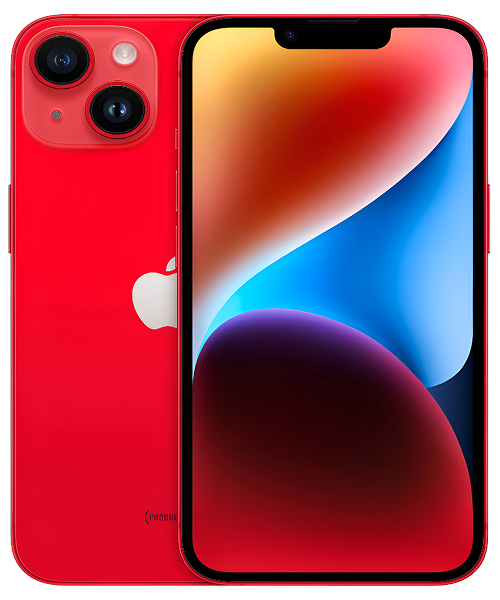
Launched in the fall of 2022, the iPhone 14 was a rock-solid evolution of one of the world's most popular phones. As the mainstream flagship, it was engineered for reliability, powered by the proven A15 Bionic chip (the more powerful 5-core GPU version from the iPhone 13 Pro). It was celebrated for its significant camera improvements, particularly in low light thanks to the new Photonic Engine, and for introducing critical safety features like Crash Detection. It's a capable device, and understanding its baseline is the first step in diagnosing a deviation.
The Universal Challenges of Modern Electronic Devices
So, where do we start our diagnosis? First, we need to understand the fundamental question: is this a software problem or a hardware problem?
- Software Glitches: Think of these as a temporary traffic jam in your phone's brain. An app crashes, a process gets stuck in a loop, or a bit of corrupted data causes chaos. The good news? These are often fixable with reboots or resets. The diagnostic sign: The problem is often intermittent or started happening right after a software update.
- Hardware Failure: This is when a physical component—the battery, the screen's touch sensor, a chip on the logic board—is actually failing. The bad news? This isn't something a software update can fix. The diagnostic sign: The problem is usually consistent, persistent, and often tied to a physical event (like a drop).
Our goal with troubleshooting is to systematically rule out software issues first, because they’re the easiest to fix. If the problem remains after we've exhausted the software fixes, we can be confident it’s a hardware issue.
An In-Depth Look at Common iPhone 14 Problems
Let's walk through the diagnostic process for the most common issues we see with the iPhone 14.
1. iPhone 14 battery draining fast
- Symptoms: You start your day with 100%, but by early afternoon, you’re already hunting for a charger. The phone might also feel a little warm.
- Potential Causes: This could be a worn-out battery (hardware), but it’s far more likely to be a software issue, like a rogue app or a system service stuck in a loop.
- In-Depth Troubleshooting Steps:
- Step 1: The Investigation. Go to Settings > Battery. This is your diagnostic dashboard. Scroll down. Do you see an app at the top of the list that has been consuming a huge amount of power, especially "Background Activity"? If yes, you've found your prime suspect. Try deleting and reinstalling that app.
- Step 2: The Soft Reboot. If you don't find a clear culprit, the next step is a simple restart. Power the phone off and turn it back on. This can clear temporary glitches. Did the drain stop? If not, move to the next step.
- Step 3: The Hard Reset. This is a more forceful reboot. Press and quickly release the volume up, then volume down, then press and hold the side button until the Apple logo appears. This can resolve deeper software conflicts.
- Step 4: The Battery Health Check. Go to Settings > Battery > Battery Health & Charging. Is the "Maximum Capacity" below 85%? If yes, the battery itself is chemically aged and is likely the root cause of the problem.
- A common misconception our technicians often address is that a single day of bad battery life means the battery is dead. In reality, factors like being in an area with poor cell service can force your phone’s antenna to work much harder, draining the battery rapidly. Always test for a couple of days after troubleshooting before concluding it’s a hardware failure that requires a professional iPhone 14 repair.
2. iPhone 14 screen unresponsive
- Symptoms: You tap on an app, and nothing happens. Or maybe you can't swipe to unlock your phone. The screen is on, but it's ignoring you.
- Potential Causes: This has a 50/50 chance of being software or hardware. A software crash can freeze the system that processes touch input. A hardware failure means the digitizer (the touch-sensing layer of the screen) has failed or its connection is loose, often after a drop.
- In-Depth Troubleshooting Steps:
- Step 1: Is it truly unresponsive? Press the side button. Does the screen turn off and on? If yes, the phone itself isn't completely frozen. This points more towards a touch-specific issue.
- Step 2: The Hard Reset. Because you can't use the screen to power off, a hard reset is your primary tool here. If the phone reboots and the touch works again, it was likely a one-time software crash.
- Step 3: The Physical Inspection. Look at the phone from an angle. Do you see any hairline cracks? Is the screen lifting slightly from the frame anywhere? These are clear signs of physical damage that would point to a hardware failure.
- One key detail our experts have noted is the "connector test." If your screen's touch function works intermittently—fine one moment, unresponsive the next—it’s a classic sign of a loose internal display connector. Every time you move or handle the phone, the connection shifts. This is a definitive hardware problem that requires a professional iPhone 14 repair to open the device and reseat or replace the screen.
3. iPhone 14 camera issues
- Symptoms: You open the Camera app and it’s just a black screen. Or it opens, but the image is blurry and won’t focus.
- Potential Causes: This can be a software bug, but it's often a hardware failure of the delicate camera module itself, especially after an impact.
- In-Depth Troubleshooting Steps:
- Step 1: The App Test. Does the front-facing "selfie" camera work? What about the camera in another app, like Instagram or TikTok? If one camera works but the other doesn't, or if it works in one app but not another, it's a strong clue that the issue is software-related.
- Step 2: The Reboot. A hard reset can often fix a software glitch that prevents iOS from properly initializing the camera hardware.
- Step 3: The Focus Test. If the camera opens but is blurry, try tapping on subjects at different distances. Can you hear the lens trying to move? If it's completely silent and stuck, the autofocus motor has likely failed.
- A common misconception is that a camera must be physically cracked to be broken. The truth is, the internal Optical Image Stabilization (OIS) and autofocus systems are incredibly delicate mechanical parts. We often see phones with no external damage that have a failed camera because a sharp jolt was enough to break these tiny motors.
4. iPhone 14 restarting randomly
- Symptoms: Your phone just reboots itself for no reason. It might happen when you're using a specific app, or it could seem completely random.
- Potential Causes: This is one of the trickiest problems to diagnose. It can be a serious software bug, a failing battery that can't provide stable power, or a critical fault on the main logic board.
- In-Depth Troubleshooting Steps:
- Step 1: The Panic Log Check. This is an advanced step, but it's the most definitive. Go to Settings > Privacy & Security > Analytics & Improvements > Analytics Data. Scroll through the list. Do you see any files with names that start with "panic-full"? If you see multiple recent "panic" logs, it is a 100% confirmation of a hardware problem.
- Step 2: The Software Restore. If you don't see panic logs, the issue could be corrupted software. The next step is to back up your phone completely and perform a full restore through a computer. If the problem goes away, you've solved it.
- Step 3: The Battery Question. Did the restarting start happening when your battery health dropped below 85%? A weak battery often can't supply enough power when the processor needs it, causing the system to crash and reboot.
- One key detail our experts have noted is what the panic logs mean. These logs often contain text that points to the specific component that is failing (e.g., related to the NAND memory or the audio IC). This allows a professional technician to diagnose the fault with incredible precision, making a targeted iPhone 14 repair possible instead of just guessing.
Our iPhone 14 repair Process: The Professional Diagnosis
So, you've gone through the troubleshooting steps, and you've confirmed it’s a hardware issue. What's next? Our process is designed to be the logical continuation of your diagnosis.
- The Free, No-Pressure Diagnosis: You tell us what you found during your troubleshooting. Our technicians will then use our professional tools to verify your findings and pinpoint the exact component that has failed.
- Clear Options and Upfront Pricing: We’ll explain the diagnosis in clear, simple terms and provide a quote for the specific repair needed.
- The Expert Repair: Our skilled technicians will perform the repair, whether it’s a simple screen replacement or a more complex logic board fix.
- Post-Repair Testing: We run a full suite of diagnostic tests after the repair to ensure the problem is fully resolved and your phone is stable.
A Proactive Guide to Keeping Your iPhone 14 in Peak Condition
The best troubleshooting is the one you never have to do. Keeping your software and apps updated is the number one way to prevent software-related issues. For hardware, a good quality case is the best insurance against drop damage. And monitoring your battery's health and replacing it when it gets old can prevent a whole host of performance and stability problems down the line.
Conclusion
Troubleshooting your iPhone 14 doesn't have to be a guessing game. By following a logical, step-by-step process, you can often narrow down the problem to a specific cause, and sometimes even fix it yourself. You now know how to tell the difference between a simple software glitch and a true hardware failure.
If your diagnosis has led you to a hardware problem, don't worry. You've done the hard part of figuring it out. The next step is easy. Contact The Fix today for a professional and transparent iPhone 14 repair to get your device back to 100%.


Trusted repair solution for mobile phones, tablets, gaming consoles, and computer systems. We provide fast, reliable, and affordable repair services to get your devices back in perfect working condition.
The Fix is an independent repair service provider and is not affiliated with, sponsored by, or endorsed by Apple Inc., Samsung Electronics, Google LLC, or any other device manufacturer. We use high-quality compatible replacement parts unless explicitly stated. All trademarks are property of their respective owners.


© Copyright The Fix Solutions All rights reserved 2026.
Design by Deepcoder