






Mac Repair Services
Get fast, reliable, and professional Mac repair services at The Fix — your trusted destination for expert device care.
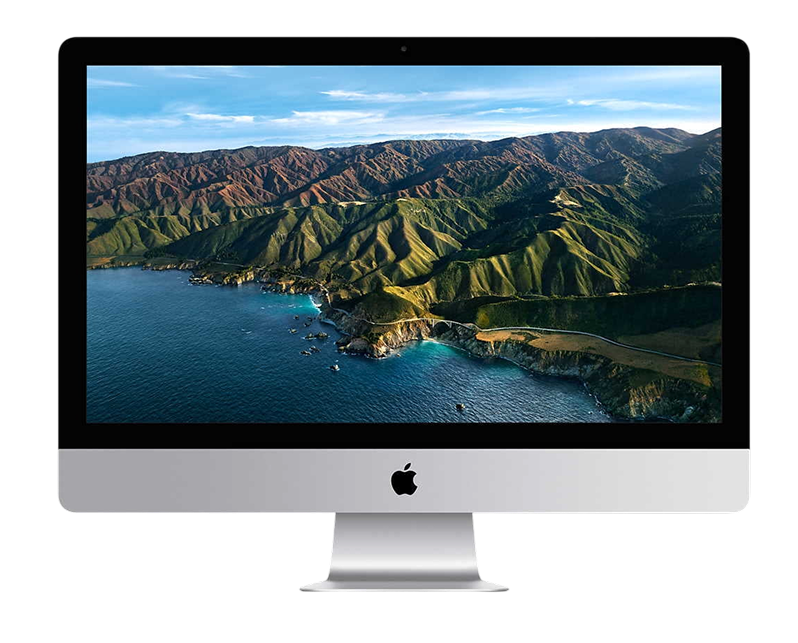
Common Repairs We Handle Daily


Transform Your Mac With Professional Repair
Is your Mac acting like it's forgotten what it's supposed to do? You know the symptoms—spinning beach balls that appear more often than your actual work, fans that sound like a jet engine warming up, or maybe the thing won't even turn on anymore. Perhaps you're dealing with storage warnings that pop up constantly, or your once-silent machine now grinds and whirs like it's mining cryptocurrency in the background.
Here's the question nobody wants to ask but everyone's thinking: do you really need to replace it, or can professional Mac repair bring it back to life? The answer's usually the latter. Macs are built to last, and most problems—even the ones that seem catastrophic—are totally fixable with the right expertise. Whether you're running an iMac, Mac mini, Mac Pro, or Mac Studio, professional repair costs a fraction of replacement and gets you back to the machine you know and love. Let's figure out exactly what's wrong with your Mac and how we can fix it.
Quick Problem Checklist: What's Your Mac Doing?
Before we dive deep, let's quickly identify what you're experiencing. Check all that apply:
Startup and Power Issues:
- Won't turn on at all (no lights, no sounds, nothing)
- Powers on but displays nothing (black screen, but you hear the startup chime or fan)
- Gets stuck on the Apple logo or progress bar
- Starts up but immediately shuts down or restarts
- Shows a flashing question mark folder
Performance Problems:
- Unbearably slow—everything takes forever
- Freezes or hangs constantly
- Beach ball cursor appears frequently
- Apps crash or quit unexpectedly
- Shuts down randomly during use
Hardware Symptoms:
- Overheating—case gets uncomfortably hot
- Fan noise—constantly loud or unusual sounds
- Strange noises from the drive (clicking, grinding, beeping)
- Screen issues—flickering, lines, discoloration, or dimness
- Ports not working—USB, Thunderbolt, or other connections
Storage and Software:
- "Startup disk is almost full" warnings
- Can't install updates or new software
- Files corrupted or missing
- Extremely slow file operations
- Backup failures
If you're experiencing multiple symptoms from different categories, don't panic—that's actually common. One failing component can cause cascade effects that make it seem like everything's broken. We'll sort it out.
What Makes the Mac Tick
Your Mac—whether it's an all-in-one iMac, compact Mac mini, powerhouse Mac Pro, or the newer Mac Studio—represents Apple's desktop computing philosophy: integrated hardware and software designed to work together seamlessly. These aren't just computers; they're tools that become part of your creative or professional workflow.
iMacs combine everything into that gorgeous display. Mac minis are compact powerhouses perfect for those who already have displays. Mac Pros are modular beasts for professionals who need serious computing power. Mac Studios bridge the gap between consumer and pro machines. What they all share is macOS, optimized hardware, and Apple's tight integration that makes everything feel smooth—when it's working correctly.
The thing is, Macs get used hard. Creative professionals run demanding applications for hours. Developers compile code constantly. Video editors process massive files. Business users keep dozens of apps and browser tabs open simultaneously. Home users let them run 24/7 as media servers or for other tasks. This intensive use is exactly what Macs are designed for, but over time, components wear out and need attention.
Won't Boot or Start Properly
What you're experiencing: You press the power button and get nothing—no chime, no light, no fan noise. Or maybe it powers on but hangs at the Apple logo, progress bar stuck at 50%. Sometimes you see a flashing folder with a question mark. Or it starts but immediately shuts down or restarts in an endless loop. You've tried waiting, you've tried forcing restart, and nothing's working.
Why this happens: Boot failures stem from several possible culprits. Storage drive failure is incredibly common—if the Mac can't read the drive containing macOS, it can't boot. Logic board issues prevent proper startup. Power supply failures mean components aren't getting electricity. Corrupted system files from bad updates or sudden shutdowns can prevent booting. RAM failures cause startup hangs or kernel panics. For older Macs with spinning hard drives, mechanical failure is often the issue.
What you can try:
- Try starting in Safe Mode (hold Shift immediately after power on). If this works, you've got a software or driver issue.
- Reset NVRAM/PRAM (hold Option+Command+P+R during startup for 20 seconds). This resets certain settings that might prevent booting.
- Try booting into Recovery Mode (hold Command+R at startup). If you can get here, use Disk Utility to check the drive.
- For Macs that power on but show nothing, try shining a flashlight at the screen—if you see faint images, it's a backlight issue, not a boot failure.
- Disconnect all external devices and peripherals, then try starting. Sometimes a bad USB device causes boot problems.
Working with these daily teaches you: Boot problems feel catastrophic but they're often fixable. Failed or failing storage drives account for about half the cases we see—the drive isn't completely dead yet, but it's got bad sectors or firmware issues preventing proper OS loading. We can often recover data even from failing drives, then install a fresh drive and restore everything. Logic board issues are less common but still repairable—often it's specific components on the board rather than the entire board. Power supply replacements are straightforward. Corrupted systems we can reinstall while preserving your data. The key is proper diagnosis to identify the actual problem rather than just the symptom.
Severe Slowdown and Performance Issues
What you're experiencing: Your Mac has become unusably slow. Apps take 30 seconds to launch when they used to open instantly. The beach ball cursor is your new constant companion. Switching between applications feels like wading through molasses. Simple tasks like opening folders or scrolling web pages lag noticeably. You're starting to wonder if you accidentally enabled some kind of slow-motion mode.
Why this happens: Performance degradation usually comes from multiple factors combining. Storage drives near capacity struggle—macOS needs space for temporary files, swap space, and virtual memory. Fragmented drives (on older Macs with HDDs) cause slow access times. Failing drives exhibit severe slowdowns before dying completely. Too many login items and background processes consume RAM and CPU. Thermal issues cause throttling—the system slows itself down to prevent overheating. Malware or poorly coded software can monopolize resources. Insufficient RAM for modern macOS versions causes constant disk swapping.
What you can try:
- Open Activity Monitor (Applications/Utilities) and check what's using CPU and memory. Sort by CPU usage to identify resource hogs.
- Check available storage. You need at least 10-15% free space for the system to operate efficiently. Delete large files or move them to external storage.
- Restart your Mac. Sounds basic, but many people run their Macs for weeks without restarting, and memory leaks accumulate.
- Check Login Items in System Preferences → Users & Groups. Disable unnecessary startup programs.
- Run Disk Utility's First Aid to check and repair disk errors.
- Check temperatures using an app like Macs Fan Control. If your CPU is running hot, that's causing throttling.
Real-world repair results show: Performance issues are rarely just one thing—they're usually a combination. We'll often find a nearly full drive, 30 programs launching at startup, accumulated cache files consuming gigabytes, and maybe thermal paste that's dried out causing overheating. Addressing everything together makes a dramatic difference. Sometimes the solution is hardware—upgrading RAM or switching from an old hard drive to an SSD transforms the experience completely. An iMac that's been frustratingly slow for months suddenly feels brand new after an SSD upgrade and system cleanup. It's genuinely one of the most satisfying repairs because the performance improvement is so obvious.
Overheating and Excessive Fan Noise
What you're experiencing: Your Mac sounds like it's preparing for takeoff. The fans spin up to maximum speed doing basic tasks like web browsing. The case gets hot enough that it's uncomfortable to touch. Performance tanks because the system's throttling to manage heat. Apps become sluggish, video playback stutters, and sometimes the Mac shuts down completely to protect itself from thermal damage.
Why this happens: Macs have sophisticated thermal management, but several things can compromise it. Dust accumulation is the primary culprit—it clogs cooling fins and restricts airflow through the system. Thermal paste between processors and heatsinks dries out over time, becoming less effective at heat transfer. Fans wear out—bearings degrade, blades accumulate gunk, and they can't move air efficiently anymore. Demanding workloads that used to run fine now generate excessive heat because the cooling system can't keep up. On iMacs, the tight integration means heat has limited escape routes, making effective cooling even more critical.
What you can try:
- Check Activity Monitor for runaway processes consuming CPU constantly. Sometimes a stuck background process generates heat unnecessarily.
- Ensure ventilation—don't block vents with papers or other objects. For Mac minis, make sure there's clearance above and around the unit.
- Reset the SMC (System Management Controller): Shut down, unplug power, wait 15 seconds, reconnect, wait 5 seconds, then power on.
- Use an app to monitor temperatures (iStat Menus or similar). This tells you if you're actually overheating or if fan control is just being aggressive.
- Close unnecessary apps and browser tabs. Each one generates some heat and uses resources.
Tech Myth Debunked: "Macs don't need cleaning—they're sealed units." False. Every Mac pulls in air for cooling, and air contains dust. Over time, substantial dust accumulation occurs inside even "sealed" systems. Regular professional cleaning every 2-3 years prevents overheating problems before they start and extends component lifespan significantly.
After years of fixing these devices: When we open up an overheating Mac, the dust accumulation is often shocking. The cooling fins look like they're wrapped in felt, fans are caked with debris, and airflow is maybe 30% of what it should be. We clean everything thoroughly using compressed air and proper tools, replace thermal paste with high-quality compound rated for the temperatures these systems run at, test fan operation, and reassemble. Temperature drops are dramatic—we're talking 25-35°C reductions under load. Your Mac runs quietly, stays cool, performs properly without throttling, and the fans only spin up when actually needed for heavy workloads. The transformation is immediate and obvious.
Storage Drive Failures and Warnings
What you're experiencing: You're getting constant "Startup disk is almost full" warnings even after deleting files. The Mac makes clicking, grinding, or beeping noises. You can hear the drive working constantly even when you're not doing anything. Files are corrupted or missing. Operations that should be instant take forever. Sometimes the Mac doesn't recognize the internal drive at all, or it disappears and reappears randomly.
Why this happens: Storage drives have finite lifespans. Traditional hard drives have mechanical parts—spinning platters and moving read/write heads—that eventually wear out. SSDs have write cycle limits and controller failures. Both types can develop bad sectors, firmware bugs, or complete component failures. Sudden power losses corrupt file systems. Physical shocks from drops or movement during operation can damage drives. Heat accelerates degradation. The drive's SMART monitoring system tracks health metrics, and when certain thresholds are crossed, failure becomes imminent.
What you can try:
- BACK UP IMMEDIATELY if you're experiencing these symptoms. Drive failure can be sudden and complete.
- Boot into Recovery Mode (Command+R) and run Disk Utility's First Aid. This might repair file system errors.
- Check drive health using Disk Utility or third-party SMART monitoring tools. Look for reallocated sectors, pending sectors, or SMART errors.
- If you're getting grinding or clicking noises, stop using the Mac immediately—continued operation can make data recovery impossible.
- For "disk full" warnings, check Storage settings to identify what's consuming space. Sometimes Time Machine local snapshots or cache files consume surprising amounts.
The consistent trend we observe: Storage drive failures show warning signs for weeks before complete failure. If you're experiencing unexplained slowdowns, random errors, strange noises, or SMART warnings, don't wait. We can clone failing drives to new ones, preserving your data and giving you a fresh, reliable drive—often with an upgrade to larger capacity or faster SSD technology. The cloning process copies everything block-by-block, so your Mac boots up after repair exactly as it was, just faster and more reliable. Many times we've recovered data from drives that seemed completely dead, so even if your Mac won't boot, there's often hope for data recovery.
Why Every Mac Eventually Shows Wear
Let's be real about what happens to computers over time. Macs are exceptionally well-built, but they're still complex electronic devices with hundreds of components working constantly. Understanding why things wear out helps you appreciate why maintenance matters.
Think about bike tires you've ridden on for years. When new, the rubber was thick and the tread was deep—you could ride over anything without worrying. After thousands of miles, the rubber's thinner, the tread's worn down, and you can feel every bump in the road. Eventually, you're dealing with flats more often because the tire just can't protect the inner tube anymore. That's similar to what happens with component tolerances in your Mac—everything's precise when new, but mechanical wear accumulates microscopic changes that eventually affect function.
Or consider a garden hose connection you've attached and removed hundreds of times. Initially, it threaded smoothly and sealed perfectly. After years of connecting it to different spigots, unscrewing it for winter storage, maybe overtightening it occasionally—the threads are slightly worn, the rubber gasket is compressed and hardened, and now it doesn't seal quite as well. You might get leaks or have to tighten it more to get a good connection. Mac ports experience similar wear from years of plugging and unplugging cables—USB ports, Thunderbolt connections, power adapters. The metal contacts wear microscopically, and eventually, connections become unreliable.
Inside your Mac, heat cycling happens constantly. Every time you use it, processors heat up—sometimes reaching 90-100°C under load. Then they cool down. This expansion and contraction happens thousands of times. Solder joints experience stress, thermal paste hardens and loses effectiveness, adhesives weaken. Fans spin millions of revolutions, and bearing wear accumulates. Hard drives spin at 5400 or 7200 RPM for thousands of hours—the mechanical precision required is remarkable, but eventually, components wear.
Storage drives face unique challenges. HDDs have actuator arms moving back and forth positioning read/write heads over spinning platters with nanometer precision. After years of operation, bearing wear, head contamination, and platter degradation occur. SSDs don't have moving parts, but they face a different limitation—each memory cell can only be written a finite number of times before it wears out. Controller circuits manage wear leveling to extend life, but eventually, enough cells fail that the drive becomes unreliable.
Even software contributes to aging. macOS updates bring new features but also increased resource demands. The operating system and apps that ran smoothly on your Mac when new expect more processing power, more RAM, and faster storage as they evolve. Your hardware hasn't gotten slower—the demands on it have increased.
This isn't about planned obsolescence or poor quality. It's about physics, chemistry, and the reality that everything mechanical or electronic has a service life. The good news? Most of what wears out is repairable or upgradable. Professional Mac repair extends your machine's life for many more years.
Screen and Display Problems
What you're experiencing: Your display shows flickering, especially when moving the Mac or adjusting angles (for iMacs). There are pink or green tints that weren't there before. Maybe vertical or horizontal lines across the screen. The image might be dim—technically working but barely visible without external light. Or you're seeing "image persistence" where ghostly outlines of previous content remain visible.
Why this happens: Different Macs have different display issues. iMacs integrate the display directly, and problems can stem from failing display panels, backlight issues, or graphics card failures. The Thunderbolt/DisplayPort connection to external displays can fail. Certain iMac models suffered from known panel coating delamination issues. Heat affects display components over time. For Macs with dedicated GPUs, graphics card failures cause artifacts and display corruption.
What you can try:
- Connect an external display (for Mac minis, try a different display). If it works perfectly, you've isolated the problem to the display hardware or internal connection.
- Reset NVRAM (hold Option+Command+P+R during startup for 20 seconds) to reset display settings.
- Boot into Safe Mode to rule out driver or software issues.
- For iMacs, pay attention to whether problems are temperature-dependent—some GPU issues only appear when the system's hot.
- Check for system updates—sometimes display bugs are addressed in macOS updates.
What really happens in most cases: Display problems divide into a few categories. Panel failures are less common but require panel replacement. Backlight failures (on older LCD models) cause dim displays. Cable connection issues between logic board and display cause intermittent problems. GPU failures cause artifacts, corruption, and system instability. For iMacs especially, the all-in-one design means display repairs are more involved than external displays, but they're absolutely doable. We've replaced countless iMac displays, and properly done, the repair is permanent. Your display looks crisp, colors are accurate, and you're not squinting or adjusting brightness constantly trying to see properly.
Here's Exactly How We Fix Your Mac (No Surprises)
Let's walk through our process so there are zero surprises when you bring your Mac to The Fix.
Initial Assessment: When you drop off your Mac, we start with a conversation. What symptoms are you experiencing? When did they start? Have you noticed patterns—is it worse when doing certain things? We want to understand what you're dealing with from your perspective. This context helps us diagnose efficiently because we know what to look for.
Free Diagnostic Process: We connect your Mac and start comprehensive testing. For Macs that won't boot, we test the power supply, check for signs of life on the logic board, and determine what's preventing startup. For slow performance, we boot up, check Activity Monitor, run drive diagnostics, and monitor temperatures under load. For hardware issues, we run Apple Hardware Test or Apple Diagnostics to identify failing components. We check SMART data on drives, test RAM modules individually, and inspect physical components.
This diagnostic phase typically takes 30-60 minutes of actual testing, though we might need to run extended tests if the problem's intermittent. We're not guessing—we're using diagnostic tools and professional expertise to identify the actual problem, not just the symptom.
Clear Explanation and Options: Once we know what's wrong, we explain it clearly. No jargon, no technical overwhelm—just straightforward explanation of what failed, why it probably happened, and what fixing it involves. This is where we discuss options. Maybe your hard drive is failing—you can replace it with another HDD, or upgrade to an SSD that'll make everything significantly faster. Perhaps your Mac needs more RAM—we'll explain the benefits and the cost difference. You choose what makes sense for your situation and budget.
The Repair: Now we do the actual work. For drive replacements, we clone your existing drive (if possible) to preserve your data, install the new drive, and restore everything. For RAM upgrades, we install new modules and test stability. For cooling system cleaning, we disassemble carefully, clean fans and heatsinks thoroughly, apply fresh thermal paste, and reassemble. Logic board repairs might involve replacing specific components, reflowing solder, or replacing the entire board if necessary. Display replacements on iMacs require careful disassembly and reassembly of the all-in-one unit.
Throughout the repair, we're working with proper tools—the right screwdrivers, anti-static equipment, thermal paste syringes, drive cloning hardware. Your Mac deserves professional care with proper equipment.
Quality Verification: Before we call you, we test everything thoroughly. Does it boot properly? Are temperatures normal under load? Is the drive recognized and functioning correctly? Do all ports work? We run stress tests for systems with new RAM or cooling repairs. We verify your data is intact after drive replacements. We don't just fix the immediate problem—we verify the entire system operates correctly.
Handoff: When you pick up, we'll walk you through what we did, show you the improvement (temperature readings, boot times, whatever's relevant), and answer questions about maintaining your Mac going forward. You should leave understanding what was wrong, what we fixed, and how to prevent similar issues.
Maintain Your Mac: Proactive Care Tips
Let's talk about keeping your Mac healthy. These aren't complicated—just smart habits that prevent problems.
Physical Maintenance:
- Keep your Mac in a well-ventilated area. For Mac minis, don't stack things on top. For iMacs, ensure air can flow around the back.
- Clean the exterior regularly with a microfiber cloth. For screen cleaning, use a cloth slightly dampened with water—no cleaners with harsh chemicals.
- If you have a Mac Pro or older Mac with removable panels, consider having the interior professionally cleaned every 2-3 years.
Software Care:
- Keep macOS updated. Yes, updates can be annoying, but they patch security vulnerabilities and fix bugs.
- Use Time Machine or cloud backup religiously. When hardware fails, you'll be grateful.
- Don't let your startup disk get over 85% full. Delete large files you don't need or move them to external storage.
- Manage login items—only things you actually need daily should launch at startup.
Smart Usage:
- Don't force quit apps constantly unless they're frozen. Let macOS manage memory properly.
- For older Macs with HDDs, don't move them while they're running. Spinning drives are vulnerable to shock.
- Surge protectors are worth it—power fluctuations can damage sensitive components.
Watch for Warning Signs:
- Strange noises (clicking, grinding, excessive fan noise) deserve attention
- Performance degradation that happens gradually
- Random shutdowns or crashes
- Unusual heat
- Any SMART warnings about drive health
Catching problems early makes repairs easier and often less expensive. That slightly noisy fan caught now is a simple fan replacement. Ignored until the Mac overheats and shuts down constantly? Now we're potentially dealing with secondary damage from prolonged overheating.
Quality Repair Brings Your Mac Back to Life
Most Mac problems are fixable with the right expertise and quality parts. That boot failure? Often a drive replacement gets you running again. Performance issues? Cleaning, optimization, and strategic upgrades transform the experience. Overheating? Proper maintenance brings temperatures back to normal. These repairs extend your Mac's life for years and cost much less than replacement.
Ready to fix your Mac? The Fix makes it easy. Walk in anytime for a free assessment—most repairs are same-day, and we'll keep you updated throughout the process. Your device deserves expert care, and that's exactly what we deliver.


Trusted repair solution for mobile phones, tablets, gaming consoles, and computer systems. We provide fast, reliable, and affordable repair services to get your devices back in perfect working condition.
The Fix is an independent repair service provider and is not affiliated with, sponsored by, or endorsed by Apple Inc., Samsung Electronics, Google LLC, or any other device manufacturer. We use high-quality compatible replacement parts unless explicitly stated. All trademarks are property of their respective owners.


© Copyright The Fix Solutions All rights reserved 2026.
Design by Deepcoder